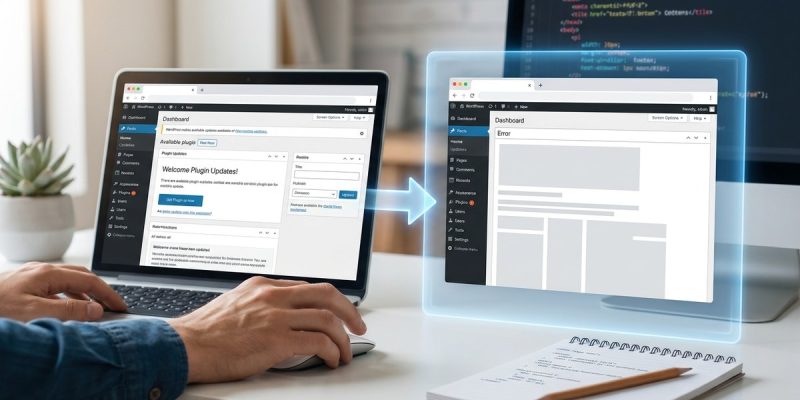
You clicked the update button, the progress bar filled up, and then your site went white. That moment when your online store, your blog, or your client’s portfolio disappears is a feeling no site owner should have to experience. Plugin updates are the leading cause of unexpected downtime, yet most people click “Update” on their live site without a second thought. A WordPress staging environment changes that entirely. It gives you a private, identical copy of your site where you can test every update, every new plugin, and every design change without any risk to your visitors. Think of it as a rehearsal space before the real performance.
A WordPress staging environment is a safe clone of your live site used exclusively for testing. Before you update plugins, themes, or core files, you run those changes on the staging copy first. If something breaks, your live site stays untouched. You fix the issue in staging, confirm it works, and only then push the changes live. This simple habit eliminates downtime, protects revenue, and saves hours of emergency troubleshooting.
What a WordPress Staging Environment Actually Is
A staging environment is an exact replica of your production website. It includes the same theme files, the same plugins, the same database content, and the same media library. The only difference is the URL and the fact that real visitors cannot access it.
When you create a staging site, you get a private sandbox. You can break things in there without anyone noticing. You can test a new version of WooCommerce, try a different caching plugin, or redesign your entire homepage. If something goes wrong, you simply fix it in staging. Your live site continues to serve customers, take orders, and rank in search results.
Most hosting providers now offer one-click staging tools. If yours does not, free plugins like WP Staging can create a copy on the same server. For more control, developers often use local environments like LocalWP or DesktopServer. The method matters less than the habit of always testing before deploying.
Why You Need a Staging Site Before Every Update
Routine plugin updates cause more site crashes than major redesigns. A developer releases a new version to patch a security hole, but that update conflicts with another plugin you have installed. Or the update changes a function your custom theme relies on. Without a staging environment, you discover these problems when your visitors do.
Consider an ecommerce store running a flash sale. The owner updates a payment gateway plugin to fix a small bug. The update works on the surface, but it quietly breaks the coupon validation script. Customers add items to their cart, apply a discount code, and see an error. They leave without buying. The owner does not realize anything is wrong until they check the abandoned cart report hours later. A staging environment would have caught that conflict in minutes.
Here are the specific scenarios where staging saves you:
- Plugin compatibility checks: A new plugin version might not work with your current theme or other plugins.
- Major WordPress core upgrades: Version jumps often introduce breaking changes to functions and hooks.
- Theme overhauls: Switching or updating a theme can alter layout, typography, and functionality.
- Custom code testing: Any PHP snippet, JavaScript addition, or CSS override needs a safe place to fail.
- Performance benchmarking: You can measure load times and Core Web Vitals before the change hits production.
How to Set Up a WordPress Staging Environment in 5 Steps
Setting up a staging environment is easier than most people expect. Here is a numbered process that works for beginners and experienced developers alike.
-
Check your hosting control panel first. Log into your hosting dashboard. Look for a section labeled “Staging,” “Dev Environment,” or “Clone Site.” Providers like SiteGround, Bluehost, WP Engine, and Kinsta include built-in staging tools. If you see one, click the button to create a staging copy. The process usually takes two to five minutes.
-
If your host does not offer staging, use a plugin. Install a free plugin like WP Staging or BlogVault. Open the plugin settings, choose which parts of the site to clone (files, database, or both), and start the process. The plugin creates a subdirectory on your server, for example,
yoursite.com/staging. -
Secure the staging site from search engines. After the clone is ready, go to Settings > Reading and check the box that says “Discourage search engines from indexing this site.” Alternatively, add a
noindexmeta tag to the staging site header. You do not want Google to index duplicate content. -
Test your critical paths. Open the staging URL and run through your most important user flows. Place a test order, submit a contact form, check the mobile menu, and verify that images load. Use a checklist so you do not forget any step.
-
Push changes only when you are confident. Most hosting staging tools have a “Push to Live” button. If you used a plugin, you may need to manually copy changed files or use the plugin’s deployment feature. Always take a full backup of your live site before pushing anything.
The Testing Checklist You Should Follow Every Time
Do not trust your memory. Use this bulleted checklist to confirm that your staging environment is working correctly before you push updates live.
- All pages load without PHP or JavaScript errors.
- Forms submit successfully and data reaches the database or email.
- Payment gateways process test transactions without errors.
- Images, videos, and PDFs display properly on desktop and mobile.
- Menu navigation works across all breakpoints.
- Caching plugins do not serve stale or broken assets.
- SEO metadata (titles, descriptions, canonical URLs) remains intact.
- User roles and permissions function as expected.
- Email notifications (order confirmations, password resets) send correctly.
- Search results on the site return relevant content without errors.
Common Mistakes and How to Avoid Them
Even experienced site owners make errors when working with staging environments. The table below outlines the most frequent problems and the correct approach.
| Common Mistake | Why It Hurts | The Right Approach |
|---|---|---|
| Pushing the staging database to production | Overwrites recent orders, user registrations, or comments with older data | Only push files unless you are certain no new data exists on live |
| Testing only the homepage | Misses broken internal pages, checkout flows, or admin screens | Test every template type: single post, archive, search results, 404 page |
| Forgetting to block search engines | Google indexes duplicate content, causing ranking penalties | Add a noindex tag or password-protect the staging site |
| Keeping staging on the same server for months | Consumes disk space and may slow database performance | Delete the staging environment after you finish testing |
| Updating multiple plugins at once | Makes it impossible to identify which update caused a conflict | Update one plugin at a time and test after each change |
Expert advice: Never push your staging database to a live site that accepts orders or user registrations. The database on your live site is always more current. Instead, push only the files (themes, plugins, uploads) and run any necessary database updates manually on the live site after a full backup.
When a Staging Environment Might Feel Like Overkill
Not every site needs a full staging workflow for every single update. If you run a small personal blog with no ecommerce, no contact forms, and no custom functionality, you can often update plugins directly on the live site. The risk is lower because the cost of downtime is minimal.
But the moment your site handles payments, stores user data, or generates leads for your business, staging becomes non-negotiable. A single broken update can cost more in lost revenue than a year of managed WordPress hosting with built-in staging.
Why Your Future Self Will Thank You for Using Staging
The real value of a staging environment is not technical. It is emotional. When you know you have a safe place to test changes, you stop dreading update notifications. You stop putting off critical security patches because you are afraid they will break something. You become confident in your ability to maintain your site without emergencies.
That confidence translates into a better website. You update more often, which means better security and performance. You try new plugins that improve user experience. You redesign pages without the fear of losing your hard work.
A WordPress staging environment is not a luxury for large agencies. It is a standard tool that every site owner should use. If you have not set one up yet, start today. Check your hosting control panel, install a staging plugin, or set up a local environment. Run your next plugin update there first. Your live site and your visitors will never know the difference.