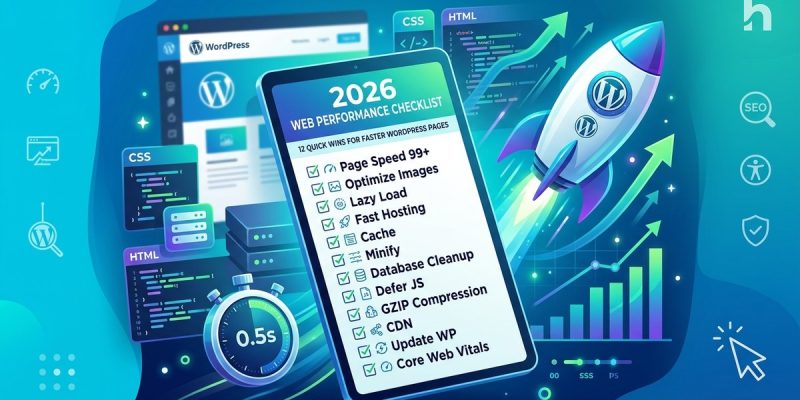
Your WordPress site feels heavy. Pages take a few seconds too long, and you know visitors are clicking away before the content even loads. The good news is that most performance problems have straightforward solutions. You do not need to be a server admin or a PHP expert to make a real difference. This WordPress speed optimization checklist for 2026 covers twelve high-impact changes you can apply today. Each fix is specific, testable, and designed for people who want results without spending hours on research.
Speed optimization does not require a complete rebuild. Twelve targeted fixes can cut load times by half or more. Focus on images, caching, fonts, plugins, and hosting. Measure before and after each change using Google’s tools. Small, consistent improvements add up to a site that feels instant for every visitor.
Start With a Performance Baseline
Before changing anything, run a speed test. Use Google PageSpeed Insights or GTmetrix. Record your scores for mobile and desktop. Note the Largest Contentful Paint (LCP) and the total page weight in kilobytes. This baseline tells you which fixes matter most. Without it, you are guessing.
If you want a deeper look at the metrics that matter, read our guide on understanding Core Web Vitals. It explains exactly what those numbers mean for your visitors.
1. Compress and Convert Images
Images are the heaviest assets on most WordPress sites. A single unoptimized photo can be several megabytes. That is enough to ruin your load time all by itself.
Here is your image workflow:
- Resize images to the maximum display width they will ever need. If your content area is 1200 pixels wide, do not upload a 5000 pixel image.
- Convert images to WebP format. WebP files are 25 to 35 percent smaller than JPEG or PNG with the same quality.
- Use a plugin like WebP Express or ShortPixel to automate the conversion.
- Add descriptive alt text for every image. That helps accessibility and SEO at the same time.
For a complete walkthrough, check out our guide on how to optimize images for web without losing quality.
| Image Format | Typical Size (1 MB original) | Quality |
|---|---|---|
| JPEG | 800 KB | Good |
| PNG | 1 MB | Excellent |
| WebP | 250 KB | Excellent |
| AVIF | 180 KB | Excellent |
2. Enable Browser and Server Caching
Caching stores copies of your pages so returning visitors do not download everything from scratch. Browser caching tells a visitor’s device to keep static files like CSS, JavaScript, and images for a set period. Server caching stores full HTML pages so the database does not need to process the same request twice.
Install a caching plugin like WP Rocket, W3 Total Cache, or Flying Press. Configure the browser cache expiration to at least one week for static assets. Enable page caching for all public content. Test your site after activation to make sure nothing breaks.
If you are new to caching, our guide on how to set up a WordPress caching plugin in under 10 minutes walks through the entire process.
3. Use a Content Delivery Network
A CDN serves your files from servers located near your visitors. If your hosting is in Dallas and someone visits from London, a CDN delivers your images and CSS from a server in the UK. That cuts round-trip time dramatically.
Cloudflare offers a free plan that works well for most WordPress sites. Set up takes about fifteen minutes. Point your DNS to Cloudflare, enable the CDN, and let it cache your static files. You will see an immediate drop in Time to First Byte (TTFB) for international visitors.
Not sure if a CDN is right for you? Read should you use a CDN? complete guide for small WordPress sites.
4. Minify CSS, JavaScript, and HTML
Minification removes spaces, comments, and unnecessary characters from code. The file still works exactly the same, but it is smaller. Smaller files download faster.
Most caching plugins include a minification feature. You can also use Autoptimize or WP Rocket. Enable minification for CSS and JavaScript. Leave HTML minification on unless you notice layout issues.
5. Defer JavaScript Loading
JavaScript files often block the rest of the page from loading. When the browser encounters a script tag, it stops rendering until that script finishes. This is called render-blocking.
Fix it by deferring non-critical JavaScript. Add a defer or async attribute to scripts that are not needed immediately. For example, analytics trackers, social share buttons, and font icons can all load after the main content appears.
If you want to understand exactly how to identify and remove render-blocking resources, our guide on how to eliminate render-blocking resources and boost your page speed score covers the technical details.
6. Limit Font Files
Custom fonts are one of the biggest hidden speed killers. Each font weight and style is a separate file that must download before the browser can render text. If you load four weights of a font, that is four HTTP requests.
Stick to two font families maximum. Use system fonts for body text when possible. If you need a custom font, self-host it instead of loading from Google Fonts. Self-hosting removes the extra DNS lookup and keeps the font on your own CDN.
7. Remove Unused Plugins
Every active plugin adds code to your site. Even if the plugin is not doing much, its scripts and stylesheets may load on every page. Over time, plugins accumulate. You install one for a project, forget about it, and it stays active for years.
Audit your plugin list. Deactivate anything you do not use. Delete plugins you no longer need. If a plugin has not been updated in the last six months, consider replacing it.
For a structured approach, read how to audit your WordPress plugins and remove the ones slowing you down.
8. Optimize Your Database
WordPress stores post revisions, transients, spam comments, and expired data in your database. Over time, this bloat slows down queries. A clean database responds faster.
Use a plugin like WP-Optimize or Advanced Database Cleaner. Run a cleanup that removes:
- Post revisions (keep the last 5, delete the rest)
- Spam and trashed comments
- Transient options
- Expired cache data
Schedule this cleanup to run weekly.
Learn more about the process in our guide on how to reduce wordpress database bloat and speed up your site.
9. Choose a Lightweight Theme
Not all themes are created equal. Some premium themes pack dozens of page builder modules, slider scripts, and icon libraries that load on every page. A theme like GeneratePress, Astra, or Kadence loads under 50 kilobytes and has no bloat.
If you already have a theme you like, check its page weight. Use the browser inspector to see how many CSS and JavaScript files it loads. If the number exceeds ten, consider switching.
See our comparison of which wordpress theme framework is right for your project: genesis, astra, or generatepress to help decide.
10. Enable Lazy Loading
Lazy loading means images and videos only load when the visitor scrolls near them. The top of the page loads fast because the browser does not download images that are further down.
WordPress added native lazy loading in version 5.5. If you are on a newer version, it is already enabled for images added through the block editor. For older images or custom elements, use a plugin like Lazy Load for Images.
Our article on lazy loading explained: when to use it and when to avoid it covers the edge cases where lazy loading can backfire.
11. Upgrade Your Hosting
Sometimes the bottleneck is not the code. It is the server. Shared hosting plans often cram hundreds of sites onto one machine. If your neighbor gets a traffic spike, your site slows down.
Managed WordPress hosting from providers like WP Engine, Kinsta, or Cloudways gives you dedicated resources and server-level caching. The cost is higher, but the performance gain is immediate.
If you are unsure what to look for, our guide on how to choose the right web hosting plan for your wordpress site breaks down the options.
12. Preload Critical Resources
Preloading tells the browser to fetch important files early. Use rel="preload" for your hero image, above-the-fold CSS, and primary font. Use rel="preconnect" for third-party domains you rely on, like your CDN.
Add these hints to your header section. Most caching plugins have a preload setting. You can also add them manually to your theme’s header.php file.
“Preloading is like giving the browser a shopping list before it enters the store. It saves trips and speeds up the entire checkout process.”
Common Mistakes That Undo Your Progress
Even with the best intentions, some common errors can sabotage your speed efforts. Watch out for these:
- Installing multiple caching plugins. They conflict and break your site.
- Using a page builder that injects inline styles everywhere. This bloats the HTML.
- Ignoring mobile performance. Google uses mobile-first indexing, and most of your traffic comes from phones.
- Forgetting to test after each change. A single misconfiguration can slow things down.
Your 2026 Performance Workflow
Here is a simple process you can follow every month:
- Run a speed test and save the report.
- Pick two fixes from the checklist above.
- Apply the first fix and test again.
- Apply the second fix and test again.
- Compare the new report to the baseline.
Repeat this cycle. Over three months, you will cover all twelve items. Your site will be measurably faster, and your visitors will notice.
If you want to track your progress with Google’s own tools, our guide on 7 free tools to test and improve your core web vitals score lists the best options.
Put the Checklist Into Action Today
Speed is not a one-time project. It is a habit. The twelve items in this WordPress speed optimization checklist for 2026 are designed to be repeatable. You can run through them in an afternoon, or spread them across a week. Each fix builds on the last.
Start with images and caching. Those two alone will cut your load time by more than half. Then work through the rest. Your visitors will get faster pages, your SEO will improve, and you will sleep better knowing your site is running lean. That is a win you can feel.