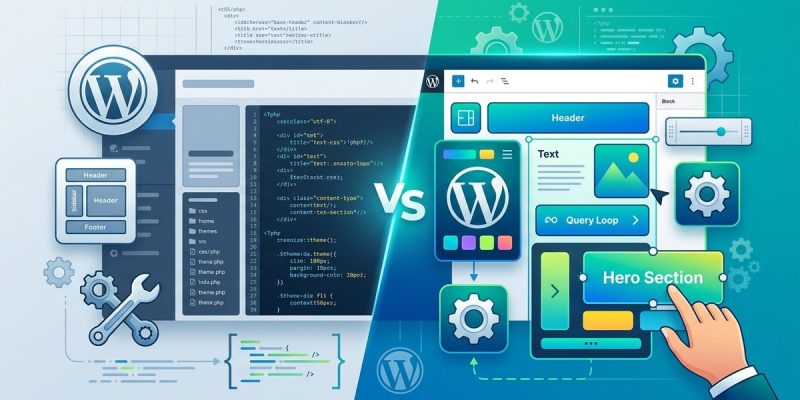
WordPress has long been a favorite platform for website owners and developers. Its flexibility and vast ecosystem make it easy to create anything from simple blogs to complex e-commerce sites. Recently, a new way of building themes has gained popularity. This approach centers around the concept of block themes. If you’re considering moving from traditional themes to this modern style, understanding what a block theme in WordPress truly is can help you decide if it’s right for your site.
A block theme in WordPress uses the block editor’s [full site editing](https://en.wikipedia.org/wiki/Full_site_editing) capabilities to design and manage your site’s layout. It offers more flexibility and control compared to classic themes, making it ideal for those wanting a more visual, customizable building experience without coding. Switching depends on your goals and comfort with WordPress’s latest tools.
What makes a block theme different from traditional themes?
Understanding the core differences between block themes and classic themes is essential. Classic themes typically rely on PHP templates, widgets, and the Customizer for customization. They often involve editing code or using page builders for layout changes. In contrast, block themes are built around the WordPress block editor, allowing you to customize every part of your site using visual blocks.
How block themes work
A block theme transforms the entire website into a collection of blocks. Instead of editing PHP files directly, you use the site editor to modify headers, footers, sidebars, and page content visually. This method aligns with the idea of full site editing (FSE). As a result, you can create complex layouts and designs without touching a single line of code.
The shift to full site editing
Full site editing means you control every element of your website through the block editor interface. You can modify templates, define global styles, and even create reusable patterns. This contrasts with classic themes, which often limit customization to the theme options and CSS overrides.
Should you switch from a classic theme to a block theme?
Deciding whether to make the switch depends on your website’s needs and your familiarity with WordPress’s latest features. Here are some practical considerations:
Advantages of block themes
- Visual site building: You can see changes in real-time as you design.
- Global styles control: Style your entire site from a single interface.
- Reusable patterns: Save sections or layouts to use elsewhere.
- Future-proofing: WordPress is increasingly moving toward block-based editing.
Possible challenges
- Learning curve: It might take time to get used to the site editor.
- Compatibility issues: Not all plugins and themes support full site editing yet.
- Migration effort: Moving from a traditional theme can involve rebuilding parts of your site.
When to consider switching
- If you want more control over your site’s layout without coding.
- If you’re excited about leveraging the latest WordPress features.
- When your current theme is limiting your design options.
- If you are willing to invest time in learning the new system.
How to evaluate if a block theme fits your website
To determine if switching is right, follow this checklist:
- Assess your site’s complexity: Do you need custom layouts or just simple pages? Block themes excel at complex, highly customized sites.
- Check plugin compatibility: Ensure your essential plugins work with full site editing.
- Review your design goals: Do you want a unique look that’s easy to update visually?
- Test a demo: Try a beginner-friendly block theme in a staging environment to see how it aligns with your workflow.
- Backup your site: Always create a full backup before starting any major change.
Practical steps to transition from a classic to a block theme
If you decide to transition, here’s a step-by-step plan:
- Choose a compatible block theme: Browse the WordPress theme repository or third-party providers for themes built for full site editing.
- Create a staging site: Test the new theme in a staging environment to avoid disrupting your live site.
- Backup your current setup: Save your content, settings, and customizations.
- Activate the new theme: Switch the theme via your WordPress dashboard.
- Rebuild or customize templates: Use the site editor to set headers, footers, and page layouts.
- Test thoroughly: Check all pages, plugins, and features work smoothly.
- Refine styles: Adjust global styles and patterns to match your branding.
- Go live: Once satisfied, push the changes to your live site.
Common pitfalls and how to avoid them
| Technique | Mistake | How to avoid it |
|---|---|---|
| Not testing in staging | Site crashes or broken layouts | Always use a staging environment before switching themes |
| Ignoring plugin compatibility | Features break or don’t work | Check plugin support for full site editing before switching |
| Overlooking backups | Data loss or revert issues | Create a full backup before starting the transition |
| Not reviewing styles | Inconsistent visual appearance | Use the site editor’s global styles to maintain branding |
Experts recommend taking your time to familiarize yourself with the site editor. It’s a powerful tool, but it requires some learning. Start with small pages or sections before converting your entire site.
Key techniques for customizing block themes
Once you switch, customizing becomes intuitive. Here are some techniques to help you get started:
- Use patterns to quickly add pre-designed sections.
- Adjust global styles to set fonts, colors, and spacing.
- Create custom templates for different page types.
- Save reusable blocks for sections you want to reuse across pages.
- Leverage block variations to customize individual blocks without affecting others.
Common mistakes in block theme customization
| Mistake | Effect | Solution |
|---|---|---|
| Overusing inline styles | Hard to maintain | Use global styles and theme.json for consistency |
| Not updating templates | Inconsistent site layout | Regularly review and refine templates in the site editor |
| Ignoring plugin updates | Compatibility issues | Keep plugins updated and test after updates |
| Over-customizing with CSS | Slower site speed | Use theme styles and patterns instead of excessive CSS |
Making the most of your new block theme journey
Switching to a block theme in WordPress opens up a world of design flexibility. It empowers you to craft websites visually, reducing dependence on code or third-party builders. Start small, test thoroughly, and keep backups. As you become more comfortable, you’ll find it easier to create dynamic, visually appealing sites that adapt quickly to your needs.
Remember, the goal is to build a website that looks great and functions smoothly. Whether you’re a developer eager to leverage the latest tools or a site owner wanting more control, embracing block themes can be a rewarding step forward. Take your time, experiment, and enjoy the process of shaping your site with a fresh, modern approach.