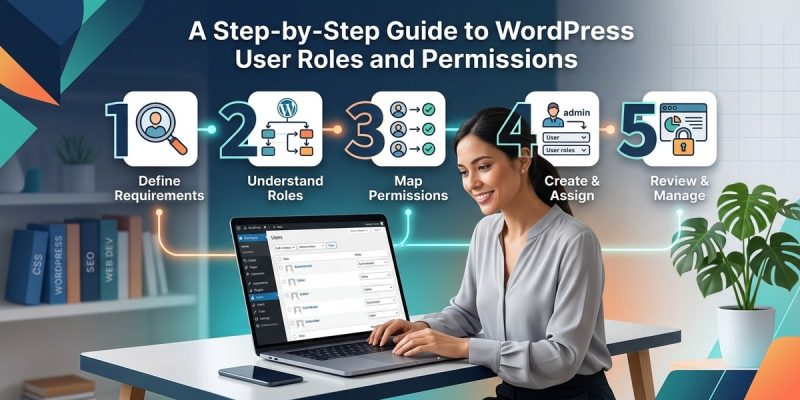
If you manage a WordPress site with more than one person, you have probably faced this moment. A new writer needs access, but you hesitate. Should you give them the same keys you have? What happens if they accidentally delete a page you spent hours on? That uncertainty is normal, but it is also avoidable. WordPress user roles and permissions exist to solve exactly this problem. They let you give people exactly the access they need, nothing more and nothing less. Once you understand how these roles work, you can stop guessing and start managing your site with confidence.
WordPress user roles and permissions let you control exactly what each person can do on your site. The five default roles are Subscriber, Contributor, Author, Editor, and Administrator. Each role has a specific set of capabilities. Assigning the correct role prevents security risks, reduces mistakes, and keeps your workflow smooth. Always give the least access necessary.
What Each Default Role Can Actually Do
WordPress ships with five user roles out of the box. If you run a multisite network, there is a sixth role called Super Admin, but for most site owners the five defaults are all you need. Let us walk through them from least powerful to most powerful.
Subscriber
This is the most restricted role. A subscriber can only manage their own profile. They can edit their name, change their password, and update their email address. That is it. They cannot write posts, see the admin dashboard, or view private content. Use this role for members of a membership site or for people who just need to leave comments.
Contributor
Contributors can write and submit their own posts, but they cannot publish them. An editor or administrator must review and publish the work. Contributors also cannot upload files or create pages. This role works well for guest bloggers or freelance writers who send you drafts.
Author
Authors can write, publish, and edit their own posts. They can also upload media to the Media Library. They cannot touch posts written by other users, and they cannot create pages. Authors are a great fit for regular blog writers on your team.
Editor
Editors have full control over content. They can create, edit, publish, and delete any post or page from any user. They can also moderate comments and manage categories. They cannot change site settings, install plugins, or manage users. Think of an editor as your content manager.
Administrator
Administrators have full access to everything. They can change settings, install themes and plugins, manage users, and delete content. This role should be reserved for the site owner or a trusted developer. Giving admin access to too many people is the fastest way to break your site.
Expert advice: Never assign the Administrator role to someone who only needs to write blog posts. It is the digital equivalent of giving a delivery driver the keys to your entire warehouse. Use the Author or Editor role instead. You can always upgrade someone later if their responsibilities grow.
Why You Should Stop Using the Admin Role for Everyone
It is tempting to give everyone the Administrator role because it is easy. You do not have to think about permissions. But that convenience comes with real risks.
- A well-meaning author can accidentally change your site title or delete a critical plugin.
- A former employee with admin access can cause serious damage after leaving.
- If an admin account gets hacked, the attacker gains full control of your site.
Using the correct role for each person protects your site from honest mistakes and malicious actions. It also makes it easier to track who did what. If a post goes missing, you know only editors and admins could have deleted it.
How to Add a New User With the Right Role
Adding a new user is simple once you know where to look. Here is the step by step process.
- Log in to your WordPress dashboard as an Administrator.
- Go to Users in the left sidebar menu.
- Click Add New at the top of the page.
- Fill in the username, email, first name, and last name fields.
- Under Password, generate a strong password or create your own.
- Under Role, select the appropriate role from the dropdown menu.
- Click the Add New User button at the bottom.
WordPress will send the new user an email with their login details. If you prefer, you can uncheck the box that sends the email and share the credentials manually.
How to Change a User’s Role After They Join
People change roles over time. A contributor might become a regular author. An editor might leave the team. Here is how to update their permissions.
- Go to Users and then All Users.
- Find the person you want to change and click their username.
- Scroll down to the Role dropdown menu.
- Select the new role.
- Click Update User at the bottom of the page.
That is all it takes. The change takes effect immediately. The user does not need to log out and back in.
Common Mistakes and How to Avoid Them
Even experienced site owners slip up sometimes. Here is a table of the most frequent mistakes and how to fix them.
| Mistake | What Happens | How to Fix It |
|---|---|---|
| Giving an author admin access | They can change settings and break the site | Change their role to Author immediately |
| Not removing old users | Former employees still have access | Delete or demote their account |
| Using the same account for multiple people | No accountability for who did what | Create individual accounts for each person |
| Forgetting to set a strong password | Account can be hacked easily | Use a password manager to generate complex passwords |
| Ignoring the default admin account | The “admin” username is a common target | Create a new admin account, then delete the old one |
When to Use Plugins for Advanced Permissions
The default roles cover most situations, but they are not perfect. Sometimes you need more control. For example, you might want an author to edit only posts in a specific category. Or you might want to block access to certain plugins. This is where user role management plugins come in.
Popular options include User Role Editor, Members, and Capability Manager Enhanced. These plugins let you create custom roles or tweak the permissions of existing ones. They are useful for larger teams, ecommerce sites, or membership platforms.
But here is the catch: plugins add complexity. Before installing one, ask yourself if the default roles really cannot do what you need. For a small team of three or four people, the built in roles are almost always sufficient. For a site with dozens of contributors and strict editorial workflows, a permission plugin is worth the extra setup time.
A Simple Checklist for Setting Up User Roles
Use this checklist the next time you add someone to your WordPress site.
- [ ] Identify what the person needs to do (write posts, edit pages, manage settings).
- [ ] Choose the least powerful role that covers those tasks.
- [ ] Create a strong, unique password for them.
- [ ] Send them their login details securely.
- [ ] Schedule a reminder to review their access in three months.
Your Next Step Toward a Safer Site
You now know how WordPress user roles and permissions work. You understand the difference between a Contributor and an Editor. You know how to add users and change their roles. You also know when to consider a plugin for advanced needs.
The real test comes when you apply this knowledge. Take five minutes today to log into your WordPress dashboard and review your current user list. Look for any accounts that have more access than they need. Make the changes. It is one of the simplest ways to improve your site’s security and keep your team working smoothly.
For more help getting your WordPress site set up the right way, check out our guide on 10 essential WordPress settings you should configure right after installation. And if you are still building your team, our article on how to choose the right WordPress plugin without breaking your site will help you avoid common pitfalls.