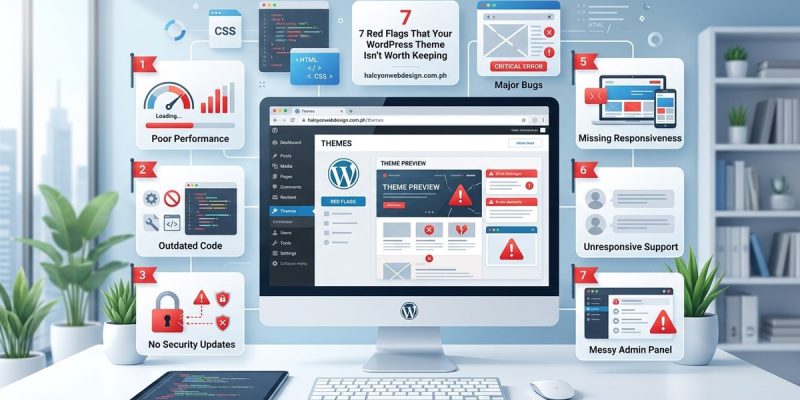
Your website loads slowly. Visitors leave before they see your content. Google Search Console shows errors you don’t understand.
Sometimes the problem isn’t your hosting or plugins. It’s your theme.
An outdated WordPress theme creates problems that multiply over time. Security vulnerabilities appear. Design elements break. Mobile visitors see a messy layout. Search engines penalize your rankings.
WordPress theme outdated signs include missing updates for over six months, broken mobile layouts, slow page speeds, security warnings, incompatibility with current WordPress versions, poor accessibility scores, and visual inconsistencies. Recognizing these warning signs helps you decide whether to update, replace, or rebuild your theme before problems damage your traffic and reputation.
Your theme hasn’t received updates in six months or longer
Theme developers release updates for good reasons. They patch security holes. They fix bugs. They ensure compatibility with the latest WordPress version.
Check your theme’s last update date in your WordPress dashboard.
Navigate to Appearance, then Themes. Click on your active theme. Look for the “Last Updated” field.
If that date shows six months ago or more, you’re using an outdated theme. If it shows over a year, you’re running a serious risk.
Abandoned themes don’t get security patches. Hackers know which themes have vulnerabilities. They scan websites looking for these exact weaknesses.
An unmaintained theme is like leaving your front door unlocked. You might get away with it for months, but eventually someone will notice.
Here’s what to check:
- Visit your WordPress dashboard
- Go to Appearance > Themes
- Click Theme Details on your active theme
- Note the “Last Updated” date
- Check the developer’s website for announcements
- Search for the theme name plus “discontinued” or “abandoned”
Developers sometimes announce when they stop supporting a theme. Other times they just stop updating without warning.
Mobile visitors see broken layouts and overlapping elements
Pull out your phone. Load your website. Actually look at it.
Do navigation menus overlap content? Does text run off the screen? Do images push other elements out of place?
These aren’t minor annoyances. They’re signs your theme uses outdated responsive design techniques.
Modern themes use CSS Grid and Flexbox. Older themes rely on float-based layouts and fixed pixel widths. These techniques break on newer devices with different screen sizes.
Test your site on multiple devices:
- Your phone in portrait mode
- Your phone in landscape mode
- A tablet
- A laptop
- A large desktop monitor
Problems appear at different breakpoints. A site that works on an iPhone might break on an Android tablet.
You can also use browser developer tools. Chrome and Firefox let you simulate different device sizes without owning every device.
If you notice layout problems, check whether your theme supports modern CSS techniques like those covered in guides about using grid versus flexbox for your website layout.
Page speed tests show your theme loads excessive resources
Run your site through PageSpeed Insights or GTmetrix.
Look at the waterfall chart. This shows every file your page loads.
Count how many CSS files appear. Count the JavaScript files. Check the total size of these resources.
An outdated theme often loads:
- Multiple unnecessary CSS files
- Outdated JavaScript libraries
- Unoptimized icon fonts
- Inline styles that should be cached
- Render-blocking resources
Modern themes load one minified CSS file. They combine scripts. They defer non-critical resources.
Old themes load everything at once, even resources the page doesn’t use.
| Modern Theme Behavior | Outdated Theme Behavior |
|---|---|
| Loads 1-2 CSS files | Loads 5+ CSS files |
| Minifies and combines scripts | Loads separate unminified files |
| Defers non-critical JavaScript | Blocks rendering with heavy scripts |
| Uses modern image formats | Relies on old image formats only |
| Implements lazy loading | Loads all images immediately |
If your theme loads more than three CSS files or five JavaScript files, it’s probably outdated.
You might find that your WordPress theme is actually slowing down your site without you realizing it.
Security scanners flag vulnerabilities in your theme files
Install a security plugin like Wordfence or Sucuri.
Run a scan.
If the scan reports vulnerabilities in your theme files, you’re using outdated code with known security holes.
Common theme vulnerabilities include:
- Cross-site scripting (XSS) flaws
- SQL injection points
- Insecure file upload handlers
- Missing input sanitization
- Outdated third-party libraries
Hackers maintain databases of these vulnerabilities. Automated bots scan millions of websites looking for sites running vulnerable themes.
When they find one, they exploit it.
The fix isn’t always simple. Sometimes developers release patches. Other times they abandon the theme entirely.
Check your theme against the WordPress vulnerability database. Search for your theme name plus “vulnerability” or “security issue.”
If results appear, read them carefully. Note whether a fix exists and whether your theme version includes that fix.
Security matters more than aesthetics. A beautiful theme with security holes will cost you more than an ugly theme that’s secure.
For broader security practices, review guides on keeping WordPress updated for security.
Your theme conflicts with the latest WordPress version
WordPress releases major updates twice a year. Each update changes core functions and introduces new features.
Themes built for WordPress 5.0 might break on WordPress 6.5.
Common compatibility issues include:
- The customizer won’t save changes
- Widgets disappear or stop working
- Menu locations don’t display correctly
- Featured images don’t appear
- Custom post types break
After you update WordPress, check your site thoroughly.
Test every page type. Check your homepage, blog archive, single posts, pages, and any custom templates.
Open the browser console (F12 in most browsers). Look for JavaScript errors. These often indicate compatibility problems.
If errors appear after a WordPress update, and they reference your theme files, your theme is outdated.
You might need to look into why your WordPress theme keeps breaking after updates.
Accessibility audits reveal multiple compliance failures
Run your site through WAVE or axe DevTools.
These free tools scan for accessibility problems. They check color contrast, heading structure, form labels, and keyboard navigation.
Outdated themes often fail basic accessibility requirements:
- Insufficient color contrast between text and backgrounds
- Missing skip navigation links
- Improper heading hierarchy
- Forms without labels
- Images without alt text
- Interactive elements unreachable by keyboard
Modern themes build accessibility in from the start. They follow WCAG 2.1 guidelines. They work with screen readers. They support keyboard navigation.
Old themes treat accessibility as optional. They assume all visitors use a mouse and can see perfectly.
This isn’t just about compliance. It’s about excluding real people from using your site.
Check these specific elements:
- Can you navigate your entire site using only the Tab key?
- Do focus indicators clearly show which element is active?
- Does your color contrast meet minimum ratios?
- Are all interactive elements labeled properly?
If you answer no to any of these, your theme needs updating or replacing.
Learn more about making your site usable without a mouse.
Typography looks inconsistent across different browsers
Open your site in Chrome. Then Firefox. Then Safari if you have access.
Compare how text renders in each browser.
Do font sizes change? Do line heights shift? Does text alignment break?
Outdated themes use old font-loading techniques. They rely on system fonts that vary between operating systems. They use deprecated CSS properties.
Modern themes use web fonts with proper fallbacks. They define font stacks that work across all browsers. They use relative units instead of fixed pixels.
Check for these specific problems:
- Text that’s readable in Chrome but tiny in Firefox
- Fonts that flash or jump when pages load
- Inconsistent spacing between paragraphs
- Line heights that change between browsers
- Font weights that don’t match your design
If you see any of these issues, your theme uses outdated typography methods.
Typography affects readability more than any other design element. Visitors leave sites with hard-to-read text.
For better typography practices, see guides on typography mistakes that make your website look unprofessional.
The theme customizer offers limited or broken options
Open your theme customizer (Appearance > Customize).
Try changing colors. Adjust typography. Modify layout options.
Do changes appear in the preview? Do they save when you click Publish?
Outdated themes often have customizers that:
- Don’t show live previews
- Fail to save changes
- Offer only basic color options
- Lack mobile-specific controls
- Don’t integrate with WordPress blocks
Modern themes embrace the block editor. They work seamlessly with Full Site Editing. They provide granular control over every design element.
Old themes fight against WordPress’s evolution. They stick with outdated customization methods.
Test your customizer thoroughly:
- Change your site title and tagline
- Modify header and footer layouts
- Adjust color schemes
- Change typography settings
- Update widget areas
- Modify navigation menus
If any of these fail or produce unexpected results, your theme is outdated.
Sometimes your WordPress theme customizer won’t save changes because of deeper compatibility issues.
How to evaluate whether your theme deserves another chance
You’ve identified the warning signs. Your theme shows age. Now what?
Not every outdated theme needs immediate replacement. Some can be updated or fixed.
Ask yourself these questions:
Is the developer still active? Check their website. Look for recent blog posts, support forum activity, or new theme releases. Active developers might release updates soon.
Does a newer version exist? Sometimes you’re just running an old version. Check for available updates in your WordPress dashboard.
Can you hire someone to fix it? If you love the design but it has technical problems, a developer might update the code. This costs money but preserves your investment.
Would switching themes break your site? Some themes create dependencies. Custom post types, shortcodes, and special features might disappear if you switch. Evaluate the migration cost.
Is this affecting your business? Slow speeds lose sales. Security breaches destroy trust. Broken mobile layouts cost conversions. Calculate the real business impact.
Create a simple decision matrix:
- List all the problems you’ve identified
- Rate each problem’s severity (low, medium, high)
- Estimate the cost to fix versus replace
- Consider the time investment required
- Factor in the risk of doing nothing
If high-severity problems outnumber fixable issues, replacement makes sense.
If most problems are cosmetic and the theme receives regular updates, fixing might work.
Before making major theme changes, learn how to safely switch WordPress themes without losing your content or SEO rankings.
Finding a replacement theme that won’t repeat these mistakes
You’ve decided to replace your outdated theme. Smart choice.
Now don’t make the same mistake twice.
Look for these qualities in a new theme:
Regular update schedule. Check the theme’s changelog. Updates should appear at least every few months. Frequent updates indicate active maintenance.
Large user base. Popular themes get more testing and faster bug fixes. Check active installations and user ratings.
Responsive design documentation. The theme should explicitly state it’s mobile-responsive and show examples across different devices.
Performance optimization. Look for mentions of lazy loading, minified assets, and optimized code. Check demo sites with speed testing tools.
Accessibility commitment. The theme should mention WCAG compliance and accessibility features in its documentation.
WordPress compatibility. Verify the theme works with the current WordPress version. Check whether it supports Full Site Editing if that matters to you.
Quality support. Read support forum threads. See how quickly developers respond and how helpful their answers are.
Test before you commit:
- Install the theme on a staging site
- Import your content
- Test all page types
- Check mobile layouts
- Run speed tests
- Scan for accessibility issues
- Verify all features work
Many developers offer money-back guarantees. Use this period to thoroughly test the theme.
If you need help choosing, review guides on how to choose the perfect WordPress theme without getting overwhelmed.
What happens if you ignore these warning signs
Ignoring outdated theme problems doesn’t make them disappear. It makes them worse.
Here’s what actually happens:
Security breaches escalate. Hackers don’t wait. Known vulnerabilities get exploited. Your site gets hacked. Customer data gets stolen. Your reputation suffers permanent damage.
Search rankings drop. Google penalizes slow sites. Mobile usability problems hurt rankings. Poor user experience signals tell search engines your site isn’t valuable.
Conversion rates decline. Broken layouts frustrate visitors. Slow speeds cause abandonment. Accessibility problems exclude potential customers. You lose money every day.
Technical debt compounds. Small problems become big problems. Quick fixes create new issues. Eventually, you’ll need a complete rebuild instead of a simple theme update.
Competitor advantage grows. While you ignore problems, competitors improve their sites. They load faster. They rank higher. They convert better. The gap widens.
One website owner ignored theme warnings for 18 months. Their site got hacked three times. They lost 60% of their organic traffic. Recovery took eight months and cost thousands in developer fees.
Another site owner noticed slow speeds but delayed action. Their bounce rate climbed from 40% to 75%. Sales dropped 30%. They finally switched themes and recovered within two months.
The cost of waiting always exceeds the cost of acting.
Your theme tells visitors what to expect
Your WordPress theme isn’t just code and design files. It’s a promise to every visitor.
An outdated theme promises slow loads, broken features, and poor experiences. It tells visitors you don’t care about their time or needs.
A modern, well-maintained theme promises the opposite. It shows you invest in quality. It proves you value user experience.
Check your theme today. Look for the warning signs covered here. Test your mobile layout. Run a security scan. Check your last update date.
If you find problems, you know what to do. Fix what you can. Replace what you can’t. Your visitors will notice the difference, even if they never mention it.