You click the update button expecting improvements. Instead, your website goes blank, displays error messages, or looks completely wrong. This happens to thousands of WordPress site owners every week, and it’s not your fault.
WordPress updates can break your site due to conflicts between themes, plugins, and core files. Most breaks happen because outdated code clashes with newer versions. You can fix most issues by identifying the problem source, using recovery mode, switching themes temporarily, or restoring from backups. Prevention requires staging environments, selective updates, and regular testing before going live.
Why WordPress updates cause websites to break
WordPress runs on three main components: core files, themes, and plugins. Each update changes how these pieces communicate with each other.
Your theme might use a function that worked perfectly in WordPress 5.8 but got removed in 6.0. A plugin could rely on code that your theme no longer supports after its latest version. These conflicts create errors that stop your site from working properly.
Here’s what typically goes wrong:
- Deprecated functions: Older code that WordPress no longer recognizes
- PHP version mismatches: Your hosting runs PHP 8.0, but your theme needs 7.4
- Plugin conflicts: Two plugins try to modify the same feature differently
- Theme framework changes: Page builders update their structure, breaking custom layouts
- Database incompatibilities: New versions expect different data formats
The timing matters too. If you update WordPress core first, then your theme weeks later, you create a gap where compatibility issues hide. They only surface after the second update.
Signs your WordPress site broke after an update
Different breaks show different symptoms. Recognizing them helps you fix the right problem.
White screen of death: Your entire site displays a blank white page with no error message. This usually means a fatal PHP error crashed the site before it could load anything.
Maintenance mode stuck: WordPress shows “Briefly unavailable for scheduled maintenance” forever. The update started but never finished properly.
Missing layout or styling: Your content appears, but everything looks plain or stacked vertically. CSS files failed to load, or your theme lost connection to its stylesheet.
Specific features broken: Contact forms stop working, sliders disappear, or custom post types vanish. A plugin conflict or theme function failure caused this.
Error messages visible: You see text like “Fatal error in line 247” or “Call to undefined function.” These messages tell you exactly where the code broke.
Backend inaccessible: You can’t log into your WordPress admin dashboard. The login page either won’t load or shows errors after you enter credentials.
Knowing which symptom you’re facing tells you where to start troubleshooting.
How to diagnose what broke your site
Before fixing anything, you need to identify the culprit. Here’s your systematic approach.
Check your error logs
Most hosting providers give you access to error logs through cPanel or their custom dashboard. Look for the most recent entries, especially ones timestamped right after your update.
Error logs show PHP errors, warnings, and notices. Focus on “Fatal error” and “Parse error” entries first. They’ll include file paths pointing to the problematic theme or plugin.
If you can’t find error logs in your hosting panel, create a simple file to display errors:
- Connect to your site via FTP or file manager
- Find the wp-config.php file in your root directory
- Add these lines just before “That’s all, stop editing”:
define(‘WP_DEBUG’, true);
define(‘WP_DEBUG_LOG’, true);
define(‘WP_DEBUG_DISPLAY’, false);
This creates a debug.log file inside wp-content that captures all errors.
Use WordPress recovery mode
If you received an email about a fatal error, WordPress sent you a recovery mode link. This special access lets you log in even when your site is broken.
Click the link in the email. You’ll see your dashboard with a notice explaining which plugin or theme caused the problem. From here, you can deactivate the troublesome component without needing FTP access.
Recovery mode expires after 24 hours for security. If the link expired, you can generate a new one through wp-cli or by asking your hosting support.
Test by elimination
If recovery mode didn’t trigger or you’re unsure what broke, manually test each component.
Access your site files through FTP or your hosting file manager. Navigate to wp-content/themes and rename your active theme folder to something like “themename-old.” WordPress will automatically switch to a default theme like Twenty Twenty-Three.
Refresh your site. If it works now, your theme caused the break. If problems persist, the issue lies elsewhere.
For plugins, rename the wp-content/plugins folder to “plugins-old.” This deactivates every plugin at once. Site working? A plugin conflict exists. Rename the folder back to “plugins,” then rename individual plugin folders one by one until you find the problem.
Step by step fixes for broken WordPress sites
Now that you’ve identified the source, here’s how to restore your site.
Fix 1: Remove the maintenance mode file
If your site is stuck showing the maintenance message, WordPress left behind a temporary file.
- Connect to your site via FTP or file manager
- Look in your root directory (same level as wp-config.php)
- Find a file named .maintenance
- Delete it
- Refresh your site
The .maintenance file is hidden by default. Make sure your FTP client or file manager shows hidden files.
Fix 2: Switch to a default theme
When your theme breaks everything, switching to a WordPress default theme gets your site functional again.
Via FTP or file manager:
- Go to wp-content/themes
- Make sure a default theme exists (twentytwentythree, twentytwentytwo, etc.)
- Open wp-content/themes and note your current theme’s folder name
- Access your database through phpMyAdmin
- Find the wp_options table (prefix might differ)
- Search for “template” and “stylesheet” option names
- Change both values to your default theme’s folder name
- Save changes and check your site
This method works even when you can’t access the dashboard. Your content remains intact, but your design temporarily changes.
Fix 3: Deactivate problematic plugins
For plugin conflicts, deactivation through the database works when the dashboard is inaccessible.
- Open phpMyAdmin from your hosting control panel
- Select your WordPress database
- Find the wp_options table
- Search for the option_name “active_plugins”
- Click “Edit” on that row
- Change the option_value to: a:0:{}
- Save the change
This deactivates all plugins at once. Access your dashboard, then reactivate plugins one at a time to identify the problematic one.
If you know which specific plugin caused the issue, just rename that plugin’s folder in wp-content/plugins instead.
Fix 4: Restore from a backup
Backups solve most problems instantly. If you have a recent backup from before the update, restoring it brings everything back to working condition.
Most hosting providers offer automatic backups. Check your control panel for backup tools or contact support to restore a specific date.
For manual backups or backup plugins:
- Access your backup files (download them if stored remotely)
- Delete current site files via FTP (except wp-config.php)
- Upload backup files to replace them
- Import the backup database through phpMyAdmin
- Update wp-config.php if database credentials changed
Only restore backups if you’re certain they’re from before the break occurred. A corrupted backup makes things worse.
Fix 5: Downgrade the update
Sometimes the newest version simply doesn’t work with your setup yet. Downgrading buys you time until compatibility improves.
For WordPress core downgrades:
- Download your desired WordPress version from the WordPress release archive
- Extract the files on your computer
- Delete these folders from your site via FTP: wp-includes and wp-admin
- Upload the wp-includes and wp-admin folders from your downloaded version
- Replace root-level files except wp-config.php and .htaccess
For themes and plugins, you need the previous version files. Premium themes usually provide version archives in your account area. Free plugins show previous versions on their WordPress.org plugin pages under the “Advanced View” developers section.
Never downgrade as a permanent solution. Older versions have security vulnerabilities. Use downgrades only while you troubleshoot the real issue or wait for compatibility updates.
Common mistakes that make breaks worse
Avoid these errors when your WordPress site breaks after update.
| Mistake | Why it’s harmful | Better approach |
|---|---|---|
| Updating everything at once | Can’t identify which update caused the break | Update one component at a time with testing between each |
| Skipping backups before updates | No safety net if something breaks | Always backup database and files before any update |
| Editing core WordPress files | Updates overwrite your changes and create conflicts | Use child themes and custom plugins for modifications |
| Ignoring PHP version requirements | Causes fatal errors and compatibility issues | Check requirements before updating, upgrade PHP if needed |
| Using nulled or pirated themes/plugins | Contains malware and lacks update support | Invest in legitimate licenses or use free alternatives |
| Panic-deleting files randomly | Removes essential components, breaks site further | Follow systematic troubleshooting steps instead |
The biggest mistake is updating on your live site without testing first. What works on one server configuration might fail on another.
Preventing future update breaks
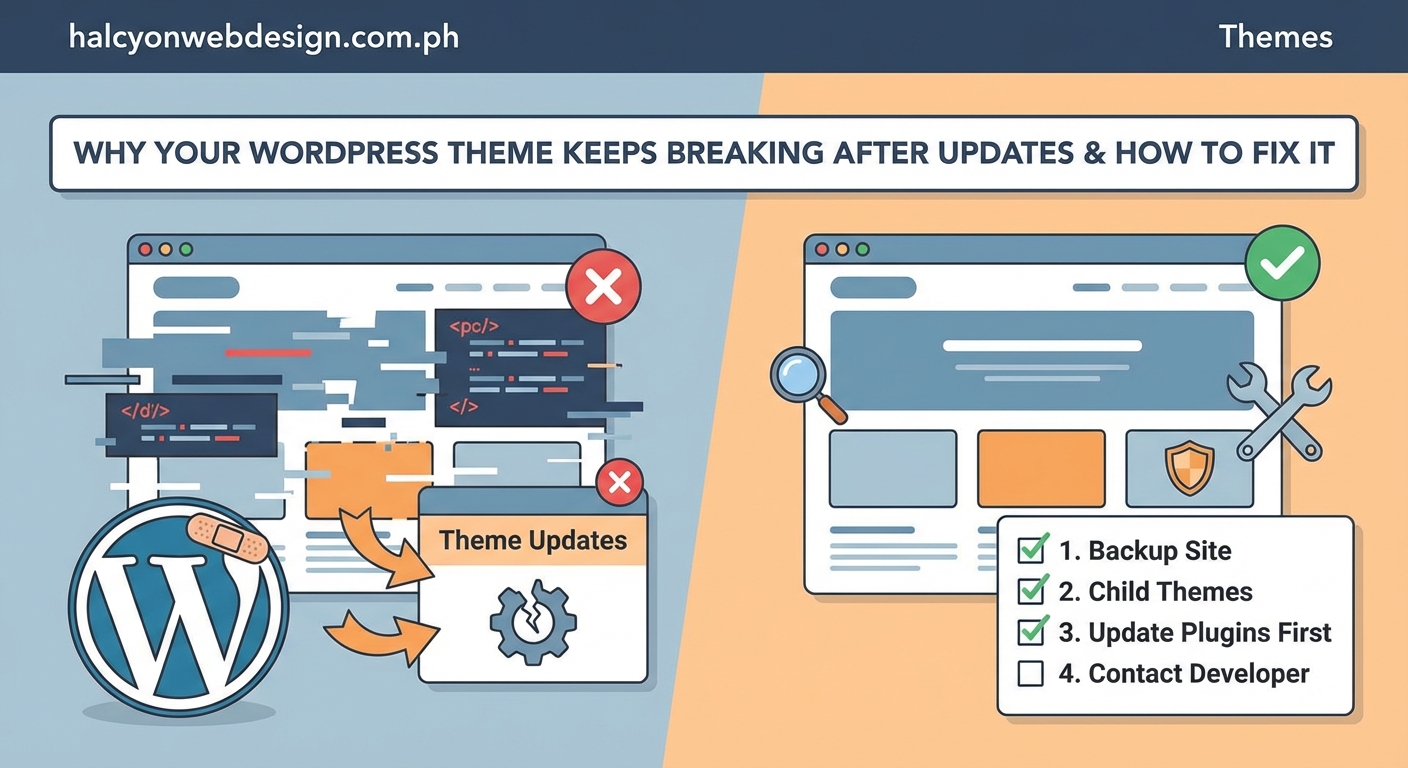
Protection beats recovery every time. These practices keep your site stable through updates.
Set up a staging environment: A staging site is a copy of your live site where you test updates safely. Many hosts like WP Engine and SiteGround include staging tools. If yours doesn’t, plugins like WP Staging create testing environments. Choosing the right WordPress hosting plan often includes these features.
Update in the right order: Always follow this sequence to minimize conflicts:
- Backup your entire site first
- Update WordPress core
- Update your theme
- Update plugins one by one
- Test after each update
Check compatibility before updating: Read update changelogs and reviews. Theme and plugin developers usually announce breaking changes in advance. If you see warnings about PHP version requirements or major rewrites, prepare accordingly.
Keep your PHP version current: Outdated PHP causes more breaks than updates themselves. Most WordPress sites should run PHP 8.0 or newer. Check your hosting panel for PHP version settings and update if you’re running 7.4 or older.
Use quality themes and plugins: Well-coded products from reputable developers handle updates better. Choosing the right WordPress plugin means checking update frequency, support quality, and compatibility notices.
Enable automatic backups: Schedule daily database backups and weekly file backups. Services like UpdraftPlus, BackupBuddy, or your hosting’s backup system automate this completely.
Monitor your site after updates: Don’t just update and walk away. Check critical pages, test forms, verify your checkout process if you run a store. Many breaks only appear on specific pages or features.
Document your customizations: Keep notes about custom code, modified files, and special configurations. This helps you troubleshoot faster and prevents forgotten customizations from causing mysterious errors.
What to do when nothing works
Sometimes standard fixes don’t solve the problem. Here’s your backup plan.
Contact your hosting support team first. They can access server logs, check for server-level issues, and restore backups from their end. Many hosts offer free emergency support for broken sites.
If you’re using a premium theme or plugin that broke, contact their support team. They’ve likely seen your exact error before and can provide specific fixes or patches.
Consider hiring a WordPress developer for complex breaks. A professional can diagnose issues faster and prevent data loss. This costs money but saves time and stress, especially for business sites losing revenue.
For sites completely destroyed beyond recovery, starting fresh might be faster than fixing. If you have your content backed up, installing WordPress clean and reimporting content takes less time than hunting through corrupted databases.
“The best time to prepare for a broken site is before it breaks. Regular backups and staging environments aren’t optional for professional websites. They’re as essential as the content itself.” – WordPress Site Reliability Engineer
Security considerations after fixing breaks
A broken site creates security vulnerabilities. After restoring functionality, secure your site immediately.
Change all passwords: admin accounts, FTP credentials, database passwords, and hosting panel access. Breaks sometimes happen because of compromised credentials, not just updates.
Scan for malware. Free tools like Wordfence or Sucuri SiteCheck detect infections. Some breaks occur because malware disguised as a legitimate update infected your site.
Review user accounts. Check your WordPress users list for unfamiliar administrator accounts. Delete any you don’t recognize.
Update everything to current versions once you’ve solved the compatibility issue. Running outdated software leaves security holes open. Securing your WordPress login page adds another protection layer.
Check file permissions. Incorrect permissions (like 777) let anyone modify your files. Directories should be 755, files should be 644, and wp-config.php should be 440 or 400.
Enable two-factor authentication on your admin account. Even if someone gets your password, they can’t access your dashboard without the second authentication factor.
Performance checks after recovery
Sites that break and get fixed sometimes develop performance issues. Run these checks to ensure everything works optimally.
Test your site speed. Use tools like GTmetrix or Google PageSpeed Insights. Compare results to your pre-break performance. Significant slowdowns indicate lingering issues.
Verify all images load correctly. Broken updates sometimes corrupt media library databases or file paths. Click through your pages checking that photos and graphics appear.
Test forms and interactive features. Contact forms, search functions, comment systems, and shopping carts need individual verification. Just because your homepage works doesn’t mean everything else does.
Check mobile responsiveness. Some theme breaks only appear on phones or tablets. View your site on actual mobile devices or use browser developer tools.
Review your analytics setup. Make sure tracking codes still fire correctly. Update breaks sometimes remove header and footer code where analytics scripts live.
Site speed issues often surface after recovery. Address them before they affect your visitors and search rankings.
Understanding WordPress update types
Different updates carry different risk levels. Knowing the difference helps you prepare appropriately.
Major core updates (like 5.9 to 6.0) introduce new features and sometimes remove old functions. These carry the highest break risk. Always test on staging first.
Minor core updates (like 6.0 to 6.0.1) fix bugs and patch security holes. Lower risk, but still test if possible. These often happen automatically.
Theme updates vary wildly. A 1.0 to 2.0 update might completely rebuild the theme structure. A 1.5.1 to 1.5.2 update usually just fixes small bugs. Read the changelog before updating.
Plugin updates follow similar patterns. Check version numbers. Jumps in the first number (1.x to 2.x) signal major changes. Increases in the last number (1.2.3 to 1.2.4) usually mean minor fixes.
PHP updates on your server affect everything. Moving from PHP 7.4 to 8.0 can break sites using old code. Your host usually notifies you before automatic PHP updates, giving you time to test.
Understanding these categories helps you prioritize testing time and backup frequency.
Building a recovery toolkit
Keep these resources ready before breaks happen.
FTP credentials: Username, password, server address, and port number. Store these securely in a password manager.
Database access: phpMyAdmin URL, database name, username, and password. You’ll need these for manual fixes.
Hosting support contacts: Direct phone numbers, live chat links, and ticket systems. Don’t waste time searching during emergencies.
Backup locations: Where your backups are stored, how to access them, and restoration instructions. Test restoring from backup on staging before you need it for real.
WordPress recovery mode email: Make sure the email address in your WordPress settings is one you actively check. Recovery mode links go there.
Developer contacts: If you use a developer or agency, keep their emergency contact information handy. Some offer priority support for urgent issues.
Documentation: Notes about your site’s custom code, special configurations, and modification history. Future you will thank present you for keeping good records.
Having this toolkit ready turns a four-hour panic into a 20-minute fix.
Your site is fixable
WordPress site breaks after update feel catastrophic in the moment. Your business depends on that website. Your customers can’t reach you. Revenue stops flowing.
But breaks are fixable. The WordPress community has seen every error message, every white screen, every stuck update. Solutions exist for all of them.
Start with the systematic approach: identify the problem through error logs and testing, apply the appropriate fix, then prevent future breaks with staging and backups. Most issues resolve within an hour once you know what you’re looking for.
Your site breaking doesn’t mean you did something wrong. It means you’re actively maintaining your website, which puts you ahead of the millions of site owners running outdated, vulnerable software.
Take the prevention steps seriously. Set up staging today. Schedule automatic backups this week. Test your next update before applying it to your live site. These small investments of time prevent enormous headaches later.
Every broken site teaches you something about how WordPress works. You’ll handle the next break faster and with less stress. Eventually, you’ll prevent most breaks before they happen.