
You click refresh again. Five seconds pass. Still loading. Your visitors are probably already gone.
A slow WordPress site doesn’t just frustrate you. It costs you traffic, conversions, and search rankings. Google penalizes sluggish sites, and users bounce after three seconds of waiting.
WordPress sites slow down due to seven main culprits: oversized images, too many plugins, cheap hosting, bloated themes, no caching, external scripts, and database clutter. Each problem has a specific fix you can implement without coding knowledge. Most speed issues resolve within 30 minutes once you identify the root cause and apply the right solution.
Understanding what slows down WordPress
WordPress powers 43% of all websites, but that popularity comes with performance challenges. The platform loads dozens of files every time someone visits your page. Themes add CSS and JavaScript. Plugins inject their own code. Images take up bandwidth.
Each element adds milliseconds or seconds to your load time.
Your hosting server processes PHP code, queries the database, and assembles the final HTML. If any step takes too long, your entire site crawls.
The good news? Most speed problems trace back to a handful of fixable issues.
The seven main causes of WordPress slowness
Unoptimized images eating bandwidth
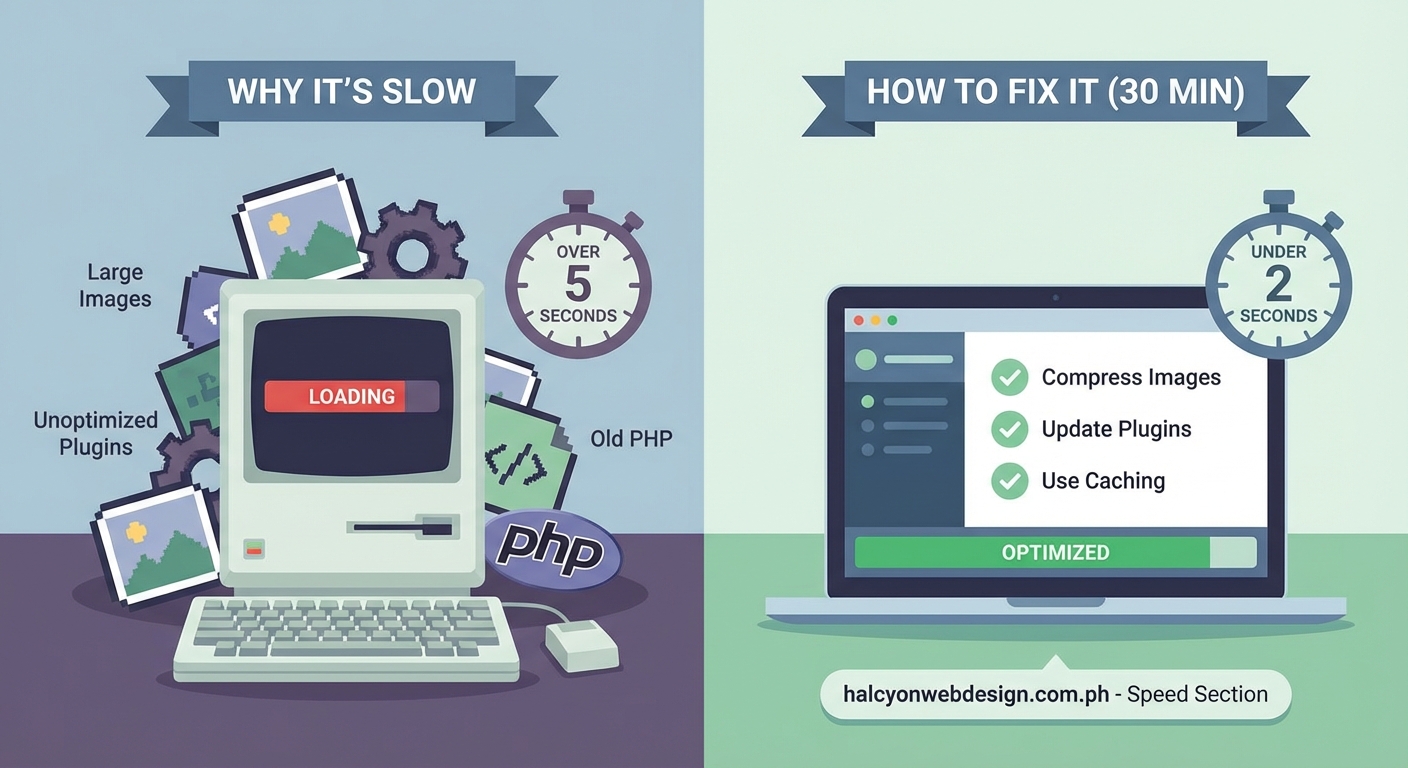
Images account for 50% of average page weight. A single photo from your phone can weigh 5MB. Load five of those on a page, and you’ve forced visitors to download 25MB before they see anything.
Browsers must download every pixel. Large files mean longer waits.
Most sites need images no wider than 2000 pixels. Anything larger wastes bandwidth without improving visual quality on standard screens.
Too many plugins running simultaneously
Every active plugin adds code to your site. Some plugins load scripts on every page, even when you only need them on one.
Twenty plugins might sound reasonable. But if fifteen of them inject CSS and JavaScript globally, your site loads slowly everywhere.
Deactivated plugins don’t affect speed. Only active ones matter.
Budget hosting with limited resources
Shared hosting crams hundreds of sites onto one server. When neighboring sites spike in traffic, your site suffers. CPU and memory limits throttle your performance.
Cheap hosting often means:
- Outdated PHP versions
- No server-level caching
- Slow hard drives instead of SSDs
- Limited concurrent connections
Your $3 monthly plan can’t compete with dedicated resources.
Bloated themes with unnecessary features
Multipurpose themes promise everything. Sliders, animations, page builders, portfolio layouts, shop integration. You use 10% of the features, but your site loads 100% of the code.
Premium themes often bundle multiple plugins. Visual composers add layers of shortcodes and JavaScript libraries. Every feature adds weight.
A lightweight theme built for your specific needs loads faster than an all-in-one solution.
No caching system in place
Without caching, WordPress rebuilds every page from scratch for every visitor. It queries the database, processes PHP, and assembles HTML repeatedly.
Caching saves a static version of your page. Subsequent visitors get the pre-built version instantly. No database queries needed.
Sites without caching waste server resources and visitor time.
External scripts slowing everything down
Third-party scripts live on other servers. Analytics, ads, social media widgets, chatbots, and tracking pixels all make external requests.
Your page can’t finish loading until external scripts respond. If a third-party server runs slowly, your entire site waits.
One sluggish external script can delay your whole page by seconds.
Database clutter from revisions and spam
WordPress saves every draft revision. Write a post with 30 edits? You’ve got 30 copies in your database.
Add spam comments, trashed posts, and unused metadata. Your database swells with junk.
Bloated databases take longer to query. Every page load searches through unnecessary data.
How to diagnose your specific speed problem
Testing reveals where your site struggles. You need data before you fix anything.
Use these three free tools:
- Google PageSpeed Insights shows your mobile and desktop scores with specific recommendations
- GTmetrix provides a waterfall chart showing which files load slowly
- Pingdom Tools tests from different global locations
Run tests from multiple locations. Your site might load fast from your country but slowly for international visitors.
Look at the waterfall chart. Files that take longest to load point to your problem areas. Large image files appear as long bars. External scripts show requests to other domains.
The waterfall chart tells you exactly what’s slowing you down. Every long bar represents a bottleneck worth fixing. Focus on the biggest delays first.
Fixing image problems in minutes
Start by checking your current image sizes. Right-click any image and select “Inspect” in your browser. The developer tools show actual dimensions versus display dimensions.
If an image displays at 800 pixels wide but the file is 3000 pixels, you’re wasting bandwidth.
Install a plugin like Smush or ShortPixel. These tools compress images automatically without visible quality loss. They can reduce file sizes by 50% to 80%.
Compression removes unnecessary metadata and optimizes color information. Your images look identical but load much faster.
For existing images, run bulk optimization through your plugin. For new uploads, the plugin compresses automatically.
Consider lazy loading. This technique delays loading images until visitors scroll near them. Above-the-fold content loads first. Below-the-fold images wait.
Most caching plugins include lazy loading as an option.
Cleaning up your plugin collection
List all active plugins. Ask yourself: when did I last use this?
Deactivate any plugin you haven’t needed in the past month. Test your site after each deactivation to ensure nothing breaks.
Check for plugins that duplicate features. Multiple SEO plugins, several caching plugins, or redundant security tools waste resources.
Replace heavy plugins with lighter alternatives:
| Heavy Plugin Type | Lighter Alternative | Speed Gain |
|---|---|---|
| Page builders with visual editors | Block editor with custom blocks | 40-60% faster |
| All-in-one SEO suites | Focused SEO plugin | 20-30% faster |
| Multi-feature security plugins | Cloudflare + login protection | 30-50% faster |
| Social sharing with counters | Simple share buttons | 50-70% faster |
Some plugins offer settings to limit where they load. A contact form plugin only needs to run on your contact page, not everywhere.
Review each remaining plugin’s settings. Disable global loading when possible.
Upgrading your hosting situation
If you’re on shared hosting and still struggling after other fixes, your server is the bottleneck.
Managed WordPress hosting costs more but provides:
- Server-level caching
- Automatic updates
- Better security
- Dedicated resources
- Expert WordPress support
You don’t need the most expensive plan. Mid-tier managed hosting around $20-30 monthly outperforms budget shared hosting dramatically.
Look for hosts that specify:
- PHP 8.0 or newer
- SSD storage
- Built-in CDN
- Staging environments
- Daily backups
Migration seems scary, but most quality hosts offer free migration services. They move your site for you.
Implementing caching correctly
Caching plugins create static HTML versions of your pages. Visitors get pre-built pages instead of waiting for WordPress to generate them.
Popular free options include WP Super Cache and W3 Total Cache. Premium options like WP Rocket offer simpler setup.
After installing a caching plugin:
- Enable page caching in the settings
- Turn on browser caching to store files locally
- Enable GZIP compression to reduce file sizes
- Activate lazy loading for images
- Test your site thoroughly
Clear your cache after making site changes. Otherwise, visitors see old versions.
Set cache expiration times. Static content like images can cache for weeks. Dynamic content like blog posts might cache for hours.
Most caching plugins include minification. This removes unnecessary spaces and characters from CSS and JavaScript files. Smaller files load faster.
Controlling external scripts
Audit every third-party script. Open your browser’s developer tools and check the Network tab. Look for requests to external domains.
Common culprits include:
- Google Analytics and Tag Manager
- Facebook Pixel
- Ad networks
- Social media widgets
- Live chat tools
- Heatmap trackers
Each external request adds delay. Limit yourself to essential scripts only.
For remaining external scripts, load them asynchronously. This prevents them from blocking other page elements.
Add the async attribute to script tags. Most plugins offer settings for async loading.
Consider hosting some scripts locally. Google Fonts can download and serve from your own server. This eliminates external requests entirely.
Remove social media embeds when possible. An embedded Twitter feed makes multiple external requests. A simple link to your profile doesn’t.
Cleaning your database regularly
Your database accumulates digital clutter over time. Post revisions, spam comments, transient options, and orphaned metadata pile up.
Install WP-Optimize or Advanced Database Cleaner. These plugins identify and remove unnecessary data.
Before cleaning:
- Create a complete backup
- Review what the plugin will delete
- Start with post revisions and spam
- Test your site after cleaning
Schedule automatic cleanups weekly or monthly. Regular maintenance prevents database bloat.
Limit post revisions in your wp-config.php file. Add this line:
define('WP_POST_REVISIONS', 3);
This keeps only your three most recent revisions per post. Older versions delete automatically.
Switching to a lighter theme
Your theme controls your site’s appearance and much of its code. Heavy themes slow everything down.
Test your site with a default WordPress theme like Twenty Twenty-Three. If speed improves dramatically, your theme is the problem.
Lightweight theme options include:
- GeneratePress
- Astra
- Kadence
- Neve
These themes provide essential features without bloat. They load in under one second on decent hosting.
When evaluating themes, check:
- Demo site speed scores
- Number of HTTP requests
- Total page size
- Whether it requires specific plugins
Avoid themes that bundle page builders or require dozens of plugins to function.
Monitoring your improvements
After implementing fixes, test again with the same tools you used initially. Compare before and after scores.
Your PageSpeed Insights score should increase. Your GTmetrix waterfall should show fewer long bars. Total page size should decrease.
Aim for these targets:
- Load time under 3 seconds
- Page size under 2MB
- Fewer than 50 HTTP requests
- PageSpeed score above 80
Real user experience matters more than perfect scores. Test on different devices and connections. Ask friends in other locations to check your site.
Set up uptime monitoring with a service like UptimeRobot. This alerts you if your site goes down or slows dramatically.
Speed optimization isn’t one-and-done. New plugins, more content, and additional images gradually slow sites down. Review your speed every few months.
Making speed a permanent priority
WordPress speed problems stem from identifiable causes. Large images, excessive plugins, weak hosting, heavy themes, missing caching, external scripts, and database bloat all contribute.
You’ve learned how to diagnose which factors affect your specific site. You’ve seen practical fixes for each problem. Most improvements take 30 minutes or less.
Start with the easiest wins. Compress your images today. Remove unused plugins this week. Those two actions alone often cut load times in half.
Your faster site will rank better, convert more visitors, and create a better experience for everyone who visits. Speed matters, and now you know exactly why your WordPress site was slow and how to fix it.