
You type a keyword into your WordPress search bar, hit enter, and get zero results. But you know the content is there. You published it yourself last week.
This frustrating scenario happens more often than you’d think. The good news? Most search problems stem from a handful of common causes, and you can fix them without touching a single line of code.
WordPress search failures usually result from plugin conflicts, caching issues, indexing problems, or theme compatibility errors. Start by deactivating plugins one by one, clearing all caches, checking your search visibility settings, and testing with a default theme. Most issues resolve within minutes once you identify the root cause.
Why WordPress search stops returning results
WordPress search relies on database queries to match your keywords with published content. When something interrupts this process, your search returns empty results even though posts and pages exist.
Several factors can break this connection.
Plugin conflicts rank as the most common culprit. A poorly coded plugin can interfere with WordPress core search functions. Security plugins sometimes block search queries they mistake for malicious activity. SEO plugins might override default search behavior in ways that cause failures.
Caching creates another layer of complexity. Your site might cache search results or entire pages. When cached versions become outdated, users see old results or none at all. This affects page caching, object caching, and CDN caching.
Database issues can corrupt the search index. If your wp_posts table contains errors or your database needs optimization, search queries fail to retrieve matching content.
Theme conflicts happen when custom search templates contain errors. Some themes replace WordPress default search with custom code that breaks under certain conditions.
Search visibility settings offer a simple but often overlooked explanation. WordPress includes a checkbox that tells search engines not to index your site. When enabled, it can interfere with internal search too.
Common symptoms that point to specific problems
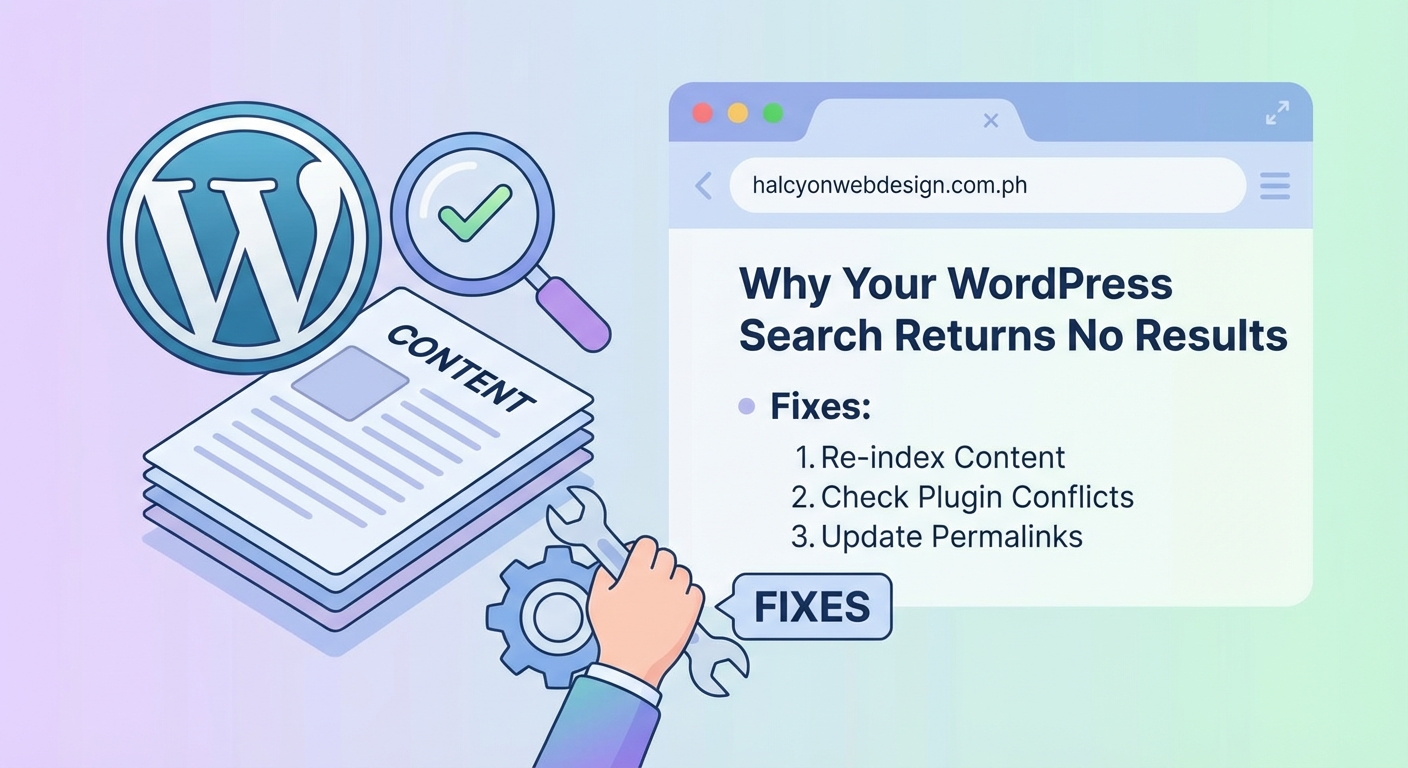
Different symptoms indicate different root causes. Recognizing the pattern helps you troubleshoot faster.
Empty results with no error messages usually mean a plugin conflict or caching issue. The search runs but returns nothing.
404 errors after searching suggest permalink problems or missing search template files. Your theme might lack the required search.php file.
Slow search that times out points to database problems or inefficient queries. Large sites with thousands of posts face this more often.
Search bar missing entirely indicates a theme issue or widget configuration problem. The search form fails to display.
Partial results that miss recent content signal indexing delays or caching that hasn’t refreshed.
Step-by-step troubleshooting process
Follow these steps in order. Each one builds on the previous check.
-
Verify search visibility settings first. Log into your WordPress dashboard. Navigate to Settings, then Reading. Scroll down to Search Engine Visibility. Make sure “Discourage search engines from indexing this site” is unchecked. This setting can interfere with internal search functionality.
-
Clear all caches completely. Start with your caching plugin. Purge everything, not just pages. Clear object cache if you use Redis or Memcached. If you use a CDN like Cloudflare, purge the cache there too. Slow loading times often accompany caching problems that affect search.
-
Test with all plugins deactivated. Go to Plugins in your dashboard. Select all plugins and choose Deactivate from the bulk actions menu. Try searching again. If search works now, reactivate plugins one at a time until you find the problem. Choosing plugins carefully prevents these conflicts from the start.
-
Switch to a default WordPress theme temporarily. Go to Appearance, then Themes. Activate Twenty Twenty-Four or another default theme. Test your search. If it works, your original theme has a conflict. Contact the theme developer or check for updates.
-
Check your search form widget. Visit Appearance, then Widgets or use the block editor. Make sure a search block or widget appears in your sidebar or header. Some themes require manual placement.
-
Inspect your database for errors. Use a plugin like WP-Optimize to check database health. Look for corrupted tables, especially wp_posts and wp_postmeta. Run optimization and repair functions if available.
-
Review permalink settings. Go to Settings, then Permalinks. Simply clicking Save Changes without changing anything refreshes your permalink structure. This fixes many obscure search issues.
-
Test search with different content types. Try searching for post titles, page titles, and specific phrases from your content. If some searches work but others don’t, you’ve narrowed down the problem to specific post types or custom fields.
Plugin conflicts you should investigate first
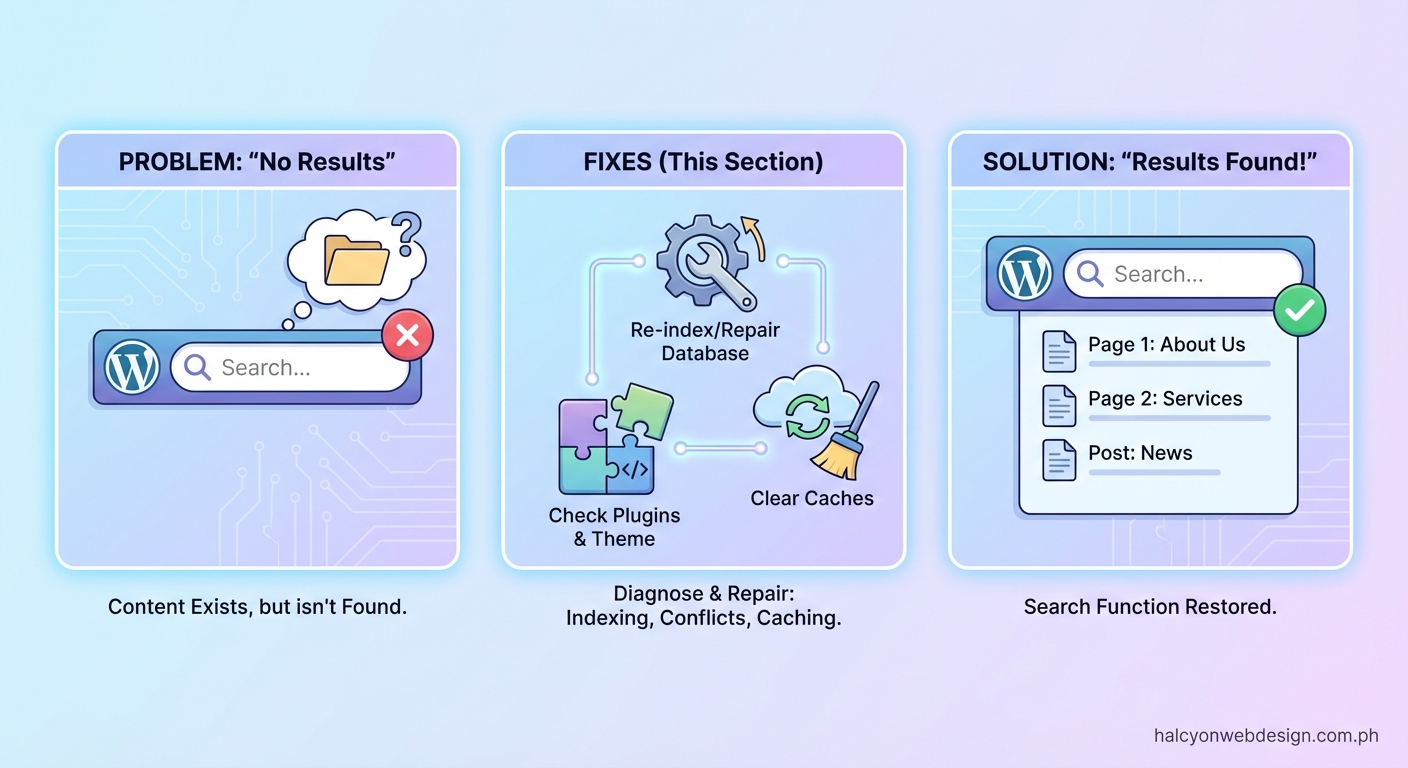
Certain plugin categories cause search problems more frequently than others.
Security plugins like Wordfence or Sucuri sometimes block search queries that contain SQL-like syntax. Check your security logs for blocked requests. Add exceptions if needed.
Caching plugins create stale search results. WP Super Cache, W3 Total Cache, and WP Rocket all need proper configuration. Make sure search results pages are excluded from caching.
SEO plugins occasionally override core search. Yoast, Rank Math, and All in One SEO add features that can conflict with default behavior. Check their search settings or disable search-related features temporarily.
Membership and access control plugins restrict content visibility. If your search includes protected content, results might appear empty for users without proper permissions.
Custom post type plugins sometimes fail to register post types for search. Check that custom content types have the “exclude_from_search” parameter set to false.
Database optimization techniques that restore search
Your database stores all searchable content. Keeping it healthy ensures reliable search results.
Run these maintenance tasks regularly:
- Optimize all database tables through phpMyAdmin or a plugin
- Remove post revisions that bloat the wp_posts table
- Delete spam comments and trashed posts permanently
- Repair corrupted tables using the repair function
- Check for proper indexing on the post_title and post_content columns
If your database exceeds 500MB and you haven’t optimized it in months, expect search performance issues. Regular maintenance prevents most database-related search failures.
Some hosts limit database query execution time. If searches time out, ask your hosting provider about query timeout settings. Choosing the right hosting plan matters for sites with large databases.
Theme-related search problems and fixes
Themes control how search forms appear and how results display. Problems here cause visible errors.
Check if your theme includes these essential files:
- search.php (displays search results)
- searchform.php (renders the search form)
- functions.php (may contain search modifications)
Missing files cause WordPress to fall back to generic templates that might not work with your theme’s structure.
Some themes use custom search implementations that break when WordPress updates. Look for functions in your theme that filter “pre_get_posts” or modify the WP_Query object. Comment them out temporarily to test.
Page builders like Elementor or Divi sometimes create their own search widgets. These custom implementations can conflict with standard WordPress search. Try using the default WordPress search block instead.
Caching layers that hide search results
Modern WordPress sites use multiple caching layers. Each one can cause search problems.
Page caching stores entire HTML pages. When enabled for search results, users see outdated results. Configure your caching plugin to exclude URLs containing “?s=” or “/search/”.
Object caching stores database query results. If the cache doesn’t refresh after publishing new content, searches miss recent posts. Flush object cache after major content updates.
Browser caching tells visitors’ browsers to store pages locally. This rarely affects search but can confuse testing. Use incognito mode or clear browser cache when troubleshooting.
CDN caching happens at the edge server level. Cloudflare, StackPath, and similar services cache pages globally. Purge CDN cache completely when fixing search issues.
Opcode caching stores compiled PHP code. While it doesn’t directly affect search results, corrupted opcode cache can cause unpredictable behavior. Restart PHP-FPM or your web server to clear it.
Advanced fixes for persistent search problems
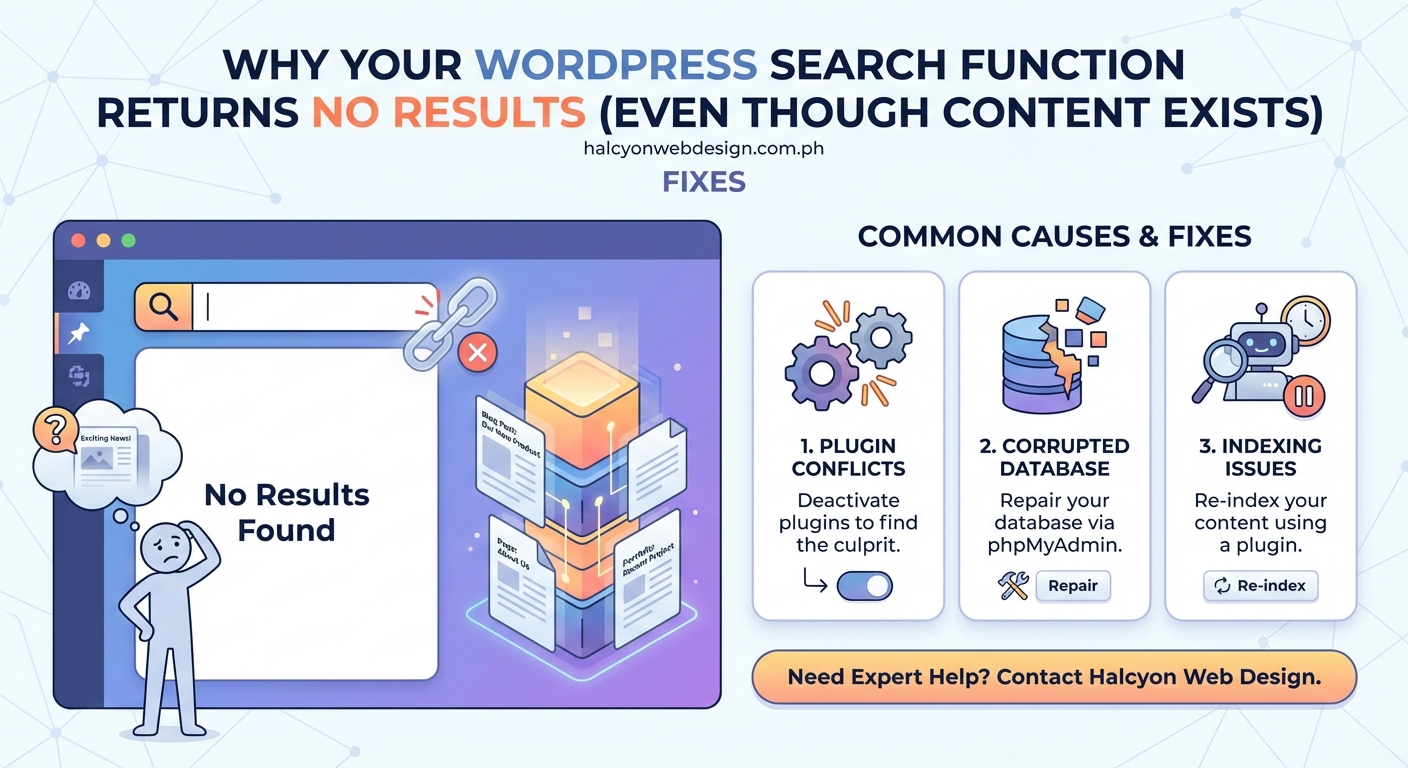
If basic troubleshooting fails, try these advanced solutions.
Rebuild the search index manually. Some plugins like Relevanssi or SearchWP maintain their own search indexes. Rebuild the index from the plugin settings. This can take several minutes on large sites.
Check file permissions. Incorrect permissions on wp-content or uploads folders can prevent WordPress from reading content. Set directories to 755 and files to 644.
Review custom post type registration. If custom content doesn’t appear in search, check the registration code. The “exclude_from_search” parameter must be false, and “publicly_queryable” should be true.
Test with WP_DEBUG enabled. Add these lines to wp-config.php:
define(‘WP_DEBUG’, true);
define(‘WP_DEBUG_LOG’, true);
define(‘WP_DEBUG_DISPLAY’, false);
Check wp-content/debug.log for errors related to search queries.
Inspect the actual SQL query. Install the Query Monitor plugin. Run a search and examine the database queries. Look for errors or queries that return zero results unexpectedly.
Check server error logs. PHP errors or MySQL errors might not display on your site. Access error logs through your hosting control panel or via SSH.
Comparison of solutions by problem type
| Problem Type | Most Likely Cause | Best Solution | Time to Fix |
|---|---|---|---|
| No results at all | Plugin conflict | Deactivate plugins one by one | 5-10 minutes |
| 404 error after search | Permalink issue | Resave permalink settings | 1 minute |
| Missing search bar | Theme or widget problem | Check widget areas and theme files | 5 minutes |
| Slow or timing out | Database optimization needed | Run database cleanup and optimization | 10-15 minutes |
| Partial results only | Caching serving stale data | Clear all cache layers completely | 3-5 minutes |
| Recent posts missing | Search index outdated | Rebuild search index if using search plugin | 5-20 minutes |
Prevention strategies that keep search working
Once you fix your search, prevent future problems with these practices.
Update WordPress core, themes, and plugins regularly. Many updates include search-related bug fixes.
Test search after every major change. Add new plugins one at a time and verify search still works.
Configure caching properly from the start. Exclude search results pages in your caching plugin settings.
Monitor database health monthly. Run optimization and check for corrupted tables.
Keep database size manageable. Delete old revisions, spam, and unnecessary data regularly.
Document any custom search modifications. If you add custom code that affects search, comment it clearly so you remember it later.
Use a staging site for testing. Try major changes on a copy of your site before applying them to production.
When to consider a search plugin replacement
WordPress default search works fine for small sites with straightforward content. Larger sites or those with specific requirements benefit from dedicated search plugins.
Consider upgrading if you need:
- Search within custom fields and metadata
- Fuzzy matching for misspelled queries
- Search result weighting and relevance tuning
- Faceted search with filters
- Search analytics and popular query tracking
- PDF and document content search
Popular options include Relevanssi for comprehensive search improvements, SearchWP for custom field searching, and Elastic Press for enterprise-level search powered by Elasticsearch.
Free versions handle most common needs. Premium versions add advanced features and priority support.
Testing your search thoroughly after fixes
After implementing fixes, test comprehensively to ensure everything works.
Try these test searches:
- Exact post titles you know exist
- Partial phrases from post content
- Common keywords related to your content
- Misspelled versions of key terms
- Single-word searches
- Multi-word phrase searches
- Searches for recent posts published today
- Searches for older archived content
Test as different user roles if your site has membership features. Search results might vary by permission level.
Clear your browser cache between tests. This prevents false positives from cached results.
Check search on mobile devices too. Some themes display different search implementations on mobile.
Getting search back on track
WordPress search problems feel overwhelming when your site returns nothing. But most issues trace back to a few common causes that you can identify and fix systematically.
Start with the simple checks like search visibility settings and cache clearing. Work through plugin and theme conflicts methodically. Most search problems resolve within 30 minutes of focused troubleshooting.
If you’ve tried everything and search still fails, consider reaching out to your theme developer or hosting support. They can check server-level issues or theme-specific problems you can’t access.
The key is staying methodical. Test one change at a time so you know what actually fixed the problem. That knowledge helps prevent the same issue from recurring and makes you more confident handling WordPress issues overall.