You’ve seen the notification badge. Another WordPress update is waiting. Maybe you’ve clicked “Remind me later” for the third time this month. After all, your site works fine right now. Why risk breaking something that isn’t broken?
Here’s the truth: those updates aren’t suggestions. They’re essential maintenance that keeps your site secure, fast, and compatible with the modern web. Skipping them is like ignoring the check engine light in your car. It might run fine today, but you’re building toward a breakdown.
WordPress updates deliver critical security patches, bug fixes, and performance improvements that protect your site from hackers and keep it running smoothly. Delaying updates exposes your site to known vulnerabilities that attackers actively exploit. Regular updates also ensure compatibility with plugins, themes, and modern browsers, preventing costly breakdowns and emergency fixes down the road.
Security vulnerabilities get patched in updates
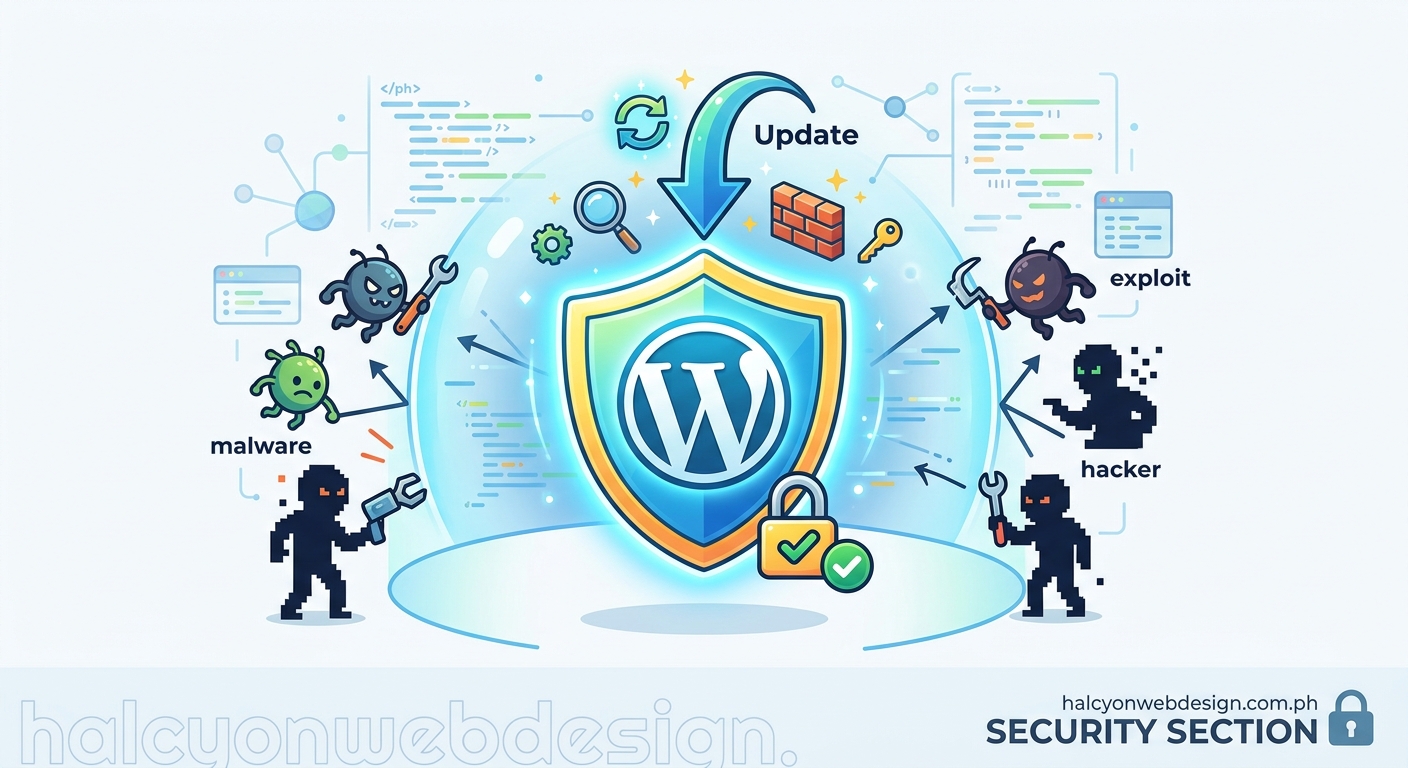
Every WordPress release includes security fixes. These aren’t theoretical problems. They’re real vulnerabilities that security researchers have found and reported.
When WordPress announces an update, they publish what was fixed. Hackers read those same release notes. They immediately know which sites are vulnerable and start scanning for outdated installations.
A site running WordPress 5.8 when 6.4 is available? That’s 16 versions behind. Each skipped update represents known security holes that attackers can exploit.
Consider the 2017 REST API vulnerability. Millions of WordPress sites got defaced because administrators didn’t update. The fix was available. The exploit was public. Sites that updated were protected. Sites that didn’t became targets.
Security patches work only when you install them. An available fix does nothing if it sits uninstalled while your site runs vulnerable code.
Performance improvements compound over time
Updates don’t just fix problems. They make WordPress faster.
The WordPress core team constantly optimizes database queries, reduces memory usage, and improves page load times. Version 5.9 improved block editor performance by 14%. Version 6.0 reduced query execution time by up to 3x for sites with large menus.
These improvements stack. A site that updates regularly gets incrementally faster with each release. A site that skips updates misses all those optimizations.
Your hosting environment evolves too. PHP 8.2 runs significantly faster than PHP 7.4. But WordPress needs updates to take full advantage of newer PHP versions. Running old WordPress on new infrastructure wastes the performance gains you’re paying for.
How to safely update WordPress plugins without breaking your site covers the practical steps to minimize update risks while staying current.
Plugin and theme compatibility depends on current WordPress
Plugins and themes get built for current WordPress versions. Developers test against the latest release. They use modern WordPress functions and APIs.
When you fall behind on updates, you create compatibility problems. New plugin versions might not work on old WordPress. Security patches for plugins might require newer WordPress core files.
You end up stuck. You can’t update plugins without updating WordPress. But you’ve delayed so long that jumping multiple versions feels risky. So you stay frozen on old, vulnerable software.
This compatibility gap grows wider with time. A site one version behind can usually update smoothly. A site ten versions behind faces migration-level complexity.
The real cost of outdated software
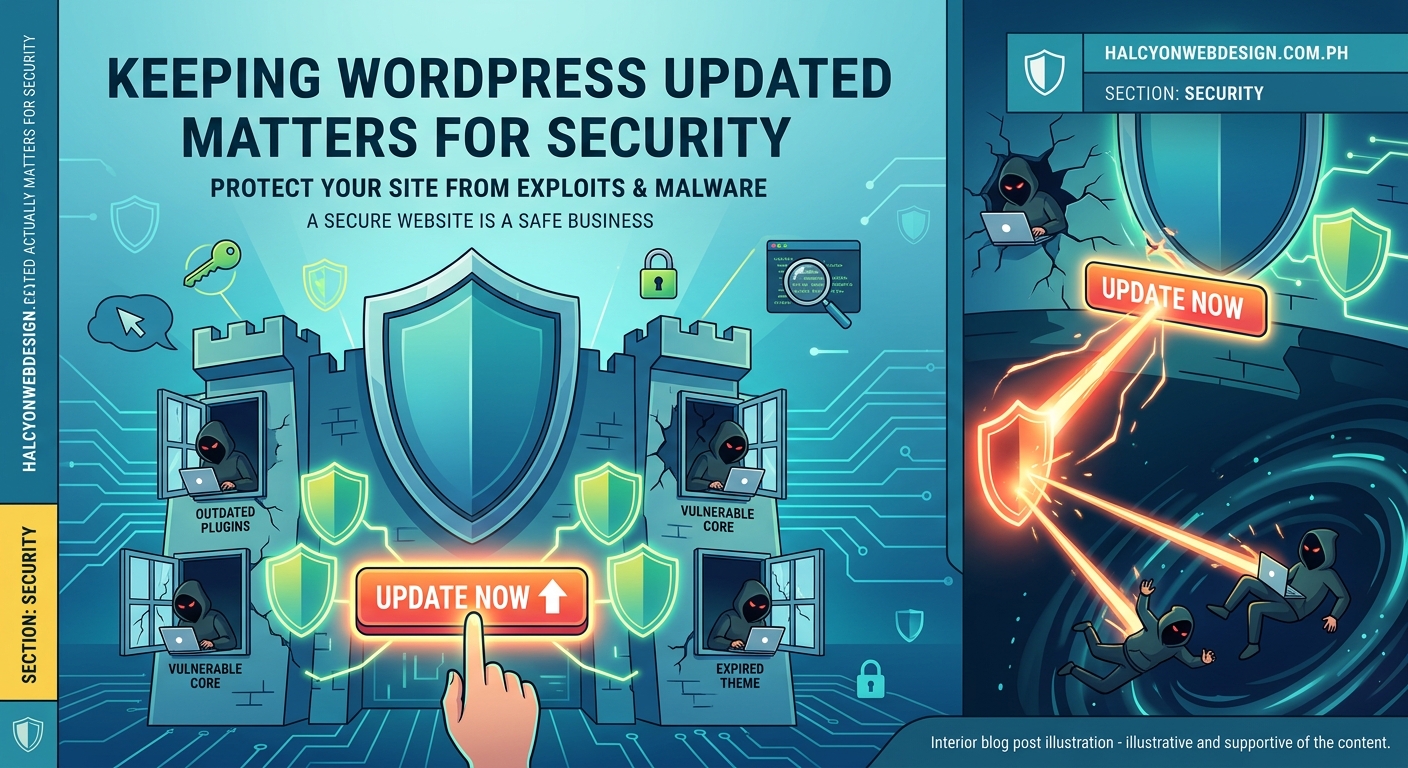
Skipping updates saves time today but creates bigger problems tomorrow.
A hacked site costs far more than update maintenance. You’ll pay for:
- Emergency cleanup services
- Malware removal
- Reputation damage
- Lost revenue during downtime
- Customer trust rebuilding
One security breach can cost thousands of dollars and weeks of work. Regular updates take minutes.
Outdated sites also miss bug fixes that prevent crashes, data loss, and broken features. That contact form that stops working? Often fixed in an update you skipped.
What each type of update actually does
WordPress releases three types of updates. Understanding them helps you prioritize.
| Update Type | Example | What It Fixes | How Often |
|---|---|---|---|
| Major release | 6.3 to 6.4 | New features, improvements, security | Every 3-4 months |
| Minor release | 6.4.0 to 6.4.1 | Security patches, critical bugs | As needed |
| Maintenance | 6.4.1 to 6.4.2 | Small bug fixes | Occasionally |
Minor releases get marked as security updates. These are non-negotiable. Install them immediately. They fix actively exploited vulnerabilities.
Major releases bring new features but also security improvements and compatibility updates. Delaying them more than a month puts you at risk.
Maintenance releases fix smaller bugs. They’re lower priority but still worth installing.
How to update safely without breaking your site
Updates carry some risk. But the risk of not updating is far greater. Here’s how to update safely:
-
Back up your site first. Use your backup plugin to create a restore point before any update.
-
Check your PHP version. WordPress requires PHP 7.4 or higher. Your host’s control panel shows your current version.
-
Update plugins and themes first. Start with plugins, then themes, then WordPress core. This order catches compatibility issues early.
-
Test on staging if possible. Staging environments let you test updates before applying them to your live site.
-
Update during low-traffic periods. Early morning or late evening reduces the impact if something goes wrong.
-
Check your site after updating. Visit key pages, test forms, verify functionality works as expected.
“The best time to update was yesterday. The second best time is now. Every day you wait is another day hackers have to exploit known vulnerabilities.” — WordPress Security Team
Common update fears and the reality
“Updates will break my site.”
Possible, but unlikely if you follow proper procedures. Compatibility issues usually come from outdated plugins or themes, not WordPress itself. That’s why you update plugins first.
“I don’t have time.”
A typical update takes 5-10 minutes including backup and testing. A hacked site takes days or weeks to fix. You’ll find the time when forced.
“My site works fine now.”
So does a house with termites, until the floor collapses. Security vulnerabilities are invisible until exploited. Working fine now doesn’t mean secure.
“I’ll wait to see if the update causes problems for others.”
This strategy makes you a target. Hackers scan for outdated sites immediately after security updates release. Waiting even a few days increases risk significantly.
Setting up automatic updates the smart way
WordPress can handle some updates automatically. Here’s what to enable:
- Minor core updates: Always enable these. They’re security patches.
- Plugin updates: Enable for trusted, well-maintained plugins only.
- Theme updates: Enable if you use a child theme and don’t customize parent theme files.
Never auto-update:
- Major WordPress versions (test these manually)
- Custom plugins or themes
- Plugins you’ve modified
Your WordPress dashboard under Dashboard > Updates shows your automatic update settings. You can also configure them in your wp-config.php file.
The complete WordPress hardening checklist includes automatic update configuration as a core security measure.
What happens when you skip updates for months
Sites that fall significantly behind face compound problems:
- Multiple security vulnerabilities stack up
- Plugin compatibility breaks across versions
- Database schema changes require careful migration
- Theme functionality depends on deprecated features
- Backup restoration becomes unreliable
Catching up from 6+ months behind often requires professional help. The update process becomes complex enough that DIY attempts frequently fail.
What happens if you skip WordPress updates documents real cases of delayed updates leading to site compromises and data loss.
Signs your site needs immediate updating
Watch for these warning signs:
- Security warnings in your admin dashboard
- Plugin compatibility notices
- Slow admin panel performance
- Forms or features suddenly breaking
- Security scan alerts from your host
- Google Search Console security warnings
Any of these signals means you’re already experiencing problems from outdated software. Update immediately, starting with security patches.
Creating a sustainable update schedule
Consistency beats perfection. A simple schedule keeps you current without stress:
Weekly: Check for security updates. Install immediately if available.
Monthly: Update all plugins and themes. Test functionality. Update WordPress core if a new version is available.
Quarterly: Review your plugin list. Remove unused plugins. Check for better alternatives to problematic ones.
This schedule takes about 30 minutes monthly. It prevents the backlog that makes updating feel overwhelming.
When updates actually break things
Sometimes updates do cause problems. Here’s what breaks and how to fix it:
Plugin conflicts: Two plugins try to use the same function. Solution: Deactivate plugins one by one to find the conflict. Contact plugin developers or find alternatives.
Theme incompatibility: Your theme uses deprecated WordPress functions. Solution: Update your theme or switch to a maintained theme.
Custom code breaks: Your custom functions rely on removed features. Solution: Update custom code to use current WordPress APIs or hire a developer.
Cache issues: Old cached files serve outdated content. Solution: Clear your caching plugin and browser cache.
Most “broken” sites after updates are actually cache issues. Clear all caches before panicking.
Making updates part of your routine
Updates shouldn’t be emergency maintenance. They should be routine care, like brushing your teeth.
Add update checks to your weekly website review. Spend five minutes every Monday checking for available updates. Install security updates immediately. Schedule other updates for your monthly maintenance window.
10 essential WordPress settings you should configure right after installation includes setting up update notifications so you never miss critical patches.
This habit prevents the anxiety of seeing 15 pending updates and wondering which to install first.
Your site deserves current software
WordPress updates exist for good reasons. They patch security holes, fix bugs, improve performance, and maintain compatibility. Every update you skip makes your site more vulnerable and harder to maintain.
The question isn’t whether to update. It’s whether you’ll update proactively on your schedule or reactively after a security breach forces your hand.
Set aside 30 minutes this week. Back up your site, update your plugins and themes, and install the latest WordPress version. Then schedule monthly reminders to repeat the process. Your future self will thank you when your site stays secure, fast, and functional instead of joining the millions of compromised WordPress installations that skipped updates one too many times.