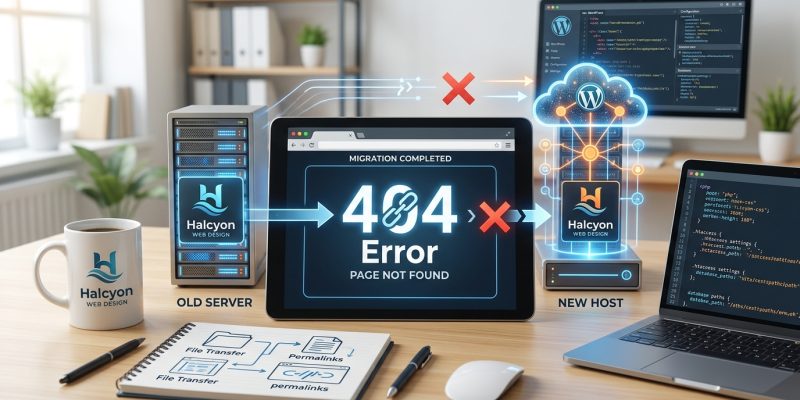
You just finished migrating your WordPress site to a new host. The homepage loads perfectly. You feel relieved.
Then you click any other page. 404 error. Every single one.
This is one of the most common problems after a WordPress migration. The good news? It’s almost always fixable in under 15 minutes. The issue usually comes down to three culprits: permalink settings, .htaccess files, or database references to your old domain.
WordPress 404 errors after migration happen when permalink rules don’t transfer correctly, the .htaccess file is missing or corrupted, or the database still points to your old domain. Reset your permalinks first, then check file permissions, regenerate .htaccess, and verify database URLs. Most cases resolve within minutes using these steps.
Why your pages show 404 after migration
WordPress uses pretty permalinks to create readable URLs like yoursite.com/about instead of yoursite.com/?p=123. These rules live in two places: your database and your .htaccess file.
When you migrate, these rules often break.
The homepage works because WordPress treats it differently. It doesn’t rely on rewrite rules the same way. But every other page, post, and custom post type does.
Here’s what typically goes wrong:
- The
.htaccessfile didn’t copy over during migration - File permissions changed and WordPress can’t write to
.htaccess - The database still references your old domain in permalink structures
- Your new server uses different rewrite module settings
- Cached permalink rules conflict with the new environment
Each of these creates the same symptom but needs a different fix.
Reset your permalink settings first
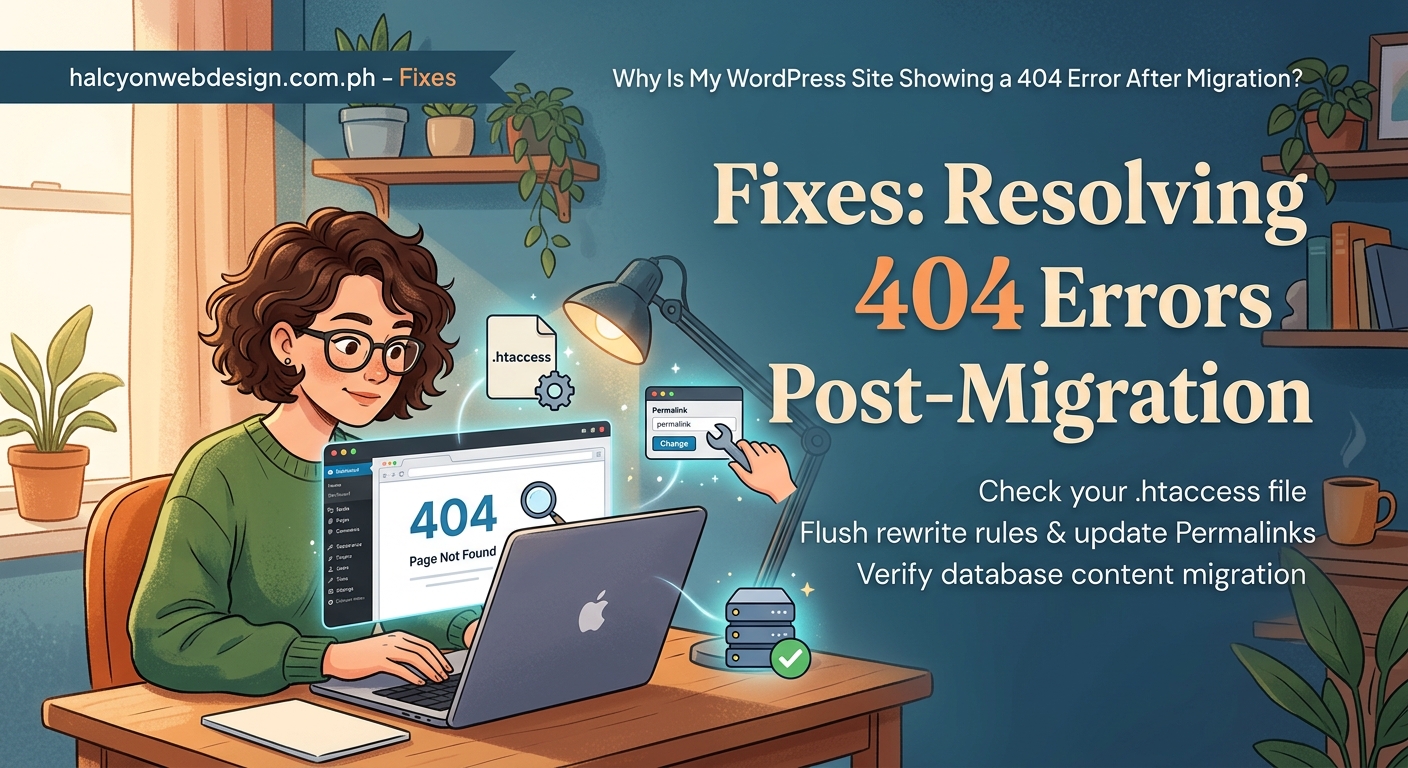
This is the fastest fix and solves about 70% of WordPress 404 errors after migration.
- Log into your WordPress admin panel at
yoursite.com/wp-admin - Navigate to Settings, then Permalinks
- Don’t change anything. Just click Save Changes at the bottom
- Test a page or post that was showing 404
That’s it.
When you click Save Changes, WordPress regenerates the rewrite rules and writes them to your database and .htaccess file. This often fixes the disconnect that happened during migration.
If your pages load now, you’re done. If not, move to the next section.
Check if your .htaccess file exists
Your .htaccess file controls how URLs get rewritten on Apache servers. If it’s missing or corrupted, you get 404 errors.
First, access your site via FTP or your hosting file manager. Look in your root WordPress directory, the same folder that contains wp-config.php and the wp-content folder.
Do you see a file named .htaccess?
If not, create one. Make a new file, name it exactly .htaccess (with the dot at the start), and paste this code:
# BEGIN WordPress
<IfModule mod_rewrite.c>
RewriteEngine On
RewriteBase /
RewriteRule ^index\.php$ - [L]
RewriteCond %{REQUEST_FILENAME} !-f
RewriteCond %{REQUEST_FILENAME} !-d
RewriteRule . /index.php [L]
</IfModule>
# END WordPress
Save it and upload it to your root directory.
If the file already exists, open it and check if the WordPress section looks similar to the code above. Sometimes migrations corrupt this file or paste it incorrectly.
Replace the entire WordPress section with the code above, save, and test your site.
Verify file permissions are correct
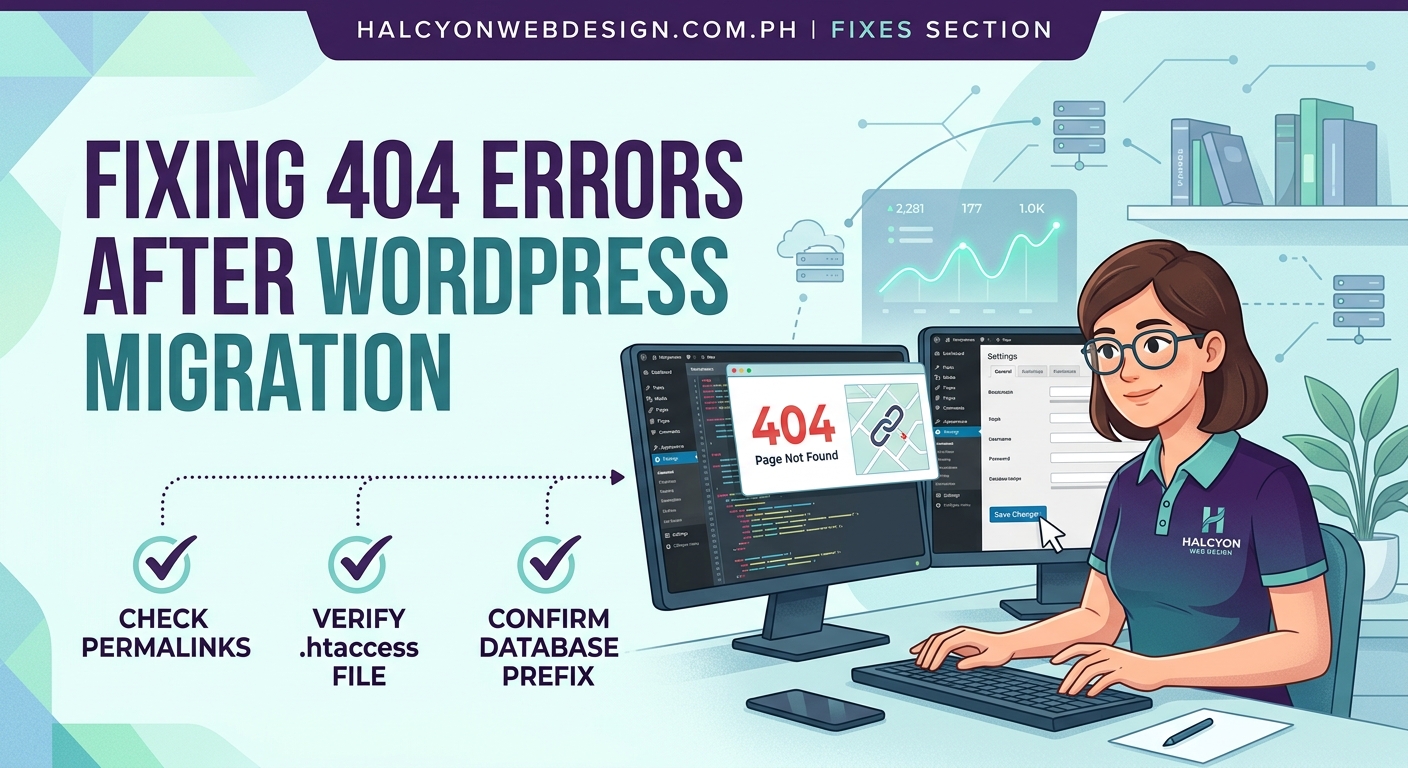
Even if your .htaccess file exists, WordPress might not be able to write to it.
Check the file permissions. They should be set to 644 for most servers.
Here’s how to check in common hosting control panels:
- cPanel File Manager: Right-click the file, select Change Permissions
- FTP clients: Right-click the file, look for File Permissions or CHMOD
- Command line: Run
ls -lato see current permissions
If permissions are set to 444 or 400, WordPress can’t modify the file. Change them to 644.
After fixing permissions, go back to Settings, then Permalinks in WordPress and click Save Changes again. This forces WordPress to rewrite the rules with proper access.
Want to understand file permissions better? Check out wordpress file permissions explained: the exact numbers you need for security.
Update database references to your old domain
If you migrated from oldsite.com to newsite.com, your database might still contain thousands of references to the old URL.
This causes problems with permalinks, redirects, and internal links.
You need to run a search and replace operation on your database. Never do this manually. Use a plugin or script designed for this task.
The safest method uses the Better Search Replace plugin:
- Install and activate Better Search Replace from your WordPress plugin directory
- Go to Tools, then Better Search Replace
- In “Search for,” enter your old domain (like
http://oldsite.com) - In “Replace with,” enter your new domain (like
http://newsite.com) - Select all database tables
- Check “Run as dry run” first to preview changes
- Review the results
- Uncheck dry run and click Run Search/Replace
This updates every reference in your database safely.
Alternatively, use the WP-CLI command if you have command line access:
wp search-replace 'oldsite.com' 'newsite.com' --dry-run
Remove the --dry-run flag after confirming the changes look correct.
Check if your server uses Nginx instead of Apache
The .htaccess file only works on Apache servers. If your new host uses Nginx, that’s why your permalinks broke.
Nginx requires different rewrite rules, configured in the server block configuration file instead of .htaccess.
Contact your hosting provider and ask them to add WordPress rewrite rules to your Nginx configuration. Most hosts have a standard WordPress configuration they can apply.
If you manage your own server, add this to your Nginx configuration:
location / {
    try_files $uri $uri/ /index.php?$args;
}
Restart Nginx after making changes.
Common migration mistakes that cause 404 errors
Understanding what goes wrong helps prevent future issues.
| Mistake | Why It Causes 404s | How to Avoid It |
|---|---|---|
| Copying files without preserving permissions | WordPress can’t write rewrite rules | Use proper migration tools or check permissions after transfer |
| Forgetting to update wp-config.php | Database connection fails or points to old server | Update database credentials immediately after migration |
| Skipping the permalink reset | Old rewrite rules don’t match new environment | Always reset permalinks after any migration |
| Not checking server type | .htaccess rules don’t work on Nginx | Verify server type before migrating |
| Leaving old domain in database | Links and redirects point to wrong location | Run search-replace before going live |
Most of these mistakes happen when you rush the migration or skip the post-migration checklist.
If you’re planning a migration, read how to choose the right WordPress hosting plan for your first website to understand hosting differences before you move.
What to do if permalinks still don’t work
You’ve tried everything above and pages still show 404 errors. Here are the advanced troubleshooting steps.
First, verify your WordPress Address and Site Address settings:
- Go to Settings, then General
- Check that both “WordPress Address (URL)” and “Site Address (URL)” match your current domain exactly
- Make sure they use the same protocol (both http:// or both https://)
- Save changes if you made any corrections
Second, check if mod_rewrite is enabled on your server. This Apache module is required for pretty permalinks.
Create a test file named test.php in your root directory with this code:
<?php
phpinfo();
?>
Access it at yoursite.com/test.php and search the page for “mod_rewrite.” If it’s not listed or shows as disabled, contact your host to enable it.
Third, look for plugin conflicts. Deactivate all plugins, then test if pages load. If they do, reactivate plugins one at a time to find the culprit.
Security plugins and caching plugins commonly interfere with permalinks after migration.
Need help troubleshooting plugin issues? See how to fix plugin conflicts in WordPress: a step-by-step troubleshooting guide.
Fix custom post type 404 errors
Sometimes regular pages and posts work fine after migration, but custom post types still show 404 errors.
This happens because custom post type rewrite rules require an extra flush.
If you use custom post types (like Portfolio, Products, or Team Members), try this:
- Deactivate the plugin or theme that registers the custom post type
- Go to Settings, then Permalinks and click Save Changes
- Reactivate the plugin or theme
- Go back to Settings, then Permalinks and click Save Changes again
This double-flush process rebuilds the rewrite rules for custom post types properly.
Prevent 404 errors in future migrations
The best fix is prevention. Follow this checklist for every WordPress migration:
- Back up your entire site before starting
- Document your current permalink structure
- Note your server type (Apache or Nginx)
- Export your database separately from files
- Use a migration plugin designed for WordPress
- Update wp-config.php with new database credentials
- Run search-replace on the database for old domain references
- Check file permissions after transferring files
- Reset permalinks immediately after migration
- Test all page types: posts, pages, custom post types, categories, tags
- Clear all caches (browser, plugin, server)
- Verify .htaccess file exists and contains correct rules
Following these steps prevents most common migration issues.
For a complete migration strategy, read how to back up your WordPress site manually in under 10 minutes before you start.
“Always test your migration on a staging environment first. Fix any 404 errors there before pointing your live domain to the new server. This saves you from having a broken site visible to visitors.”
When to check your DNS settings
If some pages work intermittently or you see 404 errors that come and go, the problem might be DNS related, not WordPress related.
This happens when:
- You recently changed nameservers
- DNS propagation is still in progress
- Your browser is caching old DNS records
- You’re testing too soon after pointing your domain
DNS changes can take 24 to 48 hours to propagate fully. During this time, you might hit the old server sometimes and the new server other times.
Check if this is your issue by accessing your site using the server’s IP address directly instead of your domain name. If pages load correctly via IP but not via domain, wait for DNS propagation to complete.
Learn more about this process in what is DNS propagation and why does it take so long?.
Test everything before declaring victory
After fixing your 404 errors, don’t stop at testing one page.
Check these thoroughly:
- Individual blog posts
- Static pages
- Category archives
- Tag archives
- Author archives
- Search results pages
- Custom post type archives
- Date-based archives
- RSS feeds
Each uses different rewrite rules. A problem with one doesn’t mean all are broken, and fixing one doesn’t guarantee all are fixed.
Open several pages in different tabs. Test your navigation menu. Try your search function. Click category links in your sidebar.
If everything loads correctly for 10 minutes of clicking around, you’ve successfully resolved the WordPress 404 error after migration.
Getting your site back on track
The WordPress 404 error after migration feels scary when you first see it. Your homepage works, but nothing else does.
But now you know it’s almost always a permalink issue, and permalink issues fix fast.
Start with the simple solution: reset your permalinks in Settings. If that doesn’t work, check your .htaccess file. Then verify file permissions. Finally, search and replace your database if you changed domains.
Most migrations fix with the first step. The rest resolve within the first three steps.
The key is working through the troubleshooting process methodically instead of panicking. Your content didn’t disappear. Your site isn’t broken beyond repair. The pages are there. WordPress just needs the correct instructions to find them.
Save this guide for your next migration. Better yet, follow the prevention checklist and you won’t need to troubleshoot at all.