
Building a membership site sounds exciting until you open the WordPress plugin directory and see hundreds of options staring back at you. Some cost nothing. Others charge monthly fees. A few promise everything, and most deliver something different.
You need a plugin that actually works for your goals, not one that looks impressive in a sales demo.
Choosing the best WordPress membership plugin depends on your site’s needs. MemberPress offers strong all-in-one features. Paid Memberships Pro provides flexibility with free core functionality. Restrict Content Pro keeps things simple. Match your plugin to your business model, budget, and technical comfort level for the best results.
What makes a membership plugin actually good
A membership plugin should do three things well. It should control who sees your content. It should handle payments without breaking. It should stay out of your way when you need to make changes.
Everything else is extra.
Some plugins bundle course builders, community forums, and email automation. That sounds great until you realize you only needed content restriction and a payment gateway. Bloated plugins slow down your site and make troubleshooting harder.
Start with your actual requirements. Write them down. Do you need tiered access levels? Drip content? Integration with a specific payment processor? Knowing what you need makes comparing plugins much easier.
“The best plugin is the one you can configure without reading a manual three times. If setup takes longer than building your membership tiers, something is wrong.”
Top plugins worth considering
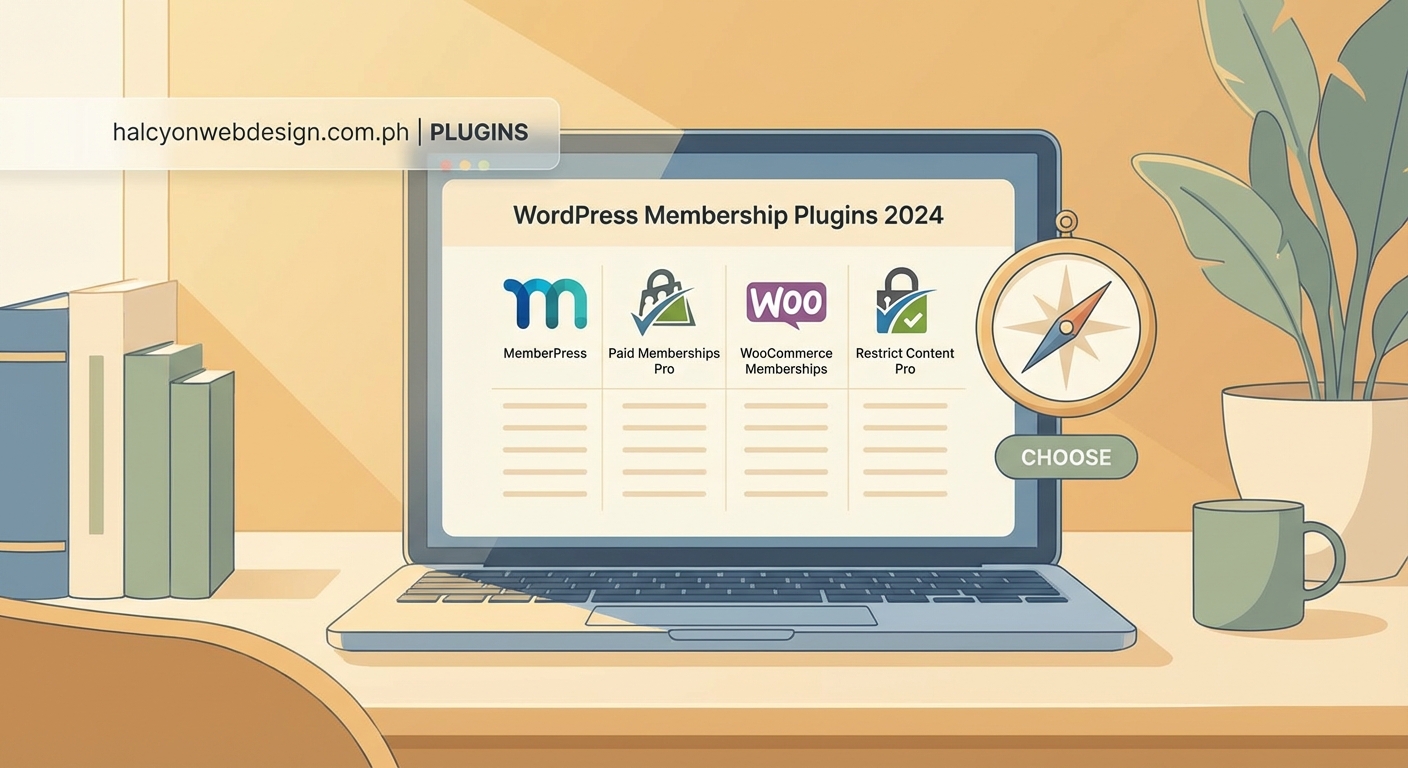
Here are the plugins that consistently show up in real projects, not just marketing roundups.
MemberPress
MemberPress handles most membership scenarios without requiring add-ons. It supports unlimited membership levels, drip content, and integrates with major payment gateways right out of the box.
The interface makes sense. You create membership rules, set access restrictions, and connect your payment processor. Members get a clean dashboard to manage their subscriptions.
Pricing starts at $179.50 per year for a single site. That includes support and updates. The developer edition costs more but adds affiliate tracking and developer tools.
MemberPress works well if you want something that handles complex membership structures without constant tweaking. It also plays nicely with most WordPress themes, though you might need to adjust styling depending on your design.
Paid Memberships Pro
Paid Memberships Pro takes a different approach. The core plugin is free. You add paid extensions for specific features like recurring payments, email marketing integration, or WooCommerce support.
This modular system means you only install what you need. It also means you might end up buying several add-ons to match what other plugins include by default.
The free version supports unlimited membership levels, content restriction, and member management. Payment gateway support requires paid add-ons, which range from $97 to $297 per year depending on the package.
Paid Memberships Pro makes sense if you want to start free and scale gradually. Just budget for add-ons as your requirements grow.
Restrict Content Pro
Restrict Content Pro focuses on simplicity. It does content restriction and subscription management without trying to be a complete business platform.
You get unlimited membership levels, discount codes, detailed reporting, and integration with Stripe and PayPal. The interface is straightforward. No complex settings buried in submenus.
Pricing starts at $99 per year for personal use. Professional and ultimate plans add more sites and priority support.
This plugin works well for bloggers and small businesses that need basic membership functionality without learning a new system. It pairs nicely with other focused plugins instead of trying to do everything itself.
WooCommerce Memberships
If you already run a WooCommerce store, WooCommerce Memberships extends your existing setup. It uses the WooCommerce infrastructure you already know.
Members get access to restricted content, special discounts, and exclusive products. You can create membership plans that work like any other WooCommerce product.
The plugin costs $199 per year for a single site. That might seem high, but it makes sense if WooCommerce already powers your store. You avoid learning a completely different system.
WooCommerce Memberships fits sites that sell both products and memberships. It handles the overlap better than trying to connect separate plugins.
Comparing features that actually matter
Not all features carry equal weight. Some sound impressive but rarely get used. Others seem basic but make or break your membership site.
| Feature | Why It Matters | Watch Out For |
|---|---|---|
| Content dripping | Releases content on a schedule | Some plugins charge extra for this |
| Multiple payment gateways | Gives members payment options | Integration quality varies widely |
| Member management | Easy to view and edit member data | Poor interfaces waste your time |
| Reporting | Shows revenue and member activity | Basic plugins skip this entirely |
| Email integration | Automates member communication | Native support beats third-party tools |
Content dripping keeps members engaged over time instead of consuming everything immediately. If you plan to release lessons, articles, or resources gradually, make sure your plugin handles this without add-ons.
Payment gateway support determines how members pay. Stripe and PayPal cover most scenarios, but some audiences prefer other options. Check whether your plugin supports your preferred gateways natively or requires extensions.
Member management sounds boring until you need to manually adjust someone’s subscription or access level. A clean interface saves hours of frustration. Test the admin panel before committing.
Reporting tells you what’s working. Revenue reports, active subscriptions, and member activity help you make informed decisions. Free plugins often skip detailed reporting, which becomes a problem as you grow.
Email integration automates welcome messages, renewal reminders, and cancellation follow-ups. Plugins with native email features work more reliably than those requiring third-party connections. Less complexity means fewer things that can break.
Setting up your chosen plugin
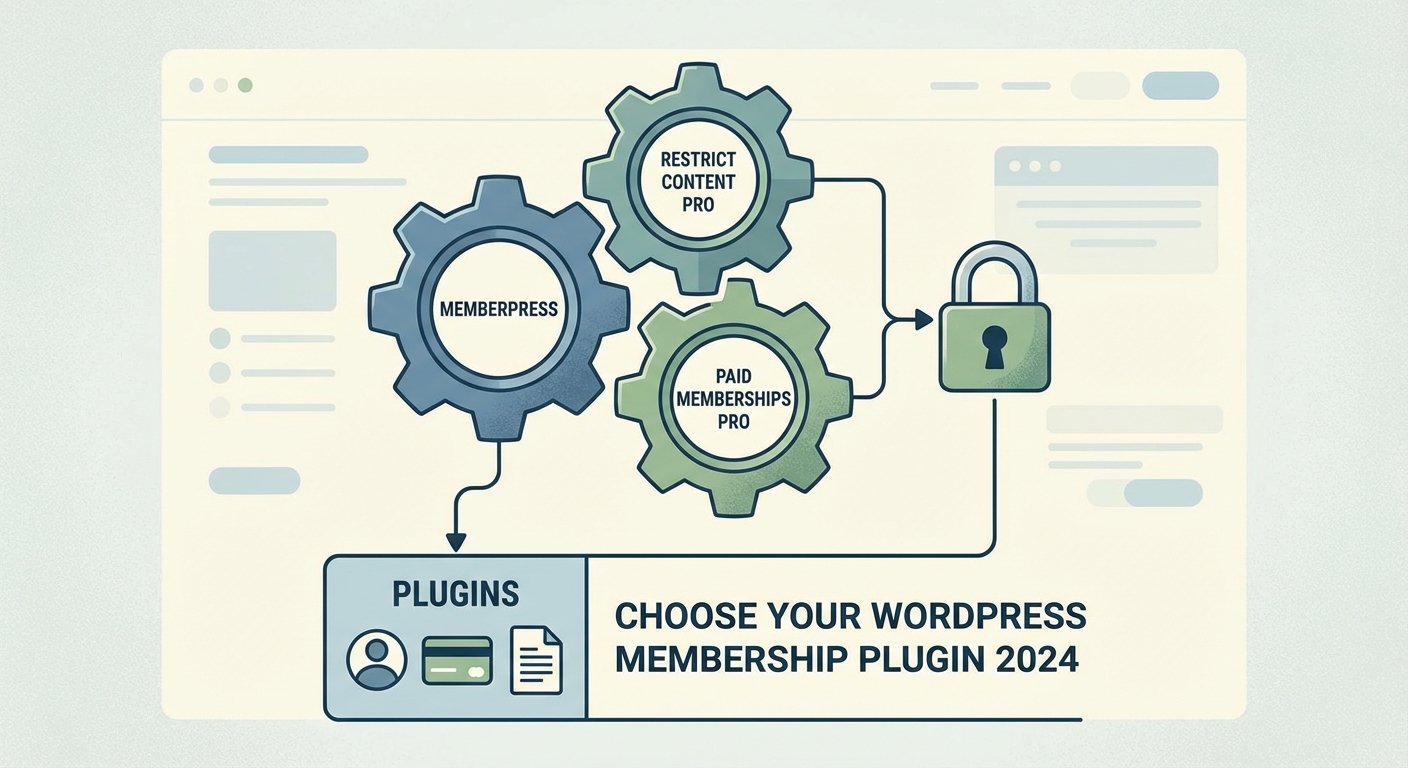
Installation follows the same pattern regardless of which plugin you choose. The details vary, but the overall process stays consistent.
- Install and activate the plugin through your WordPress dashboard.
- Configure your payment gateway by entering API keys and testing transactions.
- Create your membership levels with pricing and access rules.
- Restrict content by assigning posts, pages, or categories to specific levels.
- Design your registration and account pages using the plugin’s templates or shortcodes.
- Test the entire flow from signup to content access before launching.
Payment gateway setup trips up many site owners. You need to create accounts with your chosen processors, generate API keys, and enter them correctly. One typo breaks the entire payment flow.
Test mode exists for a reason. Process test transactions to verify everything works before accepting real money. Most plugins include test mode instructions in their documentation.
Content restriction requires planning. Decide which content goes to which membership level before you start clicking checkboxes. A clear content map prevents mistakes and makes setup faster.
Registration pages need clear messaging. Members should understand what they’re buying, how much it costs, and when they’ll be charged. Confusion at checkout kills conversions.
Account pages let members manage their subscriptions. They should be able to view their membership status, update payment information, and cancel if needed. Making cancellation difficult creates support headaches and angry customers.
Common mistakes that slow you down
Many site owners make the same mistakes when setting up membership plugins. Avoiding these saves time and frustration.
Installing too many membership plugins at once. Running multiple membership plugins creates conflicts. Choose one, configure it properly, and only switch if it truly doesn’t meet your needs.
Skipping test transactions. Real money should never flow through an untested system. Process several test payments, verify they appear correctly, and check that access gets granted properly.
Ignoring hosting requirements. Membership plugins add database queries and processing overhead. Cheap shared hosting struggles with this load. Choose hosting that can handle the additional demands before launching.
Overcomplicating membership tiers. Three clear tiers work better than seven confusing ones. Members should instantly understand the difference between levels and which one they need.
Forgetting about failed payments. Credit cards expire. Payments fail. Your plugin should handle this gracefully with automated retry logic and clear communication to members.
Free versus paid options
Free membership plugins exist, but they come with limitations. Understanding these tradeoffs helps you decide whether to start free or invest upfront.
Free plugins typically support basic content restriction and member management. They often lack payment gateway integration, requiring you to handle payments separately or buy extensions.
Support for free plugins varies. Some developers offer excellent community support. Others abandon free versions to focus on paid products. Check the plugin’s update history and support forum activity before committing.
Paid plugins include support, regular updates, and complete feature sets. You’re paying for reliability and someone to help when things break. That matters more as your membership site grows.
Starting free makes sense if you’re testing an idea or have a tiny budget. Just plan for eventual migration costs if you outgrow the free option. Moving members between plugins requires careful planning.
Security considerations you can’t ignore
Membership sites handle sensitive data. Payment information, personal details, and login credentials all need protection.
Your plugin should force strong passwords or integrate with a password strength plugin. Weak passwords create security vulnerabilities that affect your entire site.
Two-factor authentication adds another security layer. Some membership plugins include this natively. Others require separate plugins. Either way, offer it to members who want extra protection.
Regular updates matter more for membership plugins than almost any other WordPress component. Security patches need to be applied promptly. Choose plugins with active development and reliable update schedules.
PCI compliance becomes your responsibility when handling payments. Most plugins address this by using hosted payment pages or tokenization. Verify your chosen plugin’s approach meets compliance requirements.
SSL certificates aren’t optional. Membership pages must use HTTPS to encrypt data transmission. Most hosts provide free SSL certificates through Let’s Encrypt. Install one before launching your membership site.
Integration with your existing setup
Your membership plugin needs to work with your existing WordPress setup. Theme compatibility, plugin conflicts, and performance impact all matter.
Popular page builders like Elementor, Beaver Builder, and Divi should work with your membership plugin. Test this before committing. Some plugins provide dedicated page builder widgets. Others require shortcodes.
Email marketing integration lets you segment members and send targeted campaigns. Native integration works better than third-party connectors. Check whether your email platform appears in the plugin’s integration list.
Analytics tracking helps you understand member behavior. Your plugin should work with Google Analytics or similar tools. Event tracking for signups, cancellations, and content access provides valuable insights.
Performance impact varies between plugins. Bloated plugins slow down your entire site, not just membership pages. Test page load times with your plugin active. Site speed affects everything from user experience to search rankings.
Community features like forums or social networking require additional plugins. Some membership plugins bundle these features. Others expect you to integrate separate solutions. Decide whether you need community features before choosing your plugin.
Pricing models that work
Your membership plugin needs to support your business model. Different plugins handle different pricing structures with varying levels of grace.
- One-time payments for lifetime access
- Recurring monthly or annual subscriptions
- Trial periods with automatic conversion
- Tiered pricing with feature differences
- Pay-per-view for individual pieces of content
- Bundle pricing for multiple membership types
Subscription billing requires reliable recurring payment handling. Your plugin should retry failed payments, notify members before cancellation, and handle prorated upgrades or downgrades.
Trial periods convert visitors into paying members. Free trials, $1 trials, and discounted first months all work. Your plugin should support whatever trial structure fits your business.
Discount codes encourage signups during promotions. Percentage discounts, fixed amount discounts, and limited-time offers all increase conversions. Make sure your plugin supports the discount types you plan to use.
Upgrade and downgrade paths keep members longer. Someone who can’t afford your premium tier might stay at a lower level instead of canceling completely. Your plugin should handle tier changes smoothly.
Getting help when things break
Something will eventually break or confuse you. Access to good support makes the difference between a minor inconvenience and a major disaster.
Documentation quality varies dramatically between plugins. Good documentation includes setup guides, troubleshooting steps, and code examples. Poor documentation wastes your time and increases support tickets.
Community forums provide free help from other users. Active forums with recent replies indicate a healthy user base. Dead forums suggest an abandoned plugin or frustrated users.
Paid support gets you direct access to developers who know the codebase. Response times vary. Some developers reply within hours. Others take days. Check support reviews before buying.
Developer-friendly plugins provide hooks and filters for customization. If you hire a developer later, they’ll appreciate clean, extensible code. Ask technical questions before buying if customization matters to you.
Making your final choice
You’ve compared features, checked pricing, and read reviews. Now you need to actually choose.
Download trial versions if available. Many paid plugins offer money-back guarantees. Test the interface, try key features, and verify compatibility with your theme.
Start with your must-have features. Eliminate plugins that don’t support them. This narrows your options faster than comparing every possible feature.
Consider your technical skill level honestly. A powerful plugin you can’t configure helps nobody. Choose something that matches your comfort level with WordPress.
Budget for the long term. Annual costs add up. Factor in renewal fees, add-on costs, and potential upgrade expenses. The cheapest option today might cost more over three years.
Read recent reviews, not just top-rated ones. Plugin quality changes over time. Recent reviews reflect current performance, support quality, and ongoing development.
Check the plugin’s update frequency. Regular updates indicate active development. Plugins that haven’t been updated in months might have security vulnerabilities or compatibility issues.
Getting your membership site live
You’ve chosen your plugin, configured the settings, and created your membership tiers. A few final steps stand between you and launch.
Create clear terms of service and privacy policy pages. Members need to understand what they’re agreeing to. Many countries require this legally. Link these pages from your registration form.
Set up automated emails for welcome messages, payment confirmations, and renewal reminders. Members expect communication at key moments. Silence creates confusion and support tickets.
Test every membership level thoroughly. Sign up as a member, access content, and verify restrictions work correctly. Process a real payment if possible, then refund it.
Prepare your support system. How will members contact you? Email? Contact form? Support ticket system? Have answers ready for common questions about access, billing, and content.
Plan your launch announcement. Existing email subscribers, social media followers, and website visitors should all know about your new membership option. Clear messaging about benefits and pricing converts more visitors.
Monitor the first week closely. Watch for technical issues, confused members, and unexpected problems. Quick responses during launch prevent small issues from becoming major headaches.
Your membership site starts here
Choosing the right membership plugin matters less than actually launching. Perfect doesn’t exist. Good enough gets you started.
Pick a plugin that handles your core requirements without overwhelming you. Configure it carefully. Test thoroughly. Then open for business.
You can always switch plugins later if needed. Members care about your content and community, not which plugin powers the backend. Focus on delivering value, and the technical details will sort themselves out.
Start building today. Your future members are waiting.