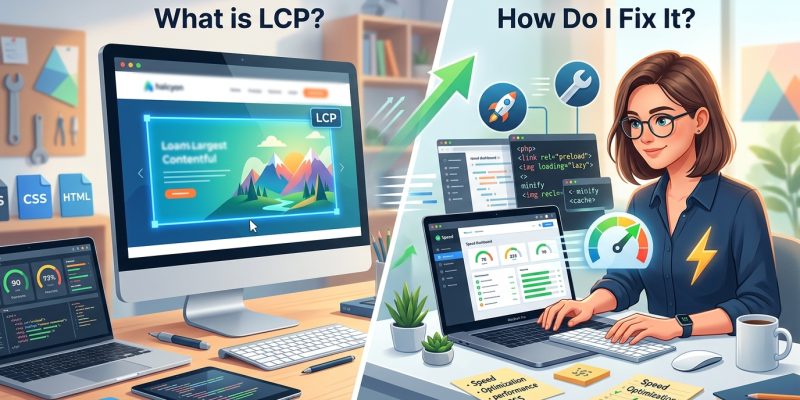
You just opened Google Search Console and saw a red warning about largest contentful paint. Your heart sinks a little. The report shows dozens of pages flagged as “poor” or “needs improvement,” and you’re not sure where to start.
You’re not alone. LCP issues affect thousands of WordPress sites, and they directly impact how Google ranks your pages. But here’s the good news: fixing largest contentful paint is more straightforward than it sounds once you understand what’s actually being measured.
Largest contentful paint measures how long it takes for your page’s main content to become visible. Google considers anything under 2.5 seconds “good.” Common culprits include oversized hero images, slow server response times, and render-blocking CSS. Fixing LCP typically involves optimizing images, preloading critical resources, and choosing faster hosting. Most site owners can resolve LCP warnings in under an hour using the right checklist.
What largest contentful paint actually measures
Largest contentful paint tracks the time from when someone clicks your link to when the biggest visible element appears on their screen.
That biggest element is usually one of these:
- A hero image at the top of your page
- A background image in your header section
- A large block of text above the fold
- A video thumbnail or poster image
Google doesn’t care about tiny icons or navigation menus. It focuses on the element that dominates the viewport when the page first loads.
Think of it like waiting for a movie to start. You don’t care when the theater lights dim. You care when the actual picture appears on screen.
LCP stops counting once that main visual element renders. Everything else that loads afterward doesn’t affect this metric.
Why Google cares about this metric
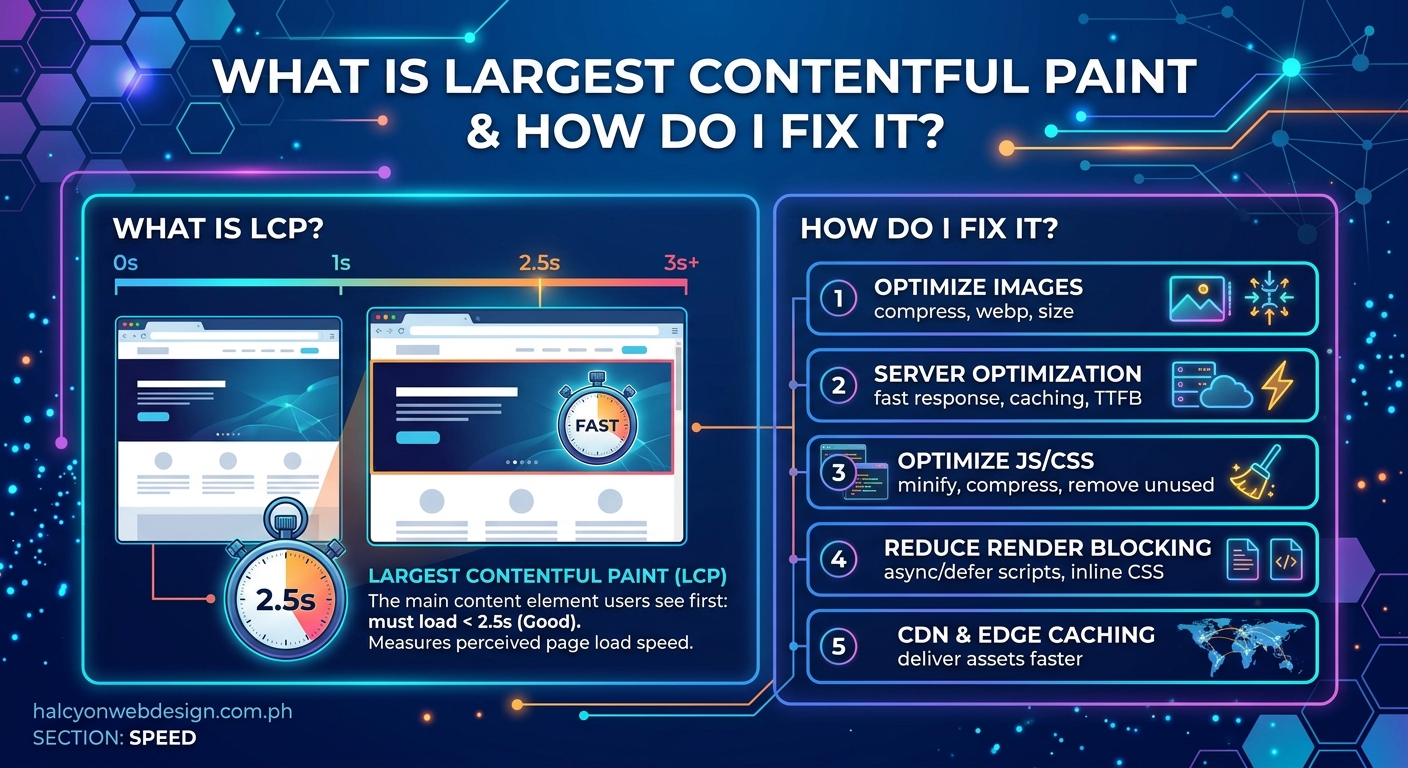
Google uses largest contentful paint as one of three Core Web Vitals. These metrics directly influence your search rankings.
A slow LCP tells Google that visitors are staring at a blank screen or loading spinner. That creates a frustrating experience, especially on mobile devices where connections can be spotty.
Pages with good LCP scores (under 2.5 seconds) tend to keep visitors engaged. Pages with poor scores (over 4 seconds) see higher bounce rates.
Google started using Core Web Vitals as a ranking factor in 2021. Sites with consistently poor LCP scores may lose visibility in search results, even if their content is excellent.
If you’ve noticed a drop in organic traffic or received warnings in Search Console, LCP issues might be the culprit.
How to measure your current LCP score
You need real data before you can fix anything. Here’s how to check your largest contentful paint performance.
Using Google PageSpeed Insights
- Go to PageSpeed Insights
- Enter your page URL
- Wait for the analysis to complete
- Look for the “Largest Contentful Paint” metric in the results
PageSpeed Insights shows both lab data (simulated) and field data (real visitor experiences). Field data matters more because it reflects actual user conditions.
Using Google Search Console
Navigate to the Core Web Vitals report in Search Console. This shows which pages have LCP issues across your entire site.
The report groups pages into three categories:
- Good (under 2.5 seconds)
- Needs improvement (2.5 to 4 seconds)
- Poor (over 4 seconds)
Click any category to see specific URLs affected. This helps you prioritize which pages to fix first.
Using Chrome DevTools
Open your page in Chrome, right-click, and select “Inspect.” Go to the Performance tab and click the record button. Refresh the page, then stop recording.
Look for the LCP marker in the timeline. Chrome highlights which element triggered the LCP measurement and when it appeared.
This method works great for testing fixes in real time as you make changes.
What slows down largest contentful paint
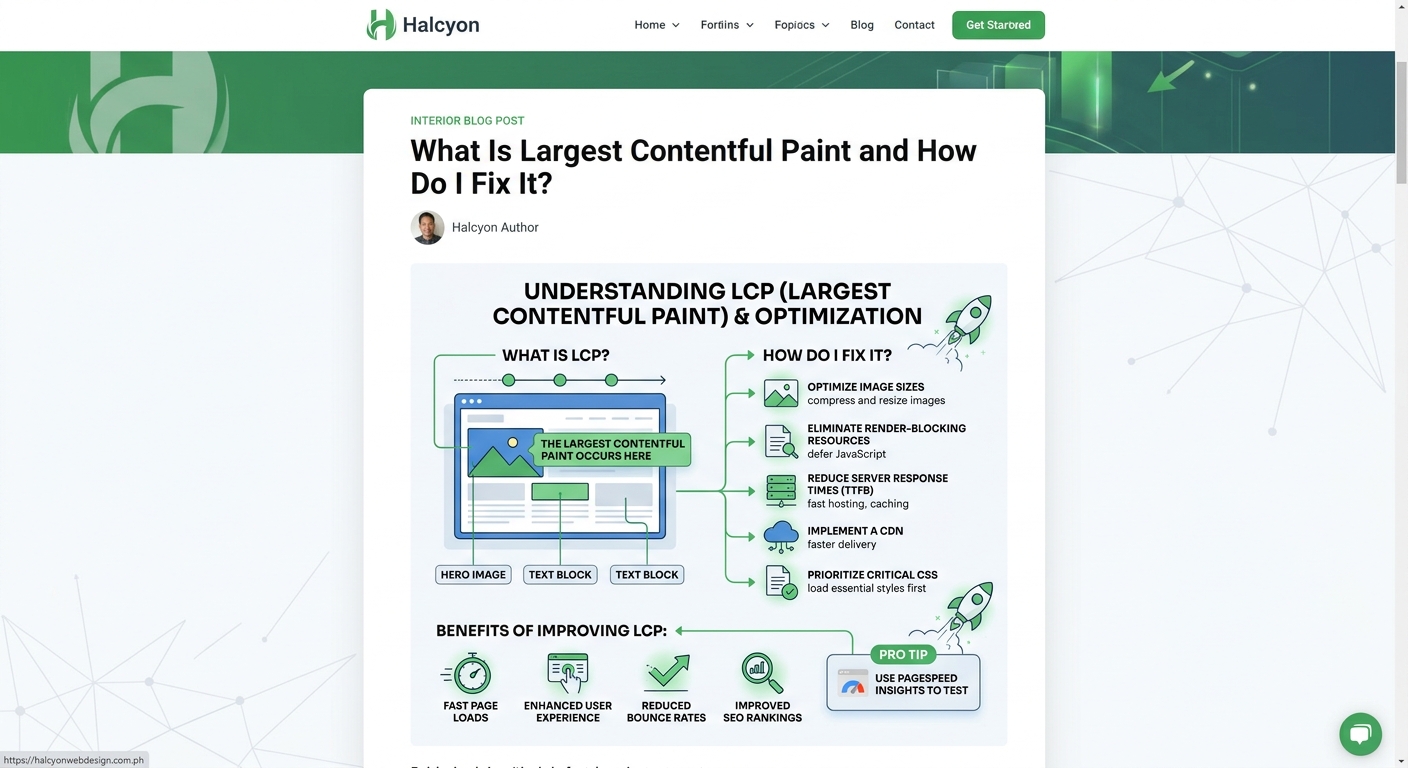
Understanding the root causes helps you fix the right things instead of guessing.
Oversized images
A 3000px wide hero image looks sharp on your 4K monitor. But it takes forever to download on a phone.
Large image files are the number one cause of slow LCP. If your hero image weighs 2MB, visitors are waiting several seconds just for that single file to transfer.
Slow server response time
Your page can’t start rendering until the server sends back the HTML. If your hosting takes 2 seconds to respond, you’re already behind before anything loads.
Budget shared hosting often struggles under traffic spikes. A slow Time to First Byte (TTFB) directly delays your LCP.
Render-blocking CSS and JavaScript
Browsers won’t display content until they’ve processed all CSS in the document head. If you’re loading five different stylesheets, each one blocks rendering.
The same applies to JavaScript files that execute before the page renders. Every blocking resource adds delay.
Web fonts loading slowly
Custom fonts enhance your design, but they can delay text rendering. If your LCP element contains text styled with a web font, the browser might wait for that font to download before displaying anything.
This creates a “flash of invisible text” or worse, a completely blank screen.
Missing size attributes on images
When browsers don’t know an image’s dimensions ahead of time, they can’t reserve space for it. This causes layout shifts and can delay LCP measurements.
The browser has to wait for the image to download just to figure out how much room it needs.
Step-by-step fixes for common LCP problems
Let’s walk through practical solutions you can implement today.
Optimize your hero images
- Resize images to match their display size (usually 1920px wide maximum)
- Compress images using tools like TinyPNG or ImageOptim
- Convert images to modern formats like WebP
- Serve responsive images using srcset attributes
Your hero image should never exceed 200KB. Aim for 100KB or less when possible.
WordPress automatically generates multiple image sizes. Make sure you’re using the optimized versions instead of the full-resolution originals.
Preload critical resources
Add a preload tag to your HTML head for your LCP image:
This tells the browser to fetch that image immediately, even before it parses your CSS.
You can also preload fonts that appear in your LCP element to prevent text from being invisible.
Upgrade your hosting
If your Time to First Byte exceeds 600ms, your hosting is likely the bottleneck.
Consider moving to managed WordPress hosting or a performance-focused provider. The difference in server response time can shave 1-2 seconds off your LCP.
Look for hosts that offer:
- SSD storage instead of traditional hard drives
- Built-in caching at the server level
- CDN integration
- PHP 8.0 or newer
Choosing better hosting often delivers the biggest performance improvement for the least amount of work.
Remove render-blocking resources
Defer non-critical CSS by loading it asynchronously. Only keep critical above-the-fold styles in your document head.
For JavaScript, add the defer or async attribute to script tags:
This allows the browser to continue rendering while scripts download in the background.
Many WordPress performance plugins can handle this automatically, but understanding the concept helps you troubleshoot when things break.
Implement lazy loading correctly
Lazy loading prevents images from downloading until they’re about to enter the viewport. This saves bandwidth and speeds up initial page load.
But never lazy load your LCP image. That defeats the purpose and makes LCP worse.
Add loading="lazy" to images below the fold only. Your hero image and any other above-the-fold content should load immediately.
Use a content delivery network
A CDN stores copies of your static files (images, CSS, JavaScript) on servers around the world. Visitors download these files from the nearest server instead of your origin host.
This reduces latency and speeds up resource delivery. The improvement is especially noticeable for international visitors.
Most CDNs integrate with WordPress through plugins. Setup takes about 15 minutes and can cut your LCP by 30-50%.
Common mistakes that make LCP worse
Avoid these pitfalls while optimizing your site.
| Mistake | Why it hurts LCP | Better approach |
|---|---|---|
| Lazy loading hero images | Delays the most important element | Only lazy load below-the-fold images |
| Using too many web fonts | Blocks text rendering | Limit to 2 font families, preload critical fonts |
| Ignoring mobile performance | Mobile LCP often 2x slower than desktop | Test on actual devices, optimize for 3G speeds |
| Installing too many plugins | Each adds render-blocking code | Audit plugins regularly, remove unused ones |
| Using unoptimized themes | Bloated themes load unnecessary resources | Choose lightweight themes built for speed |
Testing your fixes properly
After making changes, you need to verify they actually worked.
Don’t just test once. LCP can vary based on cache state, network conditions, and server load.
Run at least three tests and look at the median result. PageSpeed Insights shows an average of the last 28 days of real user data, so improvements won’t appear instantly.
Use incognito mode when testing to avoid cached resources skewing your results. Better yet, test from a different device or network to simulate real visitor conditions.
Core Web Vitals testing tools can automate this process and track improvements over time.
Troubleshooting when LCP won’t improve
Sometimes you’ve tried everything and the needle barely moves.
Check for third-party scripts
Analytics, chat widgets, and advertising scripts can delay LCP significantly. Each third-party request adds latency you can’t control.
Try temporarily disabling these scripts to see if they’re the culprit. If LCP improves dramatically, you’ll need to either remove the script or load it asynchronously.
Look for redirect chains
If your URL redirects multiple times before reaching the final page, each redirect adds delay. Check your redirect path using a tool like Redirect Mapper.
Remove unnecessary redirects. Your URLs should go directly from the clicked link to the final destination.
Verify your caching is working
Caching stores pre-generated versions of your pages so they load instantly for repeat visitors.
If your caching strategy isn’t configured properly, every visitor gets a slow, dynamically-generated page.
Test by visiting your page twice. The second load should be noticeably faster. If it’s not, your cache isn’t working.
Consider your theme architecture
Some WordPress themes load dozens of CSS files and JavaScript libraries you don’t actually use. This bloat directly impacts LCP.
Switching to a performance-focused theme can sometimes be faster than trying to optimize a poorly-coded one.
Maintaining good LCP scores long term
Fixing LCP once isn’t enough. You need to keep it fast as your site evolves.
Set up monitoring alerts in Search Console. Google will email you when new issues appear.
Before adding new plugins or theme features, test their impact on LCP. Many seemingly small additions can gradually degrade performance.
Review your largest pages quarterly. As you add more images and content, file sizes creep up. Regular optimization prevents problems from accumulating.
Make performance part of your content workflow. Train your team to optimize images before uploading them. A few extra minutes during publishing saves hours of troubleshooting later.
“The fastest feature is the one you don’t build. Every image, script, and style you add makes your page heavier. Be intentional about what you include.” – Web performance expert
Balancing design with performance
You don’t have to choose between a beautiful site and a fast one.
Modern image formats like WebP deliver excellent quality at smaller file sizes. Visitors won’t notice the difference, but your LCP score will.
Subtle animations and transitions can enhance user experience without hurting performance if you implement them carefully.
The key is measuring the impact of each design decision. If a particular effect adds 500ms to your LCP, ask whether it’s worth the tradeoff.
Often, simpler designs load faster and convert better. Clean layouts with plenty of white space don’t just look modern; they perform better too.
When to get help with LCP issues
Some LCP problems require technical expertise beyond basic WordPress knowledge.
If you’ve tried the standard fixes and your scores remain poor, consider hiring a performance specialist. They can identify issues that aren’t obvious, like database query inefficiencies or server misconfigurations.
Complex sites with custom themes or heavy JavaScript frameworks often need developer intervention. Don’t waste weeks trying to fix something that requires code-level changes.
That said, most WordPress sites can achieve good LCP scores using the techniques covered here. Start with the low-hanging fruit before assuming you need expert help.
Making largest contentful paint work for you
Largest contentful paint isn’t just a technical metric to satisfy Google. It directly reflects how fast your visitors see your content.
Every second of delay costs you visitors, leads, and sales. The difference between a 4-second LCP and a 2-second LCP is the difference between someone staying on your page or hitting the back button.
The fixes outlined here work. They’re not theoretical optimizations; they’re proven techniques that thousands of sites use to maintain excellent Core Web Vitals scores.
Start with your most important pages. Fix your homepage and top landing pages first. Once you see the improvement in both metrics and user behavior, you’ll have the momentum to optimize the rest of your site.
Your visitors will thank you, even if they never know what largest contentful paint means.