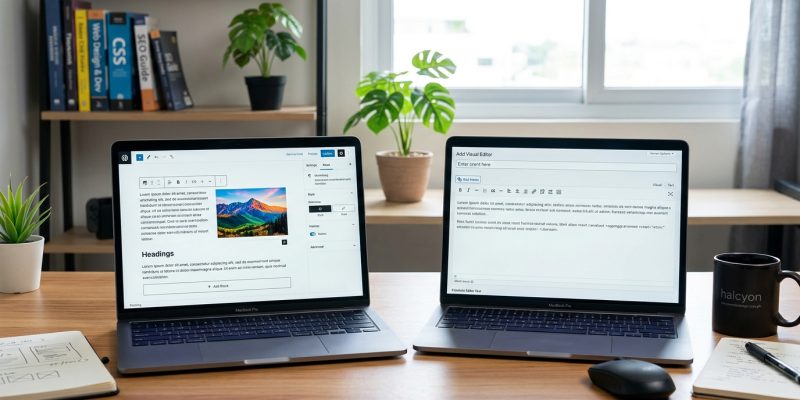
You’ve opened WordPress to write a new post and you’re staring at two completely different editing experiences. The Block Editor (Gutenberg) looks like a modern page builder. The Classic Editor feels like a familiar word processor. Which one should you actually use?
The answer depends on what you’re building, how you work, and whether you value flexibility over simplicity.
The WordPress block editor offers visual layout control and modern design options, making it ideal for bloggers who want creative freedom. The classic editor provides a distraction-free writing environment with faster load times, perfect for content creators who prioritize speed and simplicity. Your choice should match your workflow, technical comfort level, and the type of content you publish most often.
What makes the block editor different from the classic editor
The Block Editor treats every element as an individual block.
Paragraphs, images, headings, buttons, and galleries all exist as separate units you can move, style, and arrange. You can drag a quote above a paragraph or insert a two-column layout without touching code.
The Classic Editor works like Microsoft Word or Google Docs. You type in a single text area, add images inline, and format text with a toolbar. If you want custom layouts, you need to write HTML or use shortcodes.
Here’s the practical difference: the Block Editor gives you visual control over page structure. The Classic Editor gives you a faster, simpler writing experience.
How the editing experience compares for daily content creation
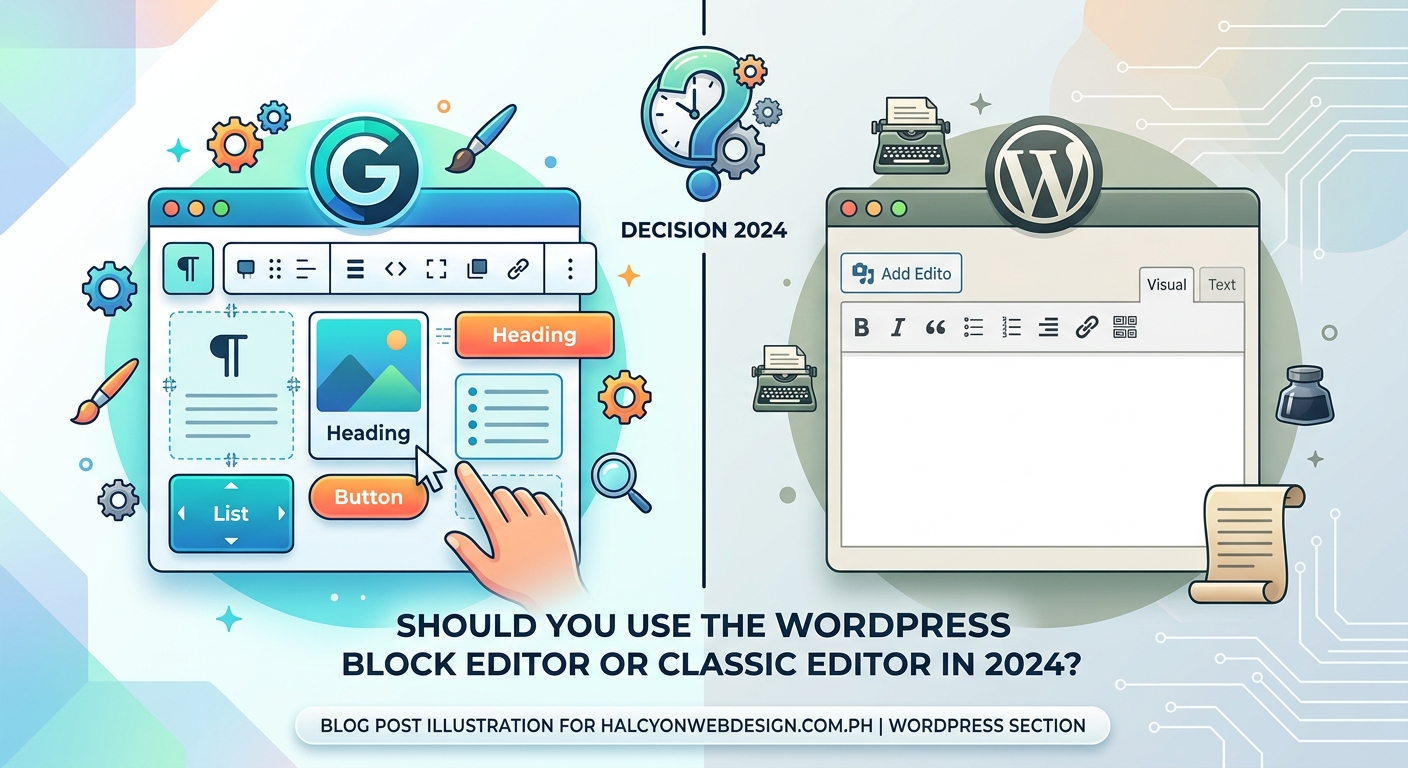
If you write blog posts every day, the editing interface matters.
The Classic Editor loads faster. You see a blank page, a formatting toolbar, and a publish button. No sidebars, no block library, no extra panels. You can start typing immediately.
The Block Editor shows more options upfront. A sidebar displays block settings, document settings, and design controls. You can preview your post in desktop, tablet, and mobile views without leaving the editor.
Writers who focus on text prefer the Classic Editor because it removes distractions. Bloggers who want to add custom layouts, call-to-action boxes, or image galleries prefer the Block Editor because it eliminates the need for page builder plugins.
Performance differences you’ll notice on your website
The Block Editor adds CSS and JavaScript files to your site’s frontend.
Every block you use loads its own stylesheet. If you add a button block, WordPress loads the button block CSS. If you add a gallery, it loads gallery styles. This can slow down your site if you use many different block types on a single page.
The Classic Editor generates cleaner HTML. Your content stays lightweight because you’re writing plain text with minimal markup. If site speed is a priority, the Classic Editor produces faster-loading pages by default.
You can optimize Block Editor performance by limiting the number of block types you use and enabling a caching strategy that combines and minifies CSS files.
Learning curve for beginners and experienced users
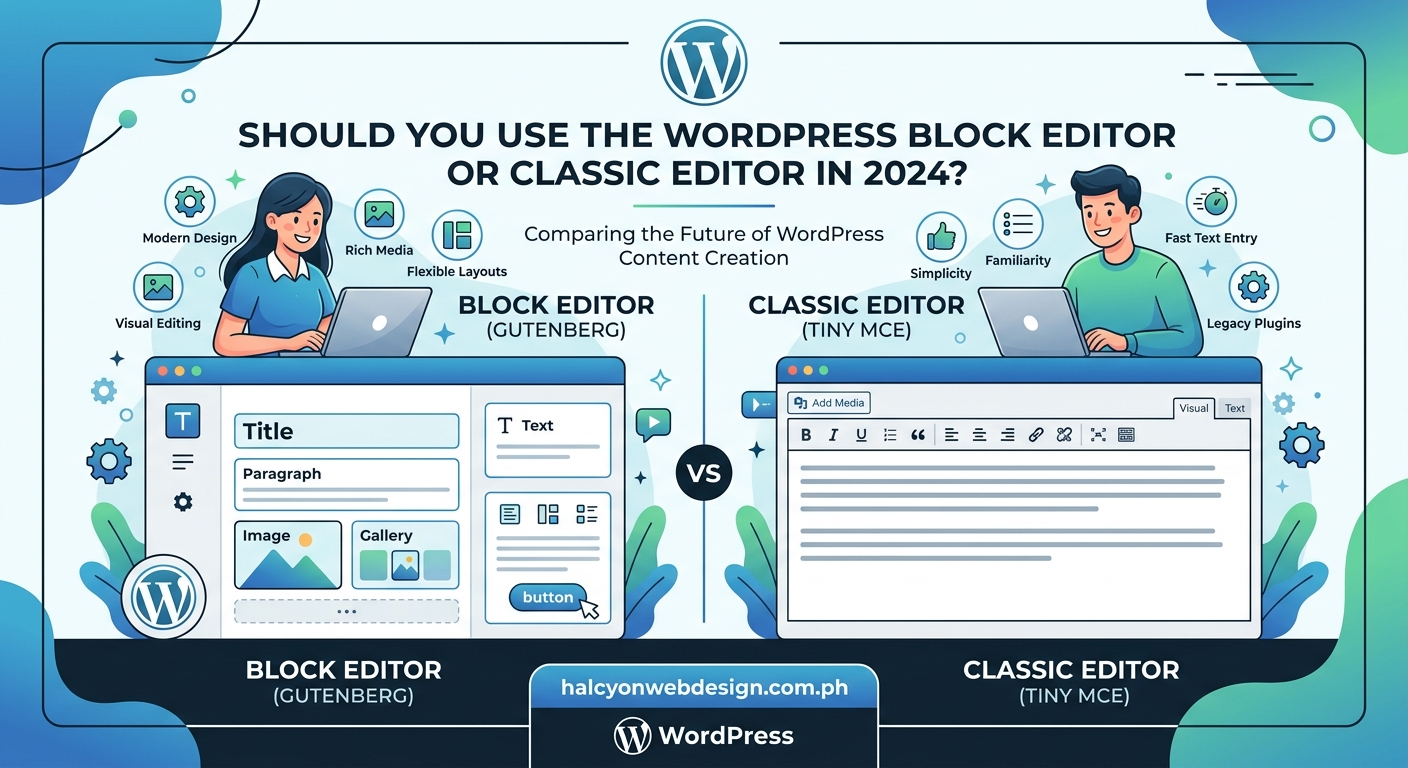
New WordPress users often find the Block Editor easier to understand.
The visual interface shows exactly what your content will look like. You can see spacing, alignment, and layout in real time. There’s no guessing about how your post will appear on the published page.
Experienced users who learned WordPress before 2018 often prefer the Classic Editor. They’re familiar with the TinyMCE toolbar, they know how to use HTML view, and they don’t need visual layout tools.
The Block Editor requires more clicks to complete basic tasks. Want to add an image? Click the plus icon, search for the image block, select it, then upload your file. In the Classic Editor, you click “Add Media” and you’re done.
Plugin and theme compatibility issues to watch for
Not every WordPress theme supports the Block Editor fully.
Older themes built before 2018 may not style blocks correctly. Your buttons might look broken, your columns might stack incorrectly on mobile, or your background colors might not display. You’ll need to test your theme with the Block Editor before committing to it.
Some plugins only work with the Classic Editor. Page builders like Elementor, Divi, and Beaver Builder replace the default editor entirely. If you’re using one of these tools, the Block Editor becomes irrelevant.
The Classic Editor plugin has over 5 million active installations because many site owners aren’t ready to switch. WordPress will continue supporting it through at least 2024, but eventually, the Block Editor will become the only option.
When the block editor gives you more control
The Block Editor shines when you need custom page layouts.
You can build landing pages without a page builder plugin. You can create product showcases, pricing tables, and testimonial sections using core blocks. You can adjust spacing, colors, and typography for individual blocks without writing CSS.
Here’s what you can do with the Block Editor that’s difficult in the Classic Editor:
- Create multi-column layouts without HTML tables
- Add background colors or images to specific sections
- Insert reusable content blocks across multiple posts
- Build call-to-action boxes with custom styling
- Embed interactive elements like accordions and tabs
If you’re building a site that needs visual variety, the Block Editor reduces your dependence on third-party plugins.
When the classic editor makes more sense
The Classic Editor works better for text-heavy content.
If you’re writing long-form articles, tutorials, or documentation, you don’t need layout flexibility. You need a distraction-free writing environment that loads fast and stays out of your way.
Journalists, authors, and content marketers often stick with the Classic Editor because it mirrors the tools they already use. The keyboard shortcuts match Google Docs, the formatting toolbar is familiar, and there’s no learning curve.
You should choose the Classic Editor if:
- You write primarily text-based content with minimal images
- You value fast page load times over visual customization
- You’re already comfortable with the WordPress interface pre-2018
- Your theme doesn’t fully support Block Editor styling
- You use a third-party page builder for design work
How to switch between editors without losing content
You can change editors at any time without breaking your site.
To switch from the Block Editor to the Classic Editor, install the Classic Editor plugin. Go to Settings > Writing and select “Classic editor” as your default. All your existing posts remain intact.
To switch from the Classic Editor to the Block Editor, deactivate the Classic Editor plugin. WordPress will automatically convert your content into blocks. Paragraphs become paragraph blocks, images become image blocks, and headings become heading blocks.
Here’s what happens to your content during the switch:
| Content Type | Block Editor Conversion | Classic Editor Conversion |
|---|---|---|
| Text paragraphs | Converted to paragraph blocks | Converted to plain text |
| Images | Converted to image blocks | Converted to inline images |
| Shortcodes | Converted to shortcode blocks | Remain as shortcodes |
| Custom HTML | Converted to HTML blocks | Remain as HTML |
| Embeds | Converted to embed blocks | Remain as embed code |
Your content won’t disappear, but complex layouts might need adjustment after switching.
Troubleshooting common problems with both editors
The Block Editor sometimes fails to load.
You’ll see a white screen or an error message saying “The editor has encountered an unexpected error.” This usually happens because of plugin conflicts. Deactivate your plugins one by one to find the culprit, or follow the steps in our guide on fixing plugin conflicts.
The Classic Editor occasionally strips out custom HTML. If you paste code from another source, WordPress might remove certain tags for security reasons. Switch to the Text tab (not Visual) when working with HTML to prevent this issue.
Both editors can have trouble with image uploads. If you’re seeing error messages when adding images, check our troubleshooting guide on why WordPress images won’t upload.
“The best editor is the one that doesn’t interrupt your workflow. If you’re spending more time fighting your tools than creating content, you’re using the wrong editor.”
Making the decision based on your content strategy
Your content type should determine your editor choice.
If you publish product reviews, comparison articles, or visual tutorials, the Block Editor gives you better control over presentation. You can highlight key features, create side-by-side comparisons, and add styled callout boxes without plugins.
If you publish news articles, opinion pieces, or text-focused blog posts, the Classic Editor keeps your workflow simple and your pages fast.
Some bloggers use both editors strategically. They write regular blog posts in the Classic Editor for speed, then switch to the Block Editor for special pages like About, Contact, or landing pages that need custom layouts.
You can also set different defaults for posts and pages. Use the Classic Editor for blog posts and the Block Editor for pages. This gives you flexibility without forcing every piece of content into the same workflow.
Understanding the future of WordPress editing
WordPress is moving toward full-site editing.
The Block Editor is expanding beyond posts and pages. You’ll eventually be able to edit headers, footers, and sidebars using the same block interface. This means the Classic Editor will become less relevant over time.
If you’re building a new site today, learning the Block Editor makes sense for long-term sustainability. If you’re maintaining an existing site with a workflow that works, there’s no urgent reason to switch.
The Classic Editor plugin will receive updates through 2024 at minimum. After that, WordPress may discontinue official support, but the plugin will likely continue working through community maintenance.
Choosing the right editor for your workflow
Test both editors with your actual content before making a permanent decision.
Create a few posts in each editor. Pay attention to how long it takes you to format content, add images, and publish. Notice which interface feels more natural and which one slows you down.
Your choice isn’t permanent. You can switch editors anytime, and your content will adapt. The important thing is picking the tool that helps you publish better content faster, not the one that looks more modern or has more features you’ll never use.
If you’re still setting up your WordPress site, make sure you’ve configured the essential settings that affect both editors, including permalinks, media settings, and discussion options.
The WordPress block editor vs classic editor debate isn’t about which one is objectively better. It’s about which one fits the way you work. Choose the editor that removes friction from your publishing process, and your content quality will improve as a result.