
Google Image Search sends more traffic than most people realize. Images appear in regular search results, featured snippets, and dedicated image carousels. Yet most content creators upload images without thinking about SEO.
That’s a missed opportunity. Properly optimized images can rank for competitive keywords, drive qualified traffic, and improve your overall page performance. The process isn’t complicated, but it requires attention to detail.
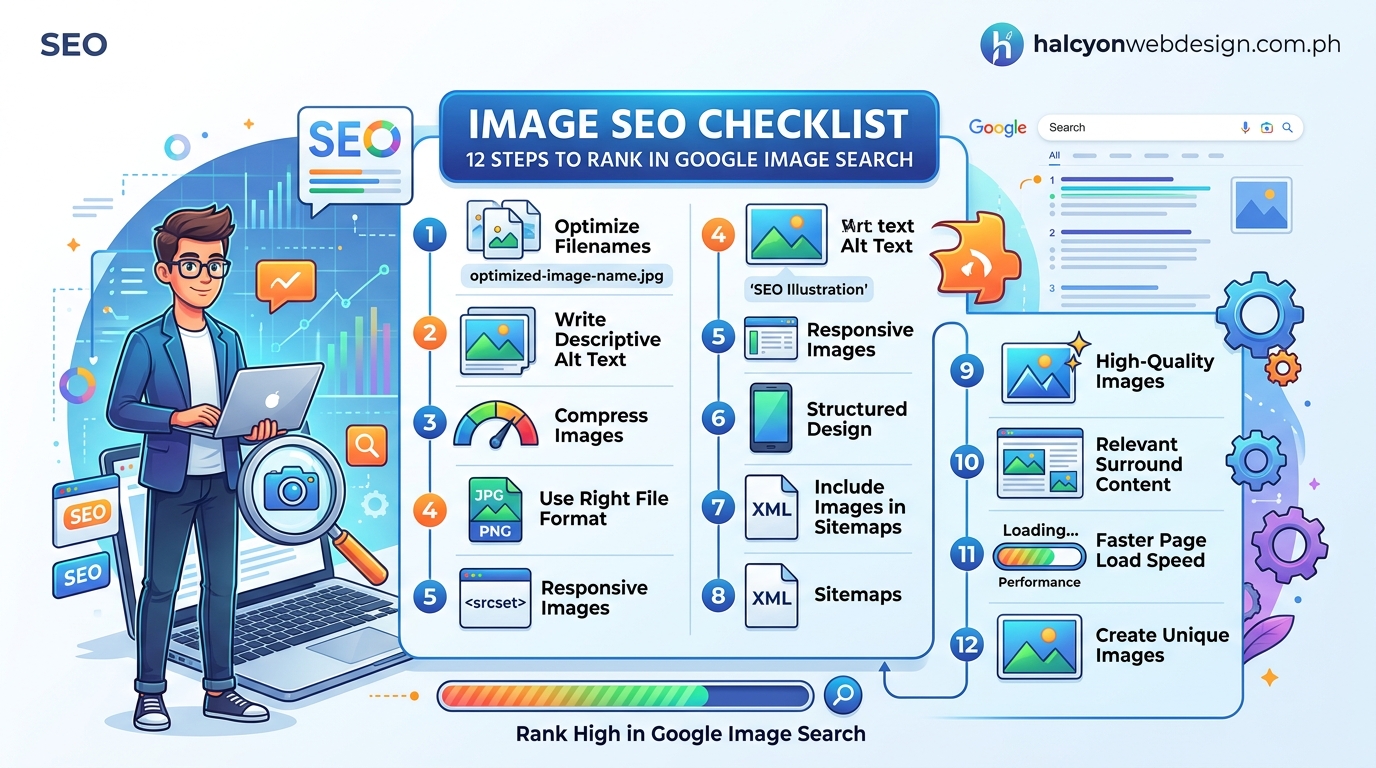
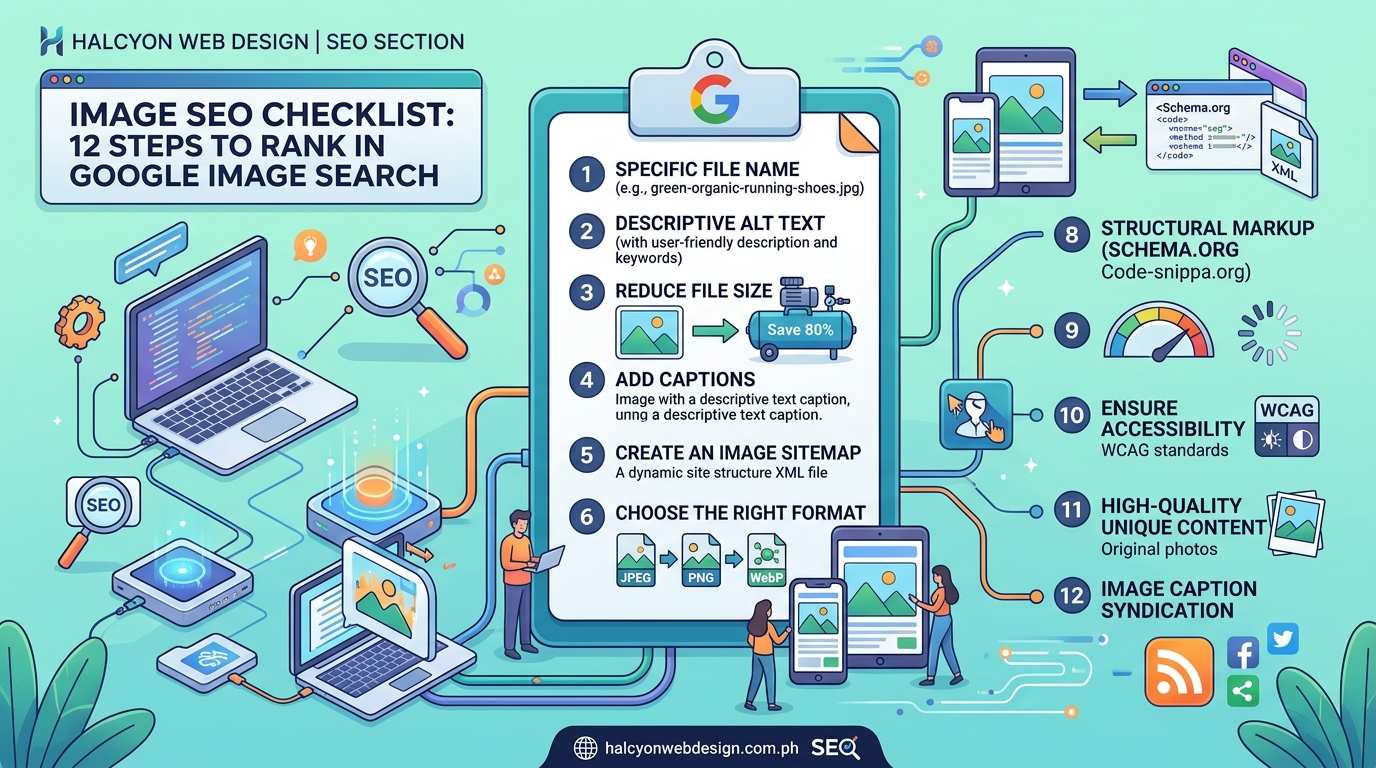
This image SEO checklist covers 12 essential steps to help your visuals rank in Google Image Search. You’ll learn how to choose the right file formats, write descriptive alt text, compress images without quality loss, implement structured data, and avoid common mistakes that prevent indexing. Each step includes actionable instructions you can apply immediately to improve visibility and site performance.
Choose the right file format for each image type
File format affects both image quality and load speed. The wrong choice creates bloated files that slow your site and hurt rankings.
Use JPEG for photographs and complex images with gradients. The format handles millions of colors and compresses efficiently. Most blog photos and product shots work best as JPEGs.
Use PNG for graphics with transparency, logos, and images with text. PNG preserves sharp edges and supports transparent backgrounds. Screenshots and infographics often benefit from PNG format.
Use WebP when browser support allows. This modern format delivers smaller file sizes than JPEG or PNG while maintaining quality. Many WordPress plugins can serve WebP to supported browsers and fall back to JPEG for older ones.
Avoid BMP, TIFF, and other uncompressed formats. These create massive files that take forever to load.
| Format | Best For | Transparency | Compression |
|---|---|---|---|
| JPEG | Photos, complex images | No | Lossy |
| PNG | Graphics, logos, text | Yes | Lossless |
| WebP | Modern browsers, all types | Yes | Both |
| SVG | Icons, simple graphics | Yes | Vector |
Compress images before uploading them
File size directly impacts page speed, which affects both user experience and search rankings. A single uncompressed image can add seconds to your load time.
Compress images to reduce file size without noticeable quality loss. Aim for under 200KB for most images. Hero images and featured photos can go slightly higher, but rarely need to exceed 500KB.
Use compression tools before upload:
- TinyPNG for batch compression
- ImageOptim for Mac users
- Squoosh for precise control over quality settings
- GIMP or Photoshop with “Save for Web” options
Set JPEG quality between 75 and 85. Most viewers can’t tell the difference between 85% and 100% quality, but the file size difference is substantial.
If you’re working on how to optimize images for web without losing quality, you’ll find specific techniques for balancing compression and visual fidelity.
Use descriptive, keyword-rich file names
Google reads file names before it even loads your page. A file named “IMG_1234.jpg” tells search engines nothing. A file named “red-leather-sofa-living-room.jpg” provides context.
Rename images before uploading them. Include your target keyword naturally in the file name. Describe what the image shows in plain language.
Follow these naming conventions:
- Use lowercase letters only
- Separate words with hyphens, not underscores
- Keep names concise but descriptive
- Include relevant keywords without stuffing
- Avoid special characters and spaces
Bad examples: DSC_0923.jpg, photo.png, image-final-FINAL-v2.jpg
Good examples: chocolate-chip-cookies-cooling-rack.jpg, wordpress-dashboard-settings-screen.png, blue-ceramic-coffee-mug.jpg
Write alt text that describes the image content
Alt text serves two critical purposes. Screen readers announce it to visually impaired users, and Google uses it to understand image content.
Write alt text that accurately describes what the image shows. Pretend you’re describing the image to someone over the phone. Be specific and concise.
Include your target keyword naturally if it fits the description. Never force keywords into alt text just for SEO. Accessibility comes first.
“Alt text should describe the image content and function. If the image is decorative and adds no information, use empty alt text. If it conveys meaning, describe that meaning clearly and completely.” – W3C Web Accessibility Initiative
Good alt text examples:
- “Woman typing on laptop at wooden desk with coffee cup”
- “WordPress plugin installation screen showing activate button”
- “Golden retriever puppy sleeping on blue blanket”
Bad alt text examples:
- “Image” (too vague)
- “Click here” (describes action, not content)
- “SEO tips WordPress blog optimization keywords” (keyword stuffing)
For more guidance, check out how to write alt text that actually helps visually impaired users.
Add descriptive captions where they add value
Captions appear below images and provide context. Not every image needs a caption, but they help when you want to explain something the image doesn’t show on its own.
Users read captions more than body text. If your image illustrates a complex concept, a caption can bridge the gap between visual and explanation.
Captions also give you another place to include relevant keywords naturally. Just make sure the caption serves the reader first.
Use captions for:
- Data visualizations that need interpretation
- Before and after comparisons
- Step-by-step tutorial images
- Historical or archival photos
- Images that require attribution
Skip captions for:
- Decorative images
- Images where the surrounding text already explains everything
- Simple product photos where the caption would just repeat the product name
Set appropriate image dimensions
Serving oversized images wastes bandwidth and slows page loads. A 4000px wide image displayed at 800px forces browsers to download and resize unnecessary data.
Resize images to match their display size before uploading. If your blog content area is 800px wide, your images don’t need to be wider than 1600px (accounting for retina displays).
Most content management systems create multiple sizes automatically. WordPress generates thumbnail, medium, and large versions. Use the appropriate size for each context.
Common display sizes to target:
- Full-width hero images: 1920px to 2400px wide
- Featured images: 1200px to 1600px wide
- In-content images: 800px to 1200px wide
- Thumbnails: 300px to 400px wide
Never let CSS do all the resizing. A 3000px image scaled down to 300px with CSS still downloads the full 3000px file.
Implement lazy loading for below-the-fold images
Lazy loading defers image loading until users scroll near them. This speeds up initial page load and saves bandwidth for images users never see.
Modern browsers support native lazy loading with a simple attribute. Add loading="lazy" to your image tags.
<img src="example.jpg" alt="Description" loading="lazy">
WordPress automatically adds lazy loading to images in version 5.5 and later. Most page builders include lazy loading options.
Don’t lazy load above-the-fold images. These should load immediately since users see them right away. Lazy loading them creates a poor experience and can hurt your Largest Contentful Paint score.
If you’re concerned about site speed, read why your WordPress site loads slowly and how to fix it in 30 minutes for comprehensive performance tips.
Create an image sitemap or add images to your XML sitemap
Image sitemaps help Google discover and index your images faster. They’re especially important for images loaded with JavaScript or hidden in galleries.
Most SEO plugins handle this automatically. Yoast SEO and Rank Math include images in your XML sitemap by default.
If you’re building a sitemap manually, include these elements for each image:
- Image location URL
- Caption (optional)
- Title (optional)
- License URL (optional)
- Geographic location (optional)
Submit your sitemap through Google Search Console. Navigate to Sitemaps in the left sidebar and enter your sitemap URL.
For detailed instructions, see how to submit your sitemap to Google Search Console step by step.
Use structured data markup for rich results
Structured data tells Google exactly what your images show and how they relate to your content. This increases your chances of appearing in rich results like recipe cards, product listings, and how-to guides.
Schema markup for images includes properties like:
- Image URL
- Width and height
- Caption
- License information
- Creator attribution
Different content types use different schema types. Recipe schema requires at least one image. Product schema benefits from multiple images showing different angles.
Add schema markup using JSON-LD format in your page’s <head> or through plugins. Many WordPress themes and SEO plugins include schema markup options.
Test your markup with Google’s Rich Results Test tool before publishing. Fix any errors or warnings the tool identifies.
Learn more about how to implement schema markup without breaking your site.
Ensure images are crawlable and indexable
Google can’t rank images it can’t access. Several common mistakes prevent image indexing.
Check your robots.txt file. Make sure you’re not blocking image directories or file types. Lines like Disallow: /wp-content/uploads/ prevent Google from accessing WordPress images.
Verify your images load without JavaScript when possible. Google can render JavaScript, but it’s slower and less reliable than serving images in HTML.
Avoid using images as CSS backgrounds for important content. Google has trouble discovering and understanding background images. Use proper <img> tags instead.
Test image accessibility by viewing your page source. If you can see the image URL in the HTML, Google can probably find it.
Use Google Search Console’s URL Inspection tool to check if Google can see your images. Enter your page URL and look at the “Page resources” section.
If you’re seeing indexing problems, read how to fix crawled currently not indexed in Google Search Console.
Place images near relevant text content
Context matters for image SEO. Google looks at surrounding text to understand what images show and whether they’re relevant to user queries.
Place images near the text they illustrate. If you’re writing about chocolate chip cookies, put the cookie image in that section, not three paragraphs later.
Use descriptive headings above images. The heading text helps Google connect the image to specific topics.
Write detailed paragraphs around important images. More context gives Google more signals about image relevance.
Avoid dumping all images in a gallery at the bottom of your post. Spread them throughout your content where they naturally support your points.
Choose the right image hosting solution
Where you host images affects load speed, reliability, and SEO performance.
Self-hosting on your web server gives you complete control but requires adequate bandwidth and storage. Shared hosting plans often struggle with image-heavy sites.
Content Delivery Networks (CDNs) serve images from servers geographically close to users. This reduces latency and improves load times globally. Many CDNs offer automatic image optimization.
Third-party image hosts like Cloudinary or ImageKit provide advanced features like automatic format conversion, responsive images, and real-time transformations. They handle the technical complexity of image optimization.
Avoid hosting critical images on free platforms that might disappear or change URLs. Broken image links hurt user experience and SEO.
If you need faster load times, consider why your website needs a CDN and how to configure one in 15 minutes.
Monitor image performance in Google Search Console
Track how your images perform in search results. Google Search Console provides data on image impressions, clicks, and average position.
Navigate to Performance in Search Console. Click the “Search type” filter and select “Image.” This shows how your images perform in Google Image Search.
Look for:
- Images with high impressions but low clicks (improve thumbnails or titles)
- Images ranking for unexpected keywords (opportunity for new content)
- Declining image traffic (check for broken images or indexing issues)
Compare image search traffic to web search traffic. Some topics naturally drive more image searches. Food, fashion, and design content often gets significant image search traffic.
Use the data to inform your image strategy. Double down on image types that perform well. Improve or replace images that get impressions but no clicks.
Common image SEO mistakes to avoid
Even experienced creators make these mistakes. Avoid them to maximize your image search performance.
| Mistake | Why It Hurts | Solution |
|---|---|---|
| Using generic file names | Google can’t understand image content | Rename with descriptive keywords |
| Skipping alt text | Fails accessibility and SEO | Write descriptive alt text for every image |
| Uploading huge files | Slows page speed, hurts rankings | Compress before upload |
| Blocking images in robots.txt | Prevents indexing | Check and fix robots.txt rules |
| Using images as text | Screen readers can’t read it | Use real text with CSS styling |
| Duplicate images across pages | Splits ranking signals | Use unique images per page |
| Missing structured data | Reduces rich result eligibility | Implement appropriate schema |
Don’t use images with embedded text as your primary content. Search engines can’t read text in images reliably. Use real HTML text styled with CSS instead.
Avoid uploading the same image to multiple URLs. Google might index the wrong version or split ranking signals between duplicates. Use canonical image URLs or serve images from a single location.
Never use copyrighted images without permission. Google can penalize sites for copyright violations, and you risk legal action from rights holders.
Making images work harder for your content
Images aren’t just decoration. They’re ranking opportunities, traffic sources, and accessibility requirements rolled into one.
Start with the basics: compress your files, write good alt text, and use descriptive file names. These three steps alone will put you ahead of most sites.
Then layer in the advanced techniques: structured data, image sitemaps, and strategic placement near relevant text. Monitor your results in Search Console and adjust based on what works.
The best part about image SEO is that the work compounds. Every optimized image adds another entry point to your site. Over time, those entry points add up to significant traffic.
Pick one post on your site right now. Go through this checklist and optimize every image. Then measure the results over the next month. You’ll see why image SEO deserves a permanent spot in your content workflow.