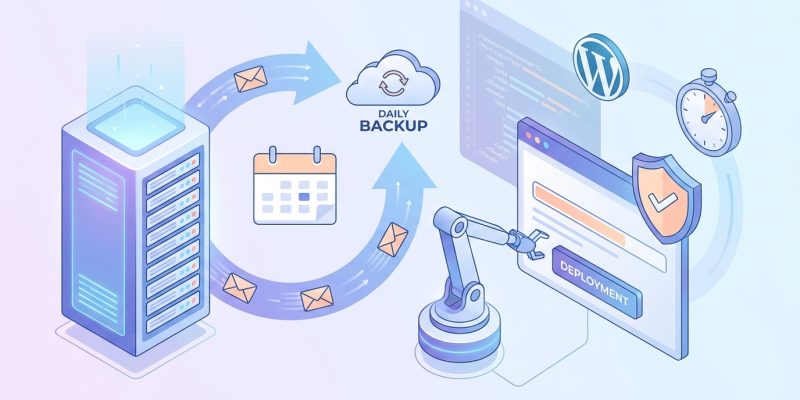
Deployments fail. Servers crash. Databases corrupt. You already know this. What separates a minor headache from a career-defining disaster is whether you have a working backup from this morning. Setting up automated daily backups isn’t optional anymore. It’s the safety net that lets you sleep through the night.
Automated daily backups protect your production systems from data loss during deployments and unexpected failures. This guide walks you through selecting backup tools, writing automation scripts, scheduling with cron or cloud services, testing restoration procedures, and monitoring backup health. You’ll learn practical methods for databases, file systems, and application states that run without manual intervention.
Why automated backups matter before deployment
Manual backups sound reasonable until you forget them. Deployments happen at odd hours. Teams change. Procedures get skipped. One missed backup before a bad deployment can cost days of recovery work.
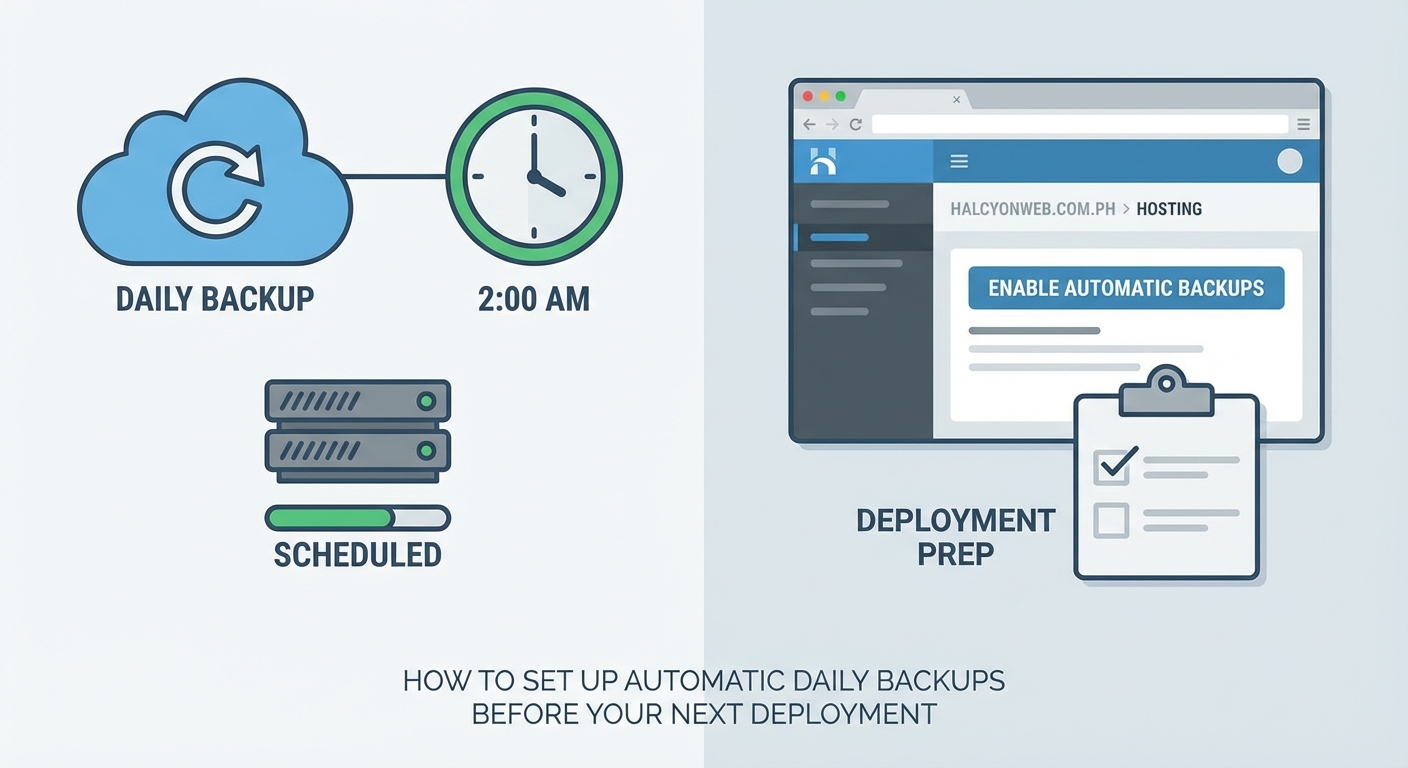
Automation removes human error from the equation. Your backups run at 2 AM whether you remember or not. They happen before every deployment. They capture the exact state you need to roll back to when something breaks.
The best time to set this up is before you need it. Once production is down, it’s too late to wish you had yesterday’s backup.
Choosing your backup approach
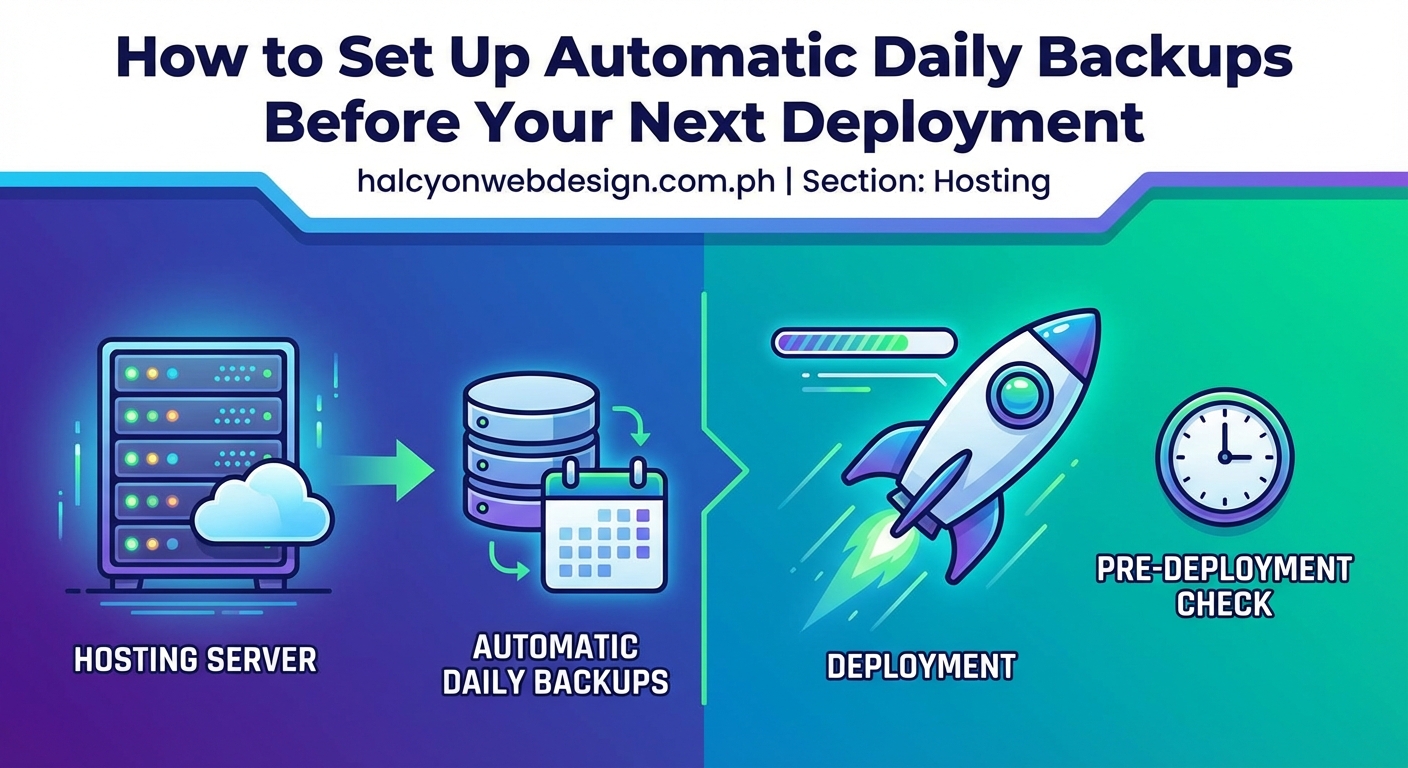
Different systems need different backup strategies. Your choice depends on what you’re protecting and where it lives.
File-based backups work well for static sites, configuration files, and uploaded media. They copy directories to another location. Simple but effective.
Database dumps capture your data structure and content. MySQL, PostgreSQL, MongoDB all have built-in tools for this. The dumps are portable and easy to restore.
Snapshot-based backups clone entire disk states. Cloud providers like AWS and DigitalOcean offer these. They’re fast to create and restore but tied to specific platforms.
Application-level backups export data through your app’s own tools. WordPress has plugins. Laravel has commands. These understand your app’s structure better than generic file copies.
Pick the method that matches your stack. Most production systems need a combination. Database dumps plus file backups cover the majority of web applications.
Setting up automated database backups
Databases hold your most critical data. Start here.
For MySQL and MariaDB
Create a backup script that uses mysqldump:
“`bash
!/bin/bash
DATE=$(date +%Y%m%d_%H%M%S)
BACKUP_DIR=”/backups/mysql”
DB_NAME=”production_db”
DB_USER=”backup_user”
DB_PASS=”your_password”
mysqldump -u $DB_USER -p$DB_PASS $DB_NAME | gzip > $BACKUP_DIR/backup_$DATE.sql.gz
Keep only last 7 days
find $BACKUP_DIR -name “backup_*.sql.gz” -mtime +7 -delete
Save this as /usr/local/bin/backup-mysql.sh and make it executable with chmod +x.
For PostgreSQL
PostgreSQL uses pg_dump instead:
“`bash
!/bin/bash
DATE=$(date +%Y%m%d_%H%M%S)
BACKUP_DIR=”/backups/postgres”
DB_NAME=”production_db”
DB_USER=”postgres”
pg_dump -U $DB_USER $DB_NAME | gzip > $BACKUP_DIR/backup_$DATE.sql.gz
find $BACKUP_DIR -name “backup_*.sql.gz” -mtime +7 -delete
For MongoDB
MongoDB needs mongodump:
“`bash
!/bin/bash
DATE=$(date +%Y%m%d_%H%M%S)
BACKUP_DIR=”/backups/mongo”
mongodump –out $BACKUP_DIR/backup_$DATE –gzip
find $BACKUP_DIR -name “backup_*” -mtime +7 -exec rm -rf {} +
These scripts compress backups to save space. They also clean up old backups automatically. Keeping seven days is a reasonable default, but adjust based on your needs.
Automating file and directory backups
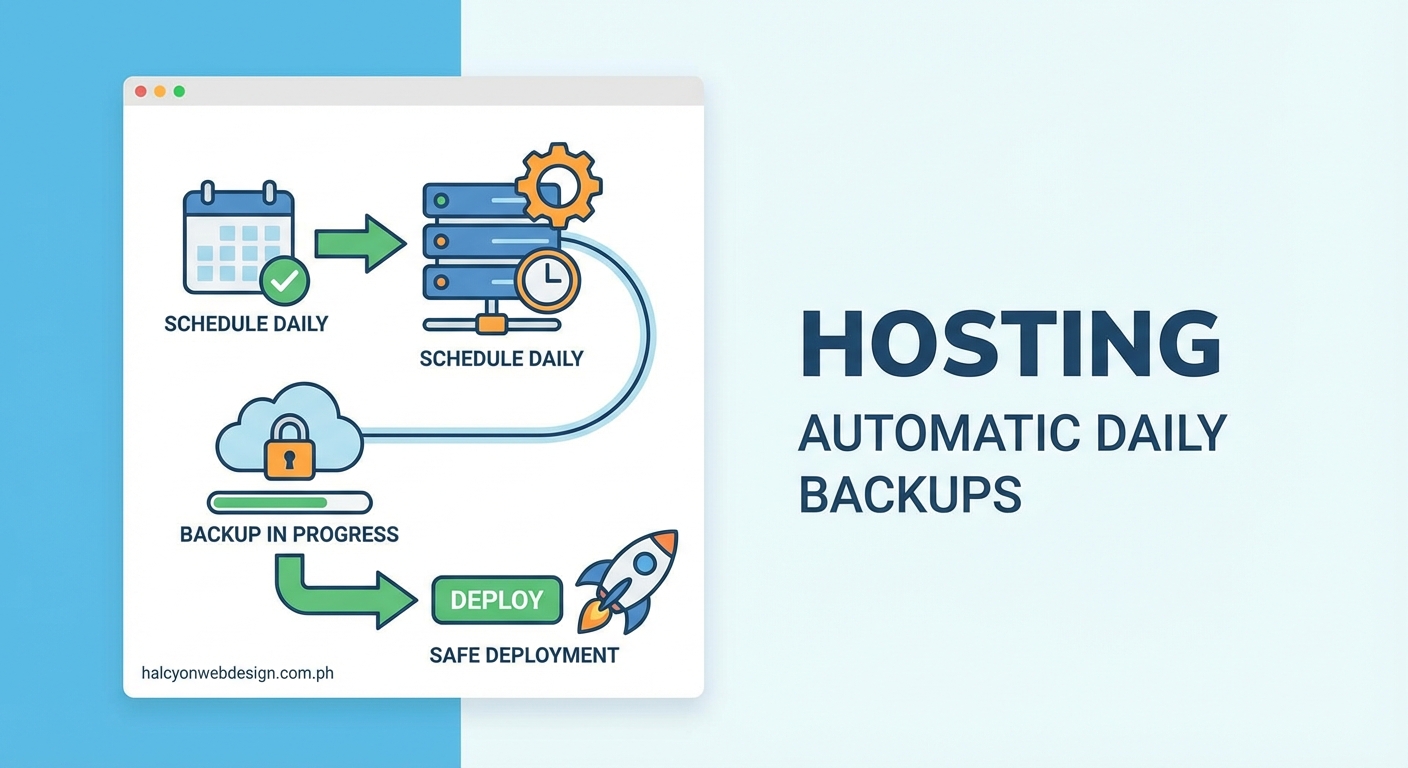
Your application files, uploads, and configuration need backing up too.
The rsync command handles this well:
“`bash
!/bin/bash
DATE=$(date +%Y%m%d_%H%M%S)
SOURCE_DIR=”/var/www/production”
BACKUP_DIR=”/backups/files”
rsync -az –delete $SOURCE_DIR $BACKUP_DIR/backup_$DATE
Keep last 7 daily backups
ls -t $BACKUP_DIR | tail -n +8 | xargs -I {} rm -rf $BACKUP_DIR/{}
The -a flag preserves permissions and timestamps. The -z flag compresses during transfer. The --delete flag makes each backup a complete snapshot.
For larger file sets, consider incremental backups. They only copy changed files:
“`bash
rsync -az –link-dest=$BACKUP_DIR/latest $SOURCE_DIR $BACKUP_DIR/backup_$DATE
ln -nsf $BACKUP_DIR/backup_$DATE $BACKUP_DIR/latest
This creates hard links to unchanged files, saving massive amounts of space.
Scheduling backups with cron
Cron runs commands on a schedule. It’s built into Linux and perfect for daily backups.
Edit your crontab with crontab -e and add these lines:
Database backup at 2 AM daily
0 2 * * * /usr/local/bin/backup-mysql.sh
File backup at 3 AM daily
0 3 * * * /usr/local/bin/backup-files.sh
The format is: minute, hour, day of month, month, day of week.
Here are common schedules:
| Schedule | Cron Expression | Use Case |
|---|---|---|
| Every day at 2 AM | 0 2 * * * |
Standard daily backup |
| Every 6 hours | 0 */6 * * * |
High-change databases |
| Every Sunday at midnight | 0 0 * * 0 |
Weekly full backup |
| Every hour | 0 * * * * |
Critical production data |
Stagger your backup times. Don’t run database and file backups simultaneously. They compete for disk I/O and slow each other down.
“The best backup schedule is the one that actually runs. Start with daily backups at low-traffic hours. You can always add more frequent backups later once you verify the first ones work reliably.” – Senior DevOps Engineer
Using cloud backup solutions
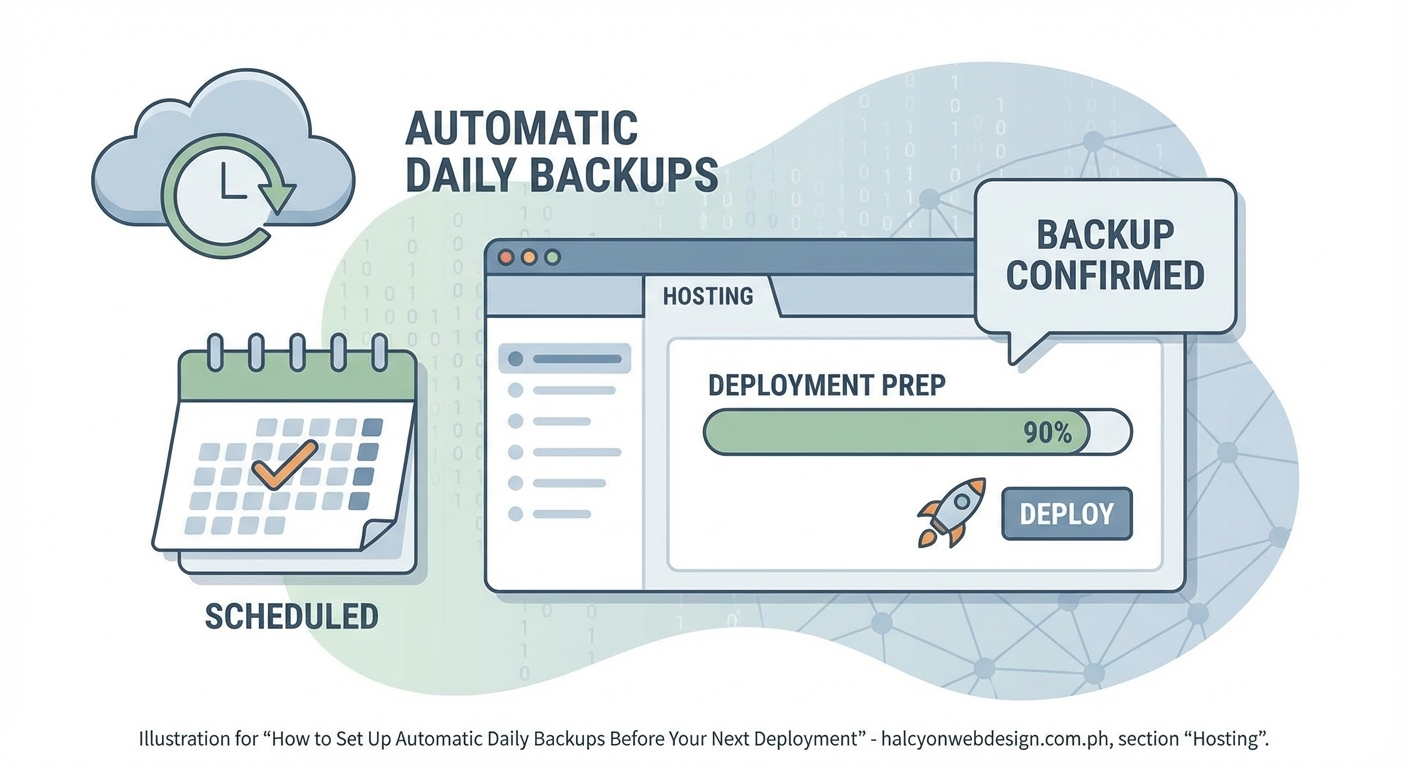
Cloud providers offer managed backup services. They handle scheduling, storage, and retention automatically.
AWS Backup
AWS Backup works across EC2, RDS, EBS, and more. Set it up through the console or CLI:
- Create a backup plan with daily schedule
- Assign resources using tags or resource IDs
- Define retention rules (7 days, 30 days, etc.)
- Enable backup vault lock for compliance
The service runs automatically. You pay only for storage used.
DigitalOcean Snapshots
DigitalOcean offers automated weekly snapshots. For daily backups, use their API:
“`bash
!/bin/bash
DROPLET_ID=”your_droplet_id”
API_TOKEN=”your_api_token”
curl -X POST \
-H “Content-Type: application/json” \
-H “Authorization: Bearer $API_TOKEN” \
“https://api.digitalocean.com/v2/droplets/$DROPLET_ID/actions” \
-d ‘{“type”:”snapshot”,”name”:”auto-backup-‘$(date +%Y%m%d)'”}’
Schedule this with cron for daily snapshots.
Google Cloud Storage
Use gsutil to sync backups to Cloud Storage:
“`bash
!/bin/bash
BACKUP_DIR=”/backups”
GCS_BUCKET=”gs://your-backup-bucket”
gsutil -m rsync -r -d $BACKUP_DIR $GCS_BUCKET
The -m flag enables parallel uploads. The -d flag deletes removed files from the bucket.
Testing your backup restoration
Backups you can’t restore are useless. Test them regularly.
Create a restoration checklist:
- Download a recent backup to a test environment
- Restore the database using your backup file
- Restore application files to their proper locations
- Start the application and verify it works
- Check that data matches production state
- Document any issues or missing steps
Run this test monthly at minimum. Quarterly is too infrequent. Weekly is ideal if you have the resources.
Time your restoration. You need to know how long recovery takes. This number matters when production is down and stakeholders are asking for estimates.
Many teams discover their backups are corrupt or incomplete only during an actual emergency. Don’t be that team.
Monitoring backup success
Automated backups fail silently. Disk space runs out. Credentials expire. Network connections drop. You won’t know unless you monitor.
Add logging to your backup scripts:
“`bash
!/bin/bash
LOG_FILE=”/var/log/backups.log”
DATE=$(date +”%Y-%m-%d %H:%M:%S”)
echo “[$DATE] Starting backup” >> $LOG_FILE
Your backup commands here
if [ $? -eq 0 ]; then
echo “[$DATE] Backup completed successfully” >> $LOG_FILE
else
echo “[$DATE] Backup failed with error code $?” >> $LOG_FILE
# Send alert email or Slack message
fi
Set up alerts for backup failures. A simple email works:
“`bash
if [ $? -ne 0 ]; then
echo “Backup failed on $(hostname)” | mail -s “BACKUP FAILURE” [email protected]
fi
Better yet, use a monitoring service. UptimeRobot, Pingdom, or custom health checks can verify backups completed.
Check backup file sizes too. A 500 KB database dump that’s usually 50 MB signals a problem. Add size validation:
“`bash
MIN_SIZE=50000000 # 50 MB in bytes
BACKUP_FILE=”backup_$DATE.sql.gz”
if [ $(stat -f%z “$BACKUP_FILE”) -lt $MIN_SIZE ]; then
echo “Backup file too small!” | mail -s “BACKUP SIZE WARNING” [email protected]
fi
Common backup mistakes to avoid
Even experienced developers make these errors:
| Mistake | Why It’s Bad | Better Approach |
|---|---|---|
| Storing backups on the same server | Server failure loses backups too | Use remote storage or cloud |
| Never testing restoration | Broken backups discovered during crisis | Monthly restoration tests |
| No backup verification | Corrupt files go unnoticed | Check file sizes and integrity |
| Hardcoded passwords in scripts | Security risk if scripts leak | Use environment variables or secrets management |
| Ignoring backup logs | Failures go unnoticed for weeks | Set up monitoring and alerts |
| No retention policy | Disk fills up, backups stop | Delete old backups automatically |
The hardcoded password issue is serious. Use environment variables instead:
“`bash
DB_PASS=”${MYSQL_BACKUP_PASSWORD}”
Or better, use a secrets manager like HashiCorp Vault or AWS Secrets Manager.
Backup retention strategies
How long should you keep backups? It depends on your needs.
A common approach:
- Keep daily backups for 7 days
- Keep weekly backups for 4 weeks
- Keep monthly backups for 12 months
- Keep yearly backups for 3-7 years
Implement this with a rotation script:
“`bash
!/bin/bash
BACKUP_DIR=”/backups”
Daily backups
find $BACKUP_DIR/daily -mtime +7 -delete
Weekly backups (keep Sunday backups)
if [ $(date +%u) -eq 7 ]; then
cp $BACKUP_DIR/daily/latest $BACKUP_DIR/weekly/backup_$(date +%Y%m%d)
fi
find $BACKUP_DIR/weekly -mtime +28 -delete
Monthly backups (keep first of month)
if [ $(date +%d) -eq 01 ]; then
cp $BACKUP_DIR/daily/latest $BACKUP_DIR/monthly/backup_$(date +%Y%m%d)
fi
find $BACKUP_DIR/monthly -mtime +365 -delete
Adjust these numbers based on compliance requirements and storage costs. Financial or healthcare applications often need longer retention.
Encrypting your backups
Backups contain sensitive data. Encrypt them.
Use gpg for simple encryption:
“`bash
!/bin/bash
BACKUP_FILE=”backup_$DATE.sql.gz”
GPG_RECIPIENT=”[email protected]”
mysqldump -u $DB_USER -p$DB_PASS $DB_NAME | gzip | gpg –encrypt –recipient $GPG_RECIPIENT > $BACKUP_FILE.gpg
For cloud storage, enable server-side encryption. AWS S3 and Google Cloud Storage both offer this. It’s usually just a checkbox in the bucket settings.
Encrypted backups need secure key management. Store encryption keys separately from backups. A compromised server shouldn’t expose both.
Integrating backups with deployment pipelines
The best time to backup is right before deployment. Automate this in your CI/CD pipeline.
For GitHub Actions:
“`yaml
name: Deploy with Backup
on:
push:
branches: [main]
jobs:
backup-and-deploy:
runs-on: ubuntu-latest
steps:
– name: Trigger backup
run: |
ssh user@server ‘/usr/local/bin/backup-all.sh’
  - name: Wait for backup
    run: sleep 60

  - name: Deploy application
    run: |
      # Your deployment commands
For GitLab CI:
“`yaml
stages:
– backup
– deploy
backup:
stage: backup
script:
– ssh user@server ‘/usr/local/bin/backup-all.sh’
deploy:
stage: deploy
script:
– # Your deployment commands
dependencies:
– backup
This guarantees a fresh backup exists before every deployment. If the deployment breaks something, you have a known-good state to restore.
Some teams prefer securing their WordPress login before worrying about backups. Both matter, but backups protect against more failure modes.
Handling large backup files
Database dumps grow over time. A 100 GB backup takes hours to create and transfer.
Use incremental backups for large databases. MySQL supports binary log backups:
``bash
mysqlbinlog --start-datetime="2024-01-01 00:00:00" /var/log/mysql/mysql-bin.000001 > incremental.sql
PostgreSQL offers WAL archiving for point-in-time recovery. Configure it in
postgresql.conf`:
wal_level = replica
archive_mode = on
archive_command = ‘cp %p /backups/wal/%f’
For massive file sets, use tools designed for the job. Restic, Borg, and Duplicity all handle large backups efficiently with deduplication and compression.
If you’re running WordPress, choosing the right hosting plan often includes managed backups that handle these complexities for you.
Backup strategies for different environments
Development, staging, and production need different backup approaches.
Production needs frequent, reliable, tested backups. Daily at minimum. Hourly for high-traffic applications. Store backups in multiple locations. Test restoration monthly.
Staging can use less frequent backups. Weekly is often enough. Staging databases change less than production. You can rebuild staging from production backups if needed.
Development rarely needs automated backups. Developers work from version control. Local databases can be rebuilt from migrations and seed data.
Don’t waste resources backing up development environments. Focus your effort on production where it matters.
Offsite and geographic redundancy
Backups stored next to your production server aren’t safe. Fire, flood, or data center outages destroy both.
Use the 3-2-1 rule:
- 3 copies of your data
- 2 different storage types
- 1 offsite location
For example: production database, local backup on same server, backup in cloud storage. That’s three copies on two types (local disk and cloud) with one offsite (cloud).
Geographic redundancy matters for disaster recovery. If your server is in New York, store backups in California or Europe. Cloud providers make this easy with multi-region storage.
AWS S3 offers cross-region replication. Enable it in bucket settings. Google Cloud Storage has similar features. Your backups automatically copy to another continent.
Backup notification and reporting
You need visibility into backup status. Daily reports keep you informed without constant checking.
Create a summary script:
“`bash
!/bin/bash
BACKUP_DIR=”/backups”
REPORT_FILE=”/tmp/backup-report.txt”
echo “Backup Report for $(date +%Y-%m-%d)” > $REPORT_FILE
echo “=================================” >> $REPORT_FILE
echo “” >> $REPORT_FILE
echo “Database Backups:” >> $REPORT_FILE
ls -lh $BACKUP_DIR/mysql/ | tail -5 >> $REPORT_FILE
echo “” >> $REPORT_FILE
echo “File Backups:” >> $REPORT_FILE
ls -lh $BACKUP_DIR/files/ | tail -5 >> $REPORT_FILE
echo “” >> $REPORT_FILE
TOTAL_SIZE=$(du -sh $BACKUP_DIR | cut -f1)
echo “Total Backup Size: $TOTAL_SIZE” >> $REPORT_FILE
mail -s “Daily Backup Report” [email protected] < $REPORT_FILE
Run this daily after backups complete. You get a summary in your inbox every morning.
For teams, post reports to Slack:
“`bash
curl -X POST -H ‘Content-type: application/json’ \
–data ‘{“text”:”Backup completed: ‘”$TOTAL_SIZE”‘ stored”}’ \
YOUR_SLACK_WEBHOOK_URL
Performance impact of backups
Backups consume resources. They use CPU, disk I/O, and network bandwidth. Schedule them during low-traffic periods.
For most web applications, 2 AM to 5 AM local time works well. Traffic is lowest. Users won’t notice slight performance degradation.
Database backups lock tables briefly. Use --single-transaction with mysqldump to minimize this:
“`bash
mysqldump –single-transaction -u $DB_USER -p$DB_PASS $DB_NAME > backup.sql
This uses InnoDB’s transaction support to create consistent backups without locking.
For high-traffic sites that never sleep, use read replicas. Back up the replica instead of the primary database. Zero impact on production performance.
Cloud snapshots typically don’t affect performance. They use copy-on-write technology. The snapshot happens instantly. Data copies in the background.
When backups aren’t enough
Backups protect against data loss. They don’t protect against all problems.
You still need:
- Version control for code
- Configuration management for infrastructure
- Monitoring for uptime and performance
- Security measures for intrusion prevention
Backups are one layer in a complete disaster recovery strategy. They’re essential but not sufficient alone.
Consider what happens if your entire cloud account gets compromised. Backups in that account are vulnerable too. Some teams store critical backups with a completely different provider under a different account.
If your site loads slowly, backups won’t help. You need performance optimization. Different problem, different solution.
Documentation and runbooks
Your team needs to know how to restore from backups. Write it down.
Create a restoration runbook that includes:
- Where backups are stored
- How to access backup storage
- Commands to restore database
- Commands to restore files
- How to verify restoration worked
- Who to contact if problems occur
- Estimated time for full restoration
Keep this document updated. Review it every quarter. Test it during restoration drills.
New team members should read this during onboarding. They should perform a test restoration as part of training. This ensures knowledge spreads beyond one person.
Building confidence through automation
Manual processes fail. People forget. People leave companies. Automation keeps working.
Once you set up automatic daily backups, they run forever. No meetings needed. No reminders. No hoping someone remembers.
Your deployment process becomes less stressful. You can push changes knowing you have a safety net. If something breaks, you restore from this morning’s backup and try again.
This confidence changes how you work. You move faster. You experiment more. You worry less about catastrophic mistakes because recovery is routine instead of desperate.
Start with one backup. Get it working. Test the restoration. Then add more. Build the system piece by piece until it’s bulletproof.
Your future self will thank you when the database corrupts at 3 AM and you have a working backup from three hours ago.