Changing your WordPress theme can feel like remodeling your house while you’re still living in it. You want the fresh design, but you’re terrified of losing everything you’ve built. The good news? Your content, SEO rankings, and site functionality can survive a theme change if you follow the right steps.
Switching WordPress themes safely requires backing up your site, testing the new theme on a staging environment, checking for broken features, and monitoring SEO elements after launch. Most content loss happens from skipping backups or not testing compatibility with plugins and custom code. Follow a methodical approach to preserve your rankings and functionality.
What actually happens when you change themes
WordPress separates your content from your design.
Posts, pages, images, and most settings live in your database. Themes only control how that content displays. When you switch themes, your articles don’t vanish. Your images stay in the media library. Your SEO metadata remains intact.
But themes do more than style your site. They control menus, widgets, page layouts, and sometimes custom post types. A new theme might not support the same features as your old one.
That’s where things break.
Custom widgets disappear. Menu locations change. Page builders stop working. Shortcodes turn into ugly text strings. Your homepage layout might revert to a basic blog feed.
The key is knowing what will change and preparing for it.
Backup everything before you start
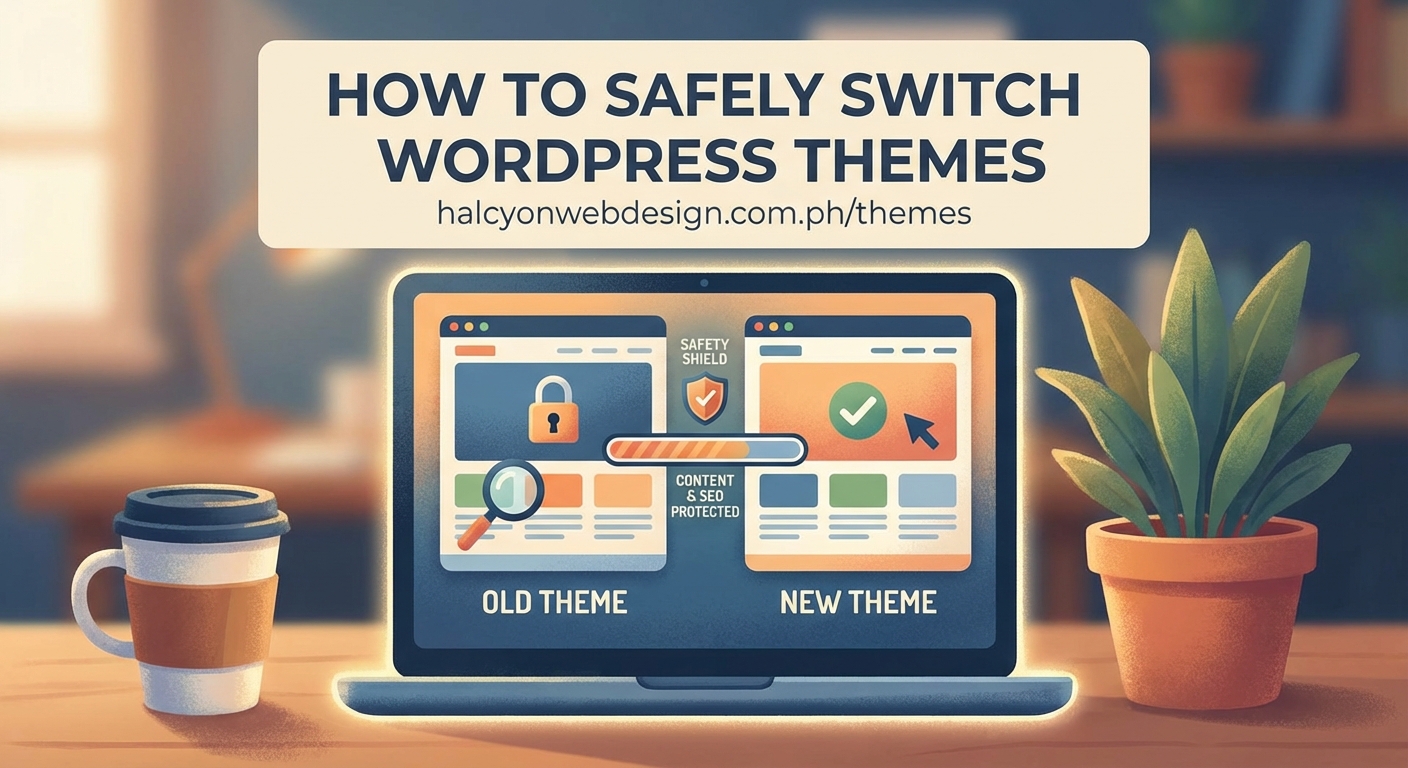
Never change themes without a complete backup.
This isn’t paranoia. This is insurance. If something breaks, you can restore your site in minutes instead of spending hours fixing problems or worse, losing data permanently.
Your backup should include:
- All WordPress files (themes, plugins, uploads)
- Your complete database
- Your current theme settings and customizations
- Widget configurations and menu assignments
Most hosting providers offer automatic backups, but don’t rely solely on them. Create a manual backup right before the theme change.
Use a plugin like UpdraftPlus, BackWPup, or Duplicator. Download the backup files to your computer. Verify the backup worked by checking the file sizes.
If your site crashes during the theme switch, you’ll thank yourself for this step.
Test your new theme in a staging environment
A staging site is a private copy of your website where you can break things without consequences.
Install your new theme there first. Test every page. Click every link. Check every form. Browse on mobile. Try different browsers.
Here’s what to test systematically:
- Homepage layout and featured content areas
- Blog post formatting and sidebar widgets
- Navigation menus and footer links
- Contact forms and email subscriptions
- E-commerce functionality if you run a shop
- Custom post types or portfolio sections
- Search functionality and 404 pages
- Mobile responsiveness on actual devices
Take screenshots of your current site before testing. Compare them side by side with the staging version. Note every difference, even small ones.
Many hosting companies include staging tools. If yours doesn’t, you can create a staging site manually in a subdomain or use a plugin like WP Staging.
Don’t skip this step. Testing catches 90% of problems before they affect real visitors.
Check plugin compatibility before switching
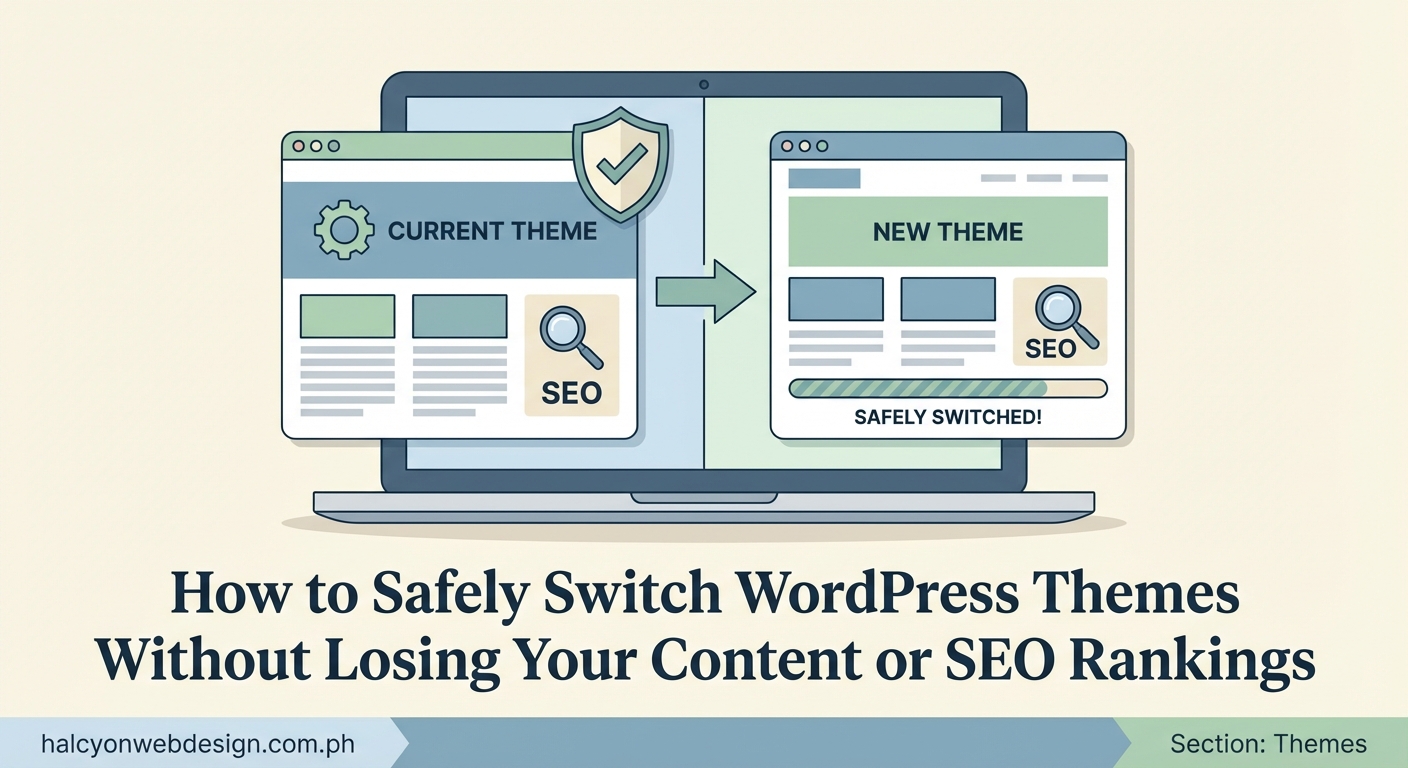
Themes and plugins need to work together.
Some plugins depend on specific theme features. Page builders like Elementor or Divi often require compatible themes. E-commerce plugins might need particular template files. SEO plugins usually work fine, but custom schema markup might need adjustment.
Before you switch themes, make a list of your active plugins. Check each one’s documentation for theme requirements.
Pay special attention to:
- Page builder plugins
- Custom post type plugins
- WooCommerce or other shop plugins
- Membership or subscription plugins
- Booking or appointment systems
Contact the plugin developers if you’re unsure. Most provide compatibility lists on their websites.
If a critical plugin won’t work with your new theme, you have three options. Find a different theme that supports it. Find a different plugin that does the same job. Or hire a developer to create custom compatibility code.
Don’t assume everything will work. Test it.
Document your current theme settings
Your current theme has settings you’ve spent time configuring.
Colors, fonts, layouts, header options, footer content. Some themes store these in the WordPress Customizer. Others use their own settings panels. A few save them as theme mods in the database.
Before switching, document everything:
- Take screenshots of every settings page
- Write down custom CSS snippets
- Export theme options if your theme allows it
- Note any custom code in functions.php
- Record Google Analytics or tracking codes
- Save custom header or footer scripts
New themes won’t import these settings automatically. You’ll need to recreate them manually. Having documentation makes this process faster and prevents you from forgetting important customizations.
Some themes offer export/import tools. Use them if available, but verify the export file actually contains your settings before proceeding.
Understand what you might lose during the switch
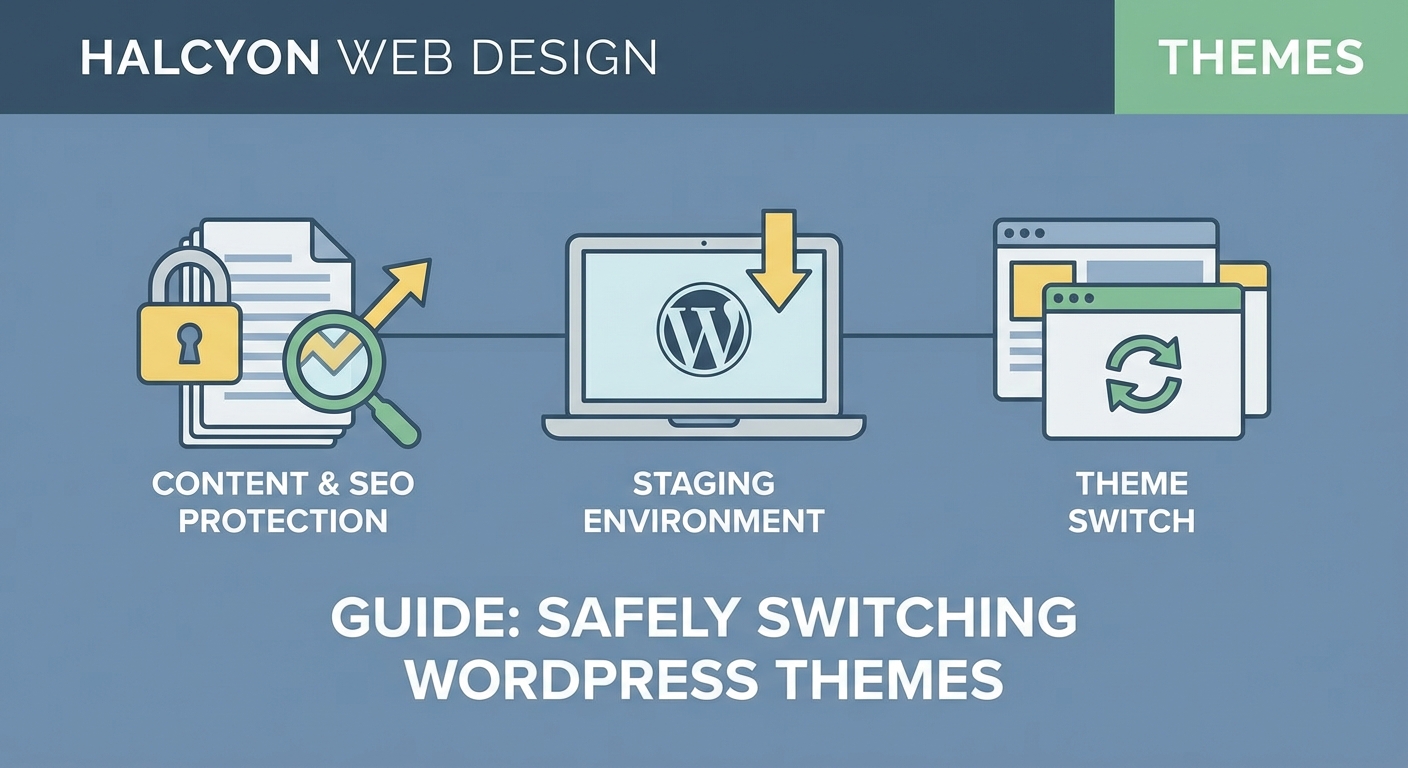
Not everything transfers smoothly between themes.
Here’s what commonly breaks or disappears:
| Element | What Happens | How to Fix |
|---|---|---|
| Custom widgets | Widget areas might not exist in new theme | Manually recreate in new widget locations |
| Menu locations | New theme has different menu positions | Reassign menus in Appearance > Menus |
| Homepage layout | Custom homepage reverts to blog feed | Rebuild using new theme’s homepage options |
| Shortcodes | Old theme shortcodes stop working | Replace with new theme shortcodes or plugins |
| Custom post types | Might lose styling or layout options | Restyle using new theme templates |
| Page builder content | May need rebuilding in new theme | Export/import if builders are compatible |
Posts and pages stay intact. Your media library doesn’t change. Permalinks remain the same. Comments survive. Your SEO titles and descriptions persist if you use an SEO plugin like Yoast or Rank Math.
But visual customizations? Those need rebuilding.
Step by step process to switch themes safely
Here’s the exact process to follow:
- Create a complete backup of your site
- Set up a staging environment
- Install and activate the new theme on staging
- Test all pages, posts, and functionality
- Rebuild custom layouts and widgets
- Check mobile responsiveness
- Verify forms and tracking codes work
- Test site speed and performance
- Review SEO elements and metadata
- Get feedback from a colleague or friend
- Create another backup of your live site
- Install the new theme on your live site
- Activate it during low-traffic hours
- Immediately check critical pages
- Monitor for errors over the next 48 hours
Take your time with each step. Rushing causes mistakes.
If you manage client websites or run an online business, consider using maintenance mode during the switch. This shows visitors a temporary message while you work.
Preserve your SEO rankings during the transition
Search engines care about content, not themes.
Your rankings won’t tank just because you changed designs. But certain theme elements affect SEO, and you need to verify they transfer correctly.
Check these SEO elements after switching:
- Page titles and meta descriptions (should be unchanged if you use an SEO plugin)
- Header tags hierarchy (H1, H2, H3 structure)
- Image alt text (stays in media library)
- Internal linking structure
- Schema markup and structured data
- XML sitemap generation
- Mobile usability scores
- Page load speed
Use Google Search Console to monitor for crawl errors after the switch. Check your Core Web Vitals scores. Run a mobile-friendly test.
If your new theme loads slower than your old one, you might see ranking drops. Speed matters for SEO. Consider optimizing your site’s performance if the new theme adds bloat.
A theme change should be invisible to search engines. If Google notices anything, it should be improvements in mobile usability or page speed, not missing content or broken links.
Fix common problems after switching themes
Even with perfect planning, issues pop up.
Here’s how to fix the most common problems:
Broken layouts: Your new theme might not support the same page builder or layout system. Rebuild affected pages using the new theme’s tools. Some page builders like Elementor work across themes, but custom layouts still need adjustment.
Missing widgets: Widget areas have different names in each theme. Go to Appearance > Widgets and drag your widgets to the new sidebar locations. Some widgets might not fit the new layout and need replacement.
Menu problems: Menus don’t automatically map to new locations. Visit Appearance > Menus, select each menu, and assign it to the correct theme location. Your menu items stay intact, but you need to tell WordPress where to display them.
Shortcode errors: If you see text like [button color="blue"]Click Here[/button] on your pages, those are broken shortcodes from your old theme. Replace them with the new theme’s shortcodes or use a plugin alternative.
Image sizing issues: Different themes use different featured image sizes. Regenerate thumbnails using a plugin like Regenerate Thumbnails or Force Regenerate Thumbnails. This creates new image sizes that match your new theme.
Typography changes: If fonts look wrong, your new theme might not include the same font options. Many themes let you choose custom fonts, but you’ll need to configure them in the theme settings.
Monitor your site after the switch
Don’t walk away after activating your new theme.
Watch your site closely for at least a week. Check your analytics daily. Look for traffic drops, increased bounce rates, or broken page reports.
Set up alerts in Google Search Console for crawl errors. Monitor your search rankings for important keywords. Check your conversion rates if you run an online business.
Ask visitors for feedback. They’ll notice things you miss. A broken checkout button or invisible contact form can cost you money before you realize there’s a problem.
Test your site on different devices and browsers. What works on your laptop might break on mobile Safari or older versions of Chrome.
Keep your backup for at least 30 days. If you discover a major problem weeks later, you can still roll back.
When to consider keeping your old theme
Sometimes the smart move is not switching.
If your current theme works perfectly, loads fast, and matches your brand, changing it just for aesthetics might not be worth the effort.
Consider keeping your old theme if:
- It receives regular updates and security patches
- Your site depends heavily on theme-specific features
- You’ve invested in extensive customizations
- The new theme would require rebuilding most pages
- Your current theme performs better in speed tests
You can often achieve a fresh look by updating colors, fonts, and images without changing themes. Many themes offer multiple layout options and style variations.
Theme changes make sense when your current theme is outdated, unsupported, slow, or missing critical features. Otherwise, focus your energy on creating better content instead of redesigning what already works.
Make your next theme change even easier
Learn from this experience.
Choose themes carefully from the start. Look for themes with good documentation, active support, and regular updates. Avoid themes that lock you in with proprietary shortcodes or custom post types.
Use plugins instead of theme features when possible. A well-chosen plugin works with any theme. Theme-dependent features trap you.
Keep customizations simple. The more you modify a theme, the harder switching becomes. Use child themes for custom code. Document everything you change.
Consider using a flexible page builder that works across themes. This lets you keep your layouts when you switch. Just verify the builder is lightweight and doesn’t slow your site.
Your content survives, your design evolves
Switching WordPress themes doesn’t have to feel like a high-stakes gamble. Your posts, pages, and SEO work are safer than you think. The database stores your content separately from your design, which means a theme change is really just a visual refresh.
The problems come from rushing or skipping preparation steps. Back up everything. Test thoroughly on staging. Document your current setup. Check compatibility with your plugins. Monitor closely after launch.
Take it slow, follow the checklist, and your site will look fresh without losing what matters most. Your content stays intact, your rankings hold steady, and your visitors get a better experience.