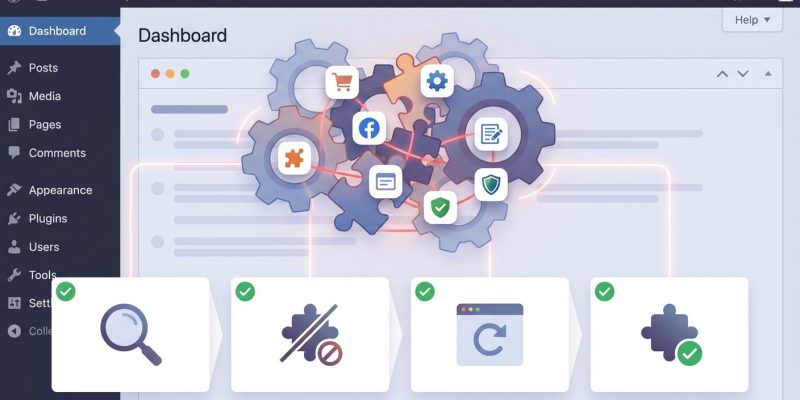
Your WordPress site was running smoothly yesterday. Today, you see a blank white screen or error messages scattered across your dashboard. You installed a new plugin last night, and now something’s broken. Plugin conflicts happen more often than you’d think, and they’re one of the most frustrating problems WordPress site owners face. The good news is that you can fix WordPress plugin conflicts yourself without calling a developer or panicking about lost data.
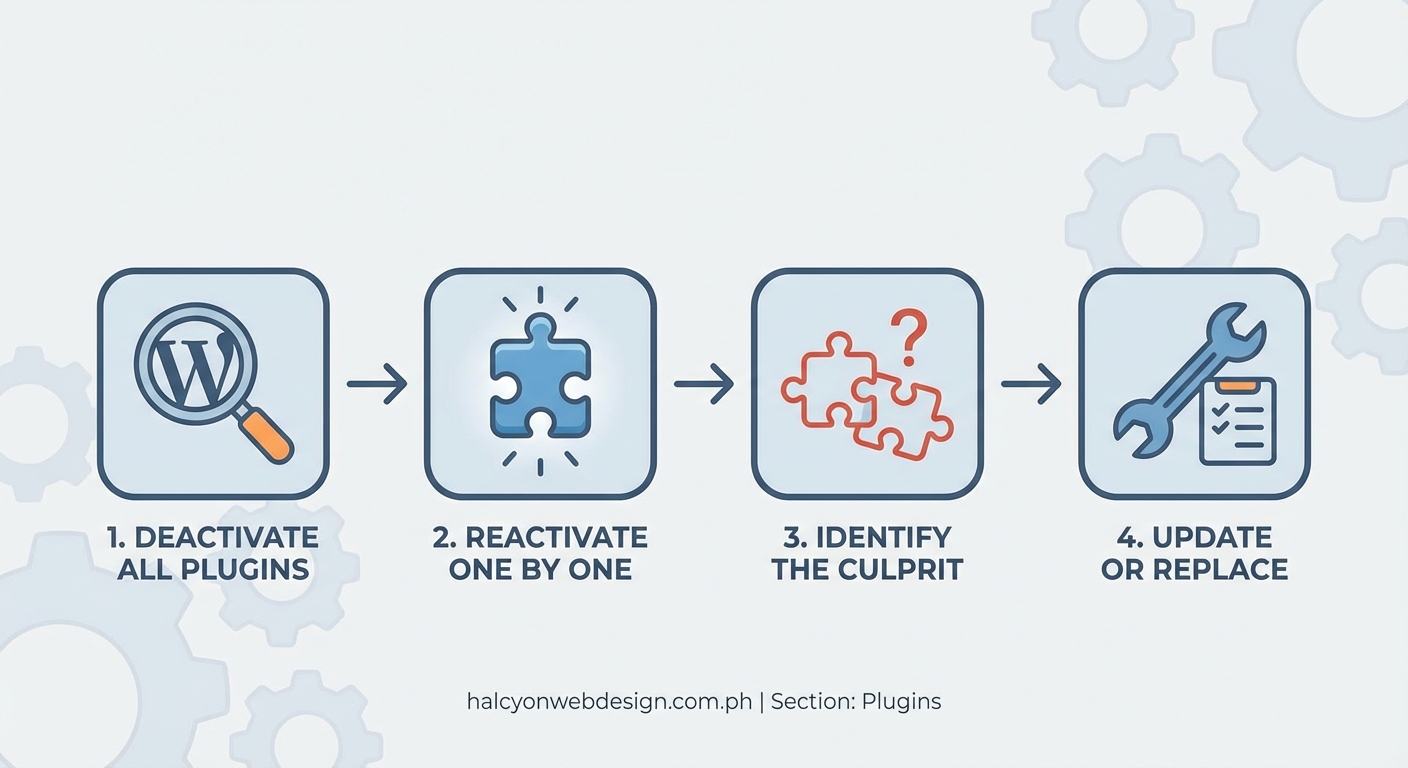
Plugin conflicts occur when two or more plugins try to use the same resources or code functions. You can identify the problem plugin by deactivating all plugins, then reactivating them one at a time. Always back up your site first, use error logs to spot clues, and test changes on a staging site when possible to avoid disrupting your live website.
Why Plugin Conflicts Happen in the First Place
WordPress plugins are built by thousands of different developers. Each one adds new features to your site by inserting code into your WordPress installation. Sometimes, two plugins try to use the same function name, load conflicting JavaScript libraries, or compete for the same database resources.
Think of it like two apps on your phone both trying to control your camera at the same time. One will fail, or both will crash.
Themes can also conflict with plugins. Your theme might load an outdated version of jQuery while a plugin expects a newer one. Or your theme’s custom code might clash with a plugin’s security features.
Outdated plugins create conflicts too. If you’re running an old version of a plugin while the rest of your site has been updated, compatibility breaks down. WordPress core updates can also trigger conflicts with plugins that haven’t been updated to match the new code standards.
Signs Your Site Has a Plugin Conflict
You’ll usually notice these problems right away:
- White screen of death with no error message
- Error messages displayed at the top of your dashboard
- Features that suddenly stop working, like contact forms or checkout buttons
- Slow page loading or pages that never finish loading
- Admin dashboard pages that won’t open
- Frontend design elements that disappear or look broken
Sometimes the symptoms are subtle. Your site might work fine on desktop but break on mobile. Or certain pages load correctly while others show errors. These inconsistent problems often point to JavaScript conflicts between plugins.
Create a Backup Before You Start Troubleshooting
Never try to fix WordPress plugin conflicts without a current backup. If something goes wrong during troubleshooting, you need a way to restore your site exactly as it was.
Most hosting companies offer automatic backups. Log into your hosting control panel and create a manual backup before you change anything. Download a copy to your computer if possible.
If your host doesn’t provide backups, use a backup plugin like UpdraftPlus or BackWPup. These tools can save your entire site, including your database, to cloud storage or your local machine.
A backup gives you confidence to test solutions without fear. You can always roll back if a troubleshooting step makes things worse.
How to Fix WordPress Plugin Conflicts When You Can Access Your Dashboard
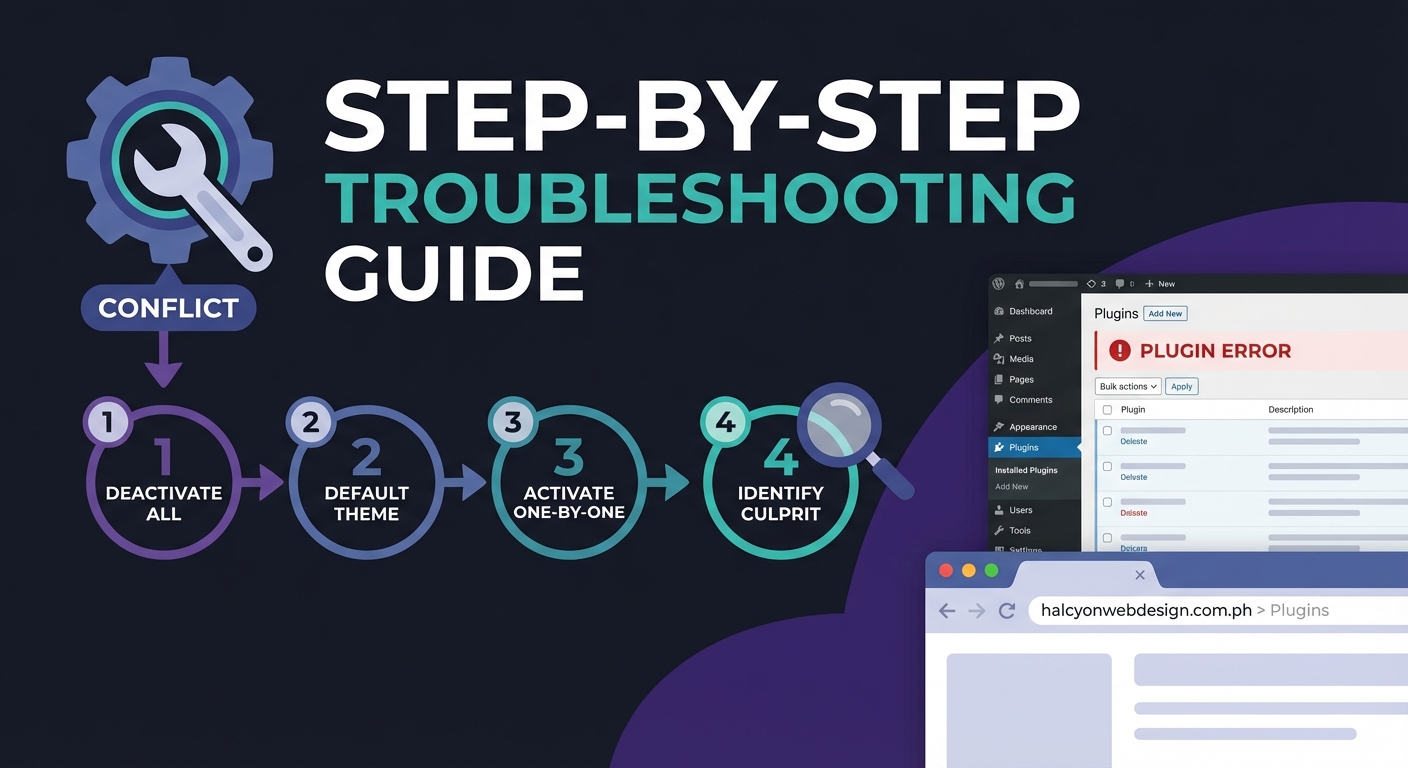
If you can still log into your WordPress admin area, you’re in good shape. Follow these steps in order.
1. Update Everything First
Outdated software causes half of all plugin conflicts. Go to Dashboard > Updates and check for available updates. Update WordPress core first, then update all your plugins and your theme.
Sometimes an update alone solves the problem. Plugin developers release patches specifically to fix compatibility issues with other popular plugins.
2. Check Your Error Logs
Error logs tell you exactly which plugin is causing trouble. Your hosting control panel usually has an error log viewer. Look for messages that mention specific plugin names or file paths.
Common error messages include “Fatal error: Cannot redeclare function” or “Call to undefined function.” These errors often include the plugin folder name in the file path, making it easy to identify the culprit.
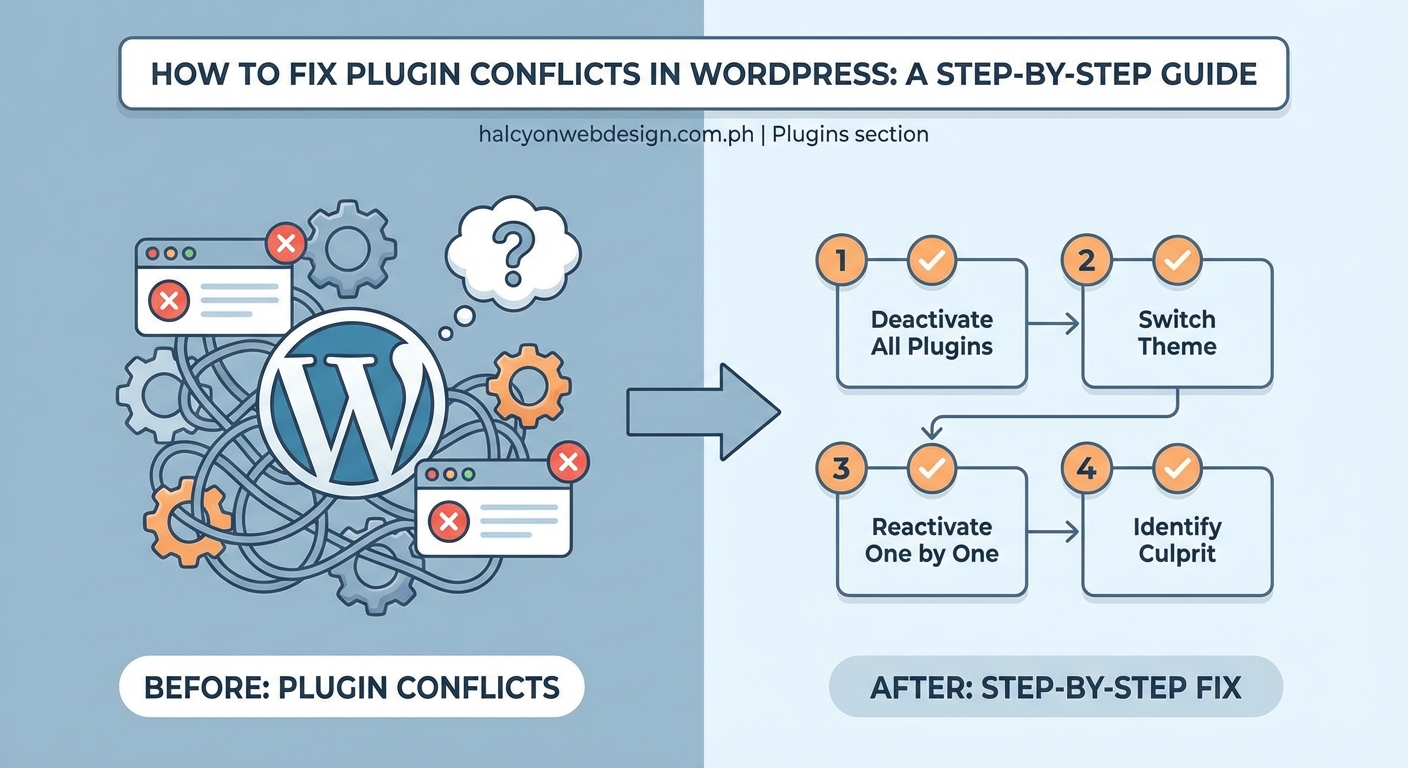
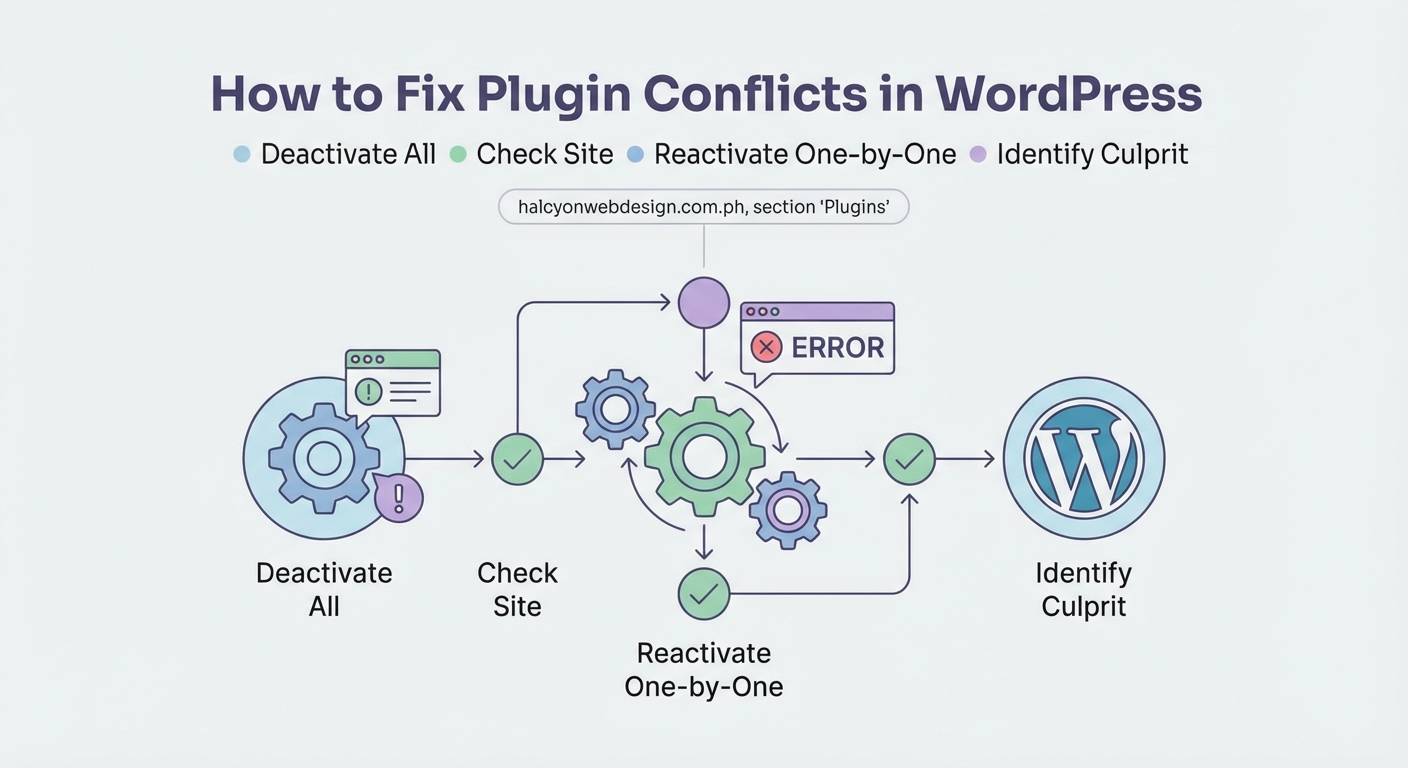
3. Deactivate All Plugins at Once
Go to Plugins > Installed Plugins. Select all plugins using the checkbox at the top of the list. Choose “Deactivate” from the bulk actions dropdown and click Apply.
Visit your site’s frontend. If the problem disappears, you’ve confirmed a plugin conflict. If the problem persists, your theme or WordPress core might be the issue.
4. Reactivate Plugins One at a Time
Turn on one plugin, then check your site. If everything still works, activate the next plugin. Keep going until the problem reappears.
When the error returns, you’ve found your problem plugin. The last plugin you activated is either incompatible with another plugin or has a bug.
5. Test Plugin Combinations
Sometimes conflicts only happen when two specific plugins run together. If you’ve narrowed it down to two suspects, try running each one alone. If both work individually but fail together, they’re incompatible.
You’ll need to choose one or find an alternative plugin that does the same job without conflicts.
Fixing Conflicts When You Can’t Access Your Dashboard
A severe conflict might lock you out of your admin area completely. You’ll need to use FTP or your hosting file manager to fix WordPress plugin conflicts this way.
Disable Plugins Through FTP
- Connect to your site using an FTP client like FileZilla or use your hosting control panel’s file manager.
- Navigate to /wp-content/plugins/.
- Rename the plugins folder to something like “plugins-disabled.”
- Try accessing your dashboard again.
Renaming the folder deactivates every plugin at once. WordPress can’t find the plugins folder, so it assumes no plugins are installed.
If you can now access your dashboard, rename the folder back to “plugins.” Then follow the one-by-one reactivation process described earlier.
Isolate Individual Plugins
If you want to disable just one plugin through FTP, navigate to /wp-content/plugins/ and rename that specific plugin’s folder. For example, change “contact-form-7” to “contact-form-7-disabled.”
This method works well when error logs have already told you which plugin is causing trouble.
Using WordPress Recovery Mode
WordPress 5.2 introduced Recovery Mode, which activates automatically when a plugin causes a fatal error. You’ll receive an email with a special recovery link.
Click the link in the email to access a limited version of your dashboard. You can deactivate the problem plugin from there without needing FTP access.
Recovery Mode only works for PHP fatal errors. JavaScript conflicts won’t trigger it.
Testing Changes on a Staging Site
A staging site is a complete copy of your live website where you can test changes safely. Many hosting companies include staging environments in their plans.
Create a staging copy, then test plugin updates or new plugin installations there first. If everything works on staging, you can apply the same changes to your live site with confidence.
Choosing the right WordPress hosting plan that includes staging tools makes troubleshooting much easier.
Common Plugin Conflict Scenarios and Solutions
| Conflict Type | Symptoms | Solution |
|---|---|---|
| JavaScript library version mismatch | Sliders, popups, or animations stop working | Update all plugins and theme, or use a plugin that loads its own library version |
| Duplicate function names | Fatal error message with function name | Contact plugin developers or choose one plugin to keep |
| Database query conflicts | Slow page loads or timeouts | Check for plugins that run heavy queries on every page load |
| CSS conflicts | Layout breaks or design elements overlap | Use browser inspector to identify which plugin’s CSS is causing trouble |
| Security plugin blocking features | Forms won’t submit or logins fail | Whitelist trusted plugins in your security plugin settings |
Preventing Future Plugin Conflicts
You can avoid most conflicts by being selective about which plugins you install. Before adding any plugin, check when it was last updated. Plugins abandoned by their developers often cause compatibility problems.
Read user reviews and support forum threads. If other users report conflicts with popular plugins, take that warning seriously.
Learning how to choose the right WordPress plugin helps you avoid problematic software from the start.
Limit the total number of plugins you use. Every plugin adds code that must work alongside everything else. More plugins mean more potential conflict points. If two plugins offer similar features, pick the one that’s better maintained and has a larger user base.
Test new plugins on a staging site before installing them on your live site. This habit catches conflicts before your visitors see any problems.
What to Do When You Can’t Resolve a Conflict
Sometimes two plugins you really need simply won’t work together. You have several options:
Contact both plugin developers and explain the conflict. Include your error logs. Developers often release compatibility patches when users report specific conflicts.
Look for alternative plugins that accomplish the same goal. WordPress has multiple plugins for almost every function. You can usually find a substitute that plays nicely with your existing setup.
Hire a developer to write custom code that bridges the gap between conflicting plugins. This costs money but might be worth it if both plugins are essential to your business.
Consider whether you actually need both plugins. Sometimes we install plugins for features we rarely use. Removing the less important plugin solves the conflict and simplifies your site.
Keep your WordPress installation, theme, and plugins updated at all times. Most conflicts happen because outdated code doesn’t match current WordPress standards. Regular updates prevent problems before they start.
Understanding Error Messages
Learning to read error messages makes troubleshooting faster. Here are the most common ones:
“Fatal error: Cannot redeclare function” means two plugins are trying to create a function with the same name. The error message usually includes the function name and file path, showing you which plugin is causing trouble.
“Call to undefined function” happens when a plugin tries to use a function that doesn’t exist. This often means a required plugin or library isn’t active.
“Headers already sent” errors occur when plugins output content before WordPress is ready. This usually points to extra spaces or characters in a plugin file.
“Maximum execution time exceeded” means a plugin is running a process that takes too long. This often happens with backup plugins or plugins that process large amounts of data.
“Allowed memory size exhausted” indicates a plugin is using too much server memory. You might need to increase your PHP memory limit or find a more efficient plugin.
Tools That Help Identify Conflicts
The Health Check & Troubleshooting plugin lets you enable troubleshooting mode. This mode disables all plugins and switches to a default theme, but only for you while you’re logged in. Your visitors still see the normal site.
You can then enable plugins one at a time in troubleshooting mode to find conflicts without affecting your live site. This tool is perfect for busy sites where you can’t afford downtime.
Query Monitor is another helpful plugin that shows you which plugins are running database queries, how long those queries take, and which plugins are throwing PHP errors. This visibility makes it much easier to spot performance problems and conflicts.
Browser developer tools help identify JavaScript conflicts. Open your browser’s console (F12 in most browsers) and look for error messages. These errors often include the plugin file name that’s causing trouble.
When Theme Conflicts Masquerade as Plugin Problems
Sometimes what looks like a plugin conflict is actually a theme issue. Your theme might include outdated code that conflicts with modern plugins.
Switch to a default WordPress theme like Twenty Twenty-Four. If your problems disappear, your theme is the culprit, not your plugins.
Contact your theme developer with details about the conflict. Many theme developers release updates to fix compatibility issues with popular plugins.
If your theme hasn’t been updated in over a year, consider switching to a better-maintained theme. An abandoned theme will cause increasing problems as WordPress and plugins continue evolving.
Performance Issues That Look Like Conflicts
Not every problem is a true conflict. Sometimes a plugin simply uses too many resources, making your site slow or unresponsive.
Sites that load slowly frustrate visitors even when everything technically works. Use performance testing tools to identify plugins that consume excessive memory or CPU time.
Caching plugins can also create problems that look like conflicts. If you see outdated content or features that work inconsistently, clear your cache before assuming you have a conflict.
Keeping Good Records
Document which plugins you’ve tested and what happened. When you’re testing ten or fifteen plugins, it’s easy to forget which combinations you’ve already tried.
Keep a simple text file or spreadsheet noting:
- Plugin name and version
- Date tested
- Whether it worked alone
- Which other plugins were active when problems occurred
- Error messages you received
These records save time if problems resurface later. You’ll know immediately which plugins have a history of conflicts.
Your Site Deserves to Work Smoothly
Plugin conflicts feel overwhelming when they first happen. Your site breaks, visitors see errors, and you’re not sure where to start. But now you have a clear process to fix WordPress plugin conflicts systematically.
Start with a backup, check for updates, and methodically test each plugin. Most conflicts resolve within an hour once you follow these steps. The troubleshooting skills you build now will serve you every time you manage a WordPress site. Your site will be back to normal soon, and you’ll know exactly what to do if conflicts happen again.