
Your website loads in pieces. First the browser downloads the HTML. Then it grabs the CSS files. Then the JavaScript. And somewhere in that chain, everything stops while the browser waits for files it thinks it needs before showing anything to your visitor.
That waiting period is what we call render blocking. And it’s probably why your Lighthouse score is stuck in the yellow zone.
Render blocking resources are CSS and JavaScript files that prevent your browser from displaying content until they finish loading. To eliminate render blocking resources, you need to defer non-critical scripts, inline critical CSS, use async attributes, and minimize file sizes. These changes can dramatically improve your page speed scores and user experience without redesigning your entire site.
What Render Blocking Actually Means
When a browser loads your page, it builds two things: the DOM (your HTML structure) and the CSSOM (your style rules). It can’t show anything until both are ready.
CSS files block rendering by default. Every single one.
JavaScript files also block rendering, but only if they appear in the head or before your content. The browser assumes these scripts might change the page structure, so it waits.
This is called the critical rendering path. And anything that makes the browser wait is render blocking.
The problem isn’t that these files exist. The problem is forcing the browser to download and process everything before it can paint pixels on the screen.
Your visitor sees a white screen. They wait. They wonder if your site is broken. Some of them leave.
Why Browsers Block Rendering
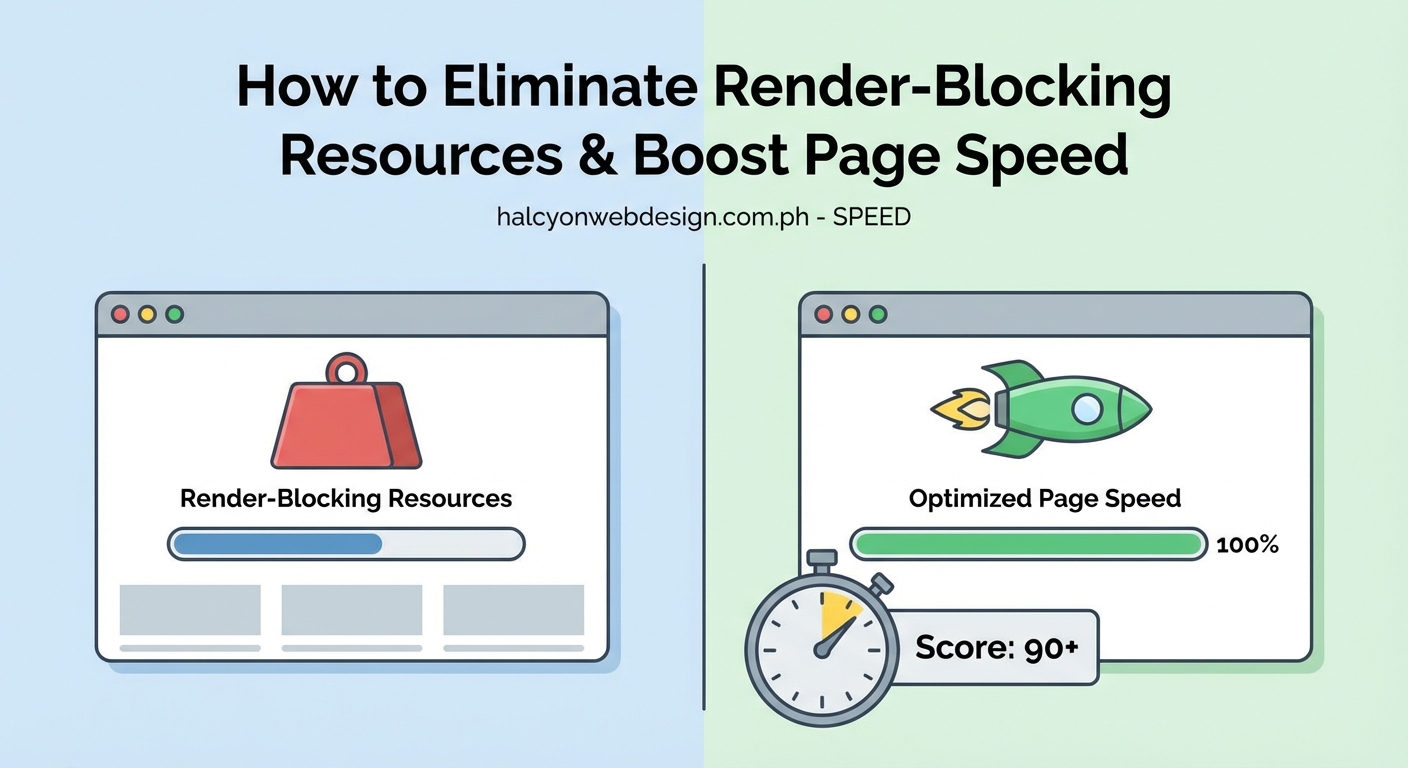
Browsers are trying to help you. They don’t want to show unstyled content that jumps around as CSS loads. They don’t want JavaScript to run that expects certain elements to exist before the DOM is ready.
So they wait.
But most sites load way more CSS and JavaScript than they need for the first screen. You might have styles for your footer, your contact form, and your mobile menu, all blocking the rendering of your hero section.
The browser doesn’t know which styles are critical. It assumes all of them are.
Same with scripts. That analytics tag? That chat widget? That social sharing library? All blocking, unless you tell the browser otherwise.
How to Identify Your Render Blocking Resources
Before you can fix the problem, you need to see it clearly.
Open Google PageSpeed Insights and run your URL. Scroll to the opportunities section. You’ll see a line item called “Eliminate render blocking resources” with a list of files.
Those files are your culprits.
Chrome DevTools gives you more detail. Open DevTools, go to the Network tab, and reload your page. Look at the waterfall chart. Files that load early and have long bars are usually blocking your render.
You can also check the Coverage tab in DevTools. It shows how much of each CSS and JavaScript file is actually used on the current page. If you see 80% unused CSS, that’s a clear sign you’re loading too much too soon.
The goal isn’t to eliminate all CSS and JavaScript. The goal is to load only what you need for the first paint, and defer everything else.
Step-by-Step Method to Eliminate Render Blocking Resources
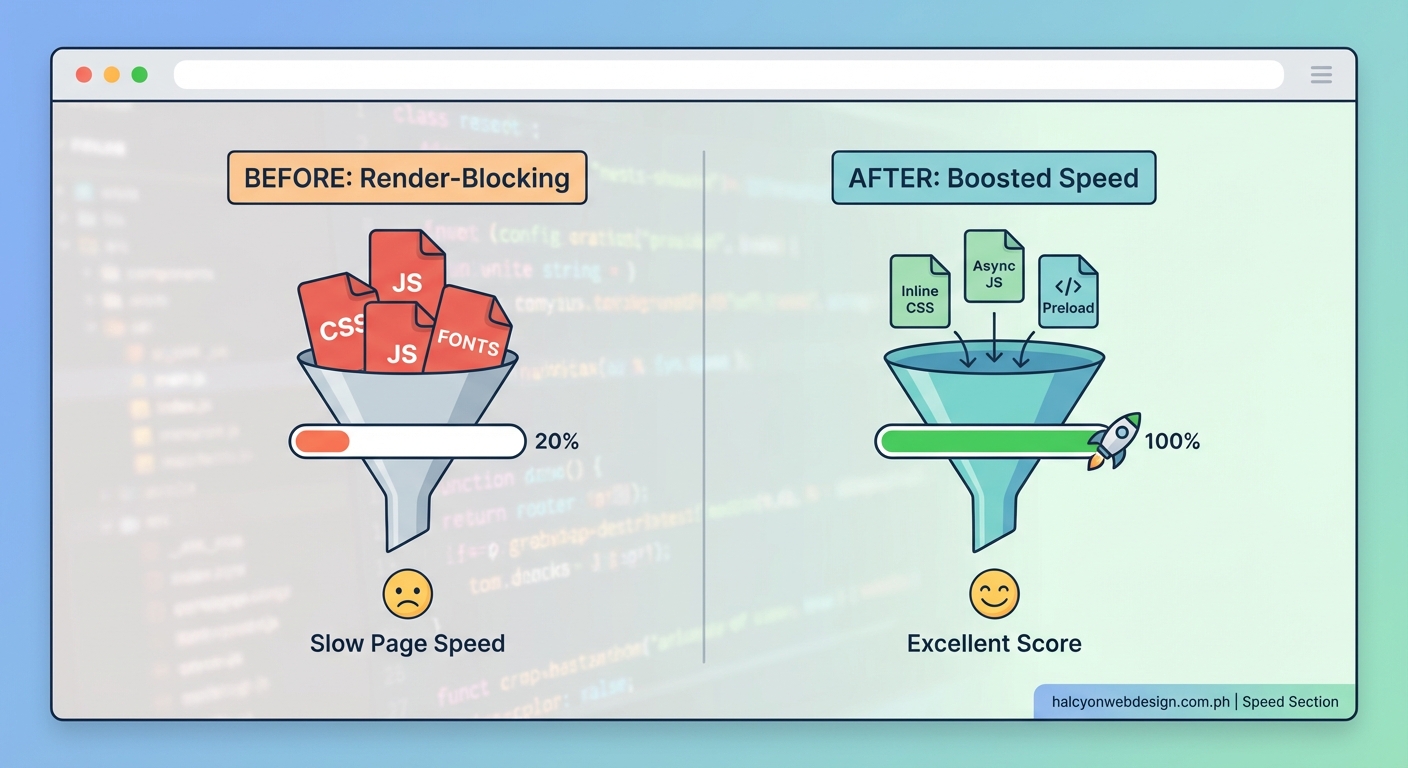
Here’s how to fix this systematically.
1. Defer Non-Critical JavaScript
Most JavaScript doesn’t need to run before your page displays. Analytics, ads, social widgets, and interactive features can all wait.
Add the defer attribute to your script tags:
The defer attribute tells the browser to download the file in the background and execute it after the HTML is parsed. The page renders without waiting.
If you’re using WordPress, many plugins add scripts without defer. You’ll need a plugin or custom code to add the attribute automatically.
For scripts that don’t depend on the DOM at all, use async instead:
The async attribute downloads and executes the script as soon as it’s ready, without blocking the parser. Use it for independent scripts like tracking codes.
2. Inline Critical CSS
Your above-the-fold content needs styles to look right. But you don’t need to load your entire stylesheet before rendering.
Identify the CSS rules that style your header, hero section, and anything visible without scrolling. Inline those rules directly in the <head>:
Then load your full stylesheet with a media attribute trick:
This tells the browser the stylesheet is for print, so it doesn’t block rendering. Once it loads, the onload event switches it to apply to all media.
Tools like Critical or Penthouse can extract critical CSS automatically. They load your page in a headless browser and identify which rules apply above the fold.
3. Minify and Combine Files
Smaller files download faster. Fewer files mean fewer HTTP requests.
Minify your CSS and JavaScript by removing whitespace, comments, and unnecessary characters. Tools like UglifyJS, Terser, and cssnano do this automatically.
Combining files reduces requests, but be careful. One giant file can be worse than several small ones if most of the code isn’t needed on every page.
A better approach is to split your code by route or feature. Load only what each page needs.
4. Use a Content Delivery Network
A CDN serves your static files from servers closer to your visitors. Faster downloads mean less blocking time.
Most CDNs also handle minification and compression automatically. Cloudflare, Bunny, and KeyCDN are popular options.
If you’re on WordPress, many hosting providers include CDN integration. Check how to choose the right WordPress hosting plan for your first website for more on hosting features that improve speed.
5. Preload Key Resources
If you know a file is critical, tell the browser to download it early:
Preloading doesn’t eliminate blocking, but it reduces the delay by starting downloads sooner.
Use this sparingly. Preloading too many resources can slow down everything else.
Common Techniques and Their Trade-Offs
Different methods work better for different sites. Here’s a comparison:
| Technique | Best For | Potential Downside |
|---|---|---|
| Defer JavaScript | Third-party scripts, analytics, widgets | Scripts that modify the DOM might cause flicker |
| Inline critical CSS | Small, static sites | Increases HTML size, harder to cache |
| Async scripts | Independent scripts like tracking | Can execute out of order, breaking dependencies |
| Load CSS with media trick | Large stylesheets | Flash of unstyled content on slow connections |
| Combine files | Sites with many small files | Larger bundle, harder to cache individual pieces |
| Code splitting | Dynamic apps with many routes | Requires build tools and more complex setup |
WordPress-Specific Solutions
If you’re running WordPress, plugins can automate most of these fixes.
WP Rocket adds defer and async attributes, minifies files, and inlines critical CSS with a few clicks. Autoptimize does similar work and is free.
LiteSpeed Cache works well if your host uses LiteSpeed servers. It handles minification, combination, and critical CSS extraction.
Be careful stacking optimization plugins. Multiple plugins trying to modify the same files can break your site. Choose one and configure it properly.
If you’re managing plugins carefully, read about how to choose the right WordPress plugin without breaking your site to avoid conflicts.
Testing Your Changes
After you make changes, test thoroughly.
Run PageSpeed Insights again. The render blocking warning should shrink or disappear. Your First Contentful Paint and Largest Contentful Paint scores should improve.
But scores aren’t everything. Load your site on a real device with a slow connection. Does it look right? Does it feel faster?
Check for these issues:
- Flash of unstyled content (text appears, then jumps when styles load)
- Broken JavaScript features (things that used to work don’t anymore)
- Missing fonts or images (preload links might be wrong)
- Layout shifts (content moving around as resources load)
Use Chrome DevTools to simulate slow 3G. If your site still feels responsive, you’ve done it right.
Mistakes That Make Things Worse
Here are the traps people fall into:
Deferring jQuery when plugins depend on it. Many WordPress themes and plugins expect jQuery to load synchronously. Deferring it breaks their code. You need to either defer everything or use a compatibility script.
Inlining too much CSS. If your critical CSS is 50KB, you’re defeating the purpose. Keep it under 14KB so it fits in the first TCP packet.
Using async for scripts with dependencies. If script B depends on script A, both need to load in order. Use defer for both, not async.
Forgetting to test on mobile. Render blocking hits mobile users hardest. Always test on a real phone or use DevTools device emulation.
Over-optimizing. You can spend weeks shaving milliseconds off your load time. Focus on the big wins first. Get your Lighthouse score above 90, then move on to other improvements.
How This Connects to Overall Site Speed
Eliminating render blocking resources is one piece of a faster site. It won’t fix everything.
You still need to optimize images, reduce server response time, and minimize layout shifts. If your server takes three seconds to respond, deferring JavaScript won’t help much.
For a complete speed audit, check out why your WordPress site loads slowly and how to fix it in 30 minutes for a broader troubleshooting guide.
Tools That Make This Easier
You don’t have to do everything manually. These tools help:
- Critical (npm package): Extracts and inlines critical CSS automatically
- Penthouse: Another critical CSS extraction tool
- Webpack or Vite: Build tools that handle code splitting and optimization
- Partytown: Moves third-party scripts to a web worker so they don’t block the main thread
- PageSpeed Insights: Free testing from Google
- WebPageTest: More detailed waterfall charts and filmstrip views
When to Inline vs. When to Defer
Inline critical CSS that styles your above-the-fold content. This includes your header, hero section, and anything visible without scrolling.
Defer everything else. Your footer styles, modal dialogs, and off-canvas menus can wait.
For JavaScript, inline only tiny scripts that must run immediately. Everything else should be deferred or async.
If a script is under 1KB and critical for first paint, inline it. Otherwise, load it externally with defer.
Advanced Techniques for Larger Sites
If you’re running a complex site or web app, consider these approaches:
Code splitting by route. Load only the JavaScript and CSS needed for the current page. Modern frameworks like Next.js and Nuxt do this automatically.
Tree shaking. Remove unused code from your bundles. Tools like Rollup and Webpack can eliminate dead code during the build process.
HTTP/2 server push. Push critical resources to the browser before it asks for them. This works well for fonts and small CSS files.
Resource hints. Use dns-prefetch, preconnect, and prefetch to warm up connections and load resources the user will need soon.
Service workers. Cache resources locally so repeat visits load instantly.
These techniques require more setup but can make a huge difference on high-traffic sites.
Why This Matters for SEO and Conversions
Google uses page speed as a ranking factor. Slow sites rank lower.
But the real impact is on your visitors. A one-second delay in load time can reduce conversions by 7%. People leave slow sites.
Eliminating render blocking resources makes your site feel instant. Content appears faster. Visitors stay longer. They’re more likely to read, click, and convert.
This is especially important on mobile, where connections are slower and attention spans are shorter.
Putting It All Together
Start with the easiest wins. Defer third-party scripts. Minify your files. Use a CDN.
Then tackle critical CSS. Inline what you need for above-the-fold content. Load the rest asynchronously.
Test after every change. Make sure nothing breaks. Measure your improvements.
You don’t need to be perfect. Getting from a 40 to a 90 Lighthouse score is huge. Going from 90 to 100 takes exponentially more effort for diminishing returns.
Focus on the user experience. If your site feels fast and looks right, you’ve succeeded.
Making Speed Improvements Stick
Optimization isn’t a one-time task. Every new plugin, theme update, or feature you add can reintroduce render blocking resources.
Set up monitoring. Use tools like Lighthouse CI or SpeedCurve to track your scores over time. Get alerts when performance drops.
Make speed part of your workflow. Before adding a new script, ask if it’s critical. Before installing a plugin, check its impact on load time.
Small habits prevent big slowdowns.
Your site is faster now. Your visitors will notice, even if they don’t know why. They’ll just feel like your site works better than the competition. And that feeling is what keeps them coming back.