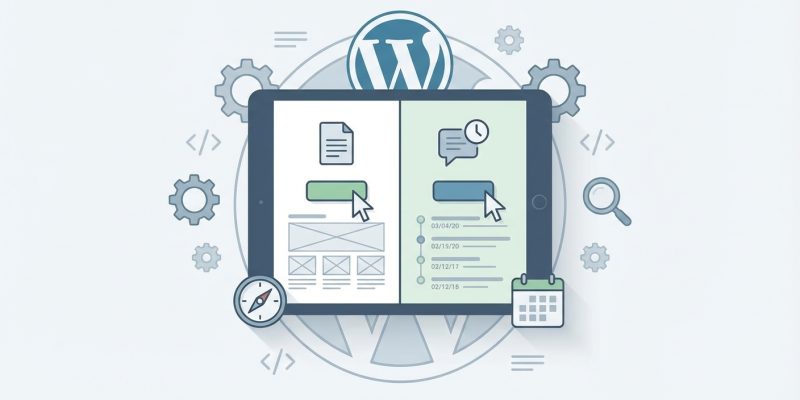
You just installed WordPress and clicked the “Add New” button. Then you froze. Should you create a post or a page? They look almost identical in the editor, but picking the wrong one could mess up your site structure before you even get started.
Posts are for timely, dated content that appears in reverse chronological order and can be organized by categories and tags. Pages are for static, timeless content like your About or Contact information that sits in your site’s navigation menu. Choosing correctly from the start keeps your website organized, helps visitors find what they need, and makes search engines happy.
What makes posts different from pages
Posts and pages serve completely different purposes on your WordPress site. Understanding this difference will save you from reorganizing everything later.
Posts are designed for regular updates. Think of them like journal entries or newspaper articles. Every post you publish gets a date stamp and shows up in your blog feed. Your newest post appears at the top, pushing older posts down the list.
Pages are meant for permanent information. Your About page, Contact page, and Services page rarely change. They don’t have dates attached to them. They just sit there, available whenever someone needs them.
Here’s a simple way to remember it. If the content will still be relevant a year from now without updates, make it a page. If it relates to a specific time or event, make it a post.
How WordPress organizes posts differently
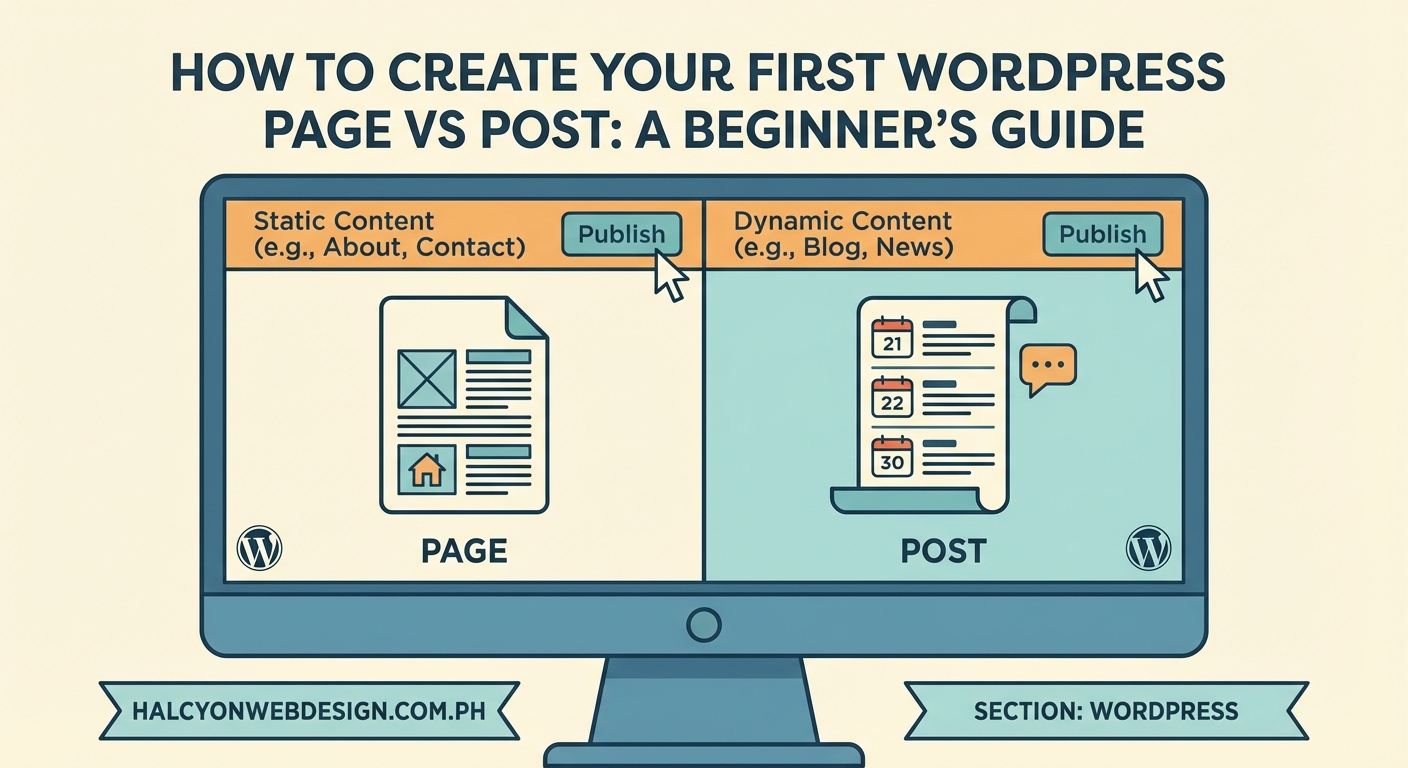
Posts come with built-in organizational tools that pages don’t have.
You can assign posts to categories. If you run a cooking blog, you might have categories like “Breakfast,” “Desserts,” and “Vegetarian.” Every recipe post goes into at least one category. Visitors can click on “Desserts” and see every sweet recipe you’ve published.
Posts also support tags. These are like mini labels that describe specific details. That chocolate cake recipe might have tags like “birthday,” “chocolate,” and “layer cake.” Tags help readers find related content across different categories.
Pages don’t use categories or tags at all. They don’t need them because pages aren’t meant to be grouped or filtered. Each page stands alone.
Where posts and pages appear on your site
Posts automatically appear in several places:
- Your blog page or homepage (if you set it to show recent posts)
- RSS feeds that people can subscribe to
- Date-based archives like “Posts from March 2024”
- Category and tag archive pages
Pages appear exactly where you put them. You add them to your navigation menu manually. They don’t show up in feeds or archives unless you specifically code something custom.
This matters more than you might think. If you create your “About Us” information as a post instead of a page, it will show up in your blog feed with a date on it. That looks unprofessional. It will also get buried as you publish more posts.
The technical differences under the hood
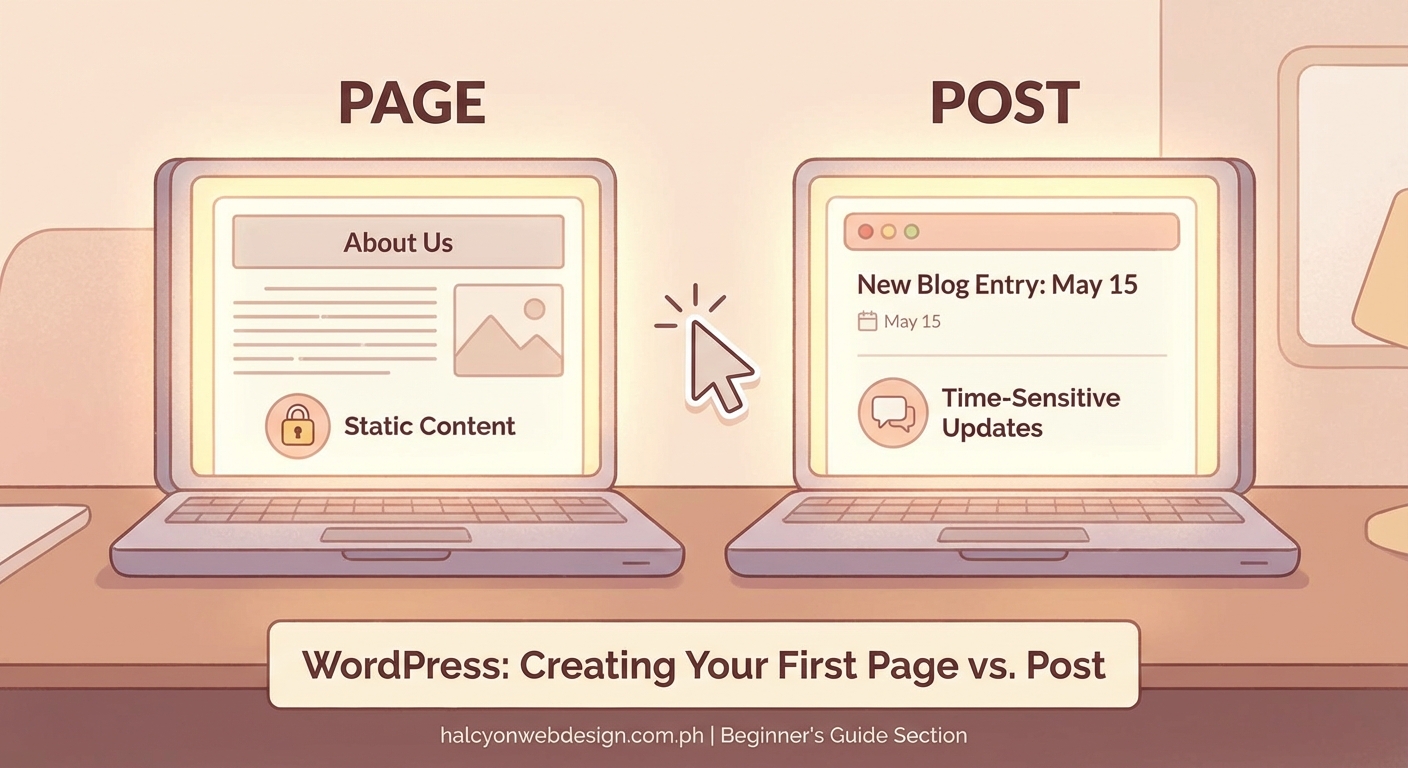
Both posts and pages use the same WordPress editor. You’ll see the same blocks, the same formatting options, and the same publish button. But WordPress treats them differently behind the scenes.
Posts have an author attribution system. If multiple people write for your site, each post shows who wrote it. Pages typically don’t display author information because they represent your business or organization, not an individual writer.
Posts support comments by default. Readers can leave feedback, ask questions, or start discussions. Pages can have comments too, but most people turn them off because a Contact page doesn’t need a comment section.
Posts get included in your site’s RSS feed automatically. This lets people subscribe to your content using feed readers. Pages never appear in RSS feeds.
When to use a post
Create a post when you’re publishing:
- Blog articles about industry news or trends
- Company announcements with specific dates
- Tutorial content that builds on previous tutorials
- Product reviews or comparisons
- Event recaps or reports
- Opinion pieces or commentary
- News updates about your field
Posts work best for content that has a natural shelf life. That doesn’t mean it expires. An old tutorial can still help someone years later. But it clearly belongs to a specific moment in time.
When to use a page
Create a page for:
- Your About or About Us section
- Contact information and forms
- Services or Products overview
- Privacy Policy and Terms of Service
- FAQ sections
- Portfolio or Work Samples
- Landing pages for specific campaigns
Pages work best for reference material. Information that visitors need to access directly, not scroll through a blog feed to find.
Common mistakes beginners make
| Mistake | Why it’s a problem | The fix |
|---|---|---|
| Making services a post | It shows up with a date and gets buried in archives | Recreate as a page and add to your main menu |
| Creating blog content as pages | Posts don’t appear in feeds or get organized by topic | Convert to posts and assign proper categories |
| Using posts for legal pages | Privacy policies look odd with dates and comment sections | Switch to pages and turn off comments |
| Making every page a post | Your site becomes a confusing mess of dated content | Plan your structure before creating content |
The biggest mistake is not planning before you start creating content. Spend ten minutes mapping out what your site needs. List the permanent pages first. Then think about what kind of posts you’ll publish regularly.
How this affects your site structure
Your site structure depends on using posts and pages correctly.
A typical small business site might have five to seven pages in the main navigation menu: Home, About, Services, Portfolio, Blog, and Contact. The Blog page displays your posts. Everything else is a standalone page.
If you made each service offering a separate post instead of either a single Services page or multiple service pages, visitors would have to hunt through your blog to find information about what you actually offer. That’s frustrating.
On the flip side, if you create blog content as pages, you’ll end up with dozens of pages cluttering your navigation menu. Nobody wants to see a menu with 50 items in it.
Use pages for your site’s skeleton and posts for the regular content that brings people back. This creates a structure that makes sense to both visitors and search engines.
Setting up your first post correctly
When you create your first post, WordPress asks for several pieces of information:
- Write your post title and content in the editor
- Choose at least one category (create custom categories that match your topics)
- Add three to five relevant tags
- Set a featured image if your theme displays them
- Fill in the excerpt field to control what appears in feeds
- Review the permalink to make sure it’s readable
Don’t leave everything in the default “Uncategorized” category. Take 30 seconds to create meaningful categories. If you’re writing about web design, make categories like “Design Tips,” “WordPress Tutorials,” and “Client Work.”
Setting up your first page correctly
Pages need less organizational work but more thought about placement:
- Write your page title and content
- Choose a page template if your theme offers options
- Set the parent page if this is a subpage
- Add the page to your navigation menu
- Turn off comments unless you specifically want them
- Set a featured image if needed for your theme
The parent page setting lets you create hierarchies. You might have a main “Services” page with child pages for “Web Design,” “SEO,” and “Maintenance.” This creates a dropdown menu and organized URL structure.
Can you convert between posts and pages?
Yes, but it’s easier to start correctly than fix it later.
WordPress has a Post Type Switcher plugin that lets you change a post into a page or vice versa. The content transfers over fine. But you’ll lose category and tag assignments when converting a post to a page. And you’ll need to manually add converted pages to your navigation menu.
The bigger issue is broken links. If other sites linked to your content or you shared it on social media, changing the post type changes the URL structure. That breaks those links unless you set up redirects.
Just take the extra minute to think about what you’re creating before you click publish.
How search engines see the difference
Google and other search engines don’t inherently rank posts higher than pages or vice versa. But the way you use them sends signals about your content.
Posts with dates tell search engines this is timely content. If someone searches for “2024 web design trends,” a dated post from 2024 is more relevant than one from 2019. The date helps.
Pages without dates signal evergreen content. Your About page doesn’t need to be fresh. It needs to be accurate. Search engines understand that.
Posts with categories and tags create internal linking structures that help search engines understand your site’s topics. Pages in a hierarchy do something similar but in a different way.
Both matter for SEO. You need both types of content.
Building a content strategy around both
Successful WordPress sites use posts and pages together strategically.
Your pages form the foundation. They tell visitors who you are, what you offer, and how to reach you. These pages should be polished and complete before you launch.
Your posts build on that foundation. They demonstrate your expertise, answer questions, and give people reasons to return. You can launch with just a few pages and add posts over time.
A simple starting strategy:
- Create five essential pages: Home, About, Services/Products, Blog, Contact
- Publish one or two posts per week on topics your audience cares about
- Use categories to organize posts into three to five main topics
- Link from relevant posts back to your service pages when it makes sense
This approach builds authority over time without overwhelming you at the start.
Your next steps with WordPress content
Now you know the real difference between WordPress posts and pages. Posts are for regular, dated content organized by categories and tags. Pages are for permanent information that sits in your navigation.
Start by creating your core pages. Get those foundational pieces in place. Then begin publishing posts that showcase your knowledge and help your audience. Check each piece of content before you publish and ask yourself: “Will this need a date, or is it timeless?” That one question will guide you to the right choice every time.