You install a plugin, and suddenly your site goes blank. Or it loads so slowly that visitors leave before seeing anything. These scenarios happen more often than you’d think, and they’re completely avoidable.
Choosing the right WordPress plugin isn’t about finding the most popular option or the one with the flashiest features. It’s about matching your specific needs with a well-maintained tool that plays nicely with your existing setup.
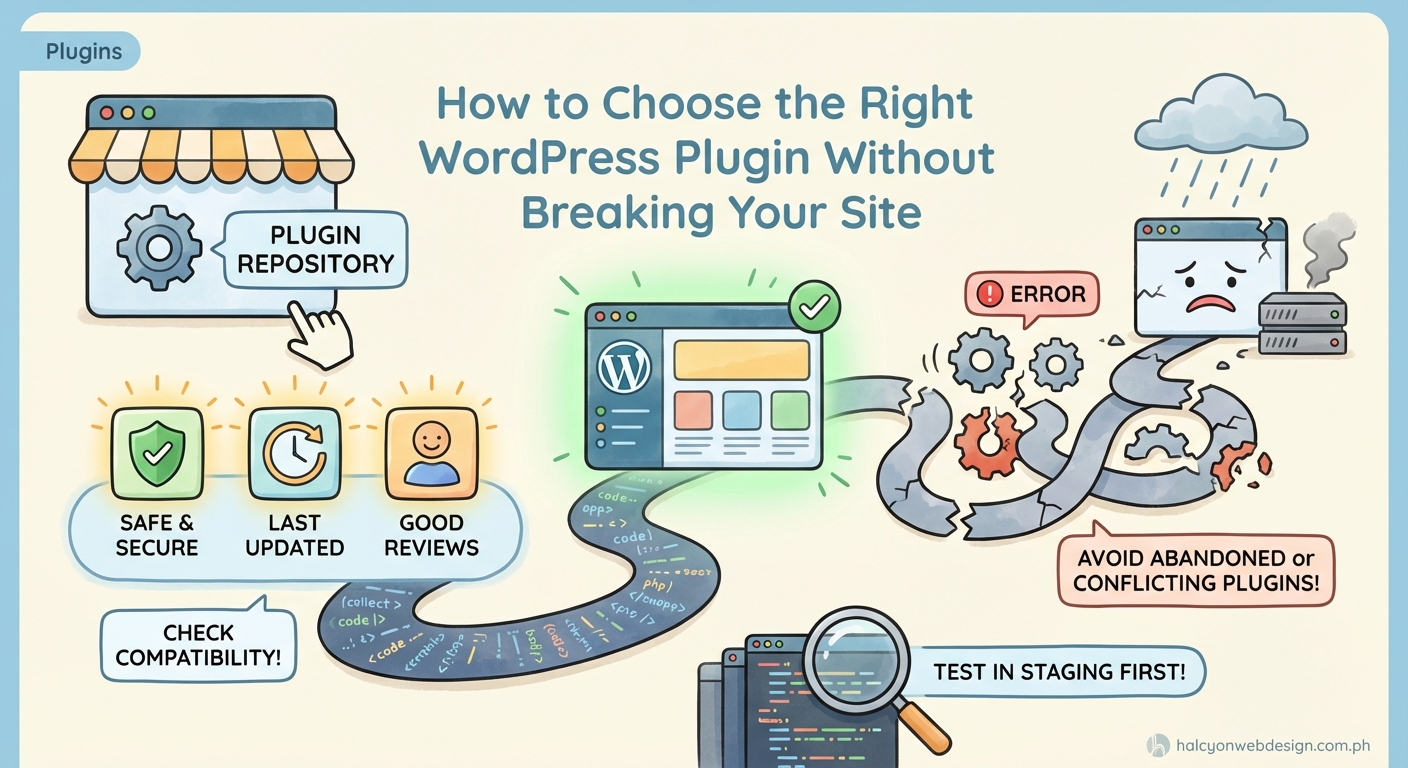
Safe plugin selection requires checking compatibility, reading recent reviews, verifying active installations, testing update frequency, and examining support responsiveness. Always backup your site before installing anything new, test plugins on staging environments when possible, and monitor performance after activation. A careful selection process prevents conflicts, crashes, and security vulnerabilities while keeping your site running smoothly.
Start With What You Actually Need
Before you even open the plugin directory, write down exactly what problem you’re trying to solve.
Do you need a contact form? Image optimization? SEO tools? Security enhancements?
Being specific helps you avoid feature bloat. That all-in-one plugin might seem convenient, but it often loads unnecessary code that slows down your site. A focused plugin that does one thing well usually performs better than a Swiss Army knife approach.
Make a list of must-have features versus nice-to-have ones. This clarity will save you from installing multiple plugins that overlap in functionality.
Check These Critical Indicators First
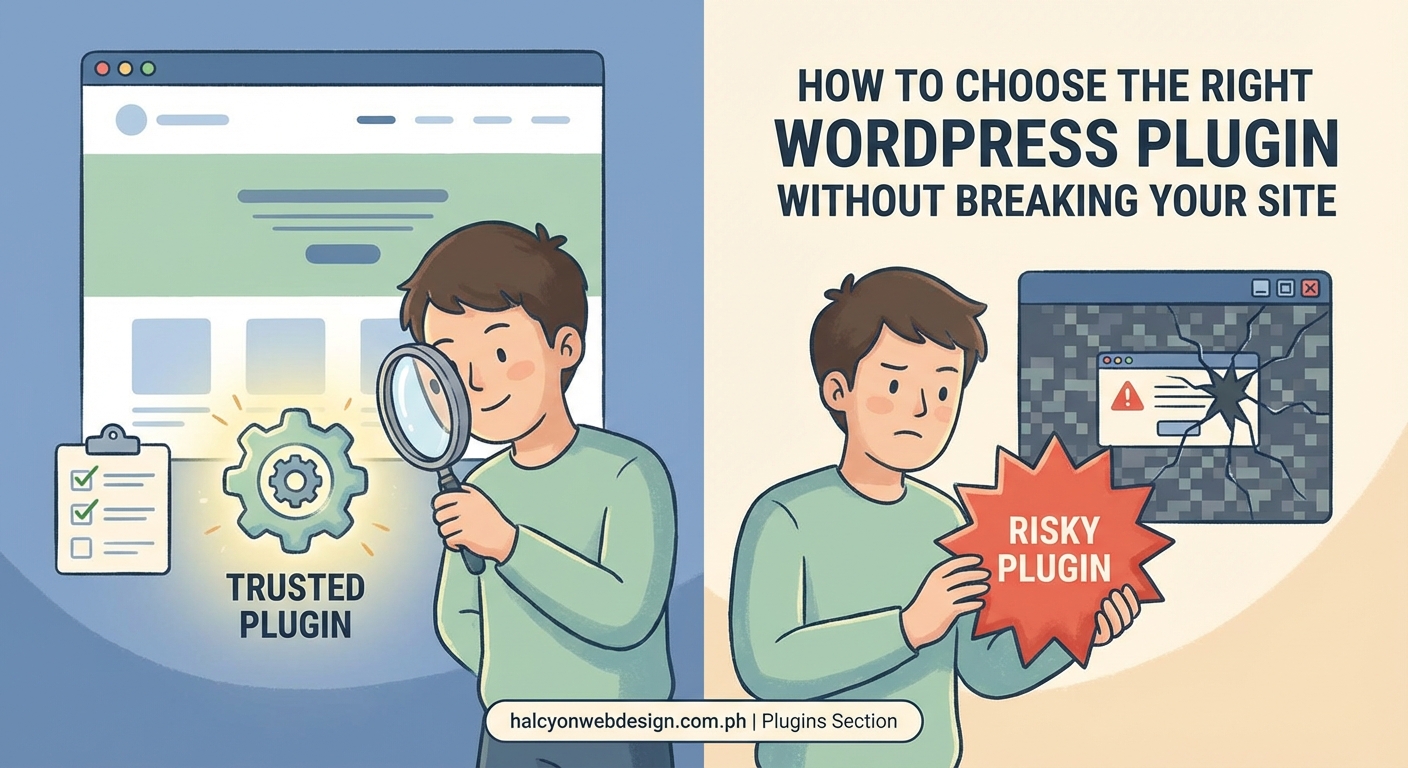
When you find a potential plugin, look at these markers before anything else:
Active installations matter. A plugin with 100,000+ active installations has been tested across countless site configurations. It’s more likely to work smoothly and handle edge cases.
Last updated date tells a story. If a plugin hasn’t been updated in over a year, it’s probably abandoned. WordPress itself updates regularly, and plugins need to keep pace. An outdated plugin can introduce security holes or compatibility issues.
WordPress version compatibility is non-negotiable. Make sure the plugin explicitly supports your current WordPress version. Installing an incompatible plugin is asking for trouble.
PHP version requirements need attention too. Check that your hosting environment meets the plugin’s PHP requirements. Mismatched versions cause errors that can take your site offline.
| Indicator | Green Flag | Red Flag |
|---|---|---|
| Active installations | 50,000+ users | Under 1,000 users |
| Last updated | Within 3 months | Over 12 months ago |
| WordPress compatibility | Matches your version | Two versions behind |
| Support response | Resolved threads visible | Unanswered questions piling up |
| Ratings | 4+ stars with detail | Low ratings citing crashes |
Read Reviews Like a Detective
Star ratings alone don’t tell the whole story. You need to read what people actually say.
Look for recent reviews first. A plugin might have great historical ratings but recent complaints about bugs introduced in the latest update.
Pay attention to reviews from users with similar setups. If you run WooCommerce and someone mentions the plugin conflicts with it, that’s valuable information.
Watch for patterns in negative reviews. One person reporting a conflict might be a fluke. Ten people mentioning the same issue signals a real problem.
Check how developers respond to negative feedback. Do they offer solutions? Do they acknowledge bugs and promise fixes? Responsive developers indicate a maintained product.
Test Plugin Support Before You Need It
Here’s something most people skip: check the support forum before installing anything.
Browse through recent support threads. Are questions getting answered? How long does it typically take?
Look at resolved threads to see if solutions actually work. Some plugins have active forums where developers provide detailed help. Others have graveyards of unanswered questions.
Free plugins typically rely on community support. Premium plugins usually offer direct support channels. Decide what level of support you need based on your technical comfort level.
A plugin is only as good as the team behind it. Regular updates, responsive support, and clear documentation separate reliable tools from potential liabilities. Before installation, verify that someone is actively maintaining the code and helping users when issues arise.
Run a Compatibility Check
Even well-rated plugins can conflict with your specific setup.
Check if the plugin developer lists any known conflicts. Good developers document compatibility issues on their plugin page or FAQ.
Look at your existing plugins. Are you already running something that does similar things? Overlapping functionality often causes conflicts.
Consider your theme. Some themes have built-in features that clash with certain plugins. Check your theme documentation or support forum for any mentioned incompatibilities.
If you use a page builder like Elementor or Beaver Builder, verify the plugin works with it. Page builders add complexity that can trigger unexpected issues.
Follow This Installation Process
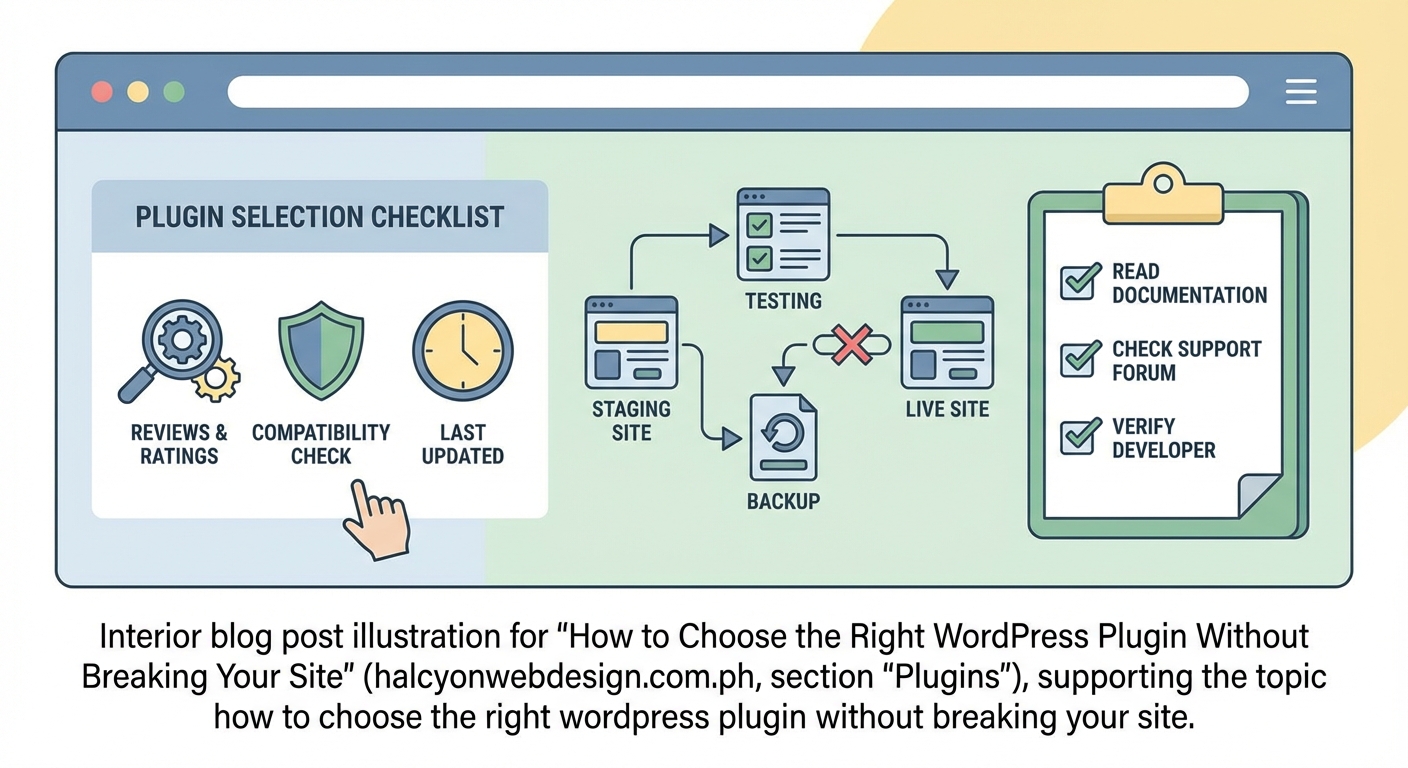
Never install a plugin directly on your live site without preparation. Here’s the safe way:
-
Backup your entire site first. Use a backup plugin or your hosting control panel. Make sure you can restore everything if something goes wrong.
-
Create a staging environment if possible. Many hosts offer staging sites where you can test changes without affecting your live site. Install and test the plugin there first.
-
Install one plugin at a time. If you add three plugins at once and something breaks, you won’t know which one caused the problem.
-
Activate and test immediately. Don’t just activate and assume everything works. Check your key pages, forms, and functionality.
-
Monitor performance after installation. Use tools like Query Monitor or your hosting dashboard to check if the new plugin slows down your site.
-
Keep the plugin for a few days before adding another. This waiting period helps you catch delayed issues that don’t appear immediately.
Watch for These Red Flags
Some warning signs should make you reconsider a plugin entirely:
-
Requests for excessive permissions. A contact form plugin doesn’t need access to your entire database.
-
No clear privacy policy. If the plugin collects data, you need to know what and why.
-
Suspicious reviews. Lots of five-star reviews posted on the same day with generic praise often indicate fake reviews.
-
Vague or missing documentation. If you can’t figure out how to use it from the documentation, you’ll struggle when problems arise.
-
Frequent major version changes. Constant major updates might indicate instability or poor initial planning.
-
Commercial plugins with no refund policy. Reputable premium plugins offer money-back guarantees.
Understand Free vs. Premium Trade-offs
Free plugins work great for many needs. They’re perfect when you need basic functionality and have some technical skills to troubleshoot issues.
Premium plugins make sense when you need:
- Guaranteed support with response time commitments
- Advanced features that free versions don’t offer
- Regular updates and security patches
- Documentation and tutorials
- Peace of mind for business-critical functionality
Don’t assume premium automatically means better. Plenty of free plugins outperform paid alternatives. Judge each plugin on its merits, not its price tag.
Keep Your Plugin Count Reasonable
There’s no magic number, but every plugin adds code that WordPress needs to process.
Aim for the minimum number needed to achieve your goals. Twenty well-chosen plugins can run faster than ten bloated ones.
Regularly audit your installed plugins. Remove anything you’re not actively using. Inactive plugins still pose security risks and take up space.
Consider whether you can replace multiple plugins with one comprehensive solution. Just make sure that consolidated option doesn’t sacrifice performance.
Plan for Long-Term Maintenance
Choosing a plugin isn’t a one-time decision. You’re entering a relationship that requires ongoing attention.
Set reminders to check for updates monthly. Outdated plugins are the number one security vulnerability for WordPress sites.
Subscribe to the plugin’s changelog or blog if available. Knowing what’s changing helps you anticipate potential issues.
Have a backup plan. If a plugin gets abandoned or stops working, know what alternative you’ll switch to. Don’t wait until you’re in crisis mode.
Test updates on staging before applying them to your live site. Even trusted plugins occasionally release updates that cause problems.
Trust Your Instincts About Quality
After checking all the technical markers, sometimes your gut feeling matters.
If a plugin feels overly complicated for a simple task, it probably is. Good plugins make things easier, not harder.
If the settings interface looks confusing or outdated, that might reflect the code quality too. Well-designed plugins usually have intuitive interfaces.
If something feels off about the developer’s communication or marketing, listen to that instinct. Trustworthy developers are transparent about what their plugins do and don’t do.
Your Site Deserves Careful Choices
Every plugin you install becomes part of your site’s foundation. Rushing the selection process to save a few minutes can cost you hours of troubleshooting later.
Take the time to research properly. Check compatibility. Read reviews thoroughly. Test safely. Your visitors will never know about the careful vetting process you followed, but they’ll benefit from the fast, stable site that results from it.
Start with one plugin choice today using these criteria. The habits you build now will protect your site for years to come.