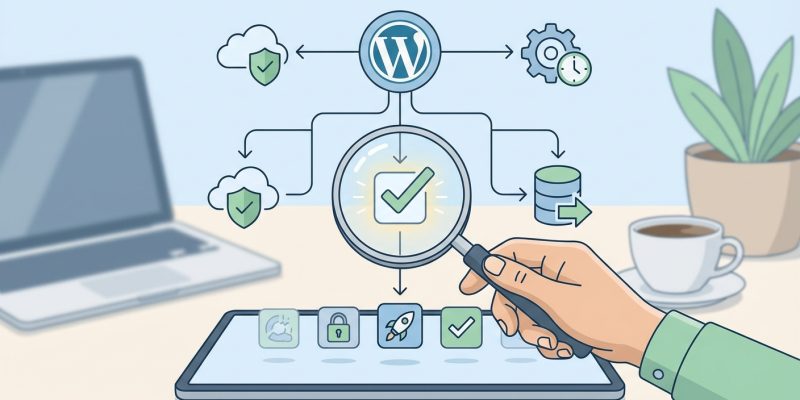
Your website disappears overnight. Maybe a plugin update broke something. Maybe a hacker got in. Maybe your host had a catastrophic failure. Without a backup, you’re starting from scratch. Every blog post, every product page, every customer order, gone. This happens more often than you’d think, and it’s why choosing the right backup solution matters so much.
The best WordPress backup plugin depends on your site’s complexity and your technical comfort level. UpdraftPlus offers the strongest free option with cloud storage integration. BlogVault excels for agencies managing multiple sites. BackupBuddy works best if you prefer one-time purchases over subscriptions. All three handle automated backups, but differ significantly in restoration speed, storage options, and support quality.
What makes a backup plugin actually good
Most backup plugins can copy your files. The real test comes when disaster strikes and you need to restore everything.
Speed matters here. A lot. Some plugins take hours to restore a medium-sized site. Others finish in minutes. The difference isn’t just convenience. If your site is down, every minute costs you traffic, sales, and search engine trust.
Storage location is your next big decision. Storing backups on the same server as your website defeats the purpose. If that server fails, both your site and your backups disappear together. Good plugins send copies to external locations like Dropbox, Google Drive, or Amazon S3.
Automation separates reliable backups from forgotten ones. Manual backups sound fine until you realize you haven’t created one in three months. The best solutions run automatically on schedules you set and forget.
Top backup plugins compared side by side
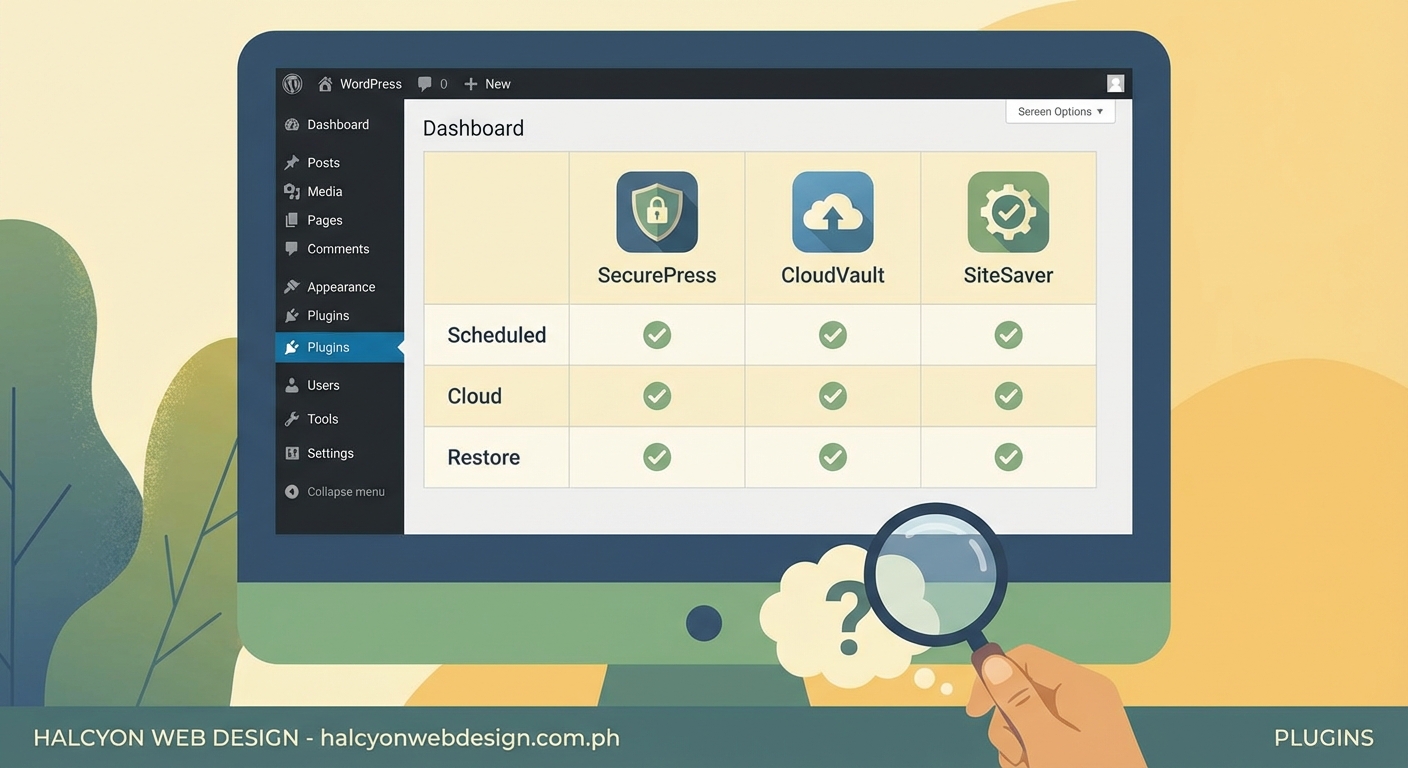
Here’s how the leading options stack up across the features that actually matter:
| Plugin | Free Version | Cloud Storage | Automated Scheduling | Average Restore Time | Best For |
|---|---|---|---|---|---|
| UpdraftPlus | Yes | 7+ services | Yes | 15-30 minutes | Small to medium sites |
| BlogVault | No | Included | Yes | 5-10 minutes | Agencies and developers |
| BackupBuddy | No | Limited | Yes | 20-40 minutes | One-time purchase preference |
| Duplicator | Yes | Manual only | Pro only | 25-45 minutes | Site migrations |
| VaultPress | No | Included | Yes | 10-20 minutes | Jetpack users |
The performance differences become obvious under pressure. BlogVault uses incremental backups, copying only what changed since last time. This means faster backups and less server load. UpdraftPlus does full backups by default, which takes longer but creates complete standalone copies.
UpdraftPlus strengths and limitations
UpdraftPlus dominates the free backup space for good reasons. The free version includes features other plugins charge for.
You get automatic scheduling right away. Set it to back up daily, weekly, or monthly. You can also split database and file backups onto different schedules, which helps if you update content frequently but rarely change themes or plugins.
The cloud integration list impresses. Dropbox, Google Drive, Microsoft OneDrive, Amazon S3, Rackspace, and more. You pick where your backups live. This flexibility beats plugins that lock you into their proprietary storage.
The premium version adds useful extras:
- Incremental backups to reduce server strain
- Database encryption for sensitive data
- Migration and cloning tools
- Priority support with faster response times
Restoration takes longer than some competitors. A 2GB site might need 20 to 30 minutes. Not terrible, but BlogVault or VaultPress finish the same job faster.
The interface feels cluttered if you’re new to WordPress. Lots of options and settings appear at once. This power appeals to experienced users but overwhelms beginners.
BlogVault for professional use
BlogVault targets agencies and developers managing multiple client sites. The pricing reflects this focus, starting higher than consumer options.
The standout feature is restoration speed. BlogVault creates a staging copy of your site on their servers. When you need to restore, they push the backup to your live site in minutes, not hours. This matters enormously if you’re losing money every minute your site stays down.
Real-time backups separate BlogVault from scheduled competitors. Every change saves automatically. Publish a blog post, update a product, change a setting, it all gets backed up immediately. No waiting for the next scheduled backup window.
The staging environment lets you test updates safely. Clone your site, test that new plugin or theme update, then push changes live if everything works. This alone prevents most backup-needing disasters.
Client management tools make BlogVault worth the premium for agencies:
- White-label reports for clients
- Centralized dashboard for all sites
- Team access controls
- Automated client notifications
The downsides? Cost adds up across multiple sites. A single site costs more than UpdraftPlus Premium. Ten sites cost significantly more. You’re paying for speed, convenience, and professional features.
BackupBuddy and the one-time payment model
Most backup plugins switched to subscriptions. BackupBuddy still offers a one-time purchase option, though they push their annual plans harder now.
You buy a license, download the plugin, and own it. Updates and support last one year, but the plugin keeps working after that. This appeals to site owners who hate recurring charges.
The backup process works smoothly. Choose what to include (database, themes, plugins, uploads, or everything), pick a schedule, select storage location. BackupBuddy supports major cloud services plus their own Stash storage.
Migration features shine here. ImportBuddy, their restoration script, works reliably even when moving between different hosts. Upload your backup, run the script, answer a few questions, done. This makes BackupBuddy popular for developers who build sites locally then move them to production servers.
Performance sits in the middle. Not as fast as BlogVault, not as slow as some free options. A typical restore takes 20 to 40 minutes depending on site size and server speed.
The interface looks dated compared to newer competitors. It works fine, just feels like software from five years ago. Some users find this reassuring. Others want something more modern.
What to consider before choosing
Your site’s size and complexity should guide your choice. A simple blog with a few posts needs less than a WooCommerce store with thousands of products and daily orders.
For small sites under 1GB:
– UpdraftPlus free version handles this easily
– Backups run fast
– Restoration takes reasonable time
– Cloud storage keeps costs low
For medium sites (1GB to 10GB):
– UpdraftPlus Premium or BackupBuddy work well
– Consider incremental backups to reduce server load
– Budget for adequate cloud storage space
– Test restoration time before you need it urgently
For large sites or stores:
– BlogVault’s speed justifies the cost
– Real-time backups protect transaction data
– Staging environments prevent update disasters
– Professional support becomes crucial
Your technical comfort level matters too. If WordPress still feels new, pick something with clear documentation and responsive support. UpdraftPlus has extensive free documentation. BlogVault and BackupBuddy include support with purchase.
The best backup is the one you’ll actually use. Complicated solutions you never configure properly are worse than simple ones you set up correctly. Start with automation and cloud storage. Everything else is extra.
Testing your backup before disaster strikes
Buying a backup plugin doesn’t protect you. A backup you’ve never tested might be corrupted, incomplete, or incompatible with your current setup.
Schedule a test restoration:
- Pick a slow traffic day or use a staging site
- Download your most recent backup
- Follow the restoration process completely
- Verify everything works (login, pages load, forms submit, store processes orders)
- Document how long it took and any problems you encountered
- Repeat this test every three months
Common problems you’ll catch during testing:
- File permission errors that block restoration
- Database size limits on your host
- Missing PHP extensions the backup needs
- Timeout issues on shared hosting
- Broken file paths after restoration
Fix these issues now while your site still works. Trying to solve them during an actual emergency adds stress and delays.
Storage strategy that actually protects you
Where you store backups matters as much as creating them. Multiple locations provide the best protection.
The 3-2-1 rule works for websites too:
- 3 total copies of your data
- 2 different storage types
- 1 copy stored offsite
For a WordPress site, this might mean:
- Live site (copy one)
- Cloud storage like Dropbox (copy two, offsite)
- Local computer download (copy three, different storage type)
Rotate your backups. Don’t keep just one. If corruption happens and gets backed up, you need an older clean version to restore from. Most plugins let you keep the last 5, 10, or 30 backups automatically.
Pay attention to storage costs. Cloud services charge based on space used. A site generating daily backups accumulates gigabytes fast. Calculate the monthly cost before committing to a schedule. Sometimes weekly backups make more financial sense than daily ones.
Backup frequency that matches your update schedule
How often you update content should determine backup frequency. A static portfolio site updated monthly needs different protection than a news site publishing hourly.
Match your backup schedule to your risk tolerance:
- Daily backups for sites updated multiple times per day
- Weekly backups for sites updated a few times per week
- Monthly backups for rarely updated sites
Consider split schedules for efficiency. Your database changes more often than your theme files. Back up the database daily but files weekly. This reduces backup size and server load while still protecting your content.
E-commerce sites need special consideration. Every order, customer account, and inventory change matters. Real-time or hourly backups make sense here. The cost of losing even one day of orders exceeds any backup plugin price.
Common mistakes that leave you vulnerable
Trusting your host’s backups sounds smart but creates false security. Host backups help with some problems but not all. If your host goes out of business, gets hacked, or has catastrophic data loss, their backups disappear too.
Storing backups only on your server defeats the purpose. Server failure, hacking, or account suspension takes both your site and backups offline together. Always send copies somewhere else.
Never testing restoration is the biggest mistake. You don’t have a backup until you’ve proven you can restore from it. Schedule regular tests.
Ignoring backup notifications means you miss failures. Plugins email you when backups fail, but these emails often go to spam or get ignored. Check your backup status manually every week.
Keeping backups forever wastes money and space. Old backups from six months ago rarely help. They contain outdated content, old plugin versions, and possibly security vulnerabilities you’ve since patched. Keep enough history to recover from recent problems, then delete the rest.
Getting your backup system running today
Stop reading and start protecting your site. Pick a plugin based on your situation:
Choose UpdraftPlus if you want free cloud backup with solid features and don’t mind slightly slower restoration.
Choose BlogVault if you manage client sites professionally, need fast restoration, or run an online store where downtime costs money.
Choose BackupBuddy if you prefer one-time purchases, frequently migrate sites between hosts, or want something proven and reliable without subscription fees.
After installing your chosen plugin:
- Configure cloud storage (never store only on your server)
- Set an automatic backup schedule
- Run your first backup manually and verify it completed
- Download that backup to your computer as a third copy
- Add a calendar reminder to test restoration in two weeks
- Set a recurring reminder to check backup status weekly
Your future self will thank you when something eventually goes wrong. Sites break. Servers fail. Hackers attack. Updates cause conflicts. The question isn’t if you’ll need your backup, but when.
Your safety net is one setup away
Every day without backups is a gamble with your website’s existence. The setup takes 20 minutes. The peace of mind lasts forever.
Start today. Pick your plugin, configure automatic backups, send them to cloud storage, and test the restoration process. Then you can focus on growing your site instead of worrying about losing it.