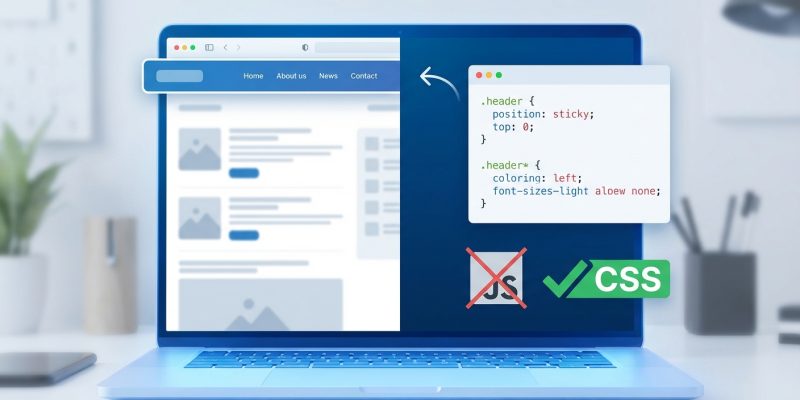
A sticky header keeps your navigation visible while users scroll down the page. No JavaScript libraries. No complex frameworks. Just a single CSS property that does exactly what you need.
Building a CSS sticky header requires position: sticky and top: 0 on your header element. This keeps navigation visible during scroll without JavaScript. You’ll need a proper parent container, z-index for layering, and fallbacks for older browsers. The technique works across modern browsers and delivers better performance than scroll event listeners.
Why Position Sticky Changed Everything
Before position: sticky arrived, developers used JavaScript to track scroll position and toggle fixed positioning. This approach consumed resources and created janky scrolling experiences.
The sticky value combines the best parts of relative and fixed positioning. Your header stays in normal document flow until it reaches a threshold. Then it locks in place.
Modern browsers support this property natively. Safari, Chrome, Firefox, and Edge all handle sticky positioning without polyfixes.
Building Your First Sticky Header
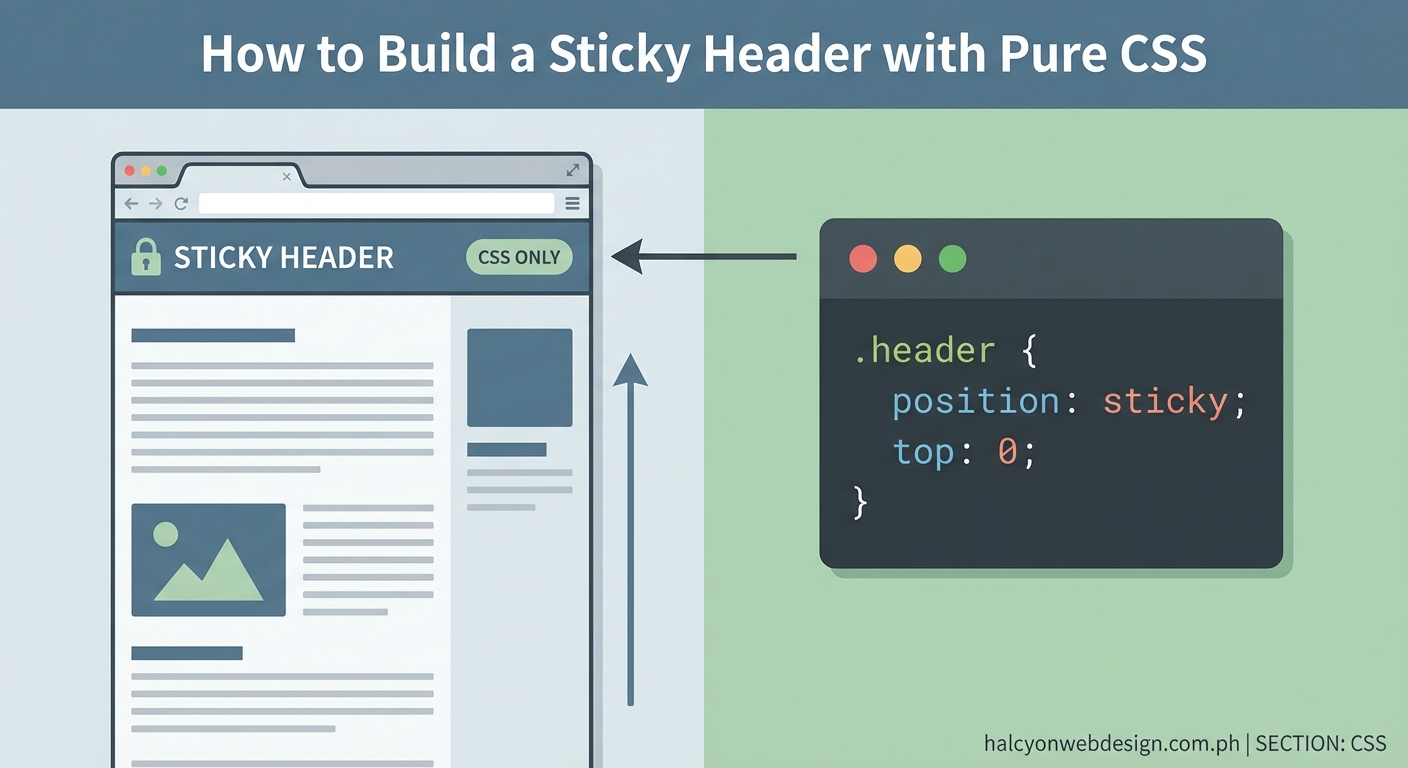
Start with clean HTML structure. Your header needs to sit inside a container that allows it to scroll.
Here’s the basic markup:
header {
  position: sticky;
  top: 0;
  background: white;
  z-index: 100;
}
That’s the core implementation. Four lines of CSS create a functional sticky header.
The position: sticky declaration tells the browser to use sticky behavior. The top: 0 value sets where the element sticks. Background color prevents content from showing through. Z-index ensures your header stays above page content.
Setting Up the Container
Your sticky element needs a parent container to work correctly. The header can only stick within its parent’s boundaries.
<div class="site-wrapper">
  <header class="main-header">
    <nav>Your navigation here</nav>
  </header>
  <main>Page content</main>
</div>
The wrapper gives your header room to operate. Without it, sticky positioning may fail or behave unpredictably.
Make sure the parent container has enough height. If the container is shorter than the viewport, sticky behavior won’t activate.
Common Implementation Patterns
Different layouts need different approaches. Here are three patterns that cover most use cases.
Pattern 1: Full Width Header
.main-header {
  position: sticky;
  top: 0;
  width: 100%;
  background: #ffffff;
  box-shadow: 0 2px 4px rgba(0,0,0,0.1);
  z-index: 1000;
  padding: 1rem 2rem;
}
This creates a header that spans the entire viewport width. The box shadow adds depth when the header sticks.
Pattern 2: Contained Header
.site-container {
  max-width: 1200px;
  margin: 0 auto;
}

.contained-header {
  position: sticky;
  top: 0;
  background: #f8f9fa;
  z-index: 100;
  padding: 1.5rem 0;
}
The header stays within a centered container. Good for content-focused sites that limit line length.
Pattern 3: Transparent to Solid
.hero-header {
  position: sticky;
  top: 0;
  background: transparent;
  transition: background 0.3s ease;
  z-index: 500;
}

.hero-header.scrolled {
  background: rgba(255, 255, 255, 0.95);
  backdrop-filter: blur(10px);
}
This pattern starts transparent over a hero image. Add the scrolled class with a tiny bit of JavaScript to change the background.
Understanding Z-Index and Stacking Context
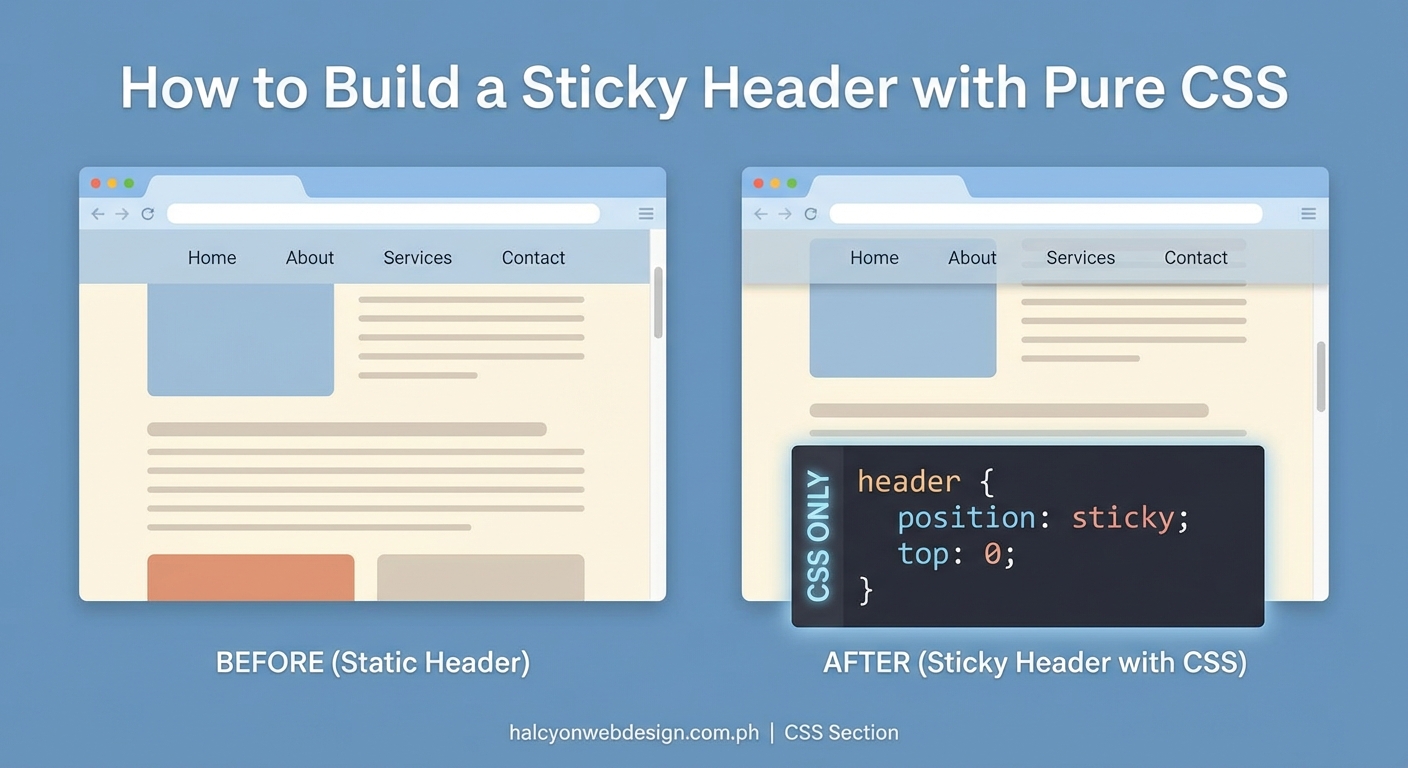
Your sticky header creates a new stacking context. This affects how elements layer on your page.
Set z-index high enough to stay above content but not so high that it blocks modals or notifications.
| Element Type | Suggested Z-Index | Reason |
|---|---|---|
| Sticky header | 100-500 | Above content, below modals |
| Dropdown menus | 600-800 | Above header when open |
| Modal overlays | 1000+ | Top layer for user interaction |
| Toast notifications | 1100+ | Critical user feedback |
Keep z-index values organized. Document your stacking order so team members understand the system.
Handling Mobile Considerations
Mobile devices need special attention. Screen real estate is precious.
Consider these mobile-specific adjustments:
- Reduce padding to save vertical space
- Make touch targets at least 44px tall
- Test on actual devices, not just browser tools
- Account for notches on newer phones
@media (max-width: 768px) {
  .main-header {
    padding: 0.75rem 1rem;
  }

  .main-header nav a {
    padding: 0.5rem 0.75rem;
    min-height: 44px;
  }
}
Mobile Safari has specific quirks with position: sticky. Always test on iOS devices.
Browser Support and Fallbacks
Position sticky works in all modern browsers. Internet Explorer doesn’t support it.
Check your analytics before adding fallbacks. If IE11 traffic is below 2%, you probably don’t need special handling.
For sites that must support older browsers, use feature detection:
.main-header {
  position: relative; /* Fallback */
  position: sticky;
  top: 0;
}

@supports (position: sticky) {
  .main-header {
    background: white;
    z-index: 100;
  }
}
The @supports rule applies styles only when the browser understands position: sticky.
Performance Benefits Over JavaScript
CSS sticky headers outperform JavaScript solutions in every meaningful way.
Browser rendering engines optimize position: sticky at the compositor level. This means smooth 60fps scrolling without main thread involvement.
JavaScript scroll listeners fire constantly. Each event triggers calculations and repaints. This creates jank, especially on lower-powered devices.
Switching from JavaScript-based sticky headers to CSS position: sticky reduced our scroll jank by 73% and improved Lighthouse performance scores by 12 points across mobile devices.
The browser handles everything natively. Your JavaScript bundle stays smaller. Page load times improve.
Troubleshooting Common Issues
Sticky headers sometimes misbehave. Here’s how to fix the most frequent problems.
Header doesn’t stick:
1. Check that the parent container has sufficient height
2. Verify no parent has overflow: hidden or overflow: auto
3. Confirm top value is set (top: 0 is required)
4. Make sure the element isn’t inside a flexbox or grid with specific constraints
Header flickers during scroll:
– Add will-change: transform to hint browser optimization
– Ensure background is opaque, not transparent
– Check for conflicting JavaScript that manipulates scroll position
Content shows through header:
– Set a solid background color
– Increase z-index value
– Add backdrop-filter for blur effects on semi-transparent headers
Header sticks too early or too late:
– Adjust the top value
– Check for margin collapse with adjacent elements
– Verify parent container positioning
Adding Visual Feedback
Users should know when the header becomes sticky. Subtle visual changes improve the experience.
.main-header {
  position: sticky;
  top: 0;
  background: white;
  transition: box-shadow 0.3s ease;
}

/* Add shadow when sticky */
.main-header::after {
  content: '';
  position: absolute;
  bottom: 0;
  left: 0;
  right: 0;
  height: 1px;
  background: #e0e0e0;
  opacity: 0;
  transition: opacity 0.3s ease;
}

.main-header.is-stuck::after {
  opacity: 1;
}
A simple border or shadow indicates the header’s state. Keep transitions subtle. Aggressive animations distract from content.
Combining With Other CSS Features
Position sticky works beautifully with modern CSS features.
CSS Grid Integration:
.page-layout {
  display: grid;
  grid-template-rows: auto 1fr auto;
  min-height: 100vh;
}

.sticky-header {
  position: sticky;
  top: 0;
  grid-row: 1;
  z-index: 100;
}
The header stays in grid flow while maintaining sticky behavior.
Flexbox Navigation:
.header-content {
  display: flex;
  justify-content: space-between;
  align-items: center;
  max-width: 1200px;
  margin: 0 auto;
}
Flexbox handles internal header layout. Sticky positioning handles scroll behavior.
Accessibility Considerations
Sticky headers affect keyboard navigation and screen readers.
Ensure your header doesn’t trap focus. Users should be able to tab through navigation and continue to main content.
Add skip links for keyboard users:
<a href="#main-content" class="skip-link">Skip to main content</a>
Style the skip link to appear on focus:
.skip-link {
  position: absolute;
  top: -40px;
  left: 0;
  background: #000;
  color: #fff;
  padding: 8px;
  z-index: 1001;
}

.skip-link:focus {
  top: 0;
}
Screen readers announce sticky headers normally. No special ARIA attributes needed for basic implementations.
Testing Your Implementation
Test sticky headers across different scenarios:
- Long pages with lots of scrolling
- Short pages where sticky behavior might not activate
- Pages with embedded content (videos, iframes)
- Different viewport sizes
- Touch devices vs mouse/trackpad
- Reduced motion preferences
Use browser DevTools to simulate conditions. Chrome’s device toolbar helps test mobile viewports.
Check performance with Lighthouse. Your sticky header shouldn’t impact Core Web Vitals scores.
Real World Examples
Here’s a production-ready sticky header with all best practices:
.site-header {
  position: sticky;
  top: 0;
  background: rgba(255, 255, 255, 0.98);
  backdrop-filter: blur(8px);
  border-bottom: 1px solid #e5e5e5;
  z-index: 100;
  transition: box-shadow 0.2s ease;
}

.site-header__content {
  display: flex;
  justify-content: space-between;
  align-items: center;
  max-width: 1400px;
  margin: 0 auto;
  padding: 1rem 2rem;
}

.site-header__nav {
  display: flex;
  gap: 2rem;
  align-items: center;
}

@media (max-width: 768px) {
  .site-header__content {
    padding: 0.75rem 1rem;
  }

  .site-header__nav {
    gap: 1rem;
  }
}

@media (prefers-reduced-motion: reduce) {
  .site-header {
    transition: none;
  }
}
This covers browser support, responsive design, accessibility, and performance.
Making It Your Own
The beauty of CSS sticky headers is their flexibility. Start with the basic implementation and customize based on your design.
Try different top values for offset headers. Experiment with backdrop filters for modern blur effects. Combine with CSS variables for theme switching.
Your header should serve your users first. Keep navigation clear. Make links easy to tap. Ensure good contrast ratios.
Position sticky gives you a powerful tool with minimal code. No JavaScript dependencies. No performance overhead. Just clean, native browser functionality that works.