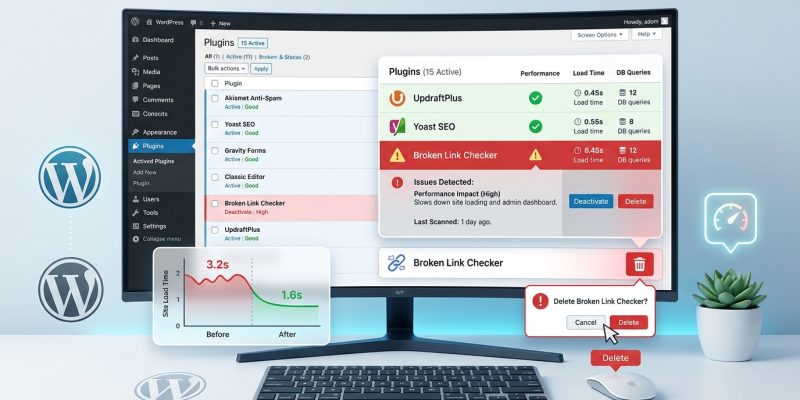
Your site loads in eight seconds. Visitors are leaving before your homepage even appears. You’ve installed a dozen plugins over the past year, and now you’re paying the price with sluggish page speeds and frustrated users.
The good news? You can pinpoint exactly which plugins are dragging down your performance without being a developer.
Finding WordPress plugins that slow down your site requires systematic testing through selective deactivation, performance monitoring tools, and load time analysis. By testing plugins individually, measuring their impact on page speed, and comparing before-and-after metrics, you can identify problematic extensions and either replace them with lighter alternatives or remove them entirely to restore optimal site performance.
Understanding why plugins affect site speed
Plugins add functionality to WordPress by injecting code into your site. Every active plugin loads scripts, stylesheets, and sometimes external resources.
Some plugins are efficient. They load only what’s needed, only where it’s needed.
Others are resource hogs. They load heavy scripts on every page, make excessive database queries, or pull data from slow external servers.
A contact form plugin might add 200KB of JavaScript to every page, even pages without forms. An analytics plugin might run 15 database queries on each page load. A social sharing plugin might fetch fresh share counts from Facebook and Twitter, adding two seconds to your load time.
The problem compounds when you run multiple plugins that don’t play well together or duplicate functionality.
Tools you need before you start
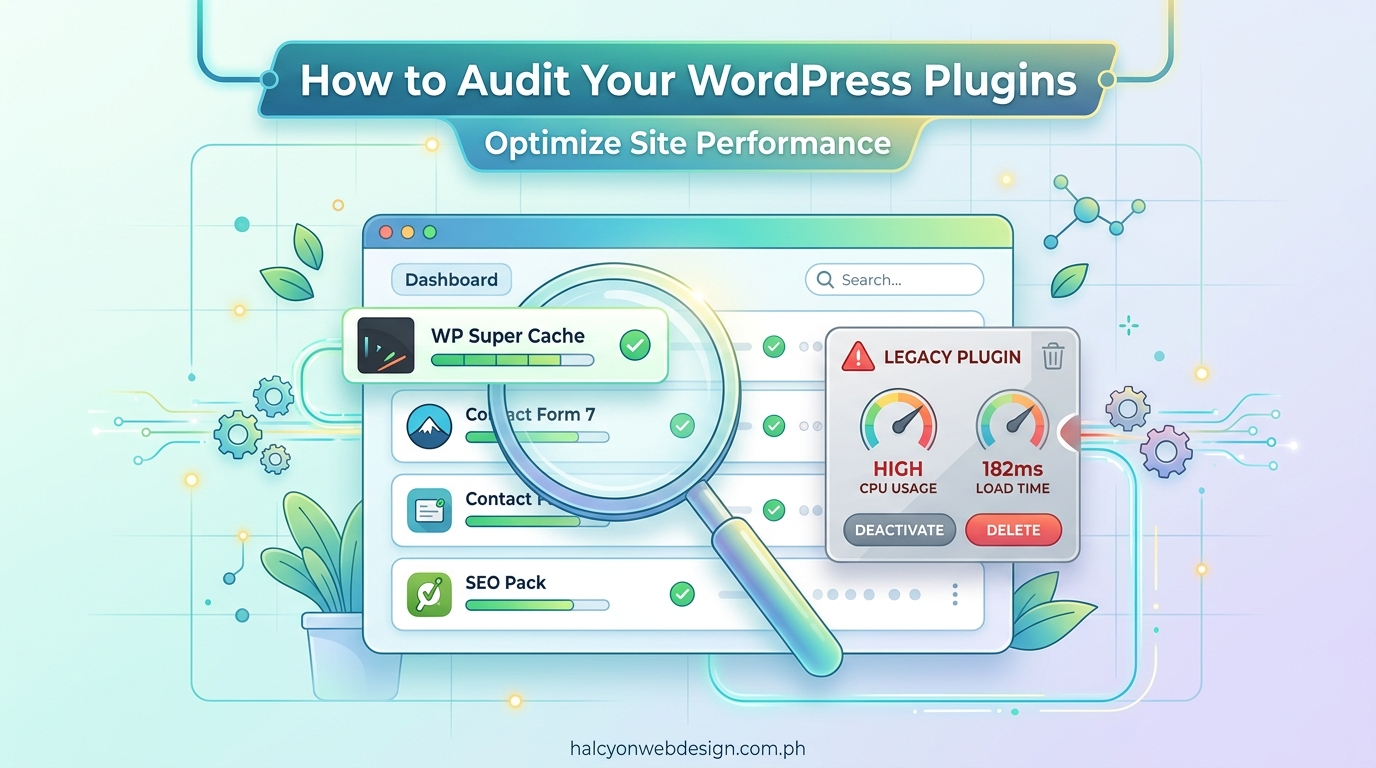
You’ll need three types of tools to identify slow plugins properly.
Performance testing tools measure your site’s speed and show you what’s loading:
- GTmetrix (free account shows waterfall charts)
- WebPageTest (detailed performance breakdowns)
- Google PageSpeed Insights (Core Web Vitals data)
- Pingdom Tools (server response times)
Plugin performance analyzers show which plugins consume the most resources:
- Query Monitor (free WordPress plugin that tracks database queries and PHP errors)
- P3 (Plugin Performance Profiler, though no longer updated, still works on many sites)
- New Relic (advanced monitoring for sites on compatible hosting)
Browser developer tools come built into Chrome, Firefox, and Edge. Press F12 to access the Network tab, which shows every file your page loads and how long each takes.
Before testing anything, create a full backup of your site. You’ll be deactivating plugins, and having a restore point gives you confidence to test freely.
Step-by-step process to identify slow plugins
Follow this systematic approach to find the culprits.
1. Establish your baseline performance
Run a speed test on your site right now. Record these numbers:
- Total page load time
- Time to First Byte (TTFB)
- Number of HTTP requests
- Total page size
- Largest Contentful Paint (LCP)
Visit your homepage, a blog post, and a page with forms or other interactive elements. Test each one separately because different plugins load on different page types.
Save screenshots of your results. You’ll compare against these after making changes.
2. Install Query Monitor
Query Monitor reveals what’s happening behind the scenes. Install it from the WordPress plugin directory.
Once activated, you’ll see a new menu in your admin bar. Click it and select “Queries by Component.”
This view shows which plugins and themes are making database queries, how many queries each makes, and how long they take.
Look for plugins making 20+ queries or taking more than 0.5 seconds. These are your first suspects.
3. Test plugins individually through selective deactivation
This method takes time but gives you definitive answers.
Start by deactivating all plugins. Yes, all of them. Your site might look broken temporarily, but that’s fine for testing.
Run your speed test again. Note the improvement. This shows your maximum potential speed without plugins.
Now reactivate plugins one at a time, testing after each activation:
- Activate one plugin
- Clear your cache (browser and server)
- Run a speed test
- Record the results
- Repeat with the next plugin
Create a simple table to track your findings:
| Plugin Name | Page Load Time | Queries Added | File Size Added | Notes |
|---|---|---|---|---|
| Baseline (no plugins) | 1.2s | 12 | 350KB | Clean install |
| Contact Form 7 | 1.8s | 15 | 580KB | Loads on all pages |
| Yoast SEO | 2.1s | 28 | 620KB | Heavy query count |
| WooCommerce | 3.4s | 67 | 1.2MB | Major impact |
This table reveals patterns quickly. You’ll see which plugins add the most overhead.
4. Check for render-blocking resources
Open Chrome DevTools (F12) and go to the Network tab. Reload your page.
Look at the waterfall chart. Files that load early and block other resources appear as long horizontal bars near the top.
Click on any JavaScript or CSS file. Check the “Initiator” column to see which plugin loaded it.
Render-blocking resources delay your entire page from displaying. If you see a plugin loading 400KB of JavaScript in the header, that’s a red flag.
Some plugins let you control where scripts load. Others don’t. If a plugin blocks rendering and offers no settings to defer script loading, consider finding an alternative.
5. Monitor real-world performance over time
Install a performance monitoring plugin that tracks your site continuously. This catches intermittent issues that single tests might miss.
Watch for plugins that perform poorly under specific conditions:
- High traffic periods
- After WordPress updates
- When external APIs are slow
- During automated backups
A plugin might test fine at 2 PM but crash your site at 8 AM when traffic peaks.
Common plugin performance problems and what they mean
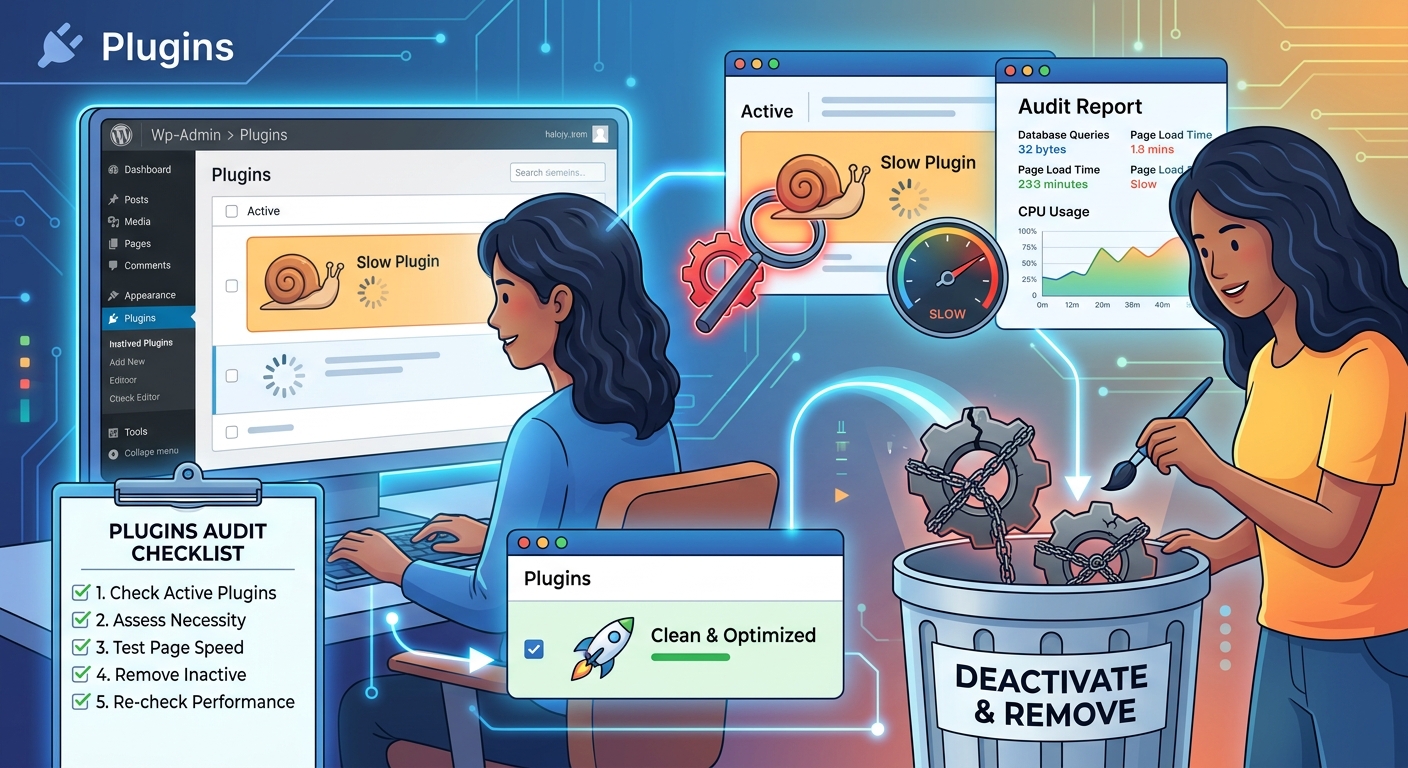
Different types of slowness point to different problems.
Slow initial page load but fast cached pages: The plugin does heavy processing on first load. Caching helps, but the plugin still strains your server.
Slow on every page load, even with caching: The plugin bypasses cache or makes external API calls that can’t be cached.
Fast load time but slow interaction: The plugin loads heavy JavaScript that doesn’t execute until users click something. This hurts user experience even if initial metrics look good.
Slow only on specific page types: The plugin loads unnecessary resources site-wide instead of just where needed. A WooCommerce plugin shouldn’t load on your blog posts.
Testing plugins on a staging site
If you can’t risk downtime on your live site, test on a staging environment instead.
A staging site is a complete copy of your live site where you can break things without consequences.
Many hosting providers offer one-click staging environments. If yours doesn’t, you can create one manually or use a plugin like WP Staging.
Run all your plugin tests on staging first. Once you identify the slow plugins, you can confidently remove or replace them on your live site.
What to do after finding slow plugins
You’ve identified the plugins slowing you down. Now what?
Option 1: Replace with lighter alternatives
Most plugins have faster competitors. A bloated contact form plugin can be replaced with a lightweight one that does the same job.
Search for alternatives and check their file sizes and reviews mentioning performance. Test the replacement on staging before switching.
Option 2: Configure the plugin more efficiently
Some plugins offer settings to reduce their impact:
- Disable features you don’t use
- Limit where the plugin loads (specific pages only)
- Reduce update frequencies for data that doesn’t need to be real-time
- Use lazy loading options if available
Option 3: Use WordPress core features instead
Many plugins replicate features already built into WordPress. You might not need them at all.
Option 4: Remove the plugin entirely
If the plugin provides minimal value but major performance drag, delete it. Not every feature is worth the cost.
Before removing any plugin, check if it stores data you need to preserve. Some plugins create custom post types or store settings that disappear when you delete them.
Mistakes to avoid when testing plugin performance
Testing seems straightforward, but these common errors skew results.
Testing with cache enabled: Always clear all caches before testing. Browser cache, server cache, CDN cache, and plugin cache all hide the true impact.
Testing only your homepage: Different pages load different plugins. Test your most important page types separately.
Testing during low traffic: Your site might handle plugins fine with 10 visitors but crash with 1,000. Use load testing tools to simulate realistic traffic.
Comparing different page types: Don’t compare your homepage speed with plugins to a blog post speed without plugins. Same page, different plugin states.
Ignoring mobile performance: Plugins that seem fast on desktop can devastate mobile users on slower connections. Test both.
Testing immediately after activation: Some plugins need time to build caches or complete initial setup. Wait a few minutes, then test.
Advanced techniques for experienced users
If you’re comfortable with technical tools, these methods provide deeper insights.
Server-side performance profiling with tools like Blackfire or Tideways shows exactly which PHP functions consume the most time. You can see if a plugin’s poorly written code is the problem.
Database query analysis through tools like MySQL slow query log reveals plugins making inefficient database calls. A plugin making one complex query might be slower than one making ten simple queries.
Asset optimization testing shows whether a plugin’s JavaScript and CSS are minified, compressed, and delivered efficiently. Unoptimized assets waste bandwidth.
API response monitoring tracks how long external services take to respond. If a plugin relies on a slow third-party API, you’ll see exactly where the delay occurs.
Maintaining plugin performance long-term
Finding slow plugins once isn’t enough. New plugins get added. Existing plugins get updated. Performance drifts over time.
Set a schedule to review plugin performance:
- Monthly: Check Query Monitor for new slow queries
- Quarterly: Run full speed tests and compare to baselines
- After every plugin update: Test the updated plugin individually
- Before adding new plugins: Test them on staging first
Keep a performance log. Note your site’s speed metrics over time. When performance suddenly drops, you can check what changed recently.
Consider using a performance monitoring service that alerts you when your site slows down. You’ll catch problems before users complain.
When plugin conflicts compound performance issues
Sometimes two plugins individually perform fine but together create problems.
Plugin conflicts happen when:
- Both plugins load similar JavaScript libraries (different versions)
- Both modify the same WordPress hooks
- One plugin’s output breaks another plugin’s functionality
- Both try to cache or optimize the same resources
If you notice performance issues only when certain plugins are active together, test them in isolation. Deactivate all other plugins, then activate just those two. If the problem appears, you’ve found a conflict.
You might need to choose between conflicting plugins or contact the developers about compatibility.
Balancing functionality and performance
Every plugin adds value and cost. The question is whether the value exceeds the cost.
A plugin that adds 0.5 seconds to load time might be worth it if it provides essential functionality. The same slowdown for a minor convenience feature probably isn’t.
Make deliberate decisions:
- List what each plugin does for your site
- Rate how important that functionality is (critical, helpful, nice to have)
- Note the performance cost
- Keep only plugins where importance outweighs cost
Sometimes you’ll find plugins you forgot you installed, features you enabled once and never used again, or tools that made sense two years ago but not today.
Taking action on what you’ve learned
You now have a clear process to identify which plugins slow down your WordPress site. You know how to test systematically, measure accurately, and interpret results.
Start with the baseline test today. Install Query Monitor. Run through your plugins one by one.
You’ll probably find that three or four plugins cause 80% of your performance problems. Replace or remove those, and your site will feel twice as fast.
Your visitors won’t wait eight seconds for a page to load. But they will stay, browse, and convert on a site that responds in under two seconds. The time you spend finding and fixing slow plugins pays back every single day through better user experience and higher engagement.