Your website loads in 8 seconds. Visitors leave before your homepage finishes rendering. You check your hosting, optimize images, and install caching plugins. Nothing changes.
The problem might be hiding in plain sight. Your theme could be the bottleneck.
A poorly coded WordPress theme can add 3-7 seconds to your page load time through bloated stylesheets, excessive HTTP requests, and inefficient code. This guide shows you how to test your theme’s impact, identify specific performance issues, and decide whether to optimize or replace it. You’ll learn benchmark testing, file analysis, and practical fixes that work.
Why themes cause speed problems
WordPress themes control everything visitors see. They load CSS files, JavaScript libraries, fonts, and layout code.
A well-built theme loads only what each page needs. A bloated theme loads everything on every page.
The difference shows up in milliseconds that compound into seconds.
Theme developers sometimes prioritize features over performance. They bundle page builders, animation libraries, and dozens of font options. Each feature adds weight.
Some themes load 15 stylesheet files when one would work. Others request 40 fonts when you use three. Many include entire icon libraries for the five icons you actually display.
Poor hosting choices amplify theme problems, but even premium hosting cannot overcome a 3MB theme package.
Testing your theme’s actual impact
You need baseline measurements before making changes.
Here’s how to isolate your theme’s performance impact:
- Install the Query Monitor plugin to see what loads on each page
- Record your current page load time using GTmetrix or Google PageSpeed Insights
- Switch to a default WordPress theme like Twenty Twenty-Four
- Clear all caches (browser, server, and plugin caches)
- Test the same page again with the default theme active
- Compare the two results
The difference between these tests shows your theme’s performance cost.
If your custom theme loads in 4.2 seconds and Twenty Twenty-Four loads in 1.8 seconds, your theme adds 2.4 seconds of delay.
That measurement gives you a target. You need to reduce that gap.
Some themes show minimal difference. Others reveal shocking disparities. One client discovered their premium theme added 5.1 seconds compared to the default theme.
Document everything. Screenshot both test results. Note the specific metrics that changed most.
Reading the performance signals
Speed tests generate dozens of metrics. Focus on these four indicators:
Total page size tells you how much data loads. Themes under 500KB perform well. Themes over 2MB need optimization.
HTTP requests count how many files the browser fetches. Each request adds latency. Aim for under 50 requests per page.
Render-blocking resources delay visible content. These CSS and JavaScript files must load before the page displays. Eliminating render-blocking resources often provides the biggest speed gain.
Time to First Contentful Paint measures when users see something. Under 1.8 seconds is good. Over 3 seconds loses visitors.
| Metric | Good | Needs Work | Critical |
|---|---|---|---|
| Page Size | Under 500KB | 500KB to 2MB | Over 2MB |
| HTTP Requests | Under 30 | 30 to 50 | Over 50 |
| First Contentful Paint | Under 1.8s | 1.8s to 3s | Over 3s |
| Total Load Time | Under 3s | 3s to 5s | Over 5s |
These benchmarks apply to standard business sites. E-commerce sites and media-heavy portfolios may need different targets.
Finding what your theme actually loads
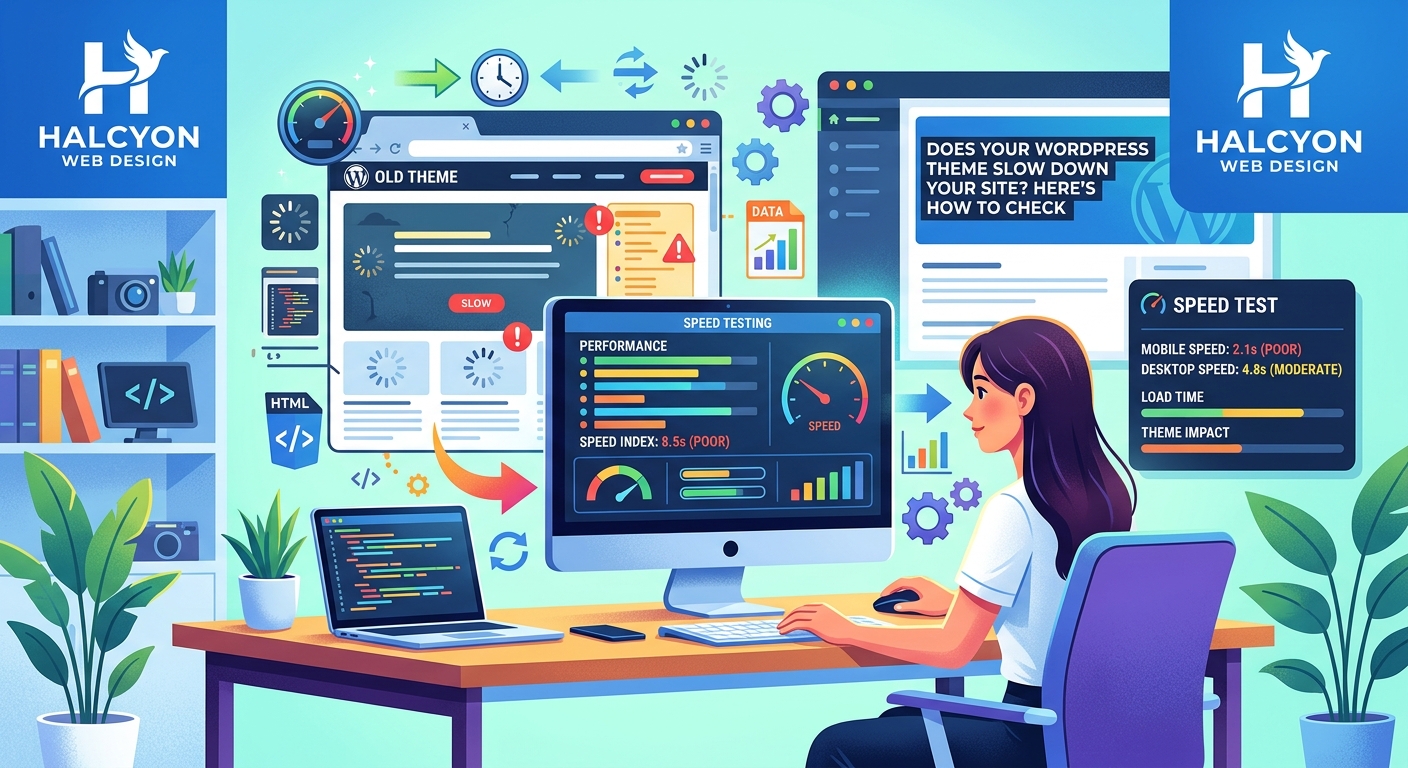
Open your browser’s developer tools. Navigate to the Network tab. Reload your homepage.
You’ll see every file that loads. Sort by size.
Look for patterns. Do you see multiple versions of jQuery? Are there CSS files you never customized? Does the theme load fonts you don’t use?
Common culprits include:
- Icon font libraries (Font Awesome, Ionicons) that load 900 icons when you use 12
- Animation libraries that add 200KB for effects you disabled
- Multiple slider scripts when you have one carousel
- Separate mobile and desktop stylesheets that both load on every device
- Google Fonts requests for 8 font weights when you use 2
Each unnecessary file costs time.
One theme loaded three different animation libraries. The site used zero animations. Removing those libraries cut 340KB and 6 HTTP requests.
Check your theme’s settings panel. Many themes include features already built into WordPress. Disable duplicate functionality.
Stylesheet bloat and how to spot it
CSS files should be lean. Many theme stylesheets contain thousands of unused rules.
Install the Coverage tool in Chrome DevTools. It shows how much CSS actually gets used on each page.
Navigate to Coverage under the three-dot menu in DevTools. Click the reload button. Chrome analyzes which styles apply to the current page.
Red bars indicate unused code. Some themes show 70% to 85% unused CSS on typical pages.
That unused code still downloads, parses, and occupies memory.
You have three options:
Use a plugin like Asset CleanUp to disable stylesheets on specific pages. If your contact page doesn’t need the blog grid styles, don’t load them.
Implement critical CSS by extracting above-the-fold styles into an inline stylesheet. Defer the rest. This requires technical knowledge but dramatically improves perceived speed.
Switch themes if the bloat is structural. Some themes cannot be optimized without rewriting core files.
Testing themes before installation prevents these problems. Demo sites often hide performance issues.
JavaScript problems and theme builders
Page builders add convenience. They also add weight.
Elementor, WPBakery, and Divi load their own JavaScript frameworks. These frameworks run even on pages built with the WordPress block editor.
Check if your theme requires a page builder. Some themes bundle Elementor Pro or WPBakery and load both even when you use neither.
Look at your JavaScript file sizes in the Network tab. Files over 200KB deserve scrutiny.
Common JavaScript issues:
- jQuery loaded twice (once by WordPress, once by the theme)
- Outdated libraries that newer code replaced
- Inline scripts that could be combined
- Third-party widgets that load their own dependencies
“Most themes load JavaScript for features users never activate. Sliders, lightboxes, and parallax effects all wait in memory whether you use them or not. Disable unused features in your theme settings before looking at plugin solutions.” – WordPress Performance Engineer
Deactivate features you don’t use. Check your theme documentation for performance settings.
Some themes let you disable individual components. Others force you to accept the entire package.
Image handling and lazy loading
Themes control how images display. Poor implementation here costs seconds.
Check if your theme adds image sizes you don’t need. WordPress generates multiple versions of each uploaded image. Themes can register additional sizes.
Navigate to your uploads folder via FTP. Upload one test image. Check how many versions WordPress creates.
Standard WordPress creates 3-4 sizes. Some themes create 12-15 sizes. Each size consumes server space and processing time during upload.
Lazy loading delays image loading until users scroll near them. WordPress includes native lazy loading since version 5.5.
Some themes override this with custom JavaScript solutions that work worse. They load an entire lazy-loading library to replace functionality WordPress provides free.
Verify your theme uses native lazy loading. View your page source. Look for loading="lazy" attributes on image tags.
If you see a lazy-loading plugin or script instead, your theme might be interfering. Image optimization techniques work better when themes cooperate with WordPress defaults.
Font loading strategies that work
Web fonts add personality. They also add render-blocking requests.
Count how many font files load. Check the Network tab and filter by “font.”
Each font weight and style requires a separate file. If you load Regular, Italic, Bold, and Bold Italic for two font families, that’s 8 font files.
Most sites need 2-4 font files maximum. One font family with 2 weights handles 90% of design needs.
Your theme might load fonts you never specified. Check your theme settings for typography options. Disable unused fonts.
Modern themes should use font-display: swap in their CSS. This tells browsers to show fallback fonts immediately while web fonts load.
Without font-display swap, text stays invisible until fonts load. Users see blank spaces for 2-3 seconds.
Check your stylesheet for font-face declarations. Look for the font-display property. If it’s missing, your theme needs updating.
Preloading fonts helps, but only for fonts you actually use on every page. Preloading unused fonts makes performance worse.
Third-party integrations and external requests
Themes often connect to external services. Each connection adds latency.
Common external requests include:
- Google Fonts from fonts.googleapis.com
- Social media counters from Facebook, Twitter, or Instagram
- Maps from Google Maps API
- Analytics from theme developers
- Update checks to theme marketplaces
Open the Network tab. Look for requests to domains other than your own.
External requests depend on third-party server speed. If Google Fonts responds slowly, your entire page waits.
You can host Google Fonts locally. Download the font files and serve them from your own server. This eliminates external DNS lookups and SSL negotiations.
Some themes phone home to check for updates or validate licenses. These requests usually happen in the admin area, but poorly coded themes make them on the front end too.
Check your theme documentation. Look for options to disable external requests or switch to local resources.
When to optimize versus replace
You’ve identified problems. Now decide whether to fix your current theme or switch.
Optimize if:
- Your theme has good bones but loads unnecessary features
- You can disable problematic components through settings
- The performance gap is under 2 seconds
- You’ve invested heavily in customization
Replace if:
- The theme loads 3+ seconds slower than default themes
- Core files contain bloated, unoptimized code
- The developer hasn’t updated it in over a year
- Signs of poor theme quality appear throughout the codebase
Optimization takes time. Replacing takes effort. Both cost less than losing visitors to slow load times.
Calculate the trade-off. If your site gets 10,000 monthly visitors and your bounce rate is 60% due to speed, you’re losing 6,000 potential customers every month.
Choosing a new theme requires research, but modern lightweight themes load in under 2 seconds out of the box.
Practical fixes you can implement today
Start with these changes that don’t require code editing:
Disable unused theme features in your theme settings panel. Turn off animations, sliders, and effects you don’t use.
Remove unnecessary widgets from your sidebars and footer. Each widget loads its own styles and scripts.
Limit social sharing buttons to 2-3 services. Every additional button adds external requests.
Check your menu structure. Mega menus and multi-level dropdowns load extra JavaScript. Simplify if possible.
Review your homepage specifically. It’s usually the slowest page because themes load everything there.
Install a caching plugin if you haven’t already. Cache cannot fix a slow theme, but it prevents repeat visitors from experiencing the full delay.
Use a CDN for static assets. Your theme’s CSS, JavaScript, and images load faster from servers near your visitors.
Core Web Vitals testing tools show which optimizations help most. Test after each change.
Child themes and safe customization
Never edit your theme’s core files directly. Updates will overwrite your changes.
Create a child theme to make performance modifications safely.
A child theme inherits your parent theme’s functionality but lets you override specific files. You can remove bloated stylesheets, dequeue unnecessary scripts, and optimize templates.
Common child theme optimizations:
- Dequeue unused JavaScript libraries in functions.php
- Remove widget areas you don’t use
- Simplify header and footer templates
- Replace heavy features with lightweight alternatives
This requires PHP knowledge. If you’re not comfortable editing code, hire a developer for a one-time optimization.
The investment typically costs less than switching themes and rebuilding your site.
Document every change. Comment your code. Future you will appreciate knowing why you modified specific functions.
Monitoring performance over time
Speed isn’t a one-time fix. Themes get updates. Plugins change. Content grows.
Set up monthly performance checks:
- Test your homepage with GTmetrix
- Record the total page size and load time
- Note the number of HTTP requests
- Check your largest contentful paint score
Track these metrics in a spreadsheet. Watch for trends.
If your page size increases by 500KB over three months, investigate. Something changed.
Common causes of performance regression:
- Theme updates that add new features
- Plugin conflicts after updates
- Accumulated image uploads without optimization
- New widgets or page builder elements
Catch problems early. A 200ms slowdown this month becomes 800ms in four months.
Your theme affects every visitor. Every page. Every day. Making it faster improves every metric that matters: bounce rate, time on site, conversion rate, and search rankings.
Your next speed test
Run one more test right now. Before you change anything, document your current performance.
Open GTmetrix. Test your homepage. Screenshot the results.
Then make one change from this guide. Disable one unused feature. Remove one unnecessary widget. Dequeue one script.
Test again.
That measurement proves whether your wordpress theme slowing down site problems are fixable or whether you need a fresh start. Either way, you’ll know exactly what to do next.