Your WordPress site could vanish tomorrow. A plugin conflict, a hosting failure, or a single hacked account could wipe months of work in seconds. Most site owners realize this too late, staring at error screens with no way back. A solid backup strategy turns that nightmare into a minor inconvenience.
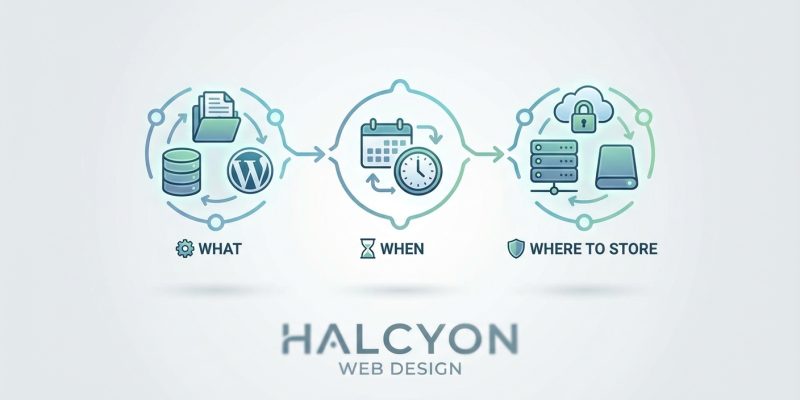
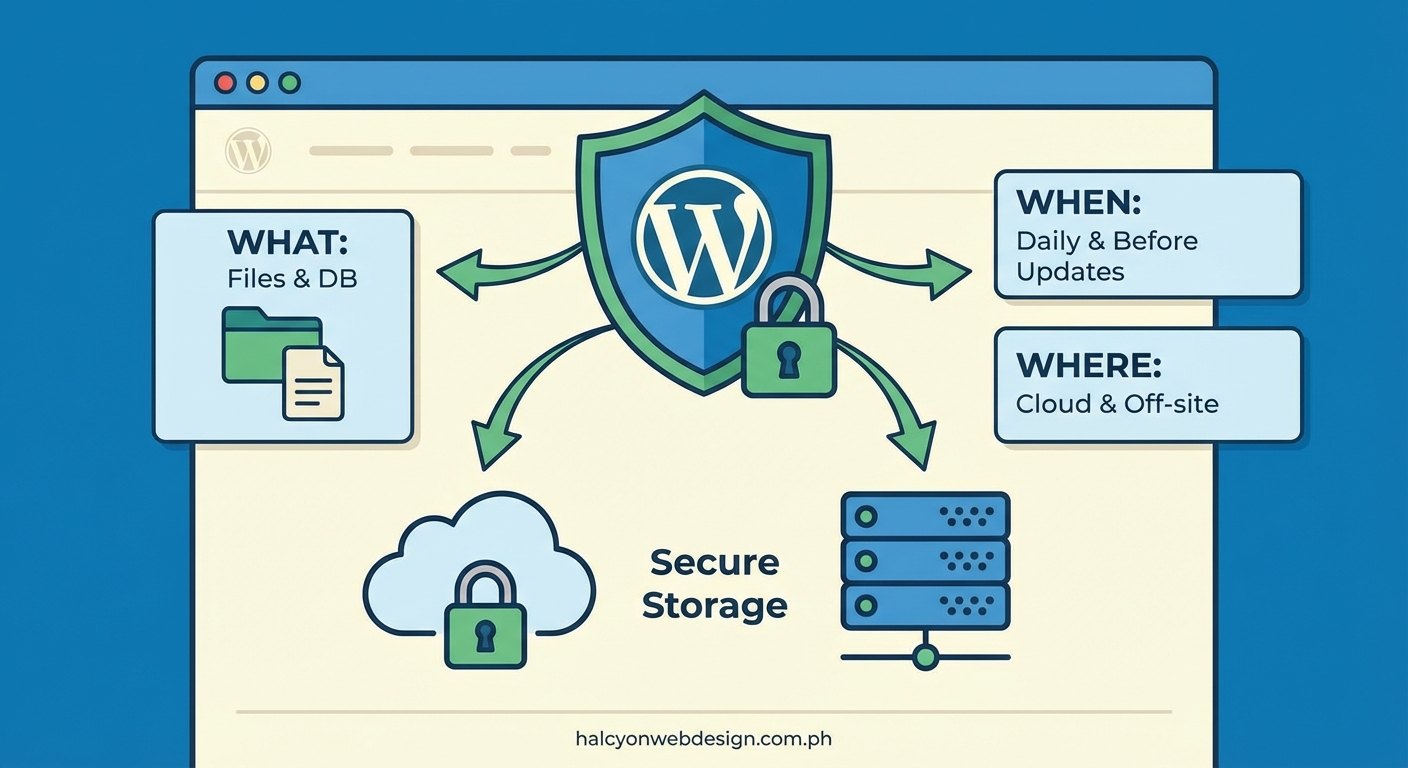
A complete WordPress backup strategy requires saving both your database and files, running backups based on how often you update content, and storing copies in multiple secure locations. Automated solutions work better than manual methods, and regular testing ensures your backups actually work when disaster strikes. This guide covers exactly what to backup, optimal scheduling, and the safest storage options.
What Actually Needs Backing Up
WordPress sites have two critical components. Your database holds posts, pages, comments, user data, and settings. Your files include themes, plugins, uploads, and core WordPress code.
Many beginners backup only their database. They lose custom themes and years of uploaded images. Others save files but forget the database. They end up with empty shells missing all content.
You need both.
The database lives in MySQL or MariaDB tables. It changes every time someone posts a comment, updates a page, or changes a setting.
Your files sit in folders on the server. The wp-content directory matters most. It contains:
- Themes (your site’s design)
- Plugins (all functionality)
- Uploads (images, PDFs, videos)
- Custom code snippets
The WordPress core files rarely need backing up. You can reinstall them anytime. But your customized wp-config.php file deserves protection since it holds database credentials and security keys.
Some hosts backup everything automatically. Others backup nothing. Assuming protection without verification is how people lose sites.
How Often to Run Backups
Backup frequency depends on update patterns. A news site publishing hourly needs different protection than a portfolio updated quarterly.
Here’s a practical framework:
| Site Type | Update Frequency | Recommended Backup Schedule |
|---|---|---|
| E-commerce store | Multiple daily transactions | Every 6-12 hours |
| Active blog | Daily posts | Daily |
| Business site | Weekly updates | Weekly |
| Portfolio | Monthly changes | Monthly |
| Static brochure | Rare updates | After each change |
Real-time backups sound ideal but create massive storage needs. A busy WooCommerce store generating hundreds of orders daily could fill terabytes with hourly snapshots.
Most sites benefit from daily database backups and weekly full backups. This balances protection with storage costs.
Trigger extra backups before risky actions:
- Installing new plugins
- Updating WordPress core
- Changing themes
- Editing functions.php directly
- Running database optimizations
These moments cause more failures than random attacks. Having a pre-change backup lets you roll back instantly.
“I backup before every plugin update, even minor ones. The five minutes spent creating a restore point has saved me dozens of hours recovering from bad updates.” – Experienced WordPress administrator
Where to Store Your Backups
Storing backups on the same server as your site defeats the purpose. Server failures, account suspensions, or ransomware attacks take both your site and backups simultaneously.
The 3-2-1 rule provides solid protection:
- 3 total copies of your data
- 2 different storage media types
- 1 offsite location
For WordPress sites, this might mean:
- Live site on your hosting server
- Automated backup to cloud storage
- Monthly download to external hard drive
Cloud storage options:
Google Drive, Dropbox, and Amazon S3 work well for WordPress backups. Most backup plugins connect directly to these services.
Amazon S3 costs pennies per gigabyte monthly. A 5GB site backup runs about $0.12 per month. Glacier Deep Archive drops that to $0.00099 per GB for long-term storage.
Dropbox and Google Drive offer simpler interfaces but cost more at scale. They make sense for smaller sites under 10GB.
Remote servers:
FTP or SFTP to a different hosting account adds geographic separation. If your main host has a data center outage, backups stored with a different provider remain accessible.
Physical storage:
External hard drives provide offline protection against hackers. Download monthly archives and store them somewhere safe. This protects against account compromises that could delete cloud backups.
Never rely on a single storage location. Redundancy matters more than convenience.
Automated vs Manual Backups
Manual backups through cPanel or phpMyAdmin teach you how WordPress works. They also get forgotten during busy weeks.
Automation removes human error from the equation.
Manual backup process:
- Log into cPanel or hosting control panel
- Access phpMyAdmin for database export
- Download SQL file to your computer
- Use File Manager or FTP to download wp-content folder
- Store both files somewhere safe
- Remember to repeat next week
This works fine for rarely updated sites. For active sites, it becomes a chore people skip.
Automated solutions:
Backup plugins run on schedules without human intervention. Set them once and they work continuously.
Popular options include UpdraftPlus, BackupBuddy, and Jetpack VaultPress. Most offer:
- Scheduled automatic backups
- Direct cloud storage integration
- One-click restoration
- Email notifications
- Incremental backups (only changed files)
Host-level backups provide another layer. Companies like SiteGround and Kinsta include automatic daily backups. These run independently of WordPress, protecting against plugin conflicts that might break WordPress-based backup tools.
Relying solely on host backups creates vendor lock-in. If you switch hosts or face account issues, accessing those backups gets complicated.
Testing Your Backups
Untested backups are wishes, not protection. Discovering your backup files are corrupted during an actual emergency is too late.
Test restoration at least quarterly:
- Set up a staging environment or local development site
- Attempt full restoration from your most recent backup
- Verify all pages load correctly
- Check image uploads display properly
- Test form submissions and functionality
- Confirm user accounts and permissions work
This process reveals problems while you can still fix them. Common issues include:
- Incomplete file transfers
- Database character encoding errors
- Missing .htaccess files
- Broken file paths
- Plugin conflicts on restore
Staging environments let you test without risking your live site. Many hosts provide staging tools. Local development using Local by Flywheel or XAMPP works too.
Document your restoration process. When crisis hits, you won’t think clearly. Step-by-step instructions written during calm testing prove invaluable during emergencies.
Database vs Files Strategy
Databases change constantly. Files change rarely. This difference enables smarter backup strategies.
Your database might grow by megabytes daily as you add posts and comments. Your theme files haven’t changed in months.
Backing up static files daily wastes storage and bandwidth. A better approach:
- Database backups: Daily or more frequent
- Full file backups: Weekly
- Incremental file backups: Daily (only changed files)
Incremental backups track file modifications. If you uploaded three images yesterday, only those three files get backed up, not your entire 20GB media library.
This dramatically reduces backup sizes and speeds up the process. A full backup might take 30 minutes. An incremental backup of changed files finishes in seconds.
Most quality backup plugins handle this automatically. They detect file changes and backup only what’s necessary.
Retention Policies That Make Sense
Keeping every backup forever fills storage and complicates restoration. You don’t need 500 daily backups from the past year.
A sensible retention schedule:
- Daily backups: Keep 7 days
- Weekly backups: Keep 4 weeks
- Monthly backups: Keep 12 months
- Yearly backups: Keep indefinitely
This provides recent restore points for fixing mistakes while maintaining long-term archives for legal or reference needs.
Adjust based on your situation. E-commerce sites might keep daily backups for 30 days to handle payment disputes. Blogs might keep only 3 days of dailies.
Some regulations require specific data retention periods. Medical sites, financial services, and legal practices often need multi-year backup retention for compliance.
Automated backup tools let you configure retention rules. Old backups delete automatically, preventing storage bloat.
Security Considerations
Backups contain everything needed to clone your site. Database exports include password hashes, email addresses, and private content.
Protect backup files as carefully as you protect your live site:
- Encrypt backup files before uploading to cloud storage
- Use strong, unique passwords for storage accounts
- Enable two-factor authentication on backup service accounts
- Restrict backup file permissions on servers
- Avoid storing backups in publicly accessible directories
Many backup plugins offer encryption. UpdraftPlus can encrypt with a passphrase before sending files to Dropbox or S3. Without the passphrase, the backup files are useless to attackers.
Never email complete backup files. Email isn’t secure. Attachments pass through multiple servers. Large files often get rejected anyway.
If you must share backups with developers, use encrypted file transfer services with expiring links.
Common Backup Mistakes
Mistake 1: Backing up to the same server
Storing backups in a different folder on the same hosting account provides zero protection against server failures, account suspensions, or ransomware.
Mistake 2: Never testing restoration
Creating backups feels productive. Actually verifying they work takes effort people skip. Then they discover corruption during real emergencies.
Mistake 3: Ignoring backup notifications
Plugins email failure alerts. People filter these to spam folders and miss weeks of failed backups.
Mistake 4: Backing up unnecessary files
Including cache folders, temporary files, and error logs bloats backups. Configure exclusions for:
- /wp-content/cache/
- /wp-content/backup/
- /wp-content/upgrade/
- Error log files
Mistake 5: Using only one backup method
Plugin-only or host-only strategies create single points of failure. Multiple independent backup systems provide redundancy.
Choosing Backup Tools
Free plugins work fine for simple sites. Premium tools add features that matter for businesses.
UpdraftPlus (free and premium):
– Direct cloud storage integration
– Scheduled automatic backups
– Easy restoration interface
– Migration tools in premium version
BackupBuddy (premium):
– Complete site migration
– Malware scanning
– Database optimization
– Staging environments
Jetpack VaultPress Backup (premium):
– Real-time backups
– One-click restore
– Security scanning
– Activity logs
Host-provided tools vary wildly. Budget hosts might offer weekly backups with difficult restoration. Premium managed WordPress hosts like WP Engine provide daily backups with simple one-click restoration.
Evaluate based on:
- Backup frequency options
- Storage locations supported
- Restoration simplicity
- Incremental backup capability
- Support quality
- Price relative to your site’s value
A $100 annual backup solution makes perfect sense for a site generating $10,000 monthly revenue. It’s overkill for a personal blog.
Building Your Backup Workflow
Start simple and improve over time. A basic but functional strategy beats a perfect plan you never implement.
Minimum viable backup strategy:
- Install a reliable backup plugin
- Configure daily database backups
- Configure weekly full backups
- Connect to cloud storage (not your hosting server)
- Set up email notifications
- Test restoration once
This takes maybe an hour to set up. It protects against 90% of data loss scenarios.
Enhanced strategy:
Add monthly downloads to physical storage. Set up staging environment for testing. Configure incremental backups. Add second cloud storage provider for redundancy.
These improvements add layers of protection but require more setup time and ongoing costs.
Match your backup complexity to your site’s importance. A hobby blog needs less protection than your business’s primary revenue source.
Protecting What You’ve Built
Your WordPress site represents hours of work, customer relationships, and business value. Backup strategies transform catastrophic losses into minor interruptions.
The best backup is the one that runs automatically, stores files safely offsite, and actually works when you need it. Start with basic daily backups to cloud storage. Test restoration quarterly. Improve your system as your site grows.
Don’t wait for disaster to think about backups. Set up protection today, while your site still exists to protect.