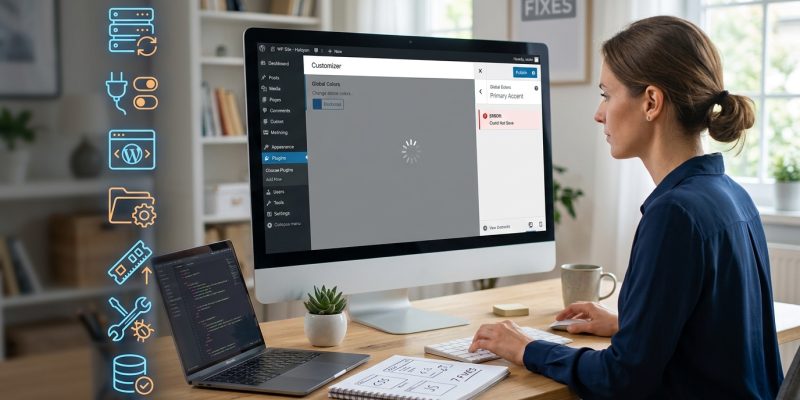
You spent the last hour adjusting colors, tweaking fonts, and perfecting your header layout. You hit the blue “Publish” button with confidence. But when you refresh your site, nothing changed. Your customizations vanished into thin air.
This problem frustrates thousands of WordPress site owners every week. The good news? Most customizer save failures stem from a handful of common causes, and you can fix them without touching a single line of code.
When your WordPress customizer not saving changes, the culprit is usually browser cache, plugin conflicts, theme bugs, server memory limits, or file permission issues. Start with the simplest fixes first: clear your cache, disable plugins temporarily, and check your error logs. Most problems resolve within minutes once you identify the root cause.
Understanding why the customizer fails to save
The WordPress customizer sends an AJAX request to your server every time you click “Publish.” If that request fails, your changes disappear.
Several factors can interrupt this process. Your browser might be loading cached versions of your site. A plugin could be blocking the request. Your hosting server might be running out of memory. Or your theme might contain outdated code that conflicts with recent WordPress updates.
Each cause produces different symptoms. Some users see error messages. Others watch the blue button spin endlessly. Many see no warning at all, just unchanged pages after a refresh.
The table below shows common symptoms and their likely causes:
| Symptom | Most likely cause | Where to look first |
|---|---|---|
| Blue button spins forever | JavaScript conflict or server timeout | Browser console, plugin list |
| Error message appears | PHP error or memory limit | WordPress debug log |
| Changes disappear after refresh | Browser or server cache | Cache plugins, hosting settings |
| Some changes save, others don’t | Theme or plugin conflict | Recently installed plugins |
| Customizer won’t load at all | File permission or corrupted theme | File permissions, theme files |
Clear your browser and server cache first
Cache causes more false alarms than any other issue. Your browser stores old versions of your site to load pages faster. When you make changes, you might be viewing yesterday’s cached copy instead of today’s live site.
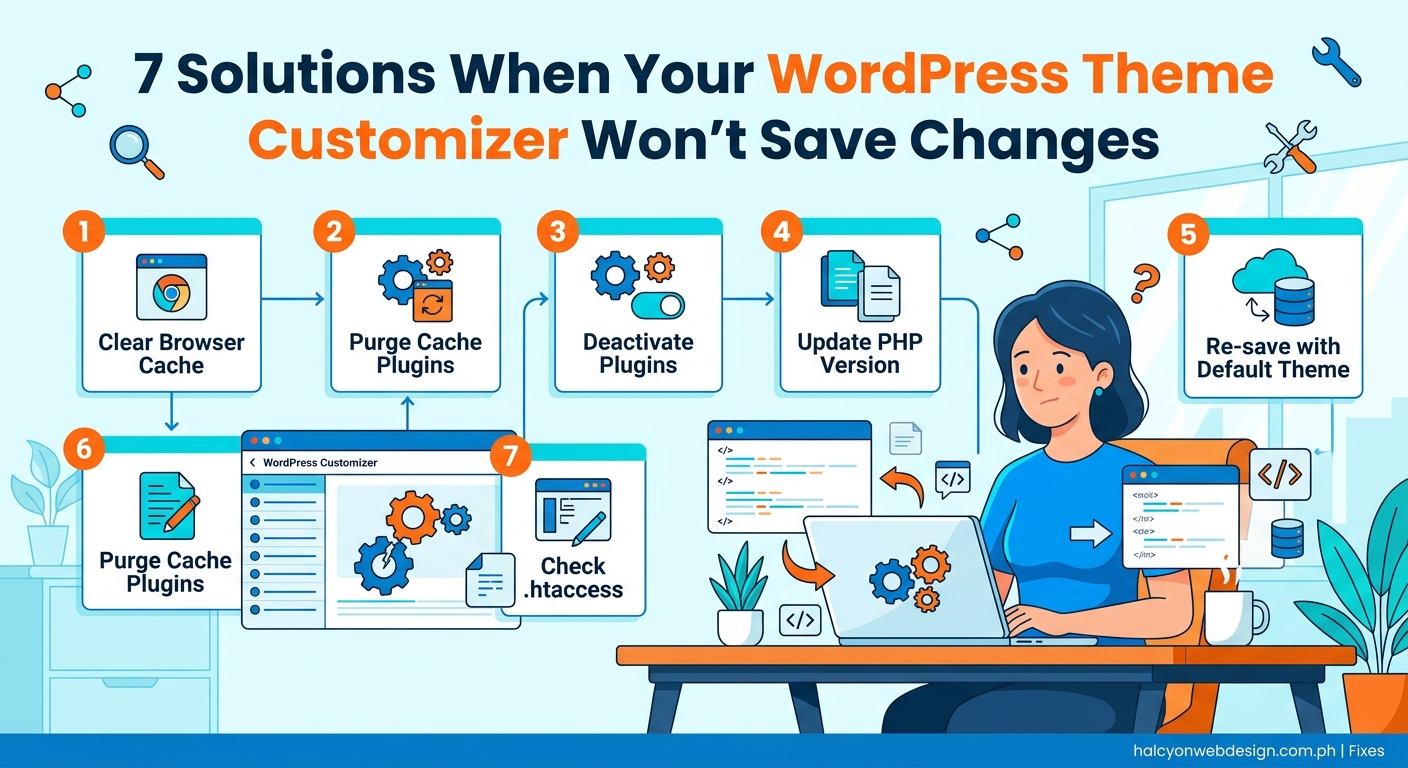
Start by clearing your browser cache completely. Open your browser settings and find the clear browsing data option. Select “Cached images and files” and clear everything from the past week. Then reload your site using a hard refresh (Ctrl+Shift+R on Windows, Cmd+Shift+R on Mac).
Next, check your WordPress caching plugins. If you use WP Super Cache, W3 Total Cache, or similar tools, open their settings and purge all cached files. Some plugins hide this option under “Performance” or “Tools” menus.
Your hosting provider might also cache your site at the server level. Log into your hosting control panel and look for caching options. Providers like SiteGround, Bluehost, and WP Engine offer one-click cache clearing buttons.
“Nine out of ten ‘my changes aren’t saving’ support tickets resolve the moment users clear their cache. Always start here before assuming something is broken.” – WordPress support specialist
Test for plugin conflicts systematically
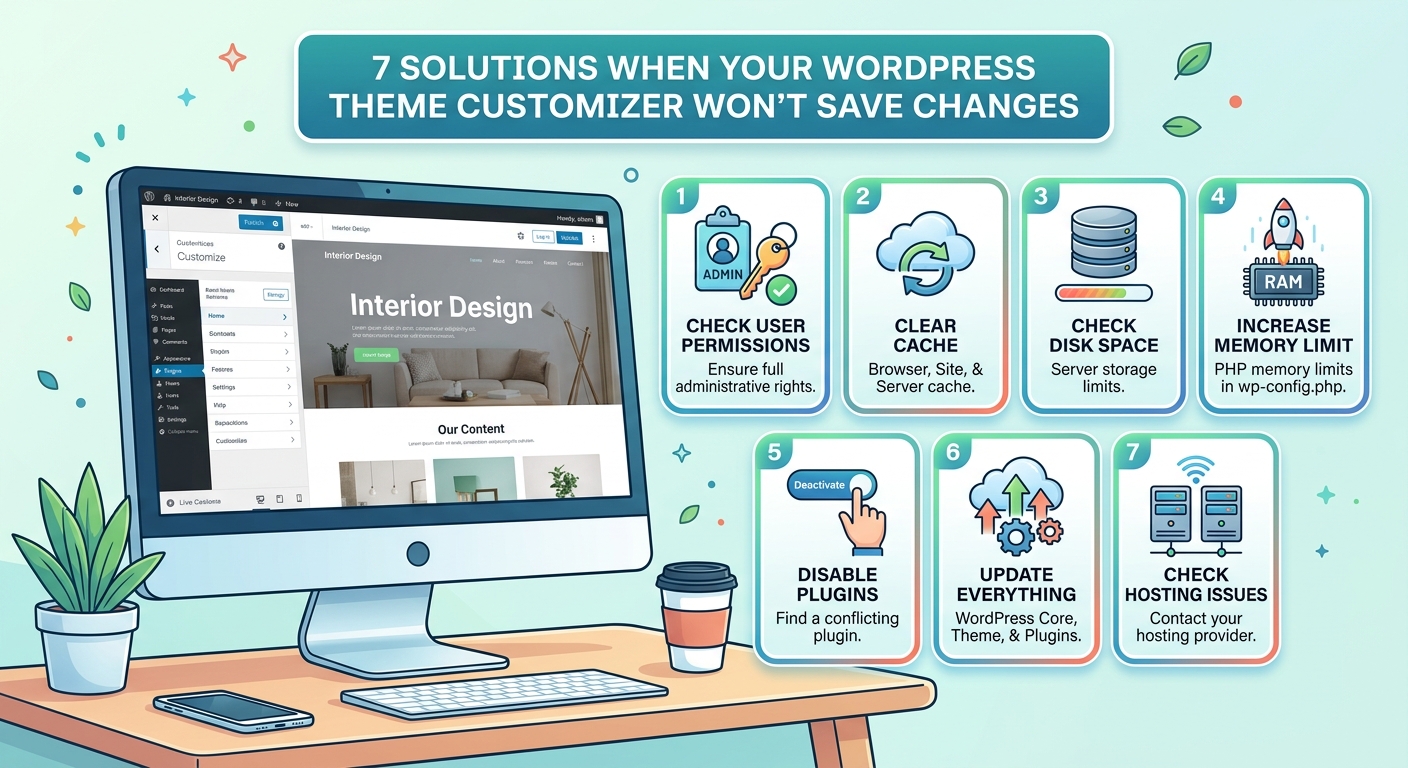
Plugins modify how WordPress works. Sometimes two plugins try to control the same feature, creating conflicts that prevent the customizer from saving.
The fastest way to test for conflicts is to disable all plugins temporarily:
- Go to Plugins in your WordPress dashboard
- Select all plugins using the checkbox at the top
- Choose “Deactivate” from the bulk actions dropdown
- Click Apply
- Try making a change in the customizer again
If your changes save successfully with plugins disabled, one of your plugins is causing the problem. Now you need to identify which one.
Reactivate your plugins one at a time, testing the customizer after each activation. When the problem returns, you’ve found the culprit. You can then search for an updated version, find an alternative plugin, or contact the plugin developer for support.
Some plugins are more likely to cause conflicts than others:
- Page builders that override theme settings
- Security plugins with aggressive firewall rules
- Outdated SEO plugins that modify theme output
- Custom CSS plugins that conflict with theme customizer CSS
If you’re running multiple plugins that serve similar purposes, consider whether you need all of them. Sometimes choosing the right WordPress plugin without breaking your site means removing redundant tools.
Check your theme for compatibility issues
Themes control how your customizer options appear and save. Outdated or poorly coded themes often fail to save changes properly, especially after WordPress core updates.
First, verify your theme is up to date. Go to Appearance > Themes and look for update notifications. If an update is available, back up your site first, then install it.
If updating doesn’t help, switch to a default WordPress theme temporarily. Activate Twenty Twenty-Four or another official theme, then test your customizer. If changes save correctly, your original theme has a bug.
You have three options at this point:
- Contact your theme developer for support
- Search their documentation for known issues
- Switch to a different theme
Before switching themes permanently, read our guide on how to safely switch WordPress themes without losing your content or SEO rankings to protect your hard work.
Child themes can also cause problems if they’re not properly configured. If you’re using a child theme, temporarily activate the parent theme and test again. Issues with child themes explained when you need one and how to create it safely often surface when customizer settings won’t stick.
Increase your PHP memory limit
WordPress needs memory to process customizer changes. If your server runs out, the save operation fails silently. You won’t see an error, just changes that never take effect.
To check your current memory limit, install the free Health Check & Troubleshooting plugin. Go to Tools > Site Health > Info > Server. Look for the PHP memory limit value. WordPress recommends at least 256MB, but many shared hosting plans default to 128MB or less.
You can increase this limit in several ways. The easiest method is editing your wp-config.php file:
- Connect to your site using FTP or your hosting file manager
- Download a backup copy of wp-config.php
- Open the file in a text editor
- Add this line before the “That’s all, stop editing” comment:
define('WP_MEMORY_LIMIT', '256M'); - Save and upload the file
If that doesn’t work, try adding the same setting to your .htaccess file: php_value memory_limit 256M
Some hosting providers restrict memory increases through these methods. In that case, contact your host and ask them to increase your PHP memory limit. Most will do this within a few hours.
Memory issues often appear alongside other performance problems. If your site feels sluggish overall, read why your WordPress site loads slowly and how to fix it in 30 minutes for a complete performance audit.
Enable WordPress debug mode to see hidden errors
Many customizer failures happen because of PHP errors that WordPress hides by default. Enabling debug mode reveals these errors so you can fix them.
Edit your wp-config.php file and find these lines:
define('WP_DEBUG', false);
Replace them with:
define('WP_DEBUG', true);
define('WP_DEBUG_LOG', true);
define('WP_DEBUG_DISPLAY', false);
This configuration logs errors to a file without displaying them on your live site. After making changes, try using the customizer again. Then check the wp-content/debug.log file for error messages.
Common errors you might see include:
- Fatal errors from outdated plugin code
- Warnings about deprecated functions
- Memory exhausted messages
- File permission errors
Each error message includes the file name and line number where the problem occurred. Search for that specific error message online, or share it with your theme or plugin developer for targeted help.
Remember to disable debug mode once you’ve identified the problem. Leaving it enabled can slow down your site and expose sensitive information.
Verify file and folder permissions
WordPress needs permission to write changes to your database and theme files. Incorrect file permissions can prevent the customizer from saving your work.
Your WordPress files should use these permission settings:
- Folders: 755
- Files: 644
- wp-config.php: 440 or 400 (more secure)
To check permissions, connect to your site using FTP. Right-click any folder and select “File Permissions” or “Properties.” The numbers should match the values above.
If permissions are wrong, you can fix them through your FTP client or hosting control panel. Most FTP programs let you select multiple files and change permissions in bulk.
Some hosts use different user accounts for web server processes and FTP access. This can create ownership conflicts even when permissions look correct. If you’ve verified permissions but still can’t save changes, ask your hosting support team to check file ownership.
For a complete security review, consult the complete WordPress hardening checklist with 15 security settings you should change today, which includes proper permission settings.
Check for JavaScript errors in your browser console
The customizer relies heavily on JavaScript to send your changes to the server. A single JavaScript error can break the entire save process.
Open your browser’s developer tools (F12 on most browsers) and click the Console tab. Refresh the customizer page and look for red error messages.
Common JavaScript errors include:
- “Uncaught TypeError” messages pointing to specific plugins
- “Failed to load resource” errors for missing files
- “Mixed content” warnings on HTTPS sites loading HTTP resources
- “Syntax error” messages in theme or plugin files
If you see errors referencing a specific plugin or theme, that’s your culprit. Try disabling that component and testing again.
Mixed content errors occur when your site uses HTTPS but loads some resources over HTTP. Fix these by updating all resource URLs to use HTTPS, or install a plugin like Really Simple SSL to handle conversions automatically.
Test with a different browser or device
Sometimes the problem isn’t your WordPress installation at all. Browser extensions, outdated browser versions, or device-specific issues can prevent the customizer from working correctly.
Try opening the customizer in a different browser. If you normally use Chrome, test with Firefox or Safari. Better yet, try a private or incognito window, which disables most extensions and uses fresh cache.
If the customizer works in a different browser, the problem lies in your original browser settings. Common causes include:
- Ad blockers interfering with AJAX requests
- Browser extensions modifying page behavior
- Corrupted browser cache that won’t clear normally
- Outdated browser version missing required features
Update your browser to the latest version and disable extensions one by one to find the conflict.
Mobile devices present their own challenges. Many theme customizer features don’t work properly on phones or tablets. If you’re trying to customize your site from a mobile device, switch to a desktop computer for better results.
Restore from a backup if nothing else works
If you’ve tried every troubleshooting step and your customizer still won’t save, something may have corrupted your WordPress installation or database.
This is why regular backups matter. If you have a recent backup from before the problem started, you can restore it and start fresh. Your backup should include both your files and your database.
Most backup plugins like UpdraftPlus or BackupBuddy make restoration straightforward. Log into your WordPress dashboard, go to the backup plugin’s restore section, and select your most recent working backup.
If you don’t have a backup, now is the perfect time to set one up for the future. Read how to choose the right WordPress backup plugin for your site to protect yourself from future problems.
After restoring, make changes carefully and test the customizer after each modification. This helps you identify exactly what triggers the problem if it returns.
Preventing customizer problems before they start
Once you’ve fixed your current issue, take steps to prevent future problems:
- Keep WordPress, themes, and plugins updated regularly
- Test updates on a staging site before applying them to your live site
- Use quality themes and plugins from reputable developers
- Monitor your site’s error logs weekly
- Maintain regular backups
- Clear cache after making significant changes
Consider setting up a staging environment for your website where you can test customizations safely before publishing them to your live site.
Document which plugins and theme combinations work well together. When you find a stable configuration, note the version numbers so you can troubleshoot more effectively if problems arise after updates.
Getting your customizations to stick
The WordPress customizer should save your changes reliably every time you click publish. When it doesn’t, the problem almost always traces back to cache, conflicts, memory, permissions, or errors that you can identify and fix.
Start with the simplest solutions. Clear your cache, test with plugins disabled, and check your error logs. Most customizer problems resolve within 15 minutes once you know where to look.
If you’ve worked through this entire troubleshooting process and still can’t save changes, reach out to your hosting provider or theme developer with specific details about what you’ve tried. The more information you provide, the faster they can help you fix the problem and get back to building your site.