
Google started using page experience signals as ranking factors in 2021. Most webmasters still struggle to understand what these metrics actually measure and why their scores fluctuate wildly between testing tools.
Core web vitals are three specific measurements that track loading speed, interactivity, and visual stability. They matter because Google uses them to evaluate user experience. Sites that pass all three thresholds get a ranking boost. Sites that fail risk losing organic traffic to faster competitors.
Core web vitals measure three user experience factors: Largest Contentful Paint (loading), First Input Delay (interactivity), and Cumulative Layout Shift (visual stability). Google uses these metrics as ranking signals. Passing all three thresholds requires optimizing images, reducing JavaScript execution time, and reserving space for dynamic content. Most fixes take under an hour once you identify the root cause.
What core web vitals actually measure
Core web vitals consist of three metrics that capture different aspects of page experience.
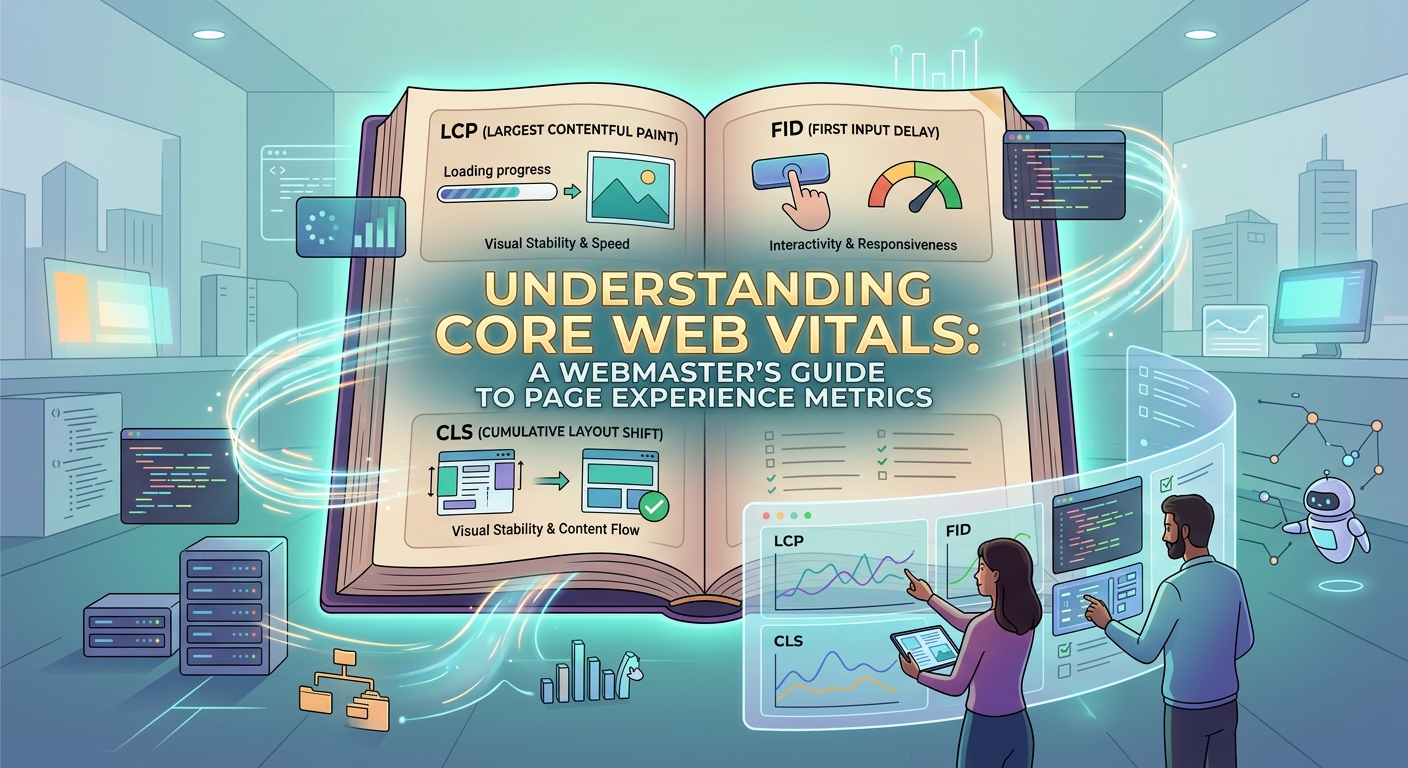
Largest Contentful Paint (LCP) measures how long it takes for the largest visible element to load. This is usually your hero image, video thumbnail, or main heading block. Good LCP happens within 2.5 seconds of when the page starts loading.
First Input Delay (FID) tracks the time between when a user first interacts with your page and when the browser can actually respond. This includes clicking a button, tapping a link, or entering text in a form field. Good FID stays under 100 milliseconds.
Cumulative Layout Shift (CLS) quantifies how much elements move around during page load. If you’ve ever tried to click a button only to have an ad load and push everything down, you’ve experienced poor CLS. Good CLS scores stay below 0.1.
These three metrics replace older measurements that didn’t correlate well with real user frustration. Page load time doesn’t tell you if the content users care about loaded fast. Time to interactive doesn’t account for layout shifts that make users click the wrong thing.
Why your scores differ between testing tools
You’ll see different numbers when you test the same page in PageSpeed Insights, Chrome DevTools, and WebPageTest.
Field data comes from real users visiting your site through Chrome browsers. This data appears in PageSpeed Insights under the “Discover what your real users are experiencing” section. It reflects actual network conditions, device capabilities, and user behavior patterns.
Lab data comes from simulated tests run in controlled environments. These tests use standardized settings for network speed and device power. Lab data helps you reproduce issues and verify fixes, but it won’t match what real users experience.
The 75th percentile determines whether you pass or fail. If 75% of your page loads have good LCP, you pass that metric. This means you can have some slow loads and still pass, but you can’t ignore the worst-performing pages.
Testing from different locations produces different results because network latency varies. A user in Manila experiences different load times than someone in New York, even on the same hosting server.
How to diagnose your biggest performance problems
Start with field data if you have enough traffic. You need at least 28 days of Chrome user data before Google Search Console shows core web vitals reports.
- Open Google Search Console and navigate to the Core Web Vitals report under Experience.
- Review which URLs fail each metric and look for patterns in the failing pages.
- Click through to see specific examples of poor, needs improvement, and good URLs.
- Run those URLs through PageSpeed Insights to get detailed recommendations.
- Use the Chrome DevTools Performance panel to record a page load and identify bottlenecks.
- Check the Network tab to find large resources that delay rendering.
Most WordPress sites fail LCP because of unoptimized images or render-blocking resources. The hero section loads last instead of first because CSS and JavaScript files block the main content.
FID problems usually stem from heavy JavaScript execution. Third-party scripts, analytics tags, and social media widgets all compete for processing time. The browser can’t respond to user input while executing these scripts.
CLS issues happen when elements load without reserved space. Images without width and height attributes, web fonts that load late, and ads that inject dynamically all cause layout shifts.
Common mistakes that hurt your scores
Many performance optimizations backfire when implemented incorrectly.
| Mistake | Why it hurts | Better approach |
|---|---|---|
| Lazy loading above-the-fold images | Delays LCP by waiting for JavaScript | Only lazy load images below the fold |
| Using too many font weights | Increases CLS during font swap | Limit to 2-3 weights and preload critical fonts |
| Adding width/height in CSS only | Browser can’t reserve space before CSS loads | Add width and height attributes directly in HTML |
| Deferring all JavaScript | Breaks functionality users expect immediately | Defer only non-critical scripts |
| Compressing images too aggressively | Forces users to zoom in on blurry content | Balance file size with visual quality |
The how to optimize images for web without losing quality guide covers the compression sweet spot for different image types.
Preloading everything doesn’t help. When you mark ten resources as critical, none of them are actually critical. The browser still has to decide what to load first.
Fixing Largest Contentful Paint issues
LCP measures when your largest above-the-fold element finishes rendering. This is usually your hero image or main heading block.
Optimize your largest image first. Convert it to WebP format, serve it through a CDN, and make sure it’s sized appropriately for the viewport. A 2000px wide image on a 375px mobile screen wastes bandwidth.
Add width and height attributes to prevent layout shifts. Modern browsers use these to calculate aspect ratio before the image loads, reserving the correct space.
Preload critical resources that affect LCP. Add this to your HTML head section:
Remove render-blocking CSS and JavaScript from the critical path. Inline critical CSS directly in the HTML head, then load the full stylesheet asynchronously.
Use a faster hosting provider if server response time exceeds 600ms. Shared hosting often struggles under traffic spikes. The guide on how to choose the right web hosting plan for your wordpress site explains what to look for.
Focus on the resources that affect your LCP element. Optimizing images below the fold won’t improve your LCP score at all. Measure which element is actually your LCP using Chrome DevTools before you start fixing things.
Reducing First Input Delay
FID tracks how long users wait between clicking something and seeing a response. Long JavaScript execution blocks the main thread and prevents interaction.
Break up long tasks by splitting large JavaScript files into smaller chunks. Code that takes over 50ms to execute should be split or deferred.
Remove unused JavaScript from your pages. WordPress plugins often load scripts globally even when you only need them on specific pages. The do you really need that plugin? 7 features already built into wordpress article helps identify unnecessary code.
Defer third-party scripts that aren’t essential for initial page load. Analytics, social sharing buttons, and chat widgets can all load after the page becomes interactive.
Use web workers for heavy computations. These run JavaScript in background threads without blocking user interactions.
Implement code splitting to load JavaScript only when needed. If a feature requires user action to activate, load its code on demand rather than during initial page load.
Preventing Cumulative Layout Shift
CLS measures visual stability during page load. Elements that move around frustrate users and cause misclicks.
Reserve space for all images by adding width and height attributes. This lets browsers calculate aspect ratio and reserve the correct space before images load.
Set explicit dimensions for ad slots and embedded content. If you don’t know the exact size, use the minimum dimensions and adjust with CSS.
Avoid inserting content above existing content unless it’s in response to user interaction. New elements should appear below current content or in overlays that don’t push things around.
Load web fonts carefully to prevent font swapping layout shifts. Use font-display: optional or preload fonts with “.
- Add width and height to every image tag
- Reserve space for ads with min-height CSS
- Preload critical fonts used in large headings
- Load dynamic content in fixed-height containers
- Test animations to ensure they don’t trigger reflows
The why preloading fonts matters for core web vitals and how to do it right guide covers font optimization strategies that prevent CLS.
Testing and monitoring your improvements
Test on real devices, not just simulators. Chrome DevTools device mode approximates mobile performance, but nothing beats testing on actual phones with real network conditions.
Use throttling to simulate slower connections. Most users don’t have fiber internet. Test with 4G and 3G throttling enabled to see what they experience.
Monitor field data over time rather than obsessing over single test results. One bad score doesn’t tank your rankings. Consistent patterns matter more than individual outliers.
Set up automated monitoring with tools that alert you when scores drop. The 7 free tools to test and improve your core web vitals score resource lists options for continuous monitoring.
Retest after every change to verify improvements. Sometimes fixes help one metric but hurt another. Deferring JavaScript might improve LCP but worsen FID if critical interaction code loads too late.
Compare your scores against competitors ranking for your target keywords. If they all pass core web vitals and you don’t, that’s a competitive disadvantage worth addressing.
How WordPress themes and plugins affect your scores
Some themes load dozens of CSS and JavaScript files on every page. This bloat directly impacts all three core web vitals metrics.
Check your theme’s performance before committing to it. The 5 signs your wordpress theme is slowing down your website checklist helps evaluate themes before installation.
Page builders add significant overhead. Elementor, Divi, and similar tools generate extra markup and load additional resources. If you need a page builder, choose one optimized for performance.
Limit active plugins to essential functionality. Each plugin adds code that needs to load and execute. Audit your plugins quarterly and remove anything you’re not actively using.
Choose lightweight alternatives when possible. Many popular plugins have faster competitors that do the same job with less code.
Caching plugins help but don’t fix underlying problems. If your uncached pages are slow, caching just hides the issue. The 5 caching strategies that actually work for wordpress sites guide explains what caching can and can’t fix.
Mobile versus desktop performance
Google uses mobile performance for ranking, even for desktop searches. Your mobile scores matter more than desktop scores.
Mobile devices have less processing power and slower network connections. A page that loads in 2 seconds on desktop might take 8 seconds on a mid-range phone.
Test on representative devices, not just flagship phones. Most users don’t have the latest iPhone or Samsung Galaxy. Test on 2-3 year old mid-range devices to see what average users experience.
Reduce image sizes more aggressively for mobile. Serve different image sizes based on viewport width using the srcset attribute.
Minimize JavaScript execution on mobile. Processing that takes 100ms on desktop might take 500ms on a mobile processor.
Consider mobile-first design principles that prioritize essential content. The 5 mobile-first design principles every beginner should know article covers this approach.
Balancing performance with design and functionality
Perfect scores don’t guarantee better rankings. Passing all three thresholds is enough. Obsessing over 100/100 often means removing features users actually want.
Some design elements hurt performance but improve conversions. A/B test performance optimizations against conversion metrics to find the right balance.
Animations can enhance user experience when implemented correctly. The how to create smooth css animations without hurting page performance guide shows how to animate without tanking your scores.
Third-party tools sometimes justify their performance cost. If a chat widget increases conversions by 15%, the slight FID impact might be worth it.
Communicate tradeoffs to stakeholders. When a client wants five carousels and ten animations, show them the performance impact and let them make informed decisions.
Getting help when you’re stuck
Start with PageSpeed Insights recommendations. The tool identifies specific issues and suggests fixes ranked by impact.
Search for error messages in WordPress forums. Someone else has probably encountered and solved your specific issue.
Hire a performance specialist for complex problems. Some issues require server configuration changes or custom code that’s beyond typical webmaster skills.
Join communities focused on WordPress performance. The WP Speed Matters Facebook group and similar communities offer free advice from experienced developers.
Document what you try so you can roll back failed experiments. Before making changes, note your current scores and take screenshots of your configuration.
Maintaining good scores over time
Performance degrades naturally as you add content, features, and plugins. Regular audits prevent slow erosion of your scores.
Review core web vitals monthly in Google Search Console. Look for new failing URLs or metrics that dropped from good to needs improvement.
Test new plugins on a staging site before installing them on production. The how to test a wordpress theme before installing it on your live site process applies to plugins too.
Optimize new images before uploading them. Make this part of your content creation workflow rather than a periodic cleanup task.
Update plugins and themes regularly but test after updates. Sometimes updates introduce performance regressions. The how to safely update wordpress plugins without breaking your site guide covers safe update procedures.
Set performance budgets for new features. Before adding something, decide the maximum acceptable performance impact and measure whether the addition stays within budget.
Making core web vitals work for your site
Core web vitals aren’t arbitrary numbers to chase. They measure real user frustration with slow, unresponsive, or unstable pages.
Start with the metric you’re failing worst. If your LCP is 6 seconds but your FID and CLS are good, focus entirely on LCP until you pass the threshold.
Implement fixes one at a time and measure results. Changing ten things at once makes it impossible to know what actually helped.
Remember that passing is enough. You don’t need perfect scores. You need scores good enough that Google doesn’t penalize your rankings.
Track how improvements affect actual business metrics. Faster pages should increase engagement, reduce bounce rates, and improve conversions. If they don’t, you might be optimizing the wrong things.
Core web vitals will evolve as user expectations and web technologies change. Stay informed about updates to the metrics and thresholds, but don’t let fear of future changes paralyze current improvements.