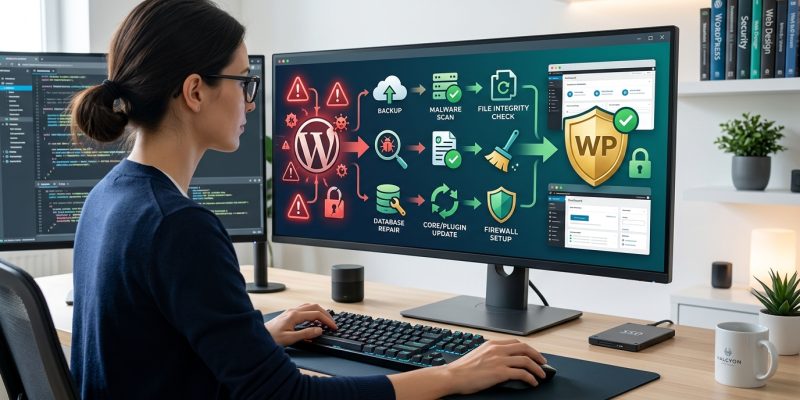
Finding out your WordPress site has been hacked feels like coming home to a break-in. Your stomach drops. Your mind races through worst-case scenarios. But just like recovering from a home burglary, you can clean up the damage, restore what matters, and lock the doors properly this time.
Recovering from a WordPress hack requires immediate action: take your site offline, scan for malware, restore clean backups, update all credentials, patch vulnerabilities, and implement proper security measures. Most hacks exploit outdated software, weak passwords, or vulnerable plugins. Following this systematic recovery process will remove malicious code and protect your site from future attacks. The entire process typically takes two to four hours for most small business sites.
Assess the damage before you start fixing
Before you touch anything, document what you see.
Take screenshots of strange content, redirects, or error messages. Check your email for notifications from your hosting provider about suspended accounts or malware warnings. Log into Google Search Console and look for security issue alerts.
Open an incognito browser window and visit your site. Does it redirect to spam pages? Do you see pharmaceutical ads or casino links? Does your browser show a security warning?
Check your site’s source code by right-clicking and selecting “View Page Source.” Search for unfamiliar JavaScript files or suspicious external links. Hackers often inject code into header or footer sections.
Look at your recent posts and pages. Scroll through your media library. Scan your user list for accounts you don’t recognize.
Write everything down. This documentation helps you verify later that you’ve actually removed all malicious content.
Put your site into maintenance mode immediately
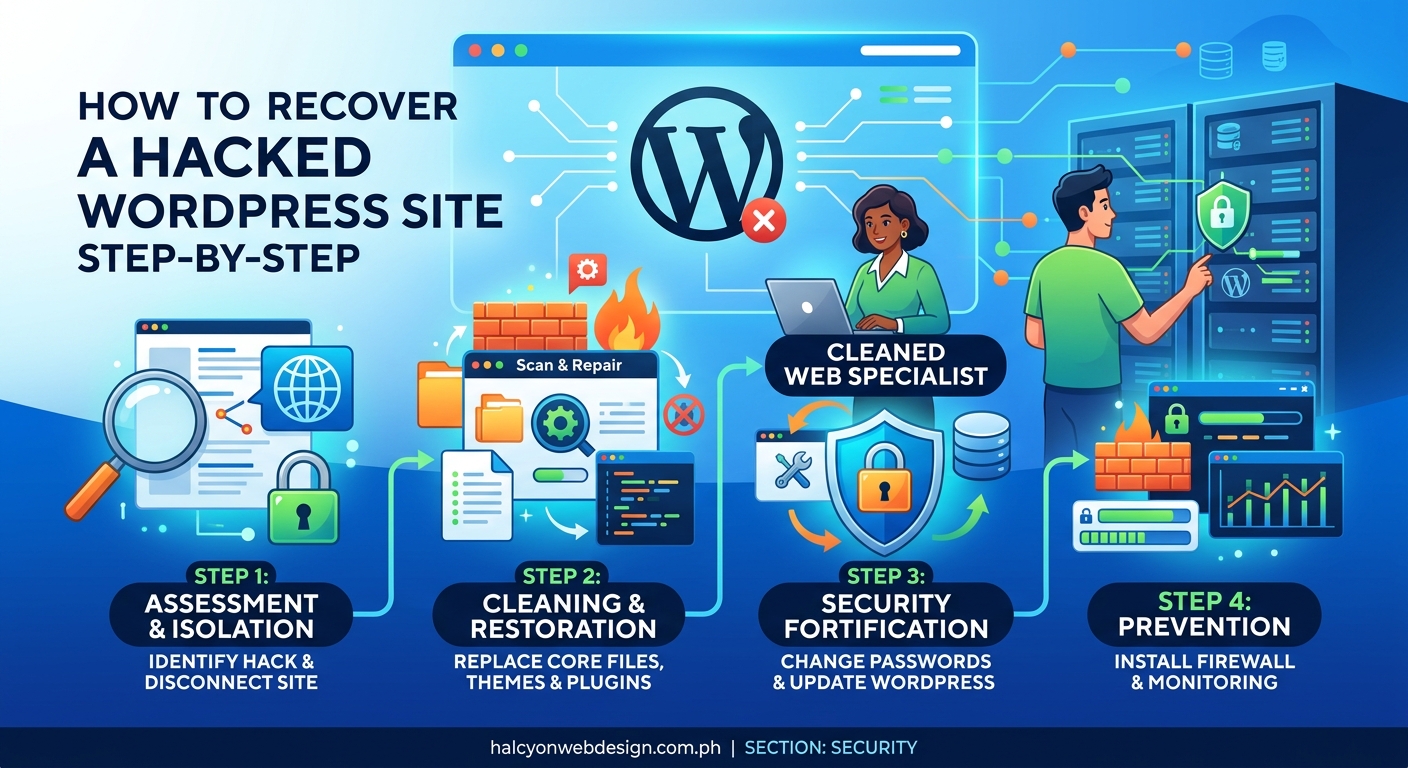
You need to stop the bleeding before you can heal the wound.
Enable maintenance mode through a plugin or by adding code to your site. This prevents visitors from seeing hacked content and stops search engines from indexing spam pages.
If you can’t access your WordPress dashboard, contact your hosting provider. Most hosts can enable maintenance mode from their control panel or temporarily disable your site.
Change your hosting account password right now. Use a password manager to generate something completely random with at least 16 characters. Don’t reuse passwords from other accounts.
If your hosting account was compromised, attackers might have access to your email, FTP credentials, and database. Treat this like someone stole your house keys.
Scan your local computer for malware
Your computer might be the source of the breach.
Run a full antivirus scan on any device you use to manage your WordPress site. Hackers sometimes install keyloggers that capture your passwords as you type them.
Check your browser extensions. Remove anything you don’t recognize or haven’t used in months. Malicious extensions can steal login credentials.
Clear your browser cache and saved passwords. Generate fresh credentials after your computer is clean.
If you find malware on your computer, clean it completely before logging into your site again. Otherwise, you’ll just get reinfected.
Create a complete backup of the infected site
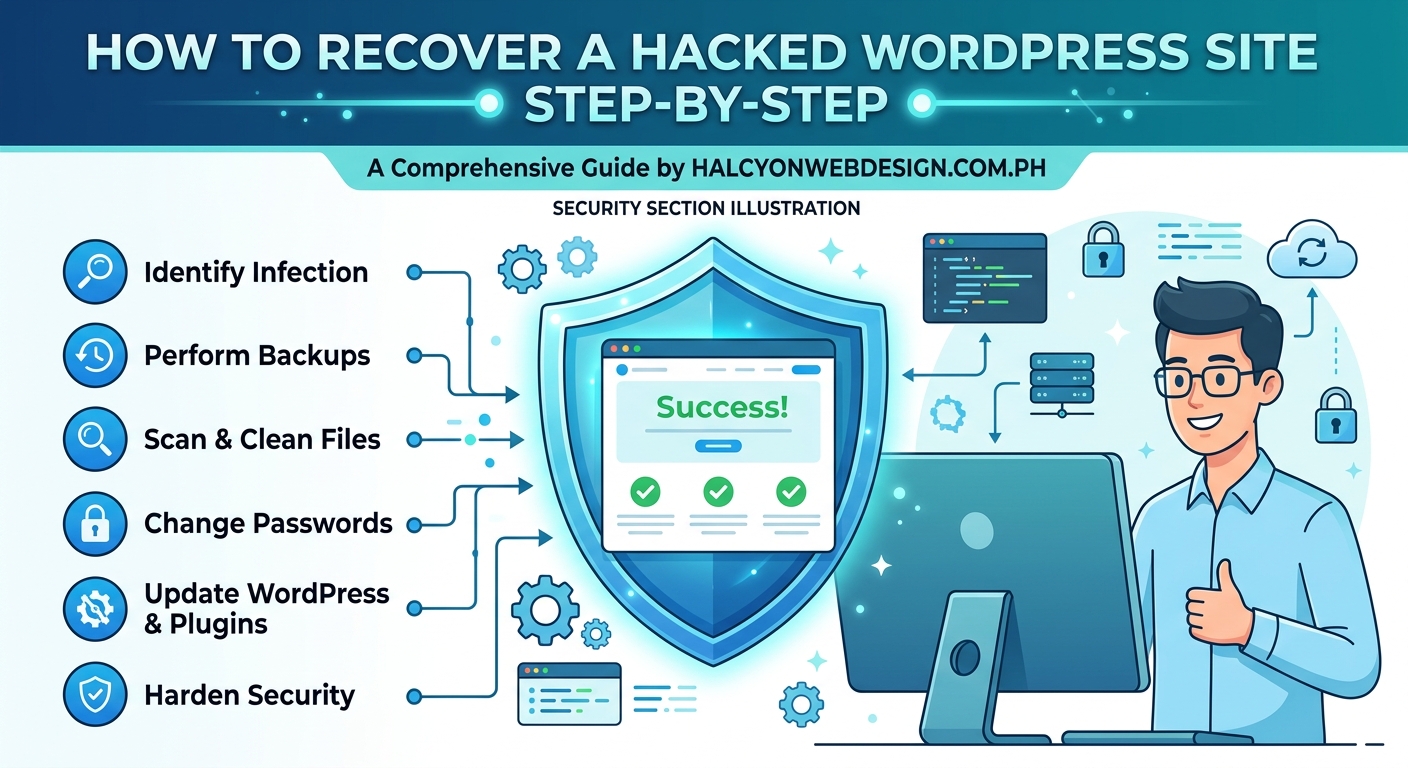
This sounds backwards, but you need to preserve the crime scene.
Download your entire WordPress installation via FTP or your hosting file manager. Save your database through phpMyAdmin or your hosting control panel.
Store these infected files in a clearly labeled folder with today’s date. Don’t mix them with clean backups.
Why backup an infected site? Because you might need to reference these files later to understand what happened. You can compare infected files against clean versions to identify exactly what changed.
Plus, if you accidentally delete something important during cleanup, you can retrieve it from this backup.
Restore from a clean backup if you have one
The fastest way to fix a hacked WordPress site is rolling back to a point before the attack.
Check your backup plugin for recent clean copies. Look for backups from before you noticed suspicious activity.
Most hosting providers keep automatic backups for 7 to 30 days. Log into your hosting control panel and check their backup section.
Before restoring, verify the backup date makes sense. If you were hacked three weeks ago but only noticed today, a backup from yesterday won’t help.
Restore your files and database to the clean backup point. Test your site thoroughly after restoration.
Skip to the security hardening section if this works. But if you don’t have a clean backup, keep reading.
Remove malicious files and code manually
When you can’t restore from backup, you need to clean house manually.
Download fresh copies of WordPress core files from wordpress.org. Download clean versions of your theme from the official source. Get clean copies of your plugins from the WordPress plugin directory.
Compare these fresh files against your infected installation. Look for files that shouldn’t exist or code that looks different.
Common hiding spots for malicious code:
- wp-config.php
- .htaccess
- functions.php in your theme
- Plugin files, especially in rarely-used plugins
- wp-content/uploads folders (PHP files shouldn’t be here)
- Hidden files starting with a dot
- Files with suspicious names like “wp-config-backup.php” or “update.php”
Delete any PHP files in your uploads directory. WordPress should only store images, videos, and documents there, never executable code.
Search your database for suspicious content. Check the wp_posts table for spam content injected into legitimate posts. Look in wp_options for unfamiliar entries, especially in the siteurl and home fields.
Use your hosting file manager’s search function to find recently modified files. Sort by date and investigate anything changed around the time of the hack.
Reset all passwords and security keys
Assume every password is compromised.
Generate new passwords for:
- WordPress admin accounts
- FTP/SFTP access
- Database users
- Hosting control panel
- Email accounts associated with the site
Delete any user accounts you don’t recognize. Check the user list for accounts with administrator privileges that shouldn’t have them.
Update your WordPress security keys in wp-config.php. Visit the WordPress secret key generator and replace the existing keys with fresh ones.
This forces everyone to log in again with new credentials. Stolen session cookies become useless.
Consider implementing two-factor authentication before allowing anyone back in.
Update everything to the latest versions
Outdated software is the number one reason WordPress sites get hacked.
Update WordPress core to the latest version. Update every single plugin, even ones you’re not actively using. Update your theme.
If a plugin or theme hasn’t been updated in over a year, delete it. Abandoned software is a security risk.
Remove any plugins you don’t actually need. Every plugin is a potential entry point for attackers. If you’re not using it, delete it.
The same goes for themes. WordPress only needs one active theme. Delete the rest unless you’re actively switching between them for testing.
Scan for remaining malware with security plugins
Your manual cleanup might have missed something.
Install a fresh security plugin like Wordfence, Sucuri Security, or iThemes Security. Run a complete malware scan.
These plugins check file integrity by comparing your WordPress installation against known good versions. They flag suspicious code patterns and hidden backdoors.
Pay attention to any files flagged as modified or suspicious. Review them carefully before deleting.
Security plugins also check for:
- Backdoor scripts
- Malicious redirects
- Spam SEO injections
- Database infections
- Known malware signatures
Don’t just click “fix all problems” without understanding what you’re fixing. Some flagged items might be legitimate customizations.
Check your site’s external connections
Hackers often create hidden ways back into your site.
Review your .htaccess file for suspicious redirects. Look for rules you didn’t add, especially ones that redirect to external domains.
Check your DNS settings through your domain registrar. Verify that your domain points to the correct server. Hackers sometimes change DNS records to redirect traffic.
Look for unauthorized email accounts. Check if your domain is sending spam by reviewing your hosting email logs.
Search your database for external links. Hackers sometimes inject hidden links to boost SEO for spam sites.
Scan your theme’s header.php and footer.php files for unfamiliar external scripts. Malicious code often loads from third-party servers.
Harden your WordPress security settings
Prevention beats recovery every time.
Start by securing your login page properly. Limit login attempts, change your login URL, and require strong passwords.
Set proper file permissions on your server. WordPress files should typically be 644, directories should be 755, and wp-config.php should be 440 or 400.
Disable file editing through the WordPress dashboard by adding this to wp-config.php:
define('DISALLOW_FILE_EDIT', true);
This prevents attackers who gain dashboard access from modifying your theme or plugin files directly.
Move wp-config.php one directory above your WordPress installation if your hosting setup allows it. This puts it outside the web-accessible directory.
Disable XML-RPC if you’re not using it. This protocol has known vulnerabilities and is frequently targeted by brute force attacks.
Set up automated security monitoring
You need to know immediately if something goes wrong again.
Configure your security plugin to email you when:
- New admin users are created
- Plugins are installed or activated
- Core files are modified
- Failed login attempts exceed a threshold
- Your site goes offline
Enable file integrity monitoring. This alerts you when critical WordPress files change unexpectedly.
Set up uptime monitoring through a service like UptimeRobot or Pingdom. You’ll get notified within minutes if your site goes down.
Connect your site to Google Search Console if you haven’t already. Google notifies you about security issues and malware warnings.
Review your security logs weekly. Look for patterns in failed login attempts or suspicious activity.
Implement a proper backup strategy
The best insurance policy is a good backup system.
Set up automated daily backups that store copies offsite. Don’t just backup to the same server where your site lives.
Test your backups monthly. Download a backup and try restoring it to a staging environment. Untested backups are worthless when you actually need them.
Keep at least 30 days of backup history. This ensures you can roll back to a point before the hack, even if you don’t notice it immediately.
Store backups in multiple locations. Use a combination of your hosting provider’s backups, a WordPress backup plugin, and an external service like Dropbox or Google Drive.
Document your backup restoration process. Write down the exact steps so you can recover under pressure without missing critical details.
Review and understand what went wrong
Learning from this experience prevents repeat attacks.
| Common vulnerability | How it happens | How to prevent it |
|---|---|---|
| Outdated plugins | Abandoned or neglected updates | Delete unused plugins, enable auto-updates |
| Weak passwords | Using common words or patterns | Require 16+ character random passwords |
| Nulled themes/plugins | Installing pirated premium software | Only use legitimate sources |
| Insecure hosting | Shared servers with poor isolation | Choose hosts with strong security practices |
| No backups | Assuming “it won’t happen to me” | Automate daily offsite backups |
Check your server access logs if your host provides them. Look for the IP addresses that accessed your site around the time of the hack.
Review your WordPress activity logs through your security plugin. Identify which user account was compromised or which vulnerability was exploited.
Search for your domain on spam databases and blacklists. Services like VirusTotal, Google Safe Browsing, and Sucuri SiteCheck show if your site is flagged.
If your site appeared on blacklists, submit removal requests after cleaning everything. Google Search Console has a reconsideration request process for sites flagged with security warnings.
Consider professional help for complex infections
Some hacks are too sophisticated for DIY cleanup.
If you’ve followed these steps but still see suspicious activity, hire a WordPress security specialist. They have tools and experience to find deeply hidden malware.
Professional cleanup typically costs $150 to $500 depending on infection severity. Compare that against the cost of lost business, damaged reputation, and your time spent troubleshooting.
Signs you need professional help:
- Malware keeps coming back after cleanup
- Your hosting provider suspended your account
- Google blacklisted your domain
- Customer data was compromised
- You’re not comfortable working with databases and server files
Your hosting provider might offer malware removal services. Check if it’s included in your plan or available as an add-on.
“The average website hack takes 197 days to detect. By the time you notice, attackers have usually installed multiple backdoors. Professional cleaners know where to look for these secondary infection points that automated scans miss.” – Security researcher at Sucuri
Notify affected parties if data was compromised
Transparency builds trust, even in difficult situations.
If customer data, email addresses, or payment information was accessed, you have legal obligations in many jurisdictions to notify affected users.
Send a clear, honest email explaining what happened, what data was potentially accessed, and what steps you’ve taken to fix the problem.
Tell customers to change their passwords if they have accounts on your site. Recommend they monitor their credit cards for suspicious activity if payment information might have been exposed.
Document everything for your records. Keep copies of notifications, cleanup steps, and security improvements.
Contact your payment processor if you handle transactions. They have specific procedures for security breaches and might require additional verification before processing payments again.
Moving forward with better security habits
Recovery is just the first step. Prevention is the real goal.
Schedule monthly security reviews. Spend 30 minutes checking for plugin updates, reviewing user accounts, and scanning for suspicious files.
Stay informed about WordPress security news. Follow the WordPress security blog and subscribe to security newsletters.
Treat your WordPress site like you treat your phone or computer. You wouldn’t skip security updates on devices that contain sensitive information. Your website deserves the same attention.
Consider managed WordPress hosting if you want professionals handling security updates and monitoring. It costs more than shared hosting but includes proactive protection and expert support.
Keep learning about WordPress security best practices. Security isn’t a one-time task. It’s an ongoing commitment.
The techniques that worked for attackers this time won’t work again if you’ve properly secured your site. But they’ll try new methods. Staying one step ahead requires consistent attention to security fundamentals.
Getting your site back to normal
Your site is clean, secured, and backed up. Now you can focus on rebuilding trust with your visitors.
Check your search engine rankings over the next few weeks. Hacks can temporarily hurt your SEO, especially if spam content was indexed. Submit a reconsideration request through Google Search Console if needed.
Monitor your site traffic and conversion rates. Look for any lingering effects from the hack. Sometimes visitors bookmark spam pages, and you’ll see 404 errors as they try returning to content that no longer exists.
Review your site’s performance after implementing security measures. Some security plugins can slow down your site if configured too aggressively. Find the right balance between protection and site speed.
Test all your forms, shopping cart functionality, and user registration if applicable. Make sure nothing broke during the cleanup process.
The stress of dealing with a hacked site fades quickly once everything is running smoothly again. But the lessons learned stick with you. You now know exactly how to fix a hacked WordPress site, and more importantly, how to prevent it from happening again. That knowledge makes you a more capable site owner, ready to handle whatever challenges come next.