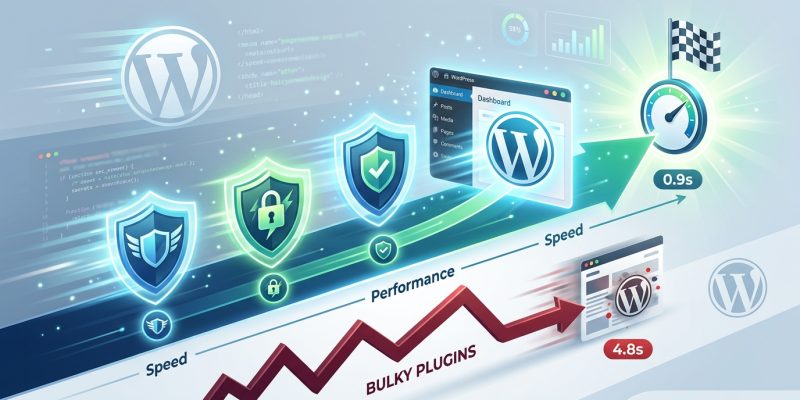
Your WordPress site is under constant attack. Bots scan for vulnerabilities. Hackers test login pages. Malware tries to sneak in through outdated plugins.
But here’s the problem: most security plugins slow your site to a crawl. They add bloat. They consume resources. They hurt your Core Web Vitals score.
You need protection that doesn’t sacrifice performance.
The best wordpress security plugins balance protection with performance. Focus on firewalls, login security, and malware scanning. Avoid feature bloat. Test impact on page speed before committing. Most small to medium sites need only three core security features: brute force protection, file monitoring, and regular scans. Choose plugins that offer granular control over which features run.
What makes a security plugin “best” for your site
Not all WordPress sites face the same threats.
A personal blog has different security needs than an ecommerce store. A membership site requires different protection than a portfolio.
The best security plugin for your site depends on three factors:
- Your site’s traffic volume and attack surface
- The sensitivity of data you collect or store
- Your technical comfort level with security settings
Most WordPress site owners install security plugins with every feature turned on. This creates unnecessary overhead.
Your site doesn’t need all the bells and whistles. It needs the right protection configured properly.
Core security features that actually matter
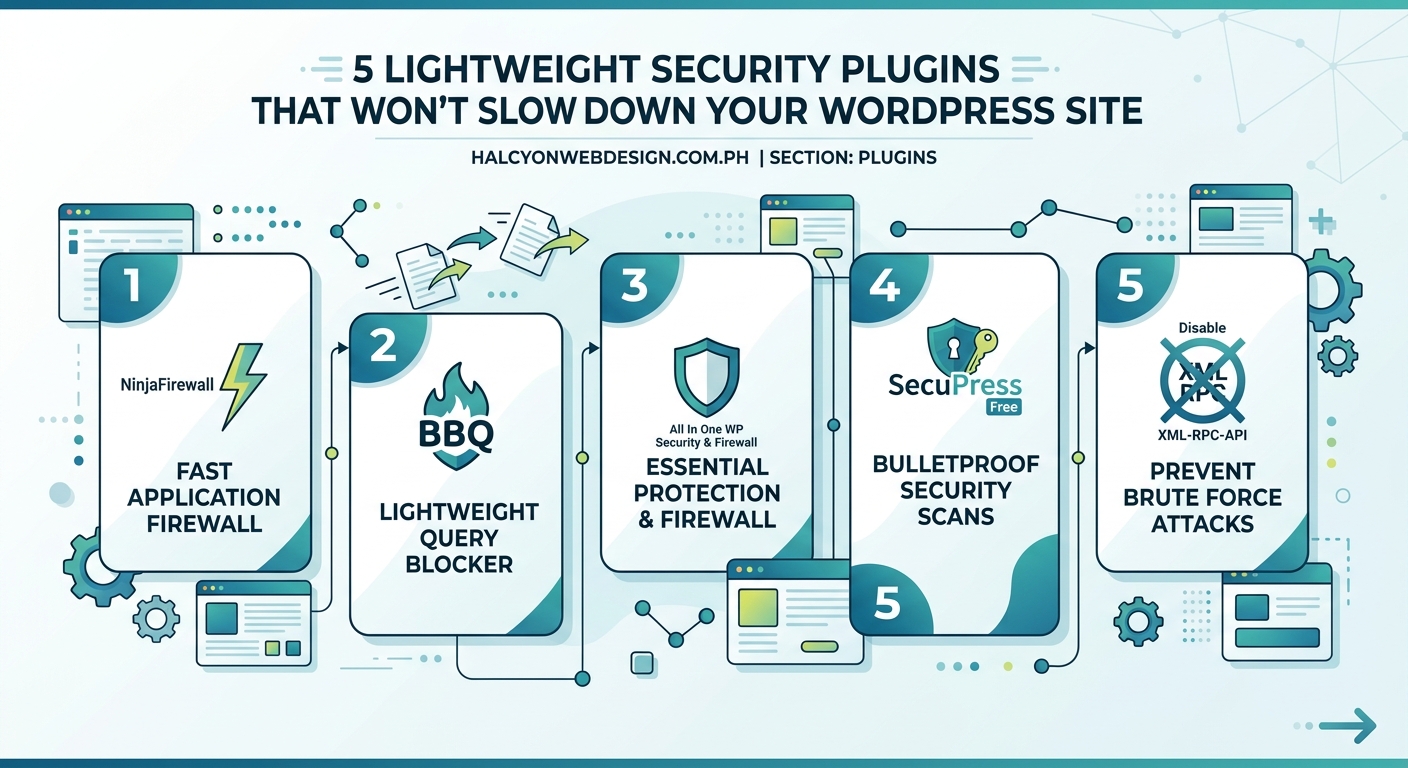
Security plugins advertise dozens of features. Most are unnecessary or redundant.
Here are the features that provide real protection:
- Firewall protection blocks malicious traffic before it reaches your site
- Login security prevents brute force attacks on your admin panel
- Malware scanning detects infected files and suspicious code
- File integrity monitoring alerts you when core files change
- Security hardening applies WordPress best practices automatically
Everything else is either nice to have or marketing fluff.
If you’re choosing the right wordpress plugin without breaking your site, start with these five features. Add others only if you have specific needs.
How security plugins impact site performance
Security plugins run on every page load. They check requests. They scan files. They log activity.
This creates overhead.
The performance impact varies based on how the plugin works:
| Security Method | Performance Impact | Best For |
|---|---|---|
| Cloud-based firewall | Minimal (runs before WordPress loads) | High-traffic sites |
| Server-level firewall | Low (processes requests early) | Sites with server access |
| Plugin-based firewall | Medium (runs during WordPress init) | Shared hosting |
| Real-time scanning | High (checks every file access) | Ecommerce sites |
| Scheduled scanning | Minimal (runs during off-peak hours) | Most sites |
Most performance problems come from real-time scanning and excessive logging.
Turn off features you don’t need. Schedule intensive tasks for low-traffic hours. Use cloud-based protection when possible.
Security doesn’t require sacrificing speed. The right configuration protects your site without adding noticeable overhead. Focus on prevention over detection. Block threats before they consume resources.
Evaluating security plugins for your specific needs
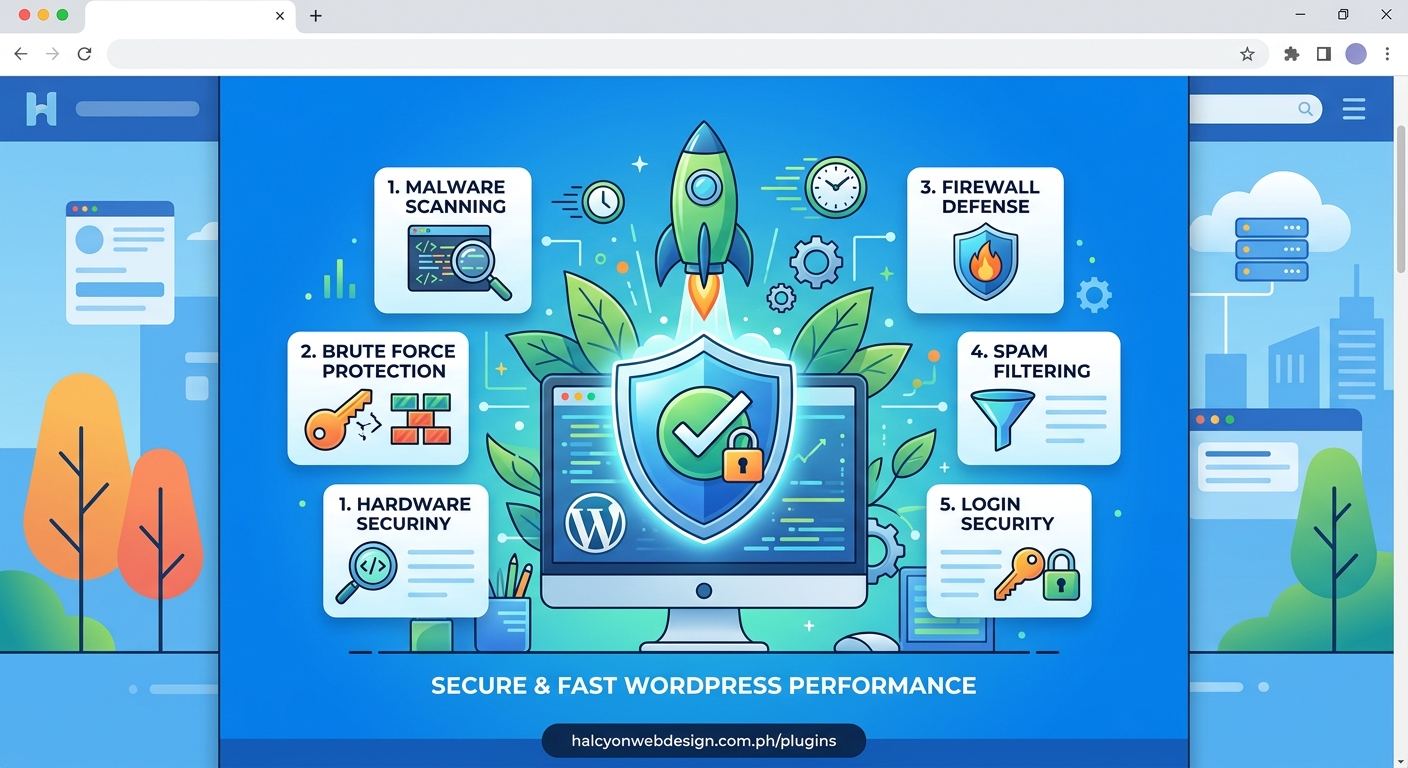
Download the plugin. Install it on a staging site first.
Run these tests before activating security features:
- Measure baseline page load time using free tools to test and improve your core web vitals score
- Activate the plugin with default settings
- Measure page load time again
- Check server resource usage in your hosting dashboard
- Test login functionality and admin panel performance
- Enable additional features one at a time
- Measure impact after each change
Document which features cause slowdowns. Disable them or find alternatives.
Some plugins let you disable features per page type. Use this to reduce overhead on high-traffic pages while maintaining protection on sensitive areas like login and checkout.
Common security plugin mistakes that hurt performance
WordPress site owners make predictable mistakes with security plugins.
Installing multiple security plugins: Features overlap. Firewalls conflict. Performance suffers. Pick one comprehensive plugin or combine specialized tools that don’t duplicate functionality.
Enabling all features by default: You don’t need country blocking if you serve a global audience. You don’t need comment moderation if comments are disabled. Turn off what you don’t use.
Running real-time scans on every page load: Schedule scans during off-peak hours instead. Most threats don’t appear instantly. Daily or weekly scans catch problems without constant overhead.
Ignoring log file growth: Security logs grow fast. Old logs consume disk space and slow database queries. Set automatic cleanup schedules.
Forgetting to configure essential wordpress settings right after installation: Security plugins work better when WordPress itself is properly configured. Set correct file permissions. Disable file editing. Use strong database prefixes.
How to test security plugin effectiveness
Protection means nothing if it doesn’t work.
Test your security setup regularly:
- Use a security scanner service to check for known vulnerabilities
- Test login protection by attempting failed logins from different IPs
- Verify firewall rules block malicious requests
- Check that file monitoring detects changes to core files
- Confirm backup systems work and files restore correctly
Document your security setup. Note which features are enabled and why. This helps when troubleshooting conflicts or recovering from a failed wordpress plugin update that broke your site.
Comparing free versus premium security plugins
Free security plugins provide solid basic protection. Premium versions add advanced features and support.
Here’s what you actually get with premium:
- Priority support when something breaks
- Advanced firewall rules and malware definitions
- Scheduled malware removal (not just detection)
- Site cleaning services if you get hacked
- Premium reputation data for blocking known bad actors
Most small sites don’t need premium features. The free versions of major security plugins protect against common threats effectively.
Upgrade to premium if you:
- Run an ecommerce site handling payments
- Collect sensitive user data
- Lack technical skills to clean infections yourself
- Need guaranteed response times for security issues
Building a complete security strategy
Security plugins are one piece of a larger security strategy.
Combine your security plugin with these practices:
- Keep WordPress core, themes, and plugins updated regularly
- Use the right wordpress hosting plan with server-level security
- Implement a complete wordpress backup strategy for disaster recovery
- Secure your wordpress login page with strong passwords and two-factor authentication
- Monitor warning signs that your wordpress site might be hacked
No single plugin protects against everything. Layer multiple security measures for defense in depth.
When to switch security plugins
You might need to change security plugins if:
- Your current plugin consistently slows page loads by more than 200ms
- Features you need are only available in a different plugin
- Your plugin hasn’t been updated in over six months
- Support requests go unanswered for weeks
- The plugin conflicts with other tools you need
Before switching, understand what happens when you delete a wordpress plugin versus deactivating it. Some security plugins leave behind database tables and configuration files.
Clean up completely before installing a replacement. Test the new plugin on staging first. Never switch security plugins on a live site without a recent backup.
Maintaining security without constant monitoring
Security doesn’t require daily attention if configured properly.
Set up these automated checks:
- Weekly malware scans during off-peak hours
- Daily login attempt reports sent to your email
- Automatic plugin and theme updates for security patches
- Monthly security audit reports
- Alerts for critical security events only
Filter notifications aggressively. You don’t need to know about every blocked bot. Focus alerts on events that require action: successful intrusions, core file changes, or repeated attacks from the same source.
Security plugins and site speed optimization
Security and performance aren’t opposites. They work together.
A compromised site performs poorly. Malware consumes resources. Botnet attacks overwhelm servers. Spam comments bloat databases.
Good security improves performance by preventing these problems.
But security plugins themselves can slow things down if misconfigured. Balance protection and speed by:
- Using cloud-based firewalls that filter traffic before it reaches your server
- Scheduling resource-intensive scans for low-traffic periods
- Caching security plugin settings to reduce database queries
- Disabling logging for routine blocked requests
- Combining security features with performance optimization techniques
Choosing protection that fits your workflow
The best security plugin is the one you’ll actually use correctly.
Some plugins require technical knowledge to configure. Others work well out of the box. Match the plugin to your skill level.
If you’re comfortable with technical settings, choose a plugin with granular controls. You’ll optimize performance by enabling only what you need.
If you prefer simplicity, pick a plugin with smart defaults and automatic configuration. You’ll get good protection without constant tweaking.
Either approach works. The wrong approach is installing a complex plugin and ignoring its settings, or choosing a simple plugin when you need advanced features.
Security features you can skip
Not every advertised security feature provides value.
These features rarely justify their performance cost:
- Country blocking unless you serve a specific region and face targeted attacks
- Comment spam protection if you use a dedicated anti-spam plugin or disable comments
- Real-time blacklist checking when scheduled checks catch threats effectively
- Detailed visitor logging unless required for compliance or forensics
- Multiple firewall layers that duplicate protection
Focus on core security: firewall, login protection, malware scanning. Add features only when you identify specific threats they address.
Making security plugin decisions with data
Don’t guess about security plugin performance. Measure it.
Track these metrics before and after plugin installation:
- Time to First Byte (TTFB)
- Largest Contentful Paint (LCP)
- Total Blocking Time (TBT)
- Server CPU usage during peak traffic
- Database query count per page load
- Memory consumption per request
Small increases in these metrics are acceptable if you gain meaningful protection. Large increases signal misconfiguration or an inefficient plugin.
Adjust settings or switch plugins if performance degrades noticeably. Security shouldn’t make your site unusable.
Protecting your site starts with smart choices
Security plugins protect WordPress sites from real threats. But protection shouldn’t come at the cost of performance.
Choose plugins based on your specific needs, not feature lists. Configure them properly. Test their impact. Adjust settings to balance security and speed.
Your visitors won’t wait for a slow site, no matter how secure it is. And security means nothing if your site is too slow to use.
Start with the basics: firewall protection, login security, and regular malware scans. Add features only when you identify specific threats. Monitor performance continuously. Adjust as needed.
The right security setup protects your site without slowing it down. Your visitors stay safe, and your site stays fast.