You launched your website weeks ago. You typed your business name into Google. Nothing.
You try again with different keywords. Still nothing.
Your site exists. You can visit it directly. But Google acts like it doesn’t exist at all.
This is one of the most frustrating problems for new site owners. The good news? There’s almost always a fixable reason why your website isn’t showing up on Google.
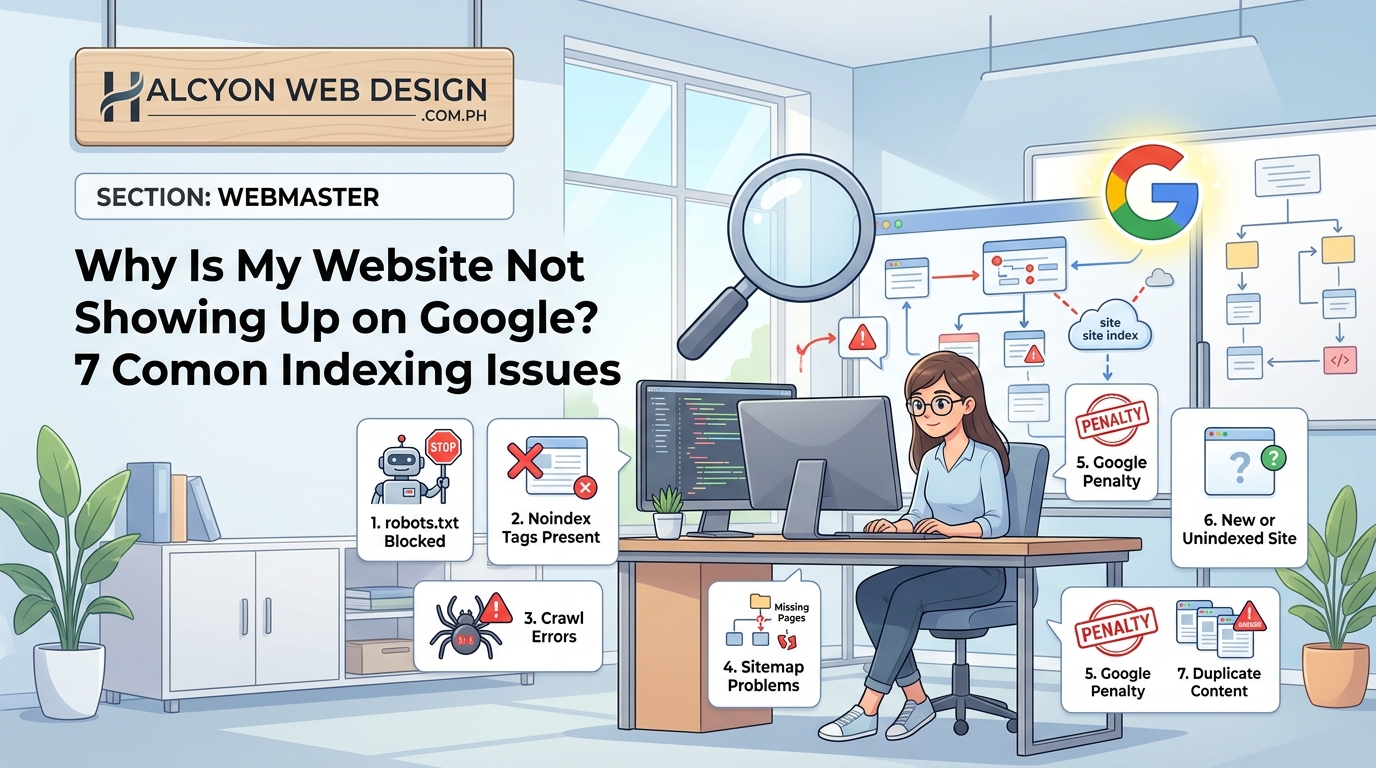
Google won’t show your website if it hasn’t been indexed yet, if robots.txt blocks crawlers, if you’ve set pages to noindex, or if technical issues prevent crawling. Most indexing problems stem from configuration mistakes during setup. This guide walks through seven common issues and shows you exactly how to diagnose and fix each one so your site appears in search results.
Google hasn’t discovered your site yet
Brand new websites don’t automatically appear in Google.
Google needs to find your site, crawl it, and add it to its index. This process can take days or even weeks if you don’t take action.
The fastest way to get indexed is to submit your sitemap directly to Google Search Console.
Here’s how to do it:
- Create a Google Search Console account if you don’t have one
- Verify ownership of your website
- Generate an XML sitemap (most WordPress sites create one automatically at yoursite.com/sitemap.xml)
- Submit the sitemap URL through the Sitemaps section in Search Console
After submission, Google will crawl your pages within a few days.
You can also request indexing for individual pages using the URL Inspection tool. Paste your page URL, click “Request Indexing,” and Google will prioritize crawling that specific page.
If you need help with the submission process, check out our guide on how to submit your sitemap to Google Search Console.
Your robots.txt file is blocking Google
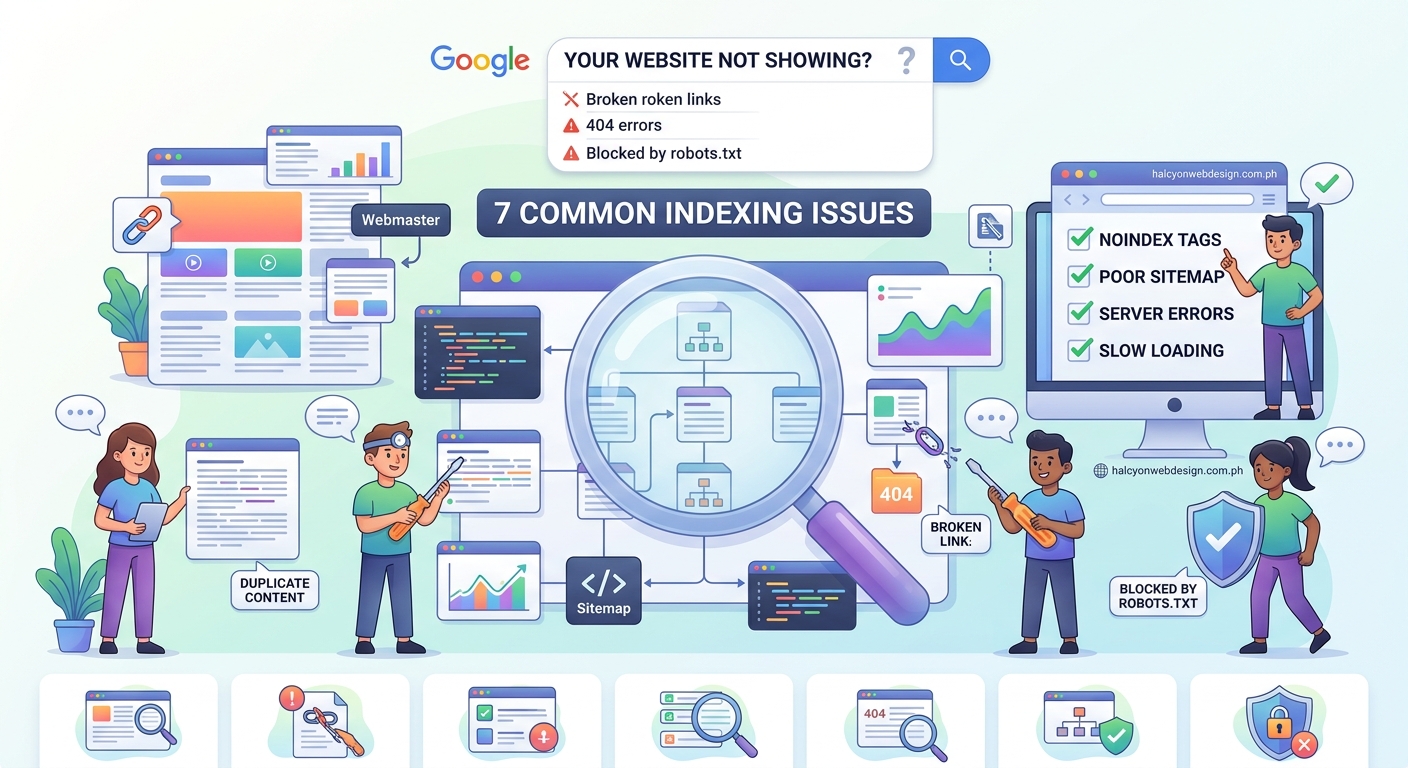
The robots.txt file tells search engines which parts of your site they can and cannot crawl.
If this file accidentally blocks everything, Google can’t index any of your pages.
Visit yoursite.com/robots.txt in your browser. You should see a text file with crawling instructions.
Look for these problematic lines:
User-agent: *
Disallow: /
That combination tells all search engines to stay away from your entire site.
A healthy robots.txt for most sites looks more like this:
User-agent: *
Allow: /

Sitemap: https://yoursite.com/sitemap.xml
If you find blocking rules you didn’t intentionally create, your WordPress settings might be the culprit. Navigate to Settings > Reading in your WordPress dashboard. Make sure “Discourage search engines from indexing this site” is unchecked.
That single checkbox adds a disallow rule that keeps your site invisible to Google.
For more details about common robots.txt mistakes, read our article on 7 critical robots.txt mistakes that are killing your SEO.
Individual pages are set to noindex
Even if Google can crawl your site, individual pages might have a noindex meta tag that tells search engines not to include them in results.
This often happens when:
- You’re using an SEO plugin with default noindex settings
- You tested your site with a “coming soon” plugin that wasn’t fully removed
- Category or tag pages are automatically set to noindex
To check if a page has a noindex tag, right-click anywhere on the page and select “View Page Source.” Search for “noindex” in the HTML.
You’ll see something like this if the page is blocked:
If you find this tag on pages that should be indexed, check your SEO plugin settings. Most plugins like Yoast SEO or Rank Math let you control indexing on a per-page basis.
For WordPress sites, you might want to review our guide on should you noindex your category and tag pages to make informed decisions about which pages should appear in search results.
Your site has technical crawl errors
Google’s crawlers need to access your pages successfully. If they encounter errors, your pages won’t get indexed.
Common technical problems include:
- Server errors (500 status codes)
- Pages that time out or load too slowly
- Redirect chains that confuse crawlers
- Mixed content warnings on HTTPS sites
Google Search Console shows these issues in the Coverage report. Log in and check for errors under the “Excluded” or “Error” sections.
Pay special attention to:
- “Server error (5xx)”
- “Submitted URL returned 4xx error”
- “Redirect error”
Each error type needs a different fix. Server errors usually require help from your hosting provider. 404 errors mean the page doesn’t exist anymore and should either be restored or redirected to a relevant page.
If you recently migrated your site and are seeing widespread 404 errors, our guide on why is my WordPress site showing a 404 error after migration can help you troubleshoot.
Slow loading speeds can also prevent indexing. If your site takes more than 10 seconds to load, Google might give up before fully crawling your pages. Consider reading why your WordPress site loads slowly and how to fix it in 30 minutes to improve performance.
Your content is too thin or duplicated
Google doesn’t index every page it crawls.
Pages with very little unique content often get crawled but never make it into search results. This happens with:
- Product pages with only a title and image
- Blog posts under 300 words
- Pages that duplicate content from other sites
- Multiple pages on your site with nearly identical text
“If your page doesn’t offer something unique or valuable compared to what’s already ranking, Google has little reason to show it in search results.”
Check the “Crawled – currently not indexed” status in Google Search Console. This means Google visited your page but chose not to include it.
The solution is to add substantial, unique content to these pages. Aim for at least 500 words of original text that answers questions or solves problems your visitors actually have.
If you’re struggling with pages that won’t index despite having content, read our detailed guide on how to fix ‘crawled – currently not indexed’ in Google Search Console.
Your site lacks quality backlinks
Brand new websites with zero backlinks take longer to get indexed and ranked.
Google discovers new sites primarily through links from other websites. If no one links to your site, Google has fewer pathways to find you.
While you can manually submit your sitemap (as mentioned earlier), building a few quality backlinks speeds up the process significantly.
Start with these low-effort options:
- Create profiles on relevant business directories
- Add your website to your social media profiles
- Guest post on industry blogs that allow author bios with links
- Reach out to partners or suppliers who might link to you
You don’t need hundreds of backlinks. Even three to five links from legitimate websites can help Google discover and trust your new site faster.
Focus on quality over quantity. One link from a respected industry website matters more than 50 links from random directories.
You’re checking too soon or using personalized search
Sometimes your site is indexed, but you’re not seeing it because of how you’re searching.
If you search while logged into your Google account, you might see personalized results based on your search history. Your site might rank differently than it would for other users.
Try these methods to check if you’re actually indexed:
- Use the
site:operator by searchingsite:yourwebsite.comin Google - Search in an incognito or private browsing window
- Use a different browser where you’re not logged into Google
- Ask a friend to search for your site from their device
The site: search is the most reliable method. If pages appear when you search site:yourwebsite.com, Google has indexed them. If nothing shows up, your site genuinely isn’t in Google’s index yet.
Keep in mind that being indexed doesn’t mean you’ll rank on page one for competitive keywords. New sites typically start ranking for their exact business name and gradually build visibility for broader search terms.
Troubleshooting checklist and common mistakes
Here’s a comparison of what you should see versus what indicates a problem:
| What to Check | Healthy Status | Problem Status |
|---|---|---|
| robots.txt file | Allows crawling with Allow: / |
Contains Disallow: / blocking everything |
| WordPress Reading settings | “Discourage search engines” is unchecked | Box is checked, blocking all crawlers |
| Individual page meta tags | No noindex tag present | “ found |
| Search Console Coverage | Pages show as “Valid” or “Indexed” | Pages show as “Excluded” or “Error” |
| Site search test | site:yoursite.com returns results |
site:yoursite.com shows nothing |
| Page load speed | Loads in under 3 seconds | Takes over 10 seconds or times out |
Use this checklist to systematically work through each potential issue:
- [ ] Verify your site isn’t blocking search engines in WordPress settings
- [ ] Check robots.txt file for accidental disallow rules
- [ ] Inspect individual pages for noindex meta tags
- [ ] Submit sitemap to Google Search Console
- [ ] Review Coverage report for crawl errors
- [ ] Confirm pages have at least 300 words of unique content
- [ ] Test site speed and fix critical performance issues
- [ ] Build 3-5 quality backlinks to help Google discover your site
- [ ] Wait 7-14 days after fixes before checking again
Most indexing problems come from configuration mistakes during initial setup. The issues listed here account for roughly 95% of cases where a website won’t show up on Google.
After making corrections, give Google at least a week to recrawl your site. Indexing isn’t instant, even after you fix problems.
Getting your site visible in search results
Fixing indexing issues is just the first step.
Once Google can find and index your pages, you’ll want to make sure they’re optimized for the searches that matter to your business. That means writing clear meta descriptions, using proper heading structure, and creating content that actually answers what people are searching for.
If you’ve worked through this checklist and your site still won’t appear in Google after two weeks, the problem might be more technical. Consider reaching out to a web developer or using the URL Inspection tool in Search Console to get detailed feedback on specific pages.
Most site owners see their pages start appearing in Google within 3-7 days after submitting a sitemap and fixing any blocking issues. Be patient, keep your content valuable, and check Search Console regularly to catch new problems before they hurt your visibility.