WordPress powers over 43% of all websites, making it a prime target for hackers. Every day, thousands of WordPress sites get compromised through outdated plugins, weak passwords, and unpatched vulnerabilities. The good news? A solid security plugin can block most attacks before they cause damage.
The best WordPress security plugins offer firewall protection, malware scanning, login security, and activity monitoring. Most site owners need a mid-tier solution like Wordfence or Sucuri. Free versions work for basic blogs, while eCommerce sites benefit from premium features. Match your plugin choice to your site’s traffic, complexity, and budget rather than installing the most feature-packed option.
Understanding what security plugins actually do
Security plugins aren’t magic shields that make your site invincible. They’re tools that automate protection tasks you’d otherwise do manually.
A good security plugin monitors file changes, blocks suspicious login attempts, and scans for malware. Some add firewalls that filter traffic before it reaches your site. Others harden your WordPress installation by changing default settings that attackers commonly target.
Think of it like home security. A basic alarm system alerts you to break-ins. A better system prevents them with motion sensors and cameras. The best systems do both while being easy to manage.
Most WordPress security plugins fall into three categories:
- Monitoring tools that watch for problems and alert you
- Active defense systems that block attacks in real time
- Hardening utilities that close common security gaps
The plugin you need depends on your site’s purpose. A personal blog faces different threats than an online store processing payments.
Core features that matter for most sites
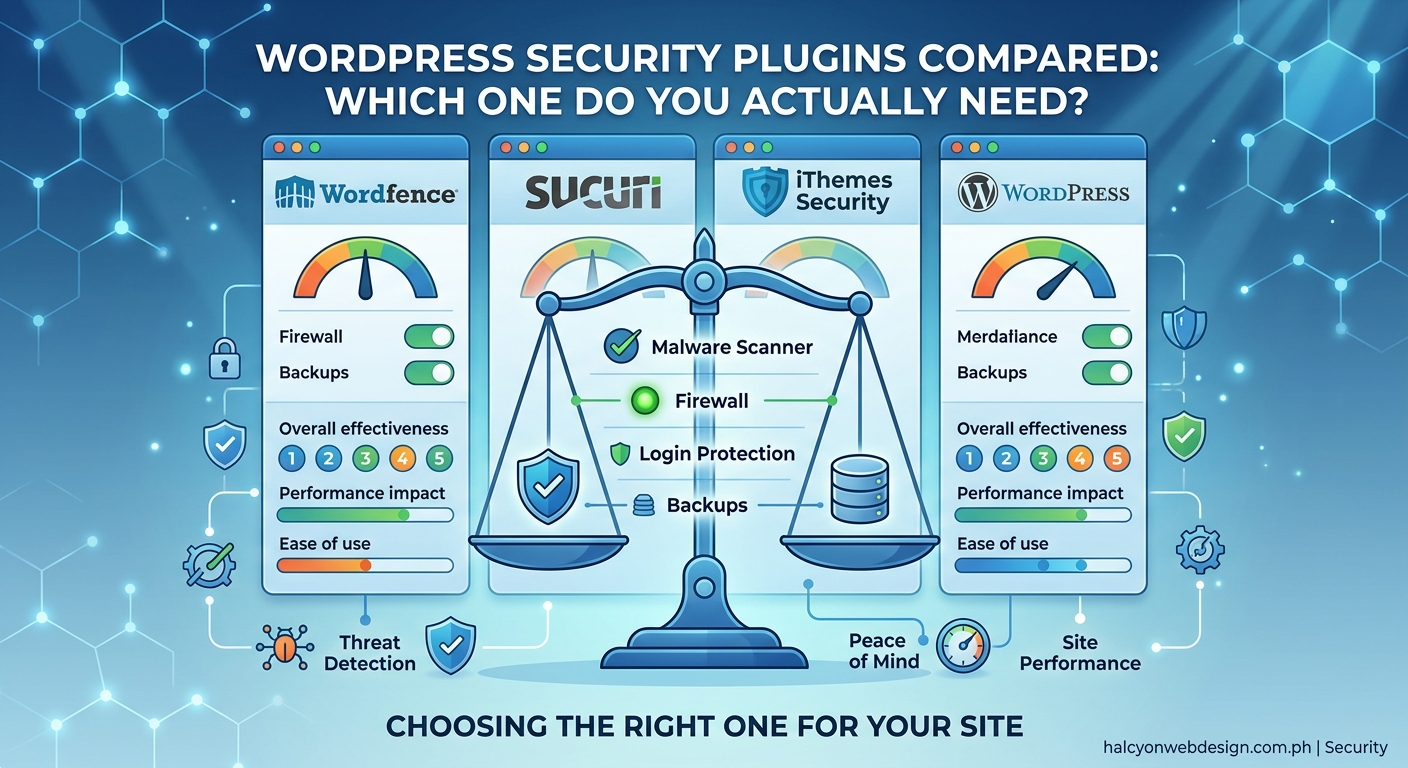
Every security plugin advertises dozens of features. Here’s what actually protects your site:
Firewall protection filters malicious traffic before it reaches WordPress. Cloud-based firewalls (like Sucuri’s) block attacks at the DNS level. Plugin-based firewalls (like Wordfence’s) filter requests at your server.
Malware scanning checks your files against known threats. Premium versions scan more frequently and offer automatic cleanup. Free versions usually scan daily and require manual fixes.
Login security stops brute force attacks where bots try thousands of password combinations. Features include login attempt limits, two-factor authentication, and CAPTCHA on login forms. If you haven’t already secured your login page, learning how to secure your WordPress login page in 10 minutes covers the essentials.
Activity logging records who does what on your site. This helps you spot suspicious behavior and troubleshoot issues after plugin updates or theme changes.
| Feature | Free Plugins | Premium Plugins |
|---|---|---|
| Basic firewall | Limited rules | Advanced filtering |
| Malware scans | Once daily | Real-time or hourly |
| Login protection | Yes | Yes, plus 2FA |
| Activity logs | 30 days | Unlimited history |
| Support | Forums only | Priority assistance |
Wordfence: the popular all-in-one option
Wordfence protects over 4 million sites. Its free version includes a firewall, malware scanner, and login security.
The firewall uses WordPress-level filtering, meaning it processes requests after they reach your server. This uses more resources than cloud firewalls but gives you more control over rules.
Free users get malware signatures updated after 30 days. Premium users ($119/year) receive real-time threat intelligence, meaning their sites get protected from new vulnerabilities immediately.
Wordfence excels at blocking brute force attacks. It can lock out IP addresses after failed login attempts and supports two-factor authentication through its mobile app.
The interface shows detailed attack data, which helps if you like understanding what’s happening. It can feel overwhelming if you just want set-and-forget protection.
Best for: Site owners who want detailed security reports and don’t mind a learning curve. Works well on most hosting plans but can slow down sites on shared hosting during deep scans.
Sucuri: cloud-based protection with cleanup service
Sucuri takes a different approach by routing your traffic through their cloud servers before it reaches your site. This filters attacks before they consume your server resources.
The free plugin offers basic hardening and monitoring. Real protection requires their paid plans starting at $199/year.
What makes Sucuri worth considering is their malware cleanup service. If your site gets hacked, they’ll clean it for you. Most other plugins just detect problems and leave cleanup to you.
Their cloud firewall also speeds up your site by caching content and blocking bad traffic at the edge. Sites on slow hosting often see performance improvements after switching to Sucuri.
The downside? You’re routing all traffic through a third party. Some site owners feel uncomfortable with that dependency.
Best for: Sites that have been hacked before or run on hosting with poor security. The cleanup guarantee provides peace of mind for business sites that can’t afford downtime.
iThemes Security: straightforward hardening without complexity
iThemes Security (formerly Better WP Security) focuses on closing security gaps in WordPress itself rather than monitoring threats.
The free version handles essential hardening tasks. It changes your database prefix, disables file editing in the dashboard, and enforces strong passwords.
Premium plans ($99/year) add features like scheduled malware scans, two-factor authentication, and version management that helps you track plugin updates.
The interface uses a setup wizard that explains each security measure in plain language. You’re not bombarded with technical jargon or scary threat statistics.
iThemes Security uses fewer server resources than Wordfence because it doesn’t run constant scans. This makes it suitable for shared hosting plans with resource limits.
Best for: Site owners who want to improve security without monitoring dashboards daily. Good choice if you’re already using essential WordPress settings configured right after installation and want to layer on additional protection.
All In One WP Security: free option for basic protection
All In One WP Security & Firewall offers comprehensive protection without premium upsells. Everything is free.
The plugin uses a security strength meter that shows your current protection level. As you enable features, the meter fills up, giving you a visual sense of progress.
It covers the fundamentals well: login lockdowns, database security, file system monitoring, and a basic firewall. The firewall isn’t as sophisticated as Wordfence’s, but it blocks common attacks.
The interface organizes features into Basic, Intermediate, and Advanced categories. This helps beginners avoid breaking their sites with advanced settings they don’t understand.
Performance is solid. The plugin doesn’t run background scans that slow down your site. It focuses on preventive measures rather than active monitoring.
Best for: Personal blogs and small business sites on tight budgets. Also good for learning about WordPress security without paying for features you might not need.
Comparing free versions versus premium upgrades
Most security plugins offer free versions with premium upgrades. Here’s what you actually get by paying:
Free versions typically include basic firewalls, daily malware scans, and login protection. They work fine for personal blogs and small sites with minimal traffic.
Premium versions add real-time threat updates, frequent scanning, priority support, and advanced features like country blocking or scheduled security reports.
“The biggest difference between free and paid security plugins isn’t features. It’s response time. Free users get malware signatures weeks after premium users, leaving a window where new threats slip through.” — WordPress security researcher
Consider upgrading if:
- You run an eCommerce site handling customer data
- Your site generates revenue that would be lost during downtime
- You lack technical skills to clean up a hacked site yourself
- You’re on shared hosting without server-level security
Stick with free versions if:
- You maintain a personal blog or hobby site
- You have regular backups configured and can restore quickly
- Your hosting provider includes server-level security features
- You’re comfortable troubleshooting security issues
Installation steps that prevent common mistakes
Installing a security plugin incorrectly can lock you out of your own site. Follow this process:
-
Back up your site completely before installing any security plugin. Use your hosting control panel or a backup plugin you’ve already chosen.
-
Install the plugin from the WordPress repository rather than downloading from third-party sites. Go to Plugins > Add New, search for the plugin name, and click Install Now.
-
Activate but don’t configure yet. Let the plugin run with default settings for 24 hours to ensure it doesn’t conflict with your theme or other plugins.
-
Review the setup wizard carefully. Most security plugins offer guided setup. Read each option before enabling it. Don’t just click through accepting everything.
-
Test your site thoroughly after enabling each security feature. Check that you can still log in, that forms work, and that pages load correctly.
-
Whitelist your IP address in the firewall settings. This prevents accidentally locking yourself out during testing.
Common mistakes to avoid:
- Enabling all features at once without testing
- Forgetting to save your settings before leaving the configuration page
- Setting login attempt limits too strict (try 5 attempts per hour initially)
- Blocking entire countries without checking if your CDN routes traffic through them
If you do lock yourself out, you’ll need FTP access to rename the plugin folder and disable it. This is why having proper hosting access configured matters.
Performance impact on your site speed
Security plugins consume server resources. The question is how much.
Plugins with real-time scanning check every file access, which adds processing time to each page load. Wordfence’s deep scans can temporarily slow down sites during the scanning process.
Cloud-based solutions like Sucuri often improve performance because they cache content and block traffic before it reaches your server. Your hosting server does less work.
Here’s what impacts performance most:
Scan frequency: Hourly scans use more resources than daily scans. Most sites don’t need hourly scanning unless they’re actively under attack.
Firewall location: Cloud firewalls (Sucuri, Cloudflare) add minimal load. Plugin-based firewalls (Wordfence, iThemes) use your server’s processing power.
Logging detail: Detailed activity logs that track every user action consume database space and slow down queries over time.
Scheduled scans: Running scans during low-traffic hours (like 3 AM) prevents them from competing with visitor requests.
If your site already loads slowly and needs optimization, a resource-heavy security plugin will make things worse. Consider lightweight options like iThemes Security or cloud-based solutions.
Test your site speed before and after installing a security plugin using tools like GTmetrix or Pingdom. If page load time increases by more than 0.5 seconds, adjust scan schedules or switch plugins.
Dealing with false positives and blocked traffic
Security plugins sometimes block legitimate traffic or flag safe files as malware. This is called a false positive.
Common false positive scenarios:
- Your own IP gets blocked after mistyping your password several times
- A plugin file gets flagged as malware because it contains code patterns similar to exploits
- Legitimate users from certain countries get blocked by geographic restrictions
- Search engine bots get blocked by aggressive firewall rules
When you notice legitimate traffic being blocked:
Check your activity logs to see why the block occurred. Most security plugins show the reason and the rule that triggered it.
Whitelist trusted IP addresses including your own, your developer’s, and your office network. This prevents accidental lockouts.
Adjust firewall sensitivity if you’re getting too many false alarms. Most plugins let you switch between paranoid, normal, and relaxed modes.
Review malware scan results carefully before deleting flagged files. Research the filename online to see if others report it as a false positive.
If a security plugin repeatedly flags your theme or a trusted plugin as malware, that’s a sign the security plugin’s rules are too aggressive for your setup. You might need a different solution.
Combining security plugins with other protection layers
No single plugin protects against everything. Effective security uses multiple layers.
Your hosting provider should offer server-level security: firewalls, intrusion detection, and malware scanning at the server level. This catches threats before they reach WordPress.
SSL certificates encrypt data between your browser and the server. If you haven’t set one up yet, understanding whether you need a free or paid SSL certificate helps you make the right choice.
Regular backups let you restore your site if something goes wrong. Security plugins prevent attacks, but backups recover from them. Setting up automatic daily backups takes one worry off your plate.
WordPress updates patch security vulnerabilities. Keeping WordPress core, themes, and plugins updated matters more than any security plugin. If you’re worried about updates breaking things, learning how to safely update WordPress plugins reduces that risk.
Strong passwords and limited user accounts reduce the attack surface. Use password managers to generate unique passwords for each user account.
Two-factor authentication adds a second verification step beyond passwords. Even if someone steals your password, they can’t log in without your phone. Many security plugins include this feature, or you can set up two-factor authentication separately.
Recognizing when your site needs premium protection
Free security plugins work well for many sites. But some situations justify paying for premium features.
You process payments or store customer data. If your site handles credit cards, personal information, or user accounts, premium security becomes a business expense rather than an optional upgrade. The cost of a data breach far exceeds any plugin subscription.
Your site generates revenue. If downtime costs you money in lost sales, advertising revenue, or client trust, premium support and faster response times matter. Free plugins offer community forum support that might take days. Premium support typically responds within hours.
You’ve been hacked before. Sites that have been compromised once are more likely to be targeted again. Attackers often leave backdoors that reinfect cleaned sites. Premium plugins with professional cleanup services remove these hidden threats.
You lack technical skills. If terms like “file permissions” and “database prefix” confuse you, premium support helps you configure security correctly. Free plugins assume you can troubleshoot issues yourself.
You run multiple sites. Premium licenses often cover multiple domains, making them cost-effective if you manage client sites or run a network of properties.
Your hosting is budget-tier. Shared hosting plans often lack server-level security features. A premium security plugin compensates for weak hosting infrastructure.
If none of these apply to your situation, free versions likely provide adequate protection. Spend your money on better hosting or professional backups instead.
Troubleshooting conflicts with themes and plugins
Security plugins sometimes clash with other plugins or themes, causing errors or broken features.
White screen after activation usually means a PHP error. The security plugin might be incompatible with your PHP version or conflicting with another plugin. Fixing the white screen of death walks through recovery steps.
Login page not loading happens when firewall rules are too aggressive. Access your site via FTP and rename the security plugin folder to disable it temporarily.
Forms stop working if the security plugin blocks form submissions as potential spam. Check your activity logs for blocked requests and whitelist the form plugin.
Images won’t upload after installing security that restricts file types. Troubleshooting why WordPress images won’t upload covers multiple causes, including security restrictions.
Site slows down significantly during security scans. Schedule scans during low-traffic periods or switch to a less resource-intensive plugin.
To identify which plugin causes conflicts:
- Deactivate all plugins except the security plugin
- Test if the problem persists
- Reactivate plugins one at a time, testing after each
- When the problem returns, you’ve found the conflicting plugin
Most conflicts get resolved by updating both plugins to their latest versions. Developers often patch compatibility issues in updates.
If you can’t resolve a conflict, understanding how to fix plugin conflicts systematically provides a structured approach.
Monitoring security without obsessing over dashboards
Security plugins generate alerts, reports, and statistics. This data helps, but checking it constantly wastes time.
Set up email notifications for critical events only:
- Successful logins from new IP addresses
- Malware detected in scans
- File changes in core WordPress files
- Multiple failed login attempts from the same IP
Ignore routine notifications about blocked bots or minor firewall events. Your security plugin handles these automatically.
Review your security dashboard weekly rather than daily. Check for patterns like increased attack attempts or new types of threats targeting your site.
Most security plugins offer weekly or monthly summary reports. These give you the important information without daily noise.
If you find yourself checking security dashboards multiple times per day, you’re either:
- Dealing with an active attack that needs immediate attention
- Using a plugin that’s too noisy with alerts
- Worrying unnecessarily about normal security events
Adjust notification settings to reduce alert fatigue. You want to know about real problems without being overwhelmed by routine security operations.
Maintaining security as your site grows
Security needs change as your site evolves. A plugin that worked for a small blog might not suit a growing business site.
Traffic increases put more load on security scans and firewalls. If your site outgrows shared hosting, your security strategy should evolve too. Understanding whether your WordPress hosting is slowing you down helps you know when to upgrade.
Adding eCommerce changes your security requirements completely. You’re now responsible for protecting customer payment information and personal data. This usually justifies premium security features and possibly PCI compliance measures.
Hiring team members means more user accounts and potential security weak points. Enable activity logging to track who changes what. Require strong passwords for all accounts.
Expanding internationally might require different security rules. Some countries have specific data protection requirements that affect how you configure your security plugin.
Installing more plugins increases your attack surface. Each plugin is a potential vulnerability. Understanding which features are already built into WordPress helps you avoid unnecessary plugins.
Review your security setup every six months. Ask yourself:
- Has my traffic increased significantly?
- Am I collecting more sensitive user data?
- Have I added features that need extra protection?
- Is my current security plugin still maintained and updated?
Sites that started with free security plugins often benefit from upgrading to premium as they grow. The cost becomes negligible compared to potential revenue loss from security incidents.
Making your final plugin decision
Choosing a security plugin comes down to matching features to your specific needs rather than picking the most popular option.
Start by assessing your site honestly:
What type of site do you run? Personal blogs need less protection than business sites. ECommerce sites need the most robust security.
What’s your technical skill level? If security terminology confuses you, choose plugins with clear interfaces and good documentation.
What’s your budget? Free plugins protect adequately for many sites. Premium features matter most for revenue-generating sites.
How much time can you dedicate to security? Some plugins need regular attention. Others work well with minimal management.
For most WordPress site owners, these recommendations work:
- Personal blogs and hobby sites: All In One WP Security (free) or iThemes Security (free version)
- Small business sites: Wordfence (free version) with manual monitoring
- Growing business sites: Wordfence Premium or iThemes Security Pro
- ECommerce and high-value sites: Sucuri with cleanup service
- Sites on budget hosting: iThemes Security or cloud-based solutions that don’t tax your server
Remember that security plugins work best as part of a complete strategy. Combine your chosen plugin with regular backups, strong passwords, and keeping WordPress updated.
Don’t install multiple security plugins hoping for better protection. They often conflict with each other, creating security gaps rather than closing them.
Security is a practice, not a purchase
Installing a security plugin doesn’t make your site permanently safe any more than buying a gym membership makes you fit.
Security requires ongoing attention. Update your plugins and themes regularly. Review your user accounts periodically. Check that your backups actually work by testing restores occasionally.
The best security plugin is the one you’ll actually use and maintain. A simple plugin you understand beats a complex one you ignore.
Start with basic protection and adjust as you learn what your site needs. Most security problems come from neglect rather than sophisticated attacks. A maintained site with basic security outperforms an abandoned site with premium protection.
Your site deserves protection that matches its purpose. Choose accordingly, configure carefully, and then focus on creating the content or running the business that makes your site valuable in the first place.