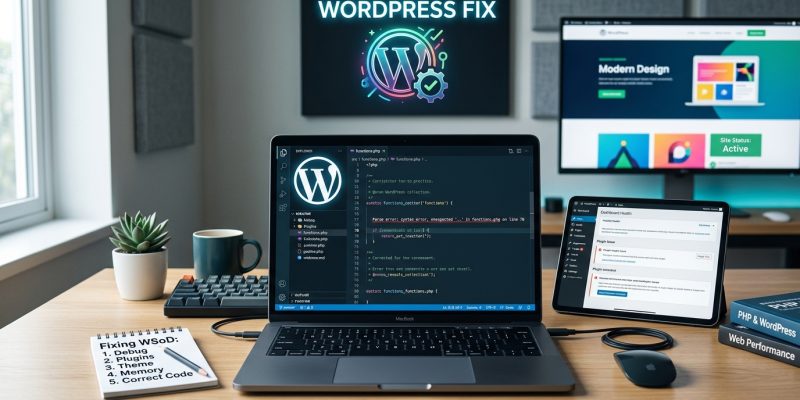
You load your WordPress site and see nothing but a blank white screen. No error message. No helpful hint. Just white space where your website used to be.
This is the WordPress white screen of death, and it happens more often than you’d think.
The WordPress white screen of death usually stems from plugin conflicts, theme errors, memory limits, or corrupted files. This guide walks you through systematic troubleshooting steps to identify the exact cause and restore your site. Most cases resolve within 15 minutes using file manager access or FTP, even without admin panel access.
What causes the white screen of death
The blank screen appears when PHP encounters a fatal error but WordPress can’t display the error message.
Several culprits trigger this problem.
Plugin conflicts top the list. When two plugins try to use the same function name or load incompatible code, PHP crashes. The screen goes white.
Theme issues create similar problems. A poorly coded theme file or a conflict between your theme and a plugin can halt execution.
PHP memory limits cause white screens when your site runs out of allocated memory. This happens most often after uploading large images or activating resource-heavy plugins.
Corrupted core files from failed updates or incomplete file transfers will break your site instantly.
Syntax errors in recently edited code stop PHP from parsing files correctly.
The white screen might appear site-wide, only on the admin panel, or just on specific pages. Each pattern points to different causes.
Check if you can access the admin area
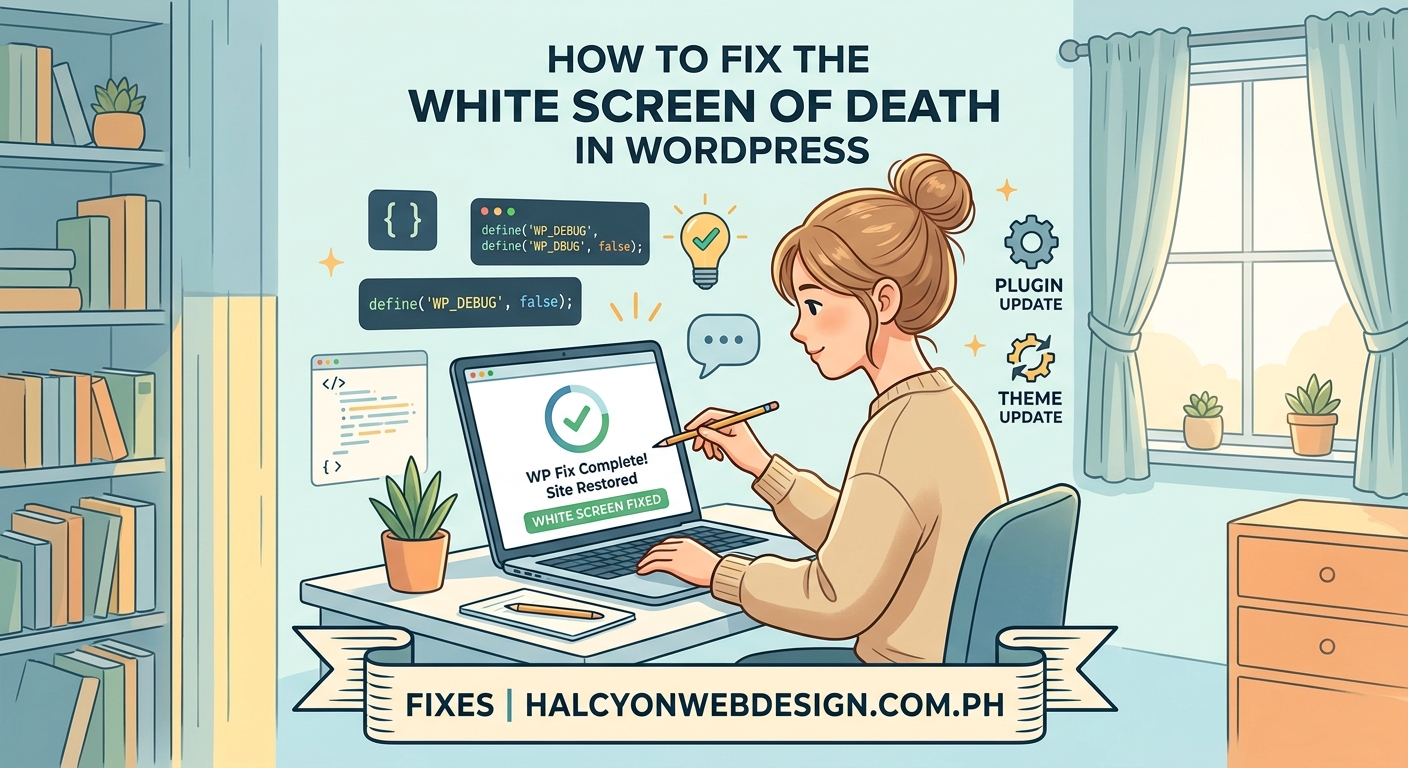
Before making changes, test whether the white screen affects your entire site or just the front end.
Try visiting your admin URL directly by adding /wp-admin to your domain.
If the admin panel loads normally, your problem likely sits in your active theme. If the admin panel also shows white, you’re dealing with a plugin issue or a deeper system problem.
Check both the homepage and a specific post or page. Sometimes the white screen only appears on certain content types, which narrows down the cause significantly.
Enable WordPress debug mode
Debug mode reveals the hidden error messages causing your white screen.
Access your site files through FTP, SFTP, or your hosting file manager. Navigate to your WordPress root directory and locate the wp-config.php file.
Download a backup copy of this file to your computer before editing.
Open wp-config.php in a text editor and find this line:
define('WP_DEBUG', false);
Replace it with these four lines:
define('WP_DEBUG', true);
define('WP_DEBUG_LOG', true);
define('WP_DEBUG_DISPLAY', false);
@ini_set('display_errors', 0);
Save the file and upload it back to your server.
Now visit your site again. WordPress writes error messages to a debug log file located at /wp-content/debug.log. Download this file and open it in a text editor.
The last few lines typically show the exact file and line number causing the fatal error.
When troubleshooting WordPress errors, the debug log tells you exactly what broke and where. Always check it before trying random fixes. Most problems become obvious once you see the actual error message.
Deactivate all plugins through file access
Plugin conflicts cause roughly 70% of white screen cases.
You can’t use the admin panel to deactivate plugins when you’re locked out, but you can disable them through file access.
Connect to your site via FTP or your hosting file manager. Navigate to /wp-content/ and find the plugins folder.
Rename the entire plugins folder to something like plugins-disabled or plugins-old.
WordPress will automatically deactivate all plugins when it can’t find the plugins folder.
Refresh your site. If the white screen disappears, you’ve confirmed a plugin caused the problem.
Create a new folder named plugins in the /wp-content/ directory. Now move your plugin folders one by one from plugins-disabled back into the new plugins folder.
Test your site after moving each plugin folder. When the white screen returns, you’ve identified the problematic plugin.
Leave that plugin in the plugins-disabled folder and continue moving the rest. You might discover multiple plugins causing issues.
Once you’ve isolated the problem plugin, you can either contact the developer, look for an alternative, or investigate whether fixing plugin conflicts will resolve the issue.
Switch to a default WordPress theme
If deactivating plugins didn’t fix the white screen, your active theme is probably the culprit.
Access your site files and navigate to /wp-content/themes/. Find your currently active theme folder.
Rename your active theme folder by adding -disabled to the end of its name. For example, change mytheme to mytheme-disabled.
WordPress automatically falls back to a default theme when it can’t find the active theme. It will try Twenty Twenty-Four first, then Twenty Twenty-Three, and so on.
Refresh your site. If the white screen vanishes, your theme caused the problem.
You can keep using a default theme temporarily while you troubleshoot the broken theme or switch to a different theme safely.
Common theme issues include:
- Syntax errors in
functions.php - Missing template files
- Conflicts with updated plugins
- Incompatibility with your PHP version
If you recently edited your theme files, check those changes first. A single misplaced character can break everything.
For sites using child themes, try deactivating the child theme first by renaming its folder. If that fixes the issue, the problem sits in your child theme code rather than the parent theme.
Increase the PHP memory limit
Memory exhaustion triggers white screens without warning messages.
Your site might run fine until a specific action pushes memory usage over the limit. Common triggers include uploading images, running backups, or loading pages with many plugins active.
To increase memory, edit your wp-config.php file again. Add this line just before the comment that says “That’s all, stop editing!”:
define('WP_MEMORY_LIMIT', '256M');
This sets the WordPress memory limit to 256 megabytes. Most sites run comfortably with this allocation.
Save and upload the file, then test your site.
If the white screen persists, your server might enforce a lower limit that overrides WordPress settings. Contact your hosting provider and ask them to increase the PHP memory limit.
Some hosts let you modify PHP settings through a php.ini file or .htaccess file. Check your hosting documentation for specific instructions.
Sites experiencing frequent memory issues often benefit from choosing better hosting or reducing database bloat.
Replace corrupted WordPress core files
Failed updates sometimes corrupt core WordPress files.
Download a fresh copy of WordPress from wordpress.org. Make sure you download the same version number currently installed on your site. You can check your version in the wp-includes/version.php file.
Extract the downloaded WordPress zip file on your computer.
Using FTP or your file manager, upload these folders from the fresh WordPress copy to your server, replacing the existing ones:
/wp-admin/wp-includes
Do not upload the wp-content folder. That folder contains your themes, plugins, and uploads. Replacing it would delete your content.
These two folders contain only core WordPress files. Replacing them won’t affect your content, settings, or customizations.
After uploading, visit your site. If corrupted core files caused your white screen, it should now load normally.
Check file and folder permissions
Incorrect permissions prevent WordPress from reading or writing files.
Most WordPress files should have permissions set to 644, and folders should use 755. Your hosting provider might use slightly different numbers, but these work for most servers.
Connect via FTP and right-click on the wp-content folder. Select “File permissions” or “CHMOD” from the menu.
Set folders to 755 and files to 644. Apply these settings recursively to all subfolders and files.
Pay special attention to these locations:
/wp-content/folder (755)/wp-content/uploads/folder (755)wp-config.phpfile (644 or 440 for extra security)
Never set permissions to 777. That makes files writable by anyone and creates serious security vulnerabilities.
If you’re unsure about permissions, understanding WordPress file permissions prevents both security issues and functionality problems.
Clear your site cache
Cached files sometimes serve outdated content that shows white screens even after you’ve fixed the underlying problem.
If you use a caching plugin like WP Super Cache or W3 Total Cache, delete the plugin’s cache folder through FTP.
Navigate to /wp-content/cache/ and delete everything inside this folder. Don’t delete the cache folder itself, just its contents.
Also clear your browser cache or test in a private browsing window. Your browser might show you a cached version of the white screen.
Many hosting providers offer server-level caching. Log into your hosting control panel and look for cache management tools. Clear all caches you find.
CDN caching can also cause persistent white screens. If you use a CDN like Cloudflare, log into your CDN dashboard and purge the cache.
After clearing all caches, wait a few minutes before testing your site again.
Restore from a recent backup
If none of the previous steps worked, restoring from a backup gets you back online fastest.
Check whether your hosting provider offers automatic backups. Many hosts keep daily backups for 7 to 30 days.
Log into your hosting control panel and look for backup tools. Most providers let you restore with a few clicks.
If you use a backup plugin, you should have backup files stored either on your server or in cloud storage. Follow your backup plugin’s restoration process.
For sites without automated backups, you’ll need to manually restore files and database from your last manual backup.
Going forward, setting up automatic daily backups prevents extended downtime from any WordPress issue.
Troubleshooting approach comparison
Different white screen scenarios require different approaches. This table helps you choose the right starting point.
| Symptom | Most likely cause | Start here |
|---|---|---|
| White screen everywhere including admin | Plugin conflict | Deactivate all plugins |
| White screen on front end only | Theme issue | Switch to default theme |
| White screen after plugin update | Specific plugin problem | Deactivate that plugin |
| White screen after theme update | Theme compatibility | Switch to default theme |
| White screen when uploading images | Memory limit | Increase PHP memory |
| White screen appears randomly | Corrupted files or cache | Clear cache, then replace core files |
| White screen after editing code | Syntax error | Check debug log, review recent changes |
Prevention strategies that actually work
Preventing white screens saves you from emergency troubleshooting sessions.
Always test updates on a staging site first. Many hosts provide free staging environments. Never update plugins or themes directly on your live site.
Keep regular backups. Daily automated backups mean you can restore your site in minutes rather than hours.
Update one component at a time. Don’t update five plugins simultaneously. If something breaks, you won’t know which update caused the problem.
Monitor your memory usage. If your site frequently approaches the memory limit, either upgrade your hosting or optimize your site to use less memory.
Remove unused plugins and themes. Inactive code still creates potential conflicts and security vulnerabilities. Delete anything you’re not actively using.
Choose quality plugins over quantity. Five well-coded plugins cause fewer problems than twenty mediocre ones. Research before installing, and verify you actually need each plugin.
Keep WordPress core, themes, and plugins updated. Outdated software creates both security risks and compatibility problems.
When to contact your hosting provider
Some white screen causes require hosting provider intervention.
Contact support if you’ve tried all troubleshooting steps and the white screen persists. Your server might have configuration issues beyond WordPress settings.
Reach out immediately if:
- Your debug log shows server errors (500 errors)
- You can’t access files via FTP
- The white screen appeared after a server migration
- Your hosting control panel is also inaccessible
- Multiple sites on the same server show white screens
Provide your hosting support team with your debug log and a list of troubleshooting steps you’ve already completed. This speeds up resolution significantly.
Getting your site back online
The WordPress white screen of death looks intimidating but follows predictable patterns.
Start with the simplest fixes first. Deactivate plugins, switch themes, and check your debug log. These three steps resolve most cases within minutes.
Memory limits and corrupted files account for most remaining issues. Increase memory allocation and replace core files when basic troubleshooting doesn’t work.
Keep backups current and test updates before deploying them. Prevention takes less time than emergency repairs.
Your site will be back online soon. Follow the steps systematically, and you’ll identify the exact cause.