
Getting your website pages indexed by Google isn’t automatic. You need to tell Google where to find your content. That’s exactly what submitting a sitemap does. It hands Google a complete list of every page you want crawled and indexed. Without it, Google might miss important pages or take weeks to find new content.
Submitting your sitemap to Google Search Console tells Google exactly which pages to crawl and index. This process takes about five minutes and dramatically improves how fast your new content appears in search results. You’ll need a verified Search Console property and a valid XML sitemap. Once submitted, Google will crawl your pages more efficiently and alert you to any indexing problems.
What a sitemap does for your website
A sitemap is an XML file that lists every URL on your site.
Think of it as a roadmap for search engines.
Google’s crawlers use this file to understand your site structure. They see which pages matter most, how often you update content, and how different pages relate to each other.
Without a sitemap, Google relies entirely on following links from other sites or internal navigation. That works for well-linked pages but often misses orphaned content, new posts, or pages buried deep in your site structure.
Sites with hundreds or thousands of pages benefit the most. Blogs that publish daily need sitemaps to get new posts indexed within hours instead of days.
Even small sites gain an advantage. Submitting a sitemap gives you control over what Google sees and when.
Before you submit anything
You need two things in place before submitting your sitemap.
First, verify your website property in Google Search Console. Google won’t accept sitemaps from unverified owners. Verification proves you control the domain.
Second, generate a valid XML sitemap. Most content management systems create these automatically.
WordPress users can check for a sitemap at yoursite.com/sitemap.xml or yoursite.com/wp-sitemap.xml. Many SEO plugins generate more detailed sitemaps with better organization.
If you don’t see a sitemap file, you’ll need to create one. WordPress has built-in sitemap functionality since version 5.5. For other platforms, use a sitemap generator plugin or tool.
Your sitemap should include only the pages you want indexed. Exclude admin pages, thank-you pages, duplicate content, and anything blocked by your robots.txt file.
Test your sitemap by opening the URL in a browser. You should see XML code listing your URLs. If you get a 404 error, the sitemap doesn’t exist yet.
Understanding does your website need an XML sitemap helps you decide which pages to include before submission.
Step-by-step submission process
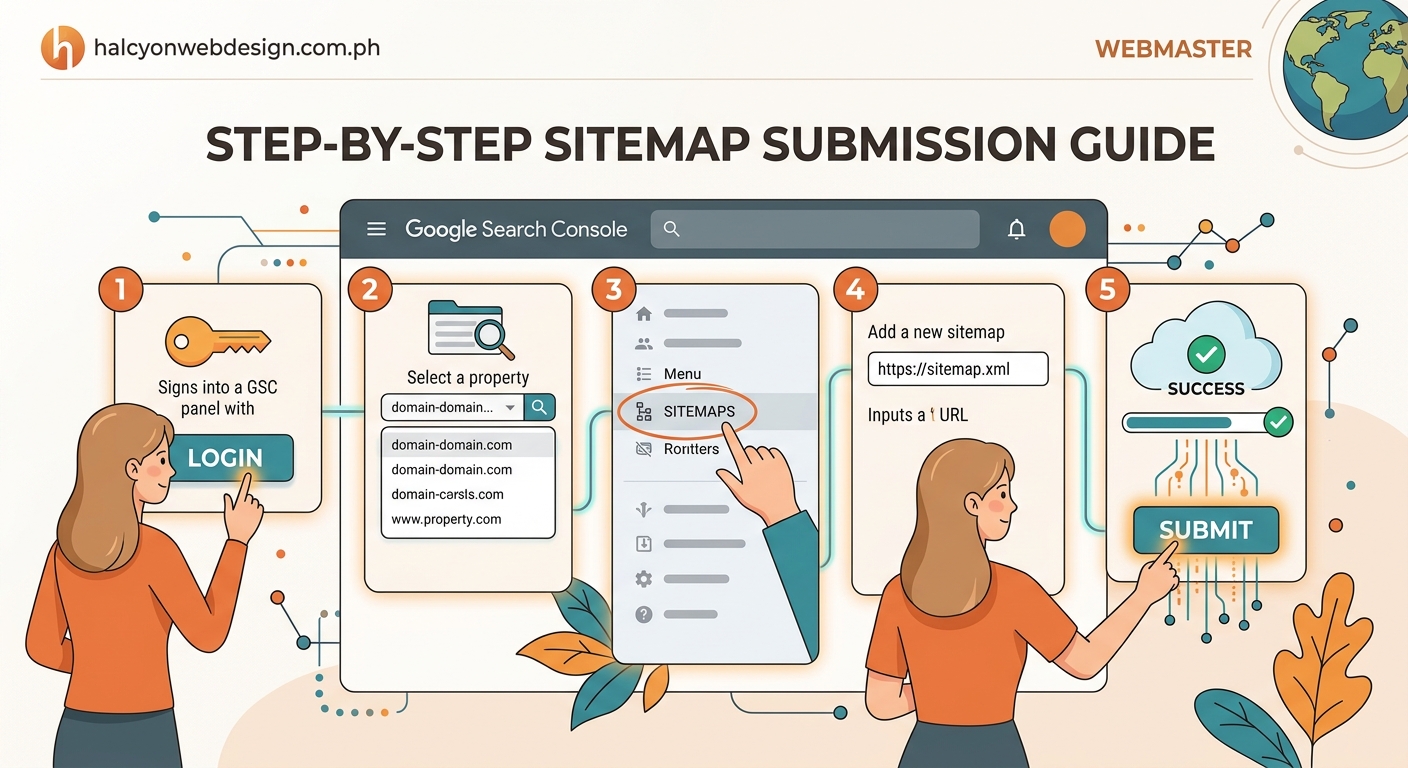
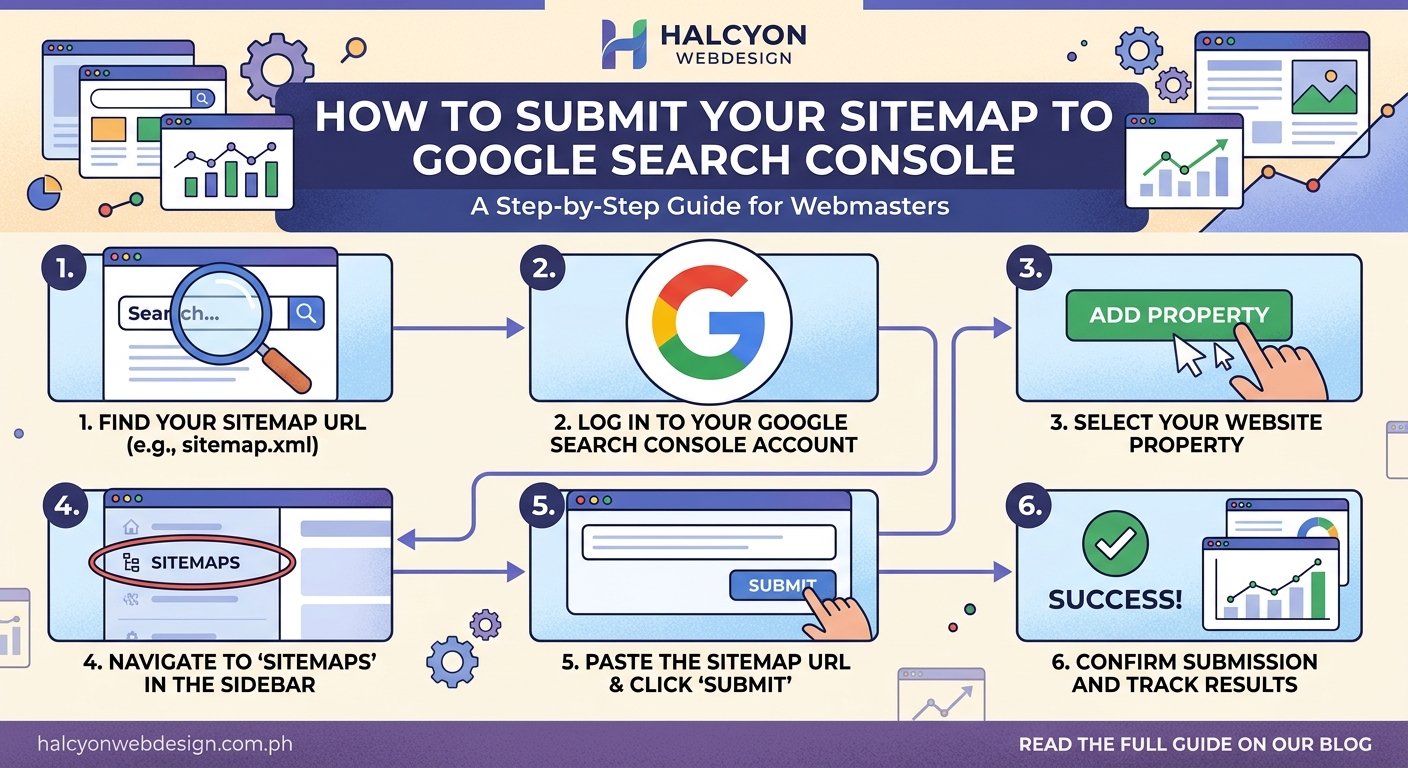
Here’s how to submit your sitemap to Google Search Console.
-
Log into Google Search Console and select your verified property from the dropdown menu.
-
Click “Sitemaps” in the left sidebar under the Indexing section.
-
Look at the top of the page for the “Add a new sitemap” section.
-
Enter your sitemap URL in the text field. Use the relative path like
sitemap.xmlorsitemap_index.xml. Don’t include your full domain. -
Click the “Submit” button.
Google immediately fetches your sitemap and adds it to the queue for processing.
The status will show “Success” if Google can read the file. You’ll see “Couldn’t fetch” if there’s a problem with the URL or file format.
Processing takes anywhere from a few minutes to several days depending on your site size and Google’s current crawl budget for your domain.
You can submit multiple sitemaps if your site uses separate files for posts, pages, and media. Just repeat the process for each sitemap URL.
Reading your sitemap status
After submission, Google shows you important metrics about your sitemap.
The status column tells you if Google successfully fetched the file. “Success” means everything worked. “Couldn’t fetch” means Google encountered an error.
The “Discovered URLs” number shows how many URLs Google found in your sitemap. This should match the total number of pages you included.
“Last read” displays when Google last checked your sitemap. Google doesn’t read sitemaps constantly. It checks them periodically based on how often your content changes.
Click on any sitemap to see detailed information. Google breaks down URLs by status: submitted, indexed, excluded, and errors.
Submitted means Google knows about the URL. Indexed means it appears in search results. Excluded means Google chose not to index it for a specific reason.
Common exclusion reasons include duplicate content, noindex tags, blocked by robots.txt, or pages Google considers low quality.
Errors indicate technical problems like redirect chains, server errors, or malformed URLs.
If you see crawled but not indexed issues, you’ll need to investigate why Google skipped those pages.
Common sitemap errors and fixes
Several problems can prevent successful submission.
Sitemap URL returns 404: Your sitemap file doesn’t exist at the specified location. Check the file path and make sure the sitemap generates correctly.
Unsupported file format: Google only accepts XML sitemaps. HTML sitemaps won’t work. Verify your file uses proper XML syntax.
Sitemap contains URLs blocked by robots.txt: You can’t include URLs that your robots.txt file disallows. Check for conflicts between your robots.txt configuration and sitemap contents.
Sitemap too large: Google limits sitemaps to 50MB uncompressed or 50,000 URLs. Split large sitemaps into multiple files and use a sitemap index file to reference them.
Incorrect namespace: Your XML file must declare the proper sitemap namespace. The opening tag should read <urlset xmlns="http://www.sitemaps.org/schemas/sitemap/0.9">.
Invalid date format: Last modified dates must use W3C datetime format (YYYY-MM-DD). Incorrect formats cause parsing errors.
Redirect chains: URLs in your sitemap shouldn’t redirect to other pages. Include only final destination URLs.
HTTPS vs HTTP mismatch: If your site uses HTTPS, every URL in your sitemap must use HTTPS. Mixed protocols confuse Google.
Fix these errors and resubmit your sitemap. Google will fetch the updated version on its next crawl.
How often Google reads your sitemap
Google doesn’t check your sitemap on a fixed schedule.
Crawl frequency depends on several factors: site authority, update frequency, content quality, and server response time.
High-authority sites that publish frequently get checked multiple times per day. Smaller sites might see weekly or monthly sitemap reads.
You can’t force Google to read your sitemap more often. But you can influence crawl frequency by publishing quality content consistently and maintaining good technical SEO.
Every time you update your sitemap, Google eventually notices and recrawls the file. Most sites see sitemap updates detected within 24 to 48 hours.
If you add new pages, update your sitemap and let Google discover them naturally. Don’t resubmit your sitemap every time you publish. One submission is permanent until you remove it.
Sitemap best practices for better indexing
Follow these guidelines to maximize your sitemap’s effectiveness.
- Include only canonical URLs. Don’t list alternate versions or parameter variations.
- Set accurate priority values between 0.0 and 1.0. Your homepage and key landing pages should have higher priority.
- Update lastmod dates when you significantly change content. Don’t update dates for minor edits.
- Organize large sites with multiple sitemaps by content type. Separate posts, pages, categories, and media.
- Compress large sitemaps using gzip to reduce file size and improve fetch speed.
- Keep your sitemap current by regenerating it automatically when you publish new content.
- Remove deleted pages from your sitemap immediately to prevent 404 errors.
Many WordPress SEO plugins handle these tasks automatically. Check your plugin settings to confirm automatic sitemap generation is enabled.
Monitoring indexing after submission
Submitting your sitemap is just the beginning.
You need to monitor how Google processes your URLs over time.
Check the Coverage report in Google Search Console weekly. This report shows which pages Google indexed successfully and which ones it excluded or encountered errors with.
Look for patterns in excluded pages. If Google consistently skips certain page types, you might have template issues or thin content problems.
The URL Inspection tool lets you check individual pages. Enter any URL from your site to see its current index status, last crawl date, and any problems Google encountered.
If important pages aren’t indexing, use the URL Inspection tool to diagnose specific indexing problems and request manual indexing.
Watch your indexed page count over time. A sudden drop indicates a technical problem or penalty. Gradual growth shows healthy indexing.
Compare your submitted URLs to indexed URLs. A large gap means Google is excluding many pages. Investigate the reasons and fix underlying issues.
Sitemap mistakes that hurt your SEO
Avoid these common errors that waste crawl budget and confuse Google.
| Mistake | Why it hurts | How to fix |
|---|---|---|
| Including noindex pages | Sends conflicting signals to Google | Remove any URLs with noindex tags |
| Listing pagination pages | Wastes crawl budget on duplicate content | Exclude paginated URLs or use rel=canonical |
| Adding low-quality pages | Dilutes your site’s perceived quality | Only include substantial, valuable content |
| Forgetting to update after site changes | Google crawls deleted or moved pages | Regenerate sitemap after major updates |
| Using relative URLs instead of absolute | Creates ambiguity about page location | Always use full URLs with protocol |
| Including redirect URLs | Forces extra hops for crawlers | List only final destination URLs |
Clean up your sitemap regularly. Remove outdated URLs and add new content promptly.
What happens after Google processes your sitemap
Google doesn’t automatically index every URL in your sitemap.
The sitemap is a suggestion, not a command.
Google evaluates each URL based on content quality, relevance, technical implementation, and crawl budget allocation.
High-quality pages that satisfy search intent get indexed quickly. Thin content or duplicate pages might stay in the “discovered but not indexed” status indefinitely.
You’ll see new pages appear in search results anywhere from a few hours to several weeks after submission. Time varies based on your site’s authority and the page’s importance.
Google recrawls indexed pages periodically to check for updates. Pages that change frequently get recrawled more often.
Your sitemap helps Google prioritize which pages to crawl first. Pages marked as high priority or recently modified typically get attention sooner.
But priority values are hints, not guarantees. Google makes the final decision about crawl scheduling and indexing.
“A sitemap doesn’t guarantee indexing. It helps Google find your content efficiently, but quality and relevance determine what actually gets indexed.” – Google Search Central
Tracking sitemap performance over time
Set up a monitoring routine to catch problems early.
Check your Search Console Sitemaps report monthly at minimum. Weekly checks work better for sites that publish frequently.
Watch these key metrics:
- Submitted vs. indexed ratio: Should be above 70% for healthy sites
- Error count: Should stay at zero or near zero
- Last read date: Should update regularly based on your publishing schedule
- Discovered URLs: Should match your actual page count
Create a simple spreadsheet to track these numbers over time. Sudden changes indicate problems that need investigation.
If your indexed count drops significantly, check for technical issues like server errors, security problems, or accidental noindex tags.
If Google stops reading your sitemap, verify the file is still accessible and formatted correctly.
Large gaps between submission and indexing suggest content quality issues or insufficient site authority. Focus on creating better content and building legitimate backlinks.
When to resubmit or update your sitemap
You rarely need to resubmit your sitemap manually.
Once submitted, Google checks it automatically according to its crawl schedule.
Your sitemap file should update dynamically whenever you publish new content. Most CMS platforms and SEO plugins handle this automatically.
Google detects these updates and crawls the new URLs without any action from you.
You only need to resubmit if:
- You completely restructure your site and create a new sitemap file
- You change your sitemap URL location
- Google shows a persistent “Couldn’t fetch” error after you’ve fixed the underlying problem
- You accidentally deleted your sitemap from Search Console
For routine content updates, let your automatic sitemap generation do the work. Google will find new pages on its next scheduled crawl.
Multiple sitemaps for complex sites
Large websites benefit from organizing content across multiple sitemap files.
Google allows up to 50,000 URLs per sitemap file. Sites exceeding this limit must split their content.
Even smaller sites can benefit from logical separation:
- One sitemap for posts
- One sitemap for pages
- One sitemap for categories
- One sitemap for media files
- One sitemap for products (ecommerce sites)
Create a sitemap index file that references all your individual sitemaps. Submit only the index file to Search Console.
The index file looks like this:
<?xml version="1.0" encoding="UTF-8"?>
<sitemapindex xmlns="http://www.sitemaps.org/schemas/sitemap/0.9">
  <sitemap>
    <loc>https://yoursite.com/post-sitemap.xml</loc>
  </sitemap>
  <sitemap>
    <loc>https://yoursite.com/page-sitemap.xml</loc>
  </sitemap>
</sitemapindex>
This approach gives you better control over different content types. You can see which sections of your site index well and which need improvement.
Making sure your sitemap stays healthy
Regular maintenance prevents indexing problems.
Set calendar reminders to review your sitemap monthly. Look for broken links, outdated content, and pages that should be removed.
Run your sitemap URL through an XML validator to catch syntax errors. Even small formatting mistakes can prevent Google from reading the file.
Monitor your server logs to confirm Google is actually fetching your sitemap. If you don’t see Googlebot requests for your sitemap file, something is blocking access.
Check that your sitemap file size stays under limits. As your site grows, you might need to split a single sitemap into multiple files.
Verify that your sitemap only includes pages that return 200 status codes. Remove any URLs that redirect or return errors.
Test your sitemap after major site updates, theme changes, or plugin updates. These changes can break sitemap generation.
Keep your WordPress settings properly configured to ensure sitemap functionality works correctly after updates.
Getting your pages indexed faster
Submitting a sitemap helps, but other factors control indexing speed.
Publish high-quality content that satisfies search intent. Google prioritizes useful, original content over thin pages.
Build a logical internal linking structure. Every page should be reachable within three clicks from your homepage.
Improve your site’s technical performance. Fast-loading pages get crawled more frequently than slow ones.
Fix broken links and redirect chains. These issues waste crawl budget and slow down indexing.
Create fresh content regularly. Sites that update frequently get crawled more often.
Build legitimate backlinks from authoritative sites. External links signal to Google that your content deserves attention.
Remove or improve low-quality pages. Google allocates crawl budget based on perceived site quality.
Use structured data markup to help Google understand your content better. Rich results often get indexed faster.
Make sure your site loads efficiently to maximize the number of pages Google can crawl per visit.
Your sitemap is working when you stop thinking about it
The best sitemap is the one that runs automatically in the background.
Set it up once, verify it’s working, then let it do its job. Check in monthly to confirm everything still works properly.
Your focus should shift to creating great content and improving user experience. Those factors influence indexing far more than sitemap optimization.
If you’re publishing regularly and Google is finding your content within days, your sitemap is doing exactly what it should. You won’t need to touch it unless you make major structural changes to your site.
Submit your sitemap today if you haven’t already. It takes five minutes and gives Google a clear path to every page you’ve worked hard to create.