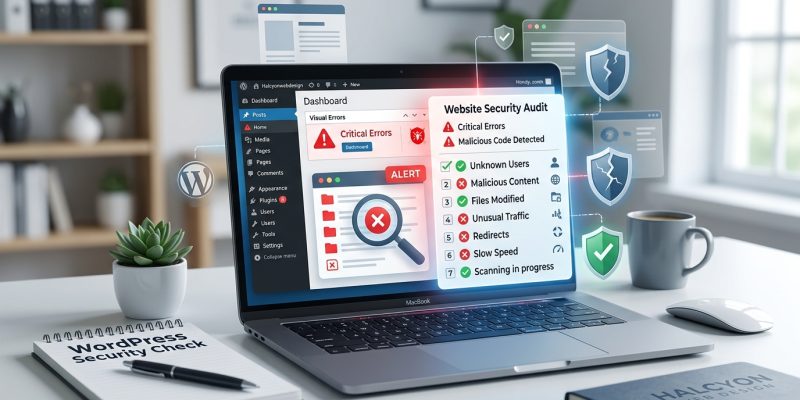
Your site’s loading slower than usual. Visitors are complaining about strange pop-ups. Google slapped a security warning on your homepage. These aren’t just annoying glitches. They’re red flags that someone may have broken into your WordPress site.
Checking if your WordPress site is hacked involves scanning for unauthorized files, reviewing user accounts, monitoring traffic spikes, checking Google Search Console warnings, and using security plugins to detect malware. Most hacks leave visible traces in your admin panel, file system, or site behavior. Regular audits help you catch compromises early before they damage your reputation or rankings.
Understanding what a hacked WordPress site looks like
Hacked sites don’t always announce themselves with flashing warnings.
Sometimes the damage is subtle. A single line of code injected into your theme files. A fake admin account created weeks ago. Spam links hidden in your footer that only search engines can see.
Other times, it’s obvious. Your homepage redirects to a pharmaceutical site. Your database gets wiped. Your hosting provider suspends your account.
The key is knowing where to look and what patterns signal trouble.
Checking for suspicious user accounts
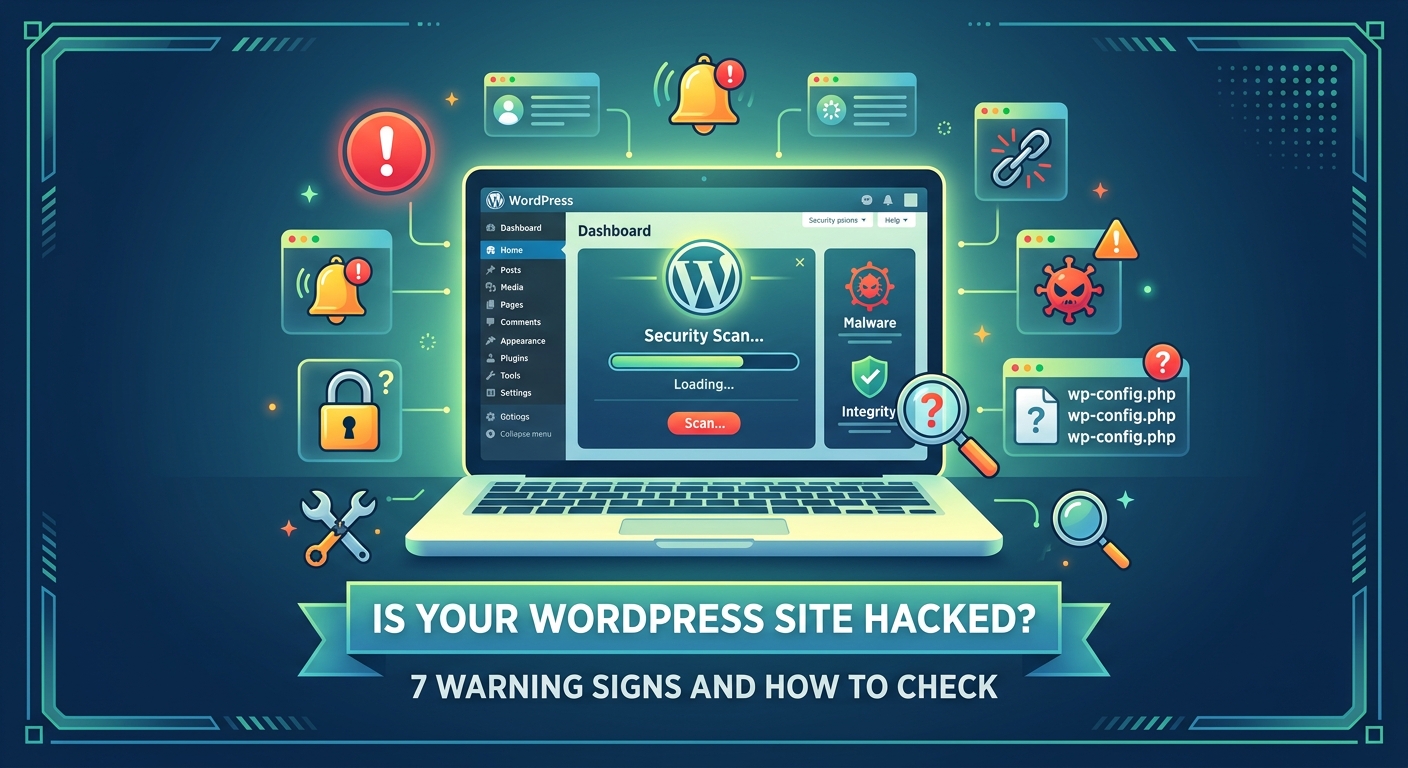
Start with your user list. Hackers often create new admin accounts to maintain access even after you change your password.
- Log into your WordPress dashboard.
- Navigate to Users and click All Users.
- Look for accounts you don’t recognize, especially ones with administrator privileges.
- Check the registration dates. Any accounts created on dates when you weren’t actively adding team members?
- Delete any suspicious accounts immediately.
Pay attention to usernames that look automated. Things like “admin2” or random strings of characters. Legitimate users typically have recognizable names.
If you find a fake admin account, that’s confirmation someone gained access. But don’t stop there. They likely left other backdoors.
Scanning your file system for unauthorized changes
Your WordPress installation contains thousands of files. Hackers hide malicious code in places you rarely check.
Here’s how to find them:
- Connect to your site via FTP or your hosting control panel’s file manager.
- Check the wp-content/uploads folder. This should only contain media files. Any PHP files here are suspicious.
- Review your theme files, especially header.php, footer.php, and functions.php. Look for unfamiliar code blocks, especially ones that are obfuscated or encoded.
- Check the root directory for files that shouldn’t exist, like suspicious .php files with random names.
- Compare your core WordPress files against a fresh installation to spot modifications.
Most hosting providers offer file integrity monitoring. Enable it if available. It alerts you when files change unexpectedly.
“The majority of WordPress hacks involve injected code in theme files or rogue plugins. If you find base64 encoded strings or eval() functions you didn’t write, your site is compromised.” – WordPress Security Expert
Using security plugins to detect malware
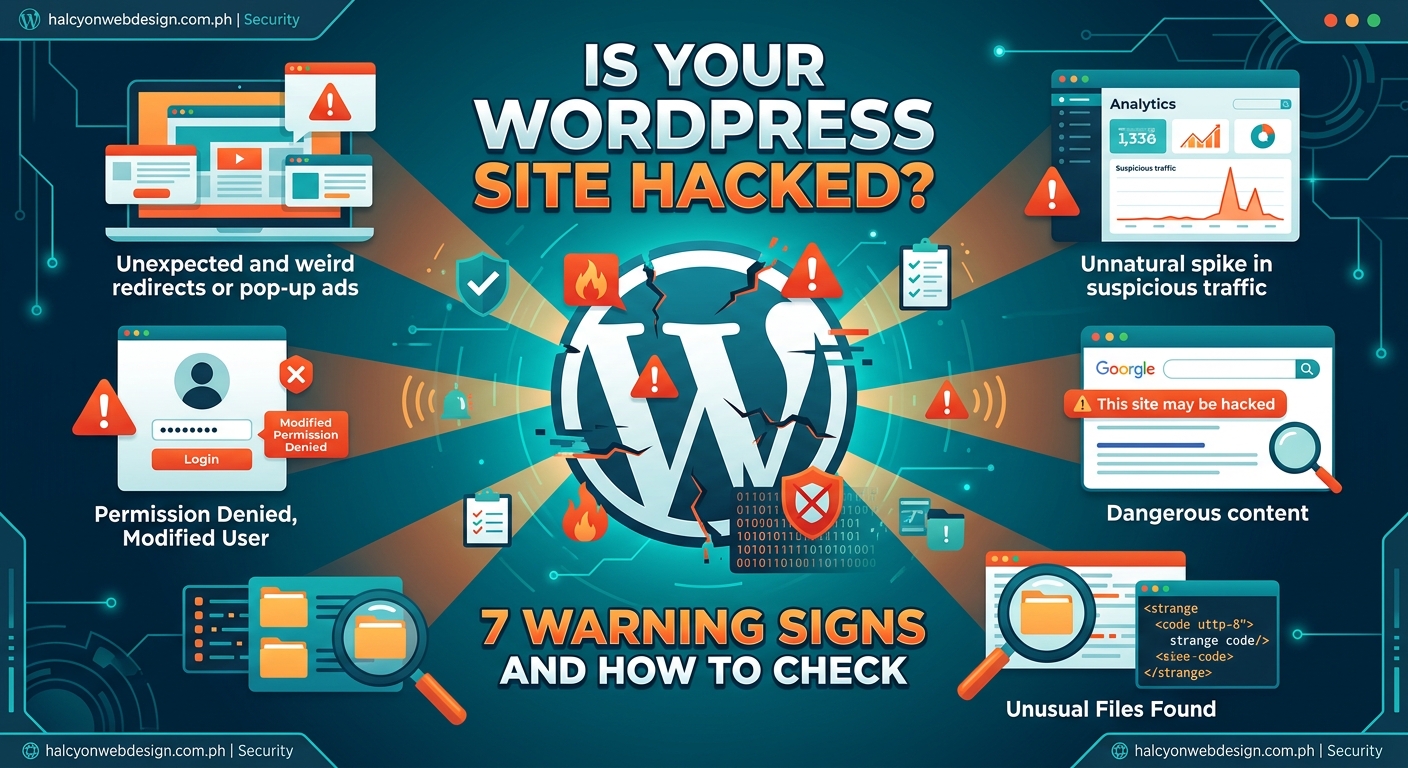
Manual file checks work, but they’re time consuming. Security plugins automate the process and catch things you might miss.
Install one of these trusted options:
- Wordfence Security
- Sucuri Security
- iThemes Security
- MalCare
After installation, run a full site scan. The plugin will check your database, files, and configuration for known malware signatures.
Pay attention to these scan results:
- Modified core files
- Backdoor scripts
- Malicious redirects
- Known malware patterns
- Suspicious database entries
If the scan finds infections, follow the plugin’s remediation steps. Most offer one-click cleaning for common threats.
Some plugins also monitor your site in real time, blocking attacks as they happen. Enable this feature if you’re dealing with active threats.
Reviewing your site’s behavior and performance
Hacked sites often behave differently than clean ones. Watch for these warning signs:
Traffic patterns: Check your analytics for sudden spikes, especially from unusual countries or at odd hours. Bots and scrapers often hit compromised sites hard.
Outbound links: View your site’s source code. Search for links you didn’t add. Hackers inject spam links to boost other sites’ rankings.
Admin panel slowness: If your dashboard takes forever to load but your front-end seems fine, someone might be running scripts in the background.
Unexpected emails: Getting bounce-back messages for emails you didn’t send? Your site might be sending spam.
Database size: A suddenly bloated database often means spam content or malicious tables were added.
Run a speed test using tools like GTmetrix or Pingdom. Compare the results to your normal baseline. Significant slowdowns can indicate hidden mining scripts or spam injections.
Checking Google Search Console for security warnings
Google scans millions of sites daily for malware and phishing attempts. If they flag yours, you’ll see warnings in Search Console.
- Log into Google Search Console.
- Select your property.
- Click on Security & Manual Actions in the sidebar.
- Check the Security Issues section.
Google categorizes threats into several types:
| Threat Type | What It Means | Typical Cause |
|---|---|---|
| Malware | Harmful software that infects visitors | Compromised plugins or themes |
| Deceptive pages | Phishing or fake content | Injected spam pages |
| Harmful downloads | Files that damage user devices | Uploaded malicious files |
| Uncommon downloads | Suspicious file types | Backdoor scripts |
If Google lists issues, your site is definitely compromised. Follow their remediation steps, then request a review after cleaning.
Even without warnings, check your indexed pages. Search for “site:yourdomain.com” in Google. Look for pages you didn’t create. Spam pages with pharmaceutical or adult content are common signs of compromise.
Monitoring your hosting account and server logs
Your hosting account contains clues that don’t show up in WordPress itself.
Check these areas:
Email accounts: Look for email addresses you didn’t create. Hackers sometimes set up accounts to send spam or receive notifications.
Databases: Review your database list. Any databases you don’t recognize? Attackers occasionally create separate databases to store stolen data.
Cron jobs: Check scheduled tasks. Malicious cron jobs can run scripts at regular intervals, maintaining the infection even after you clean files.
Server logs: Access logs show every request to your site. Look for suspicious patterns like repeated attempts to access wp-login.php from the same IP, or requests for files that don’t exist.
Most hosting control panels provide easy access to these logs. If you’re not comfortable reading them, your host’s support team can help interpret unusual activity.
Setting up automatic daily backups before investigating further gives you a safety net if something goes wrong during cleanup.
Testing for hidden redirects and injected code
Some hacks are nearly invisible to casual inspection. They only trigger under specific conditions.
Test these scenarios:
Logged-out browsing: View your site in an incognito window. Some malware only shows to visitors, not logged-in admins.
Mobile devices: Check your site on a phone. Mobile-specific redirects are common.
Different browsers: Test Chrome, Firefox, and Safari. Browser-specific attacks exist.
Search engine referrals: Click a Google search result that points to your site. Some redirects only trigger for search traffic.
Specific pages: Don’t just check your homepage. Test blog posts, category pages, and older content.
Use online tools to scan for hidden redirects:
- Sucuri SiteCheck
- VirusTotal
- Quttera
- Unmask Parasites
These services view your site from multiple locations and configurations, catching conditional malware you might miss.
Reviewing recent plugin and theme installations
Nulled themes and pirated plugins are common infection vectors. If you installed anything from unofficial sources, that’s likely how hackers got in.
Check your installed plugins:
- Go to Plugins in your WordPress dashboard.
- Note the installation date for each plugin.
- Cross-reference dates with when problems started.
- Research any plugins you don’t remember installing.
- Delete anything from untrusted sources immediately.
Do the same for themes. Go to Appearance, then Themes. Any themes you didn’t install yourself?
Even legitimate plugins can be compromised if they contain security vulnerabilities. Check if any of your plugins have known exploits by searching their names plus “vulnerability” or “security issue.”
Keeping plugins updated prevents many attacks, but if you’ve already been hacked, updating safely requires extra precautions to avoid breaking your site during cleanup.
Checking your database for malicious content
Your WordPress database stores everything from posts to settings. Hackers modify tables to inject spam or maintain access.
You’ll need phpMyAdmin or a similar database tool for this:
- Access your hosting control panel and open phpMyAdmin.
- Select your WordPress database.
- Check the wp_users table for unauthorized accounts.
- Review wp_posts for spam content or hidden posts.
- Look at wp_options for suspicious settings, especially siteurl and home values.
- Check for unfamiliar tables that don’t start with your wp_ prefix.
Common database hacks include:
- Spam comments stored but not visible in your dashboard
- Hidden posts with spam content
- Modified admin email addresses
- Fake user accounts with elevated privileges
- Rogue plugins activated through database entries
If you find suspicious entries, document them before deletion. You might need this information to understand how the attack happened.
Reducing database bloat after cleaning helps ensure no remnants remain hidden in revision tables or transient data.
Verifying your site’s SSL certificate and HTTPS setup
Sometimes attackers compromise SSL certificates to intercept traffic or serve malicious content.
Check your certificate status:
- Click the padlock icon in your browser’s address bar.
- View certificate details.
- Verify the issuer matches your certificate provider.
- Check the expiration date. Unexpired certificates shouldn’t show warnings.
- Confirm the certificate matches your domain name exactly.
Browser warnings about invalid certificates can indicate:
- Someone replaced your legitimate certificate
- Mixed content issues caused by injected HTTP resources
- Man-in-the-middle attacks
- Expired certificates that weren’t renewed
If your certificate looks wrong, contact your hosting provider immediately. They can verify whether it was legitimately issued.
Also check for SSL certificate errors that might seem like security issues but actually indicate configuration problems rather than hacks.
Understanding what to do after confirming a hack
Finding evidence of compromise is just the first step. Now you need to clean and secure your site.
Your immediate action plan:
- Change all passwords: WordPress admin, hosting account, FTP, database, and email accounts associated with your site.
- Update everything: WordPress core, all plugins, and your theme. Outdated software created the vulnerability.
- Remove malicious code: Delete infected files, clean database entries, and remove unauthorized user accounts.
- Restore from backup: If you have a clean backup from before the hack, restoring might be faster than manual cleaning.
- Scan again: After cleanup, run another security scan to confirm you caught everything.
- Implement security measures: Install a security plugin, enable two-factor authentication, and restrict login attempts.
- Monitor closely: Watch your site for signs of reinfection over the next few weeks.
Document everything you find and fix. This information helps prevent future attacks by showing you where your security was weakest.
If the infection is severe or you’re not comfortable cleaning it yourself, hire a professional. The cost of expert help is far less than the damage from a persistent compromise.
Setting up ongoing monitoring to catch future attacks early
One-time checks aren’t enough. Hackers constantly probe WordPress sites for weaknesses.
Set up these monitoring systems:
Uptime monitoring: Services like UptimeRobot alert you if your site goes down. Sudden downtime can indicate an attack.
File integrity monitoring: Get notifications when core files change unexpectedly.
Login alerts: Know when someone accesses your admin panel, especially from unusual locations.
Security scans: Schedule automatic malware scans weekly or daily.
Google Search Console: Check regularly for security warnings and indexing anomalies.
Most security plugins include these features. Configure them once, then let them work in the background.
Also review your hosting security settings to ensure your server configuration doesn’t leave obvious vulnerabilities exposed.
Protecting your site from future compromises
Prevention is easier than cleanup. After confirming and fixing a hack, strengthen your defenses.
Essential security practices:
- Use strong, unique passwords for every account
- Enable two-factor authentication on your WordPress login
- Limit login attempts to block brute force attacks
- Keep WordPress, plugins, and themes updated
- Delete unused plugins and themes completely
- Use reputable hosting with server-level security
- Implement a web application firewall
- Restrict file permissions appropriately
- Disable file editing in the WordPress dashboard
- Regular backups stored off-site
Consider implementing a complete backup strategy that includes both files and database, stored in multiple locations.
Security isn’t a one-time task. It’s an ongoing process of monitoring, updating, and responding to threats. The effort you invest now saves you from much bigger headaches later.
Taking control of your site’s security
Checking if your WordPress site is hacked doesn’t require advanced technical skills. It requires knowing where to look and what patterns signal trouble.
Start with the obvious signs: unauthorized users, modified files, and Google warnings. Then dig deeper into logs, databases, and behavior patterns. Use security plugins to automate detection and catch threats you might miss manually.
Most importantly, don’t panic if you find evidence of compromise. Hacks are fixable. Clean the infection, strengthen your security, and implement monitoring to catch future attempts early. Your site can recover completely and come back stronger than before.