
You’re about to install another plugin. But wait. WordPress might already do what you need.
Most site owners don’t realize how much functionality comes standard with WordPress. They add plugins for features that already exist, slowing down their site and creating security risks. The average WordPress site runs 20+ plugins, but many of those could be deleted today without losing any functionality.
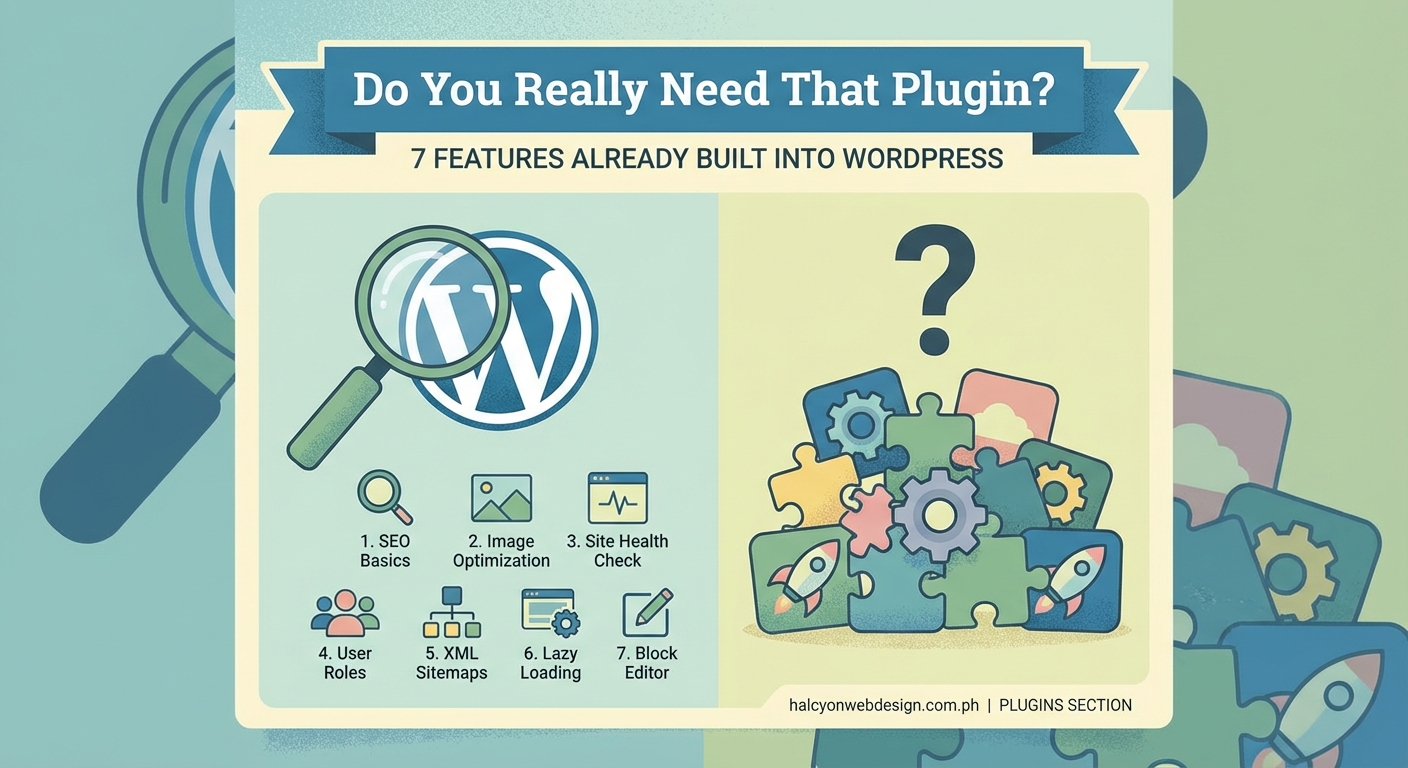
WordPress includes native features for post scheduling, image editing, custom menus, RSS feeds, user management, XML sitemaps, and lazy loading. Before installing a plugin, check if WordPress already handles your need. Reducing plugin count improves site speed, security, and maintenance. Most beginners don’t know these capabilities exist, leading to unnecessary plugin bloat that degrades performance over time.
Post scheduling lives in the editor
WordPress has scheduled publishing built right into the block editor. You don’t need a separate plugin to publish posts at specific times.
Click the post settings panel on the right side of the editor. Look for the “Publish” section. You’ll see “Immediately” with a link next to it. Click that link.
A calendar and time picker appear. Select your date and time. WordPress will automatically publish your post at that exact moment.
This works for posts, pages, and custom post types. You can schedule as many items as you want. WordPress handles everything through its cron system.
The scheduled post stays in draft mode until the time arrives. Then WordPress automatically switches it to published. No external service needed.
Here’s what you can do with native scheduling:
- Set posts to publish during peak traffic hours
- Prepare content weeks in advance for holidays or events
- Coordinate multiple post releases across different times
- Schedule updates to existing published content
Image editing happens in the media library
WordPress includes a basic image editor that handles common tasks. You don’t need Photoshop or an editing plugin for simple adjustments.
Upload an image to your media library. Click on it to open the attachment details. You’ll see an “Edit Image” button below the preview.
The editor opens with these tools:
- Crop to specific dimensions or aspect ratios
- Rotate left or right in 90-degree increments
- Flip vertically or horizontally
- Scale to exact pixel dimensions
These tools cover most basic needs. Cropping featured images to fit your theme. Rotating photos taken sideways. Resizing large uploads to reasonable dimensions.
The editor works non-destructively. Your original file stays safe. You can restore it anytime by clicking “Restore original image” in the editor.
You can also apply changes to all image sizes at once or just the thumbnail, medium, or large versions. This gives you control over how edits appear across your site.
Custom menus need no extra code
Building navigation menus is built into WordPress core. You don’t need a page builder or menu plugin.
Go to Appearance, then Menus in your dashboard. Create a new menu and give it a name. Add pages, posts, custom links, or categories by selecting them from the left panel.
Drag items to reorder them. Indent items to create dropdown submenus. Each menu item can have a custom label different from the page title.
WordPress supports multiple menu locations. Your theme determines where menus can appear (header, footer, sidebar). Assign your menu to any location your theme provides.
You can also use the Customizer to build menus visually. Go to Appearance, then Customize, then Menus. The preview updates in real time as you make changes.
Advanced options let you add CSS classes, link targets, and descriptions to each menu item. Click “Screen Options” at the top of the Menus page to enable these fields.
RSS feeds generate automatically
WordPress creates RSS feeds for your content without any plugin. Every WordPress site has feeds built in.
Your main feed lives at yoursite.com/feed/. WordPress also creates feeds for categories, tags, authors, and comments. These update automatically whenever you publish new content.
Readers can subscribe to any feed using their preferred RSS reader. They’ll get updates without visiting your site or signing up for email.
Here are the default feed URLs WordPress creates:
| Feed Type | URL Pattern |
|---|---|
| Main posts | yoursite.com/feed/ |
| Comments | yoursite.com/comments/feed/ |
| Category | yoursite.com/category/name/feed/ |
| Tag | yoursite.com/tag/name/feed/ |
| Author | yoursite.com/author/name/feed/ |
You can customize feed content using WordPress settings. Go to Settings, then Reading. Choose whether to show full text or summaries in feeds.
The feeds use standard formats (RSS2 and Atom) that work with all feed readers. No configuration needed.
User roles control access without plugins
WordPress includes six user roles with different permission levels. You don’t need a membership or role management plugin for basic access control.
The built-in roles are:
- Super Admin (multisite only) can do everything across all sites
- Administrator has full control of a single site
- Editor can publish and manage all posts including those by other users
- Author can publish and manage only their own posts
- Contributor can write posts but cannot publish them
- Subscriber can only manage their profile and read content
Assign roles when you add new users. Go to Users, then Add New. Fill in their details and select a role from the dropdown.
Each role has specific capabilities. Editors can’t install plugins. Authors can’t edit other people’s posts. Contributors can’t upload media files.
This system handles most team workflows. A blog with guest writers can use the Contributor role. A news site can give reporters the Author role and managers the Editor role.
You only need a role plugin if you want custom roles with specific capability combinations. The default roles work for probably 80% of sites.
XML sitemaps come standard now
WordPress 5.5 added automatic XML sitemap generation. You don’t need Yoast or another SEO plugin just for sitemaps.
Your sitemap lives at yoursite.com/wp-sitemap.xml. WordPress updates it automatically when you publish, update, or delete content.
The sitemap includes:
- Posts
- Pages
- Custom post types
- Categories
- Tags
- Authors
WordPress creates separate sitemap files for each content type, then links them all from the main index sitemap. This follows best practices for large sites.
Search engines can find and crawl your sitemap without any setup. Most themes and hosts automatically submit it to Google and Bing.
The native sitemap excludes private content, password-protected pages, and noindexed items. It respects your privacy settings automatically.
If you need advanced features like priority settings or custom URLs, then you might want a dedicated SEO plugin. But for basic sitemap functionality, WordPress handles it.
Before installing any plugin, check the WordPress features documentation. Many capabilities exist in core but aren’t obvious to new users. You’ll keep your site faster and more secure by using native features whenever possible.
Lazy loading images is automatic
WordPress 5.5 also added native lazy loading for images and iframes. You don’t need a performance plugin for this feature.
Every image you upload gets a loading=”lazy” attribute automatically. This tells browsers to delay loading images until they’re about to enter the viewport.
The benefit is faster initial page loads. Images below the fold don’t load until users scroll down. This saves bandwidth and improves performance scores.
The feature works for:
- Images inserted through the block editor
- Featured images
- Images in widgets
- Gallery blocks
- Embedded iframes (YouTube videos, maps, etc.)
Browsers that support lazy loading use it. Older browsers ignore the attribute and load images normally. No JavaScript required.
You can disable lazy loading on specific images by removing the attribute in the HTML. But for most sites, the default behavior works perfectly.
Common mistakes that lead to plugin bloat
Many site owners install plugins without checking if WordPress already does the job. Here’s a comparison of what needs a plugin versus what doesn’t:
| Feature | Plugin Needed? | WordPress Has It |
|---|---|---|
| Post scheduling | No | Built into editor |
| Basic image editing | No | Media library editor |
| Custom navigation menus | No | Appearance > Menus |
| RSS feeds | No | Auto-generated |
| User roles and permissions | Usually no | Six default roles |
| XML sitemaps | No | Since version 5.5 |
| Image lazy loading | No | Since version 5.5 |
| Contact forms | Yes | Not included |
| SEO meta fields | Yes | Limited native support |
| Caching | Yes | Not included |
| Backups | Yes | Not automated |
The pattern is clear. WordPress handles content management, user management, and basic performance features. It doesn’t handle forms, advanced SEO, caching, or automated backups.
Know the difference and you’ll avoid installing five plugins when you only need two.
How to audit your current plugins
Take 20 minutes to review every plugin on your site. You’ll probably find several you can delete.
- Go to Plugins, then Installed Plugins in your dashboard
- Make a list of what each plugin does
- Check if WordPress has that feature natively
- Test your site with the plugin deactivated
- Delete plugins that don’t provide unique value
Start with plugins that handle scheduling, menus, or basic image work. These almost certainly duplicate WordPress features.
Then look for plugins you installed months ago and forgot about. Deactivate them one at a time and see if anything breaks. If your site works fine without it, delete it.
Keep plugins that provide features WordPress truly doesn’t have. Contact forms, advanced caching, security scanning, and backup automation are legitimate needs.
The goal isn’t zero plugins. It’s the right number of plugins for your specific needs.
Your site runs better with fewer plugins
Every plugin you remove makes your site a bit faster and more secure. Fewer moving parts mean fewer things that can break or conflict.
WordPress gives you solid core features. Use them before reaching for a plugin. Your site will load faster, update more smoothly, and cause fewer headaches.
Check your WordPress version to make sure you have the latest features. Some capabilities like sitemaps and lazy loading only exist in recent versions. Update WordPress and you might be able to delete plugins immediately.
Start with one plugin today. Find something that duplicates a WordPress feature and remove it. Your site will thank you.