Your website was running fine this morning. You clicked “Update” on a plugin, and now you’re staring at an error message or a blank screen. Your heart is racing. You need your site back online now.
This happens more often than you think. A single plugin update can conflict with your theme, another plugin, or your WordPress version. The good news is that most broken sites can be fixed in under 30 minutes, even if you’ve never touched code before.
When a WordPress plugin update broke site functionality, you can restore access through recovery mode, FTP, or hosting control panels. The fastest fix involves deactivating the problematic plugin, then testing your site systematically. Always backup before updates and enable WordPress debug mode to catch errors early. Most crashes stem from compatibility conflicts, not permanent damage, and can be reversed within minutes using the right approach.
What happens when a plugin update breaks your site
WordPress plugins are built by different developers who can’t test every possible combination of themes, hosting environments, and other plugins. When you update a plugin, the new code might expect a different PHP version than your server runs. It might call functions that your theme removed. It might clash with caching rules.
The result is usually one of these symptoms:
- White screen with no error message
- Critical error notice saying “There has been a critical error on this website”
- Site loads but specific features stop working (contact forms, checkout pages, login screens)
- Admin dashboard becomes inaccessible
- 500 Internal Server Error message
- Infinite loading or stuck maintenance mode screen
Each symptom points to a different severity level, but the recovery steps follow the same logic. You need to regain control, identify what broke, and reverse or fix it.
First response when your WordPress plugin update broke site access
Stop making changes. Don’t update anything else. Don’t try random fixes from forums. You need a clear baseline to work from.
Take a screenshot of any error messages you see. Error text often contains the plugin name or file path that caused the crash. If you see something like “Fatal error in /wp-content/plugins/example-plugin/file.php,” you’ve already identified the culprit.
Check your email. WordPress sends a recovery mode link to your admin email address when it detects a fatal error. This link lets you access your dashboard in a protected state where the broken plugin is automatically disabled. If you received this email in the last hour, click that link first before trying anything else.
If no email arrived, you’ll need to access your site through alternative methods.
The three paths to regain control
Your recovery method depends on what level of access you still have. Choose the path that matches your current situation.
Path 1: You can still log into wp-admin
This is the easiest scenario. Your dashboard works, but something on the front end is broken, or you’re getting warning messages.
- Log into your WordPress admin at yoursite.com/wp-admin
- Go to Plugins in the left sidebar
- Look for the plugin you just updated (it will show a recent update timestamp)
- Click Deactivate under that plugin name
- Visit your site’s front end to check if the problem disappeared
If deactivating the plugin fixed everything, you have a compatibility issue. Don’t reactivate that plugin yet. Check the plugin’s support forum or changelog to see if other users reported similar crashes. Sometimes the developer releases a patch within hours.
If you need that plugin’s functionality right away, you can roll it back to the previous version using a plugin like WP Rollback. Install WP Rollback, find your problematic plugin in the plugin list, and click Rollback. Choose the version number that was working before today’s update.
Path 2: Dashboard is broken but you have hosting access
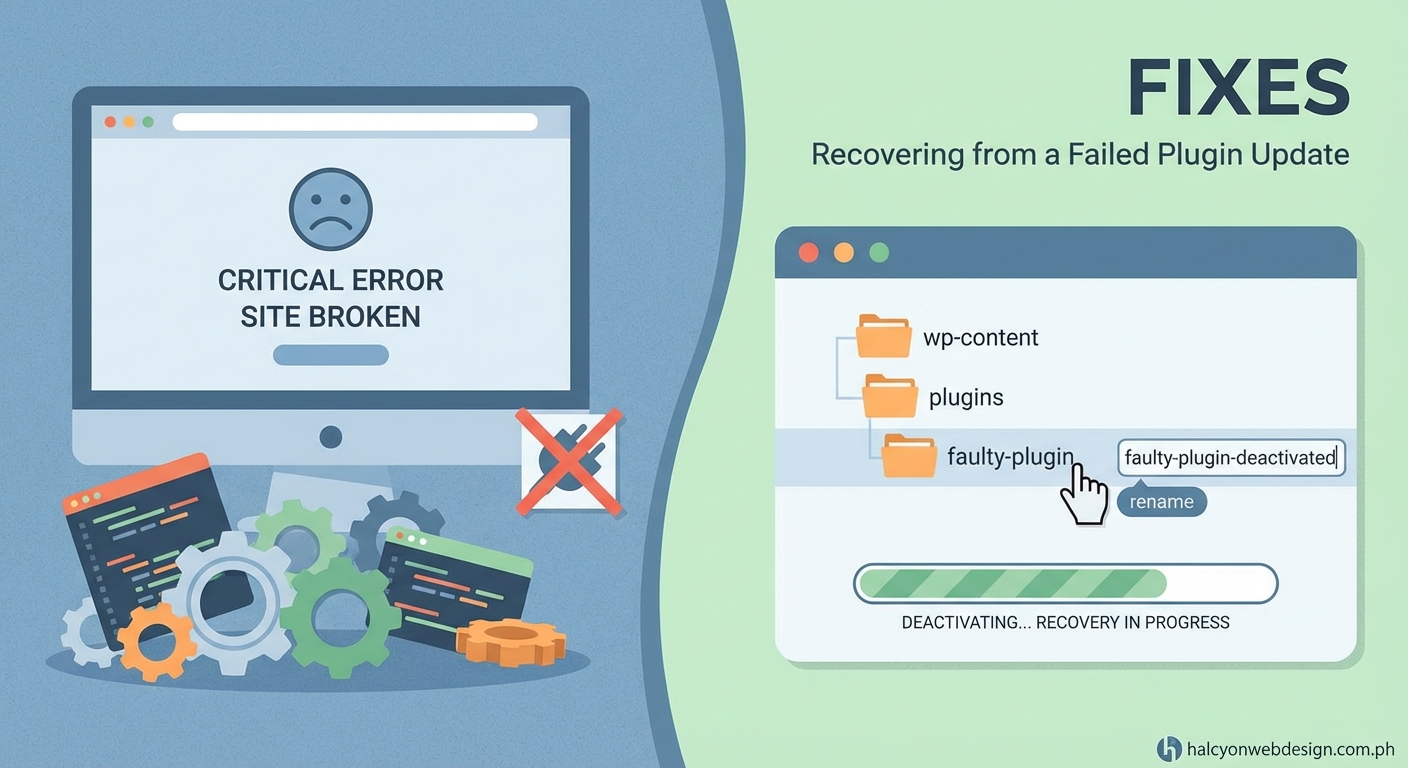
When wp-admin won’t load, you need to access your site files directly. Most hosting providers give you two options: File Manager (through cPanel or similar control panel) or FTP access.
Using File Manager:
- Log into your hosting account
- Find File Manager (usually under Files section)
- Navigate to public_html or the folder containing your WordPress installation
- Open the wp-content folder
- Find the plugins folder
- Rename the plugins folder to plugins-disabled
This immediately deactivates every plugin on your site. Your site should come back online, though without any plugin functionality.
Once you can access wp-admin again:
- Rename plugins-disabled back to plugins through File Manager
- Go to your WordPress dashboard Plugins page
- All plugins will show as deactivated
- Activate them one at a time, checking your site after each activation
- When the site breaks again, you’ve found your problem plugin
Using FTP:
If you prefer FTP (or your host requires it), download FileZilla and get your FTP credentials from your hosting account.
- Connect to your site via FTP using your credentials
- Navigate to /public_html/wp-content/plugins/
- Find the folder with the name of the plugin you updated
- Right-click that folder and rename it (add “-disabled” to the end)
- Check if your site loads now
Renaming just the problem plugin’s folder is cleaner than disabling all plugins. If you’re not sure which plugin caused the crash, rename the most recently updated plugin first.
Path 3: Complete site failure with no access
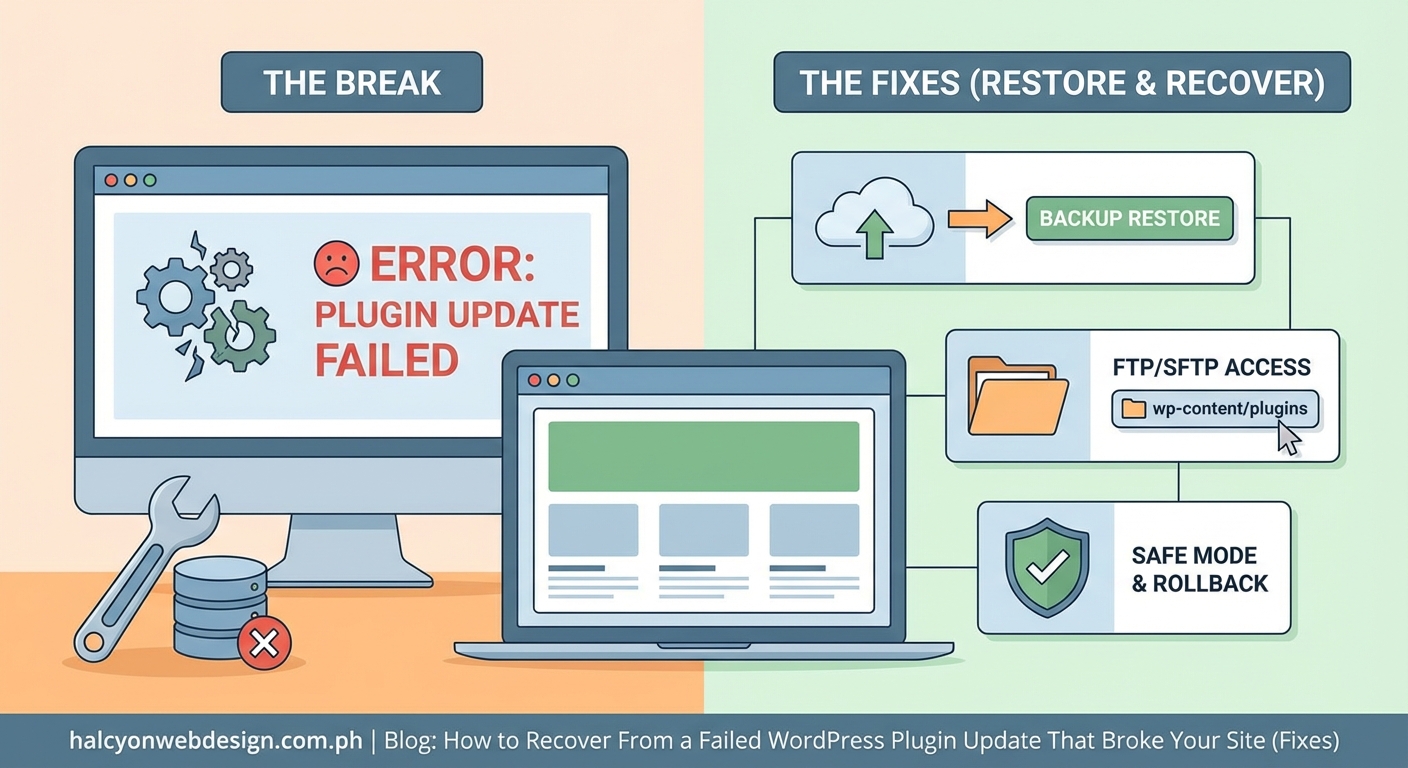
If your entire site shows a 500 error or critical failure and you can’t access wp-admin or hosting File Manager, you need to restore from backup.
Contact your hosting provider’s support team immediately. Most hosts keep automatic backups going back 7-30 days. Ask them to restore your site to the backup from right before the plugin update.
While waiting for support, try accessing your hosting control panel. Some hosts offer one-click backup restoration under a Backups or Site Tools section. Look for options like “Restore from backup” or “Site snapshots.”
If your host doesn’t provide backups, and you don’t have your own backup solution, you may need to reinstall WordPress fresh. This is the worst-case scenario and means potential data loss, which is why choosing the right WordPress hosting plan with reliable backups matters from day one.
How to identify which plugin caused the crash
Sometimes the error message tells you exactly which plugin failed. Other times you’ll need detective work.
Check debug logs:
WordPress can create detailed error logs if you enable debug mode. This requires editing a file called wp-config.php.
- Access your site files via File Manager or FTP
- Find wp-config.php in your root WordPress folder
- Download a backup copy to your computer first
- Open wp-config.php in a text editor
- Look for the line that says
define('WP_DEBUG', false); - Change it to
define('WP_DEBUG', true); - Add these lines right below it:
define(‘WP_DEBUG_LOG’, true);
define(‘WP_DEBUG_DISPLAY’, false);
8. Save the file and upload it back to your server
Now WordPress will write errors to /wp-content/debug.log. Access that file through File Manager or FTP to see which plugin or theme file is generating errors.
Process of elimination:
If you disabled all plugins by renaming the plugins folder, reactivate them strategically:
- Activate your five oldest plugins first (ones you haven’t updated in months)
- Check your site
- Activate the next batch
- Check again
- Save the recently updated plugin for last
This method isolates the problem plugin without creating new conflicts.
Common plugin conflict patterns
Certain types of plugins break sites more often than others. Understanding these patterns helps you prevent future crashes.
| Plugin Type | Common Conflict | Why It Happens |
|---|---|---|
| Caching plugins | Breaks after theme updates | Caches old CSS/JS files that don’t match new theme code |
| Security plugins | Blocks admin access | New rules accidentally lock out legitimate users |
| Page builders | White screen on pages | Conflicts with theme’s built-in editor or WordPress block editor |
| SEO plugins | Slow dashboard | Database queries conflict with other plugins checking post metadata |
| Form plugins | Submissions fail | JavaScript conflicts with other plugins loading jQuery libraries |
If your broken plugin falls into one of these categories, check if you’re running multiple plugins that do similar jobs. Running two caching plugins or two SEO plugins almost always causes conflicts.
“The number one cause of plugin conflicts is running redundant plugins. Your theme might include built-in SEO features, and then you install Yoast. Or your host provides server-level caching, and you add a caching plugin. Always audit what’s already handling a function before adding a new plugin.” — WordPress developer with 12+ years experience
Preventing future plugin update disasters
You can’t avoid updates forever. Outdated plugins become security risks. But you can update smarter.
Create a staging site:
Many hosts offer free staging environments where you can clone your live site. Update plugins on staging first. If something breaks, your real site stays untouched. Only push updates to production after testing them in staging.
Update one plugin at a time:
Never click “Update All Plugins” unless you’re ready to troubleshoot. Update your most critical plugin, test your site thoroughly, then move to the next plugin. This takes longer but makes problems easier to trace.
Read changelogs before updating:
Plugin developers publish changelogs listing what changed in each version. If you see “Major rewrite” or “Breaking changes” or “Requires PHP 7.4+”, that’s a red flag. Check if your site meets the new requirements before updating.
Enable automatic backups:
Set up daily automatic backups that save to cloud storage (not just your server). If your server crashes, you need backups stored elsewhere. Many hosts include this feature. If yours doesn’t, install a backup plugin like UpdraftPlus or BackWPup.
Monitor your site after updates:
Don’t update plugins and walk away. Spend five minutes clicking through your most important pages. Test your contact form. Try adding a product to cart. Log out and log back in. Many breaks aren’t obvious until someone tries to use a specific feature.
When to get professional help
Some situations require a developer’s expertise:
- Your site is down for more than two hours and you’ve tried all recovery methods
- You restored from backup but the same plugin keeps breaking after updates
- Error logs show database corruption messages
- You need the broken plugin’s functionality and can’t find a stable alternative
- Your site handles e-commerce transactions and you’re losing sales every minute
Don’t let pride keep your site broken for days. A developer can often fix complex conflicts in 30 minutes that would take you days of trial and error. The cost of hiring help is usually less than the revenue lost from extended downtime.
Understanding WordPress recovery mode
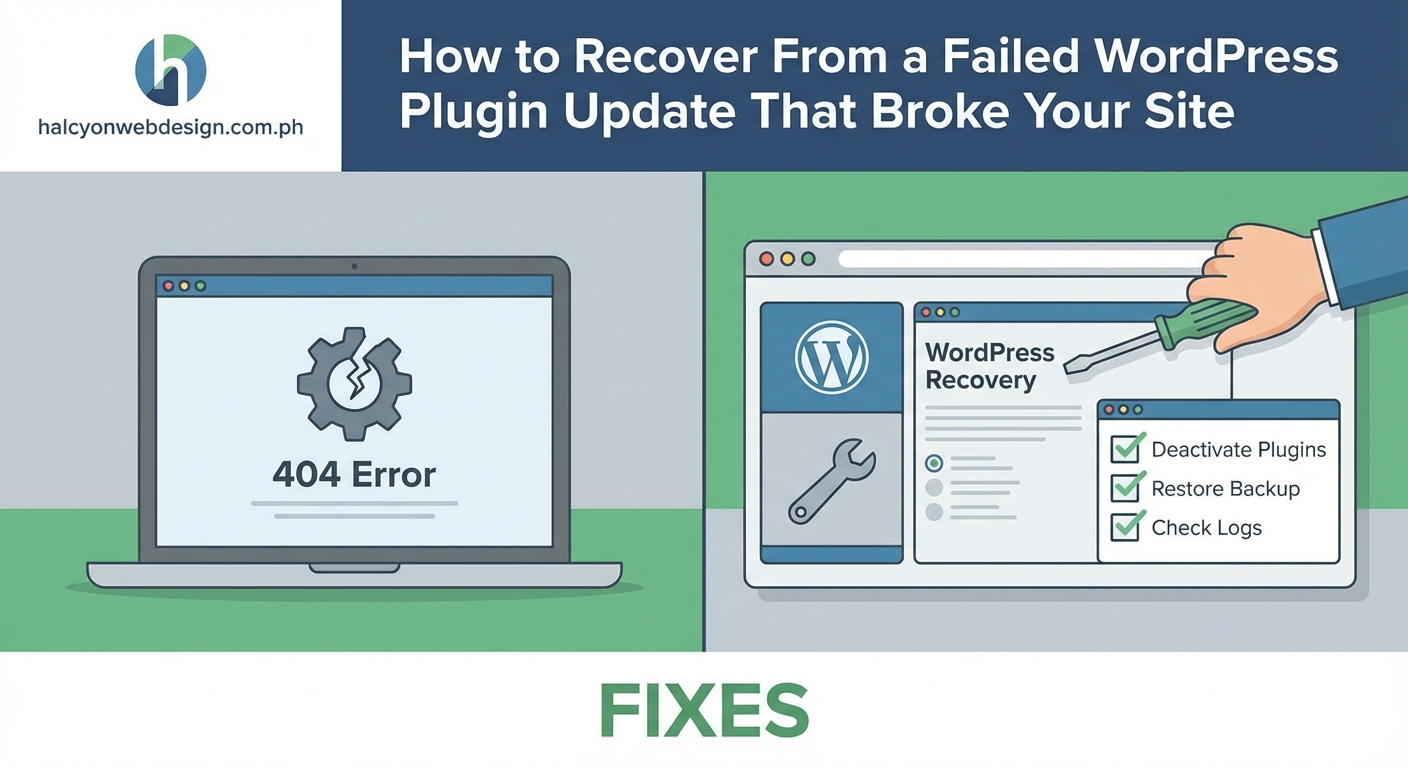
WordPress 5.2 introduced recovery mode specifically for plugin and theme crashes. When WordPress detects a fatal error, it sends an email to your admin address with a special recovery link.
This link adds a parameter to your URL that tells WordPress to load in safe mode. The broken plugin or theme gets paused automatically. You can access your dashboard, deactivate the problem plugin permanently, and restore normal operations.
Recovery mode links expire after 24 hours for security reasons. If your link expired, you can generate a new one by triggering the error again (visit the page that was crashing) or by using the manual recovery methods described earlier.
Some hosts customize how recovery mode works. They might send the email from their own system or provide recovery tools in your hosting dashboard. Check your host’s documentation if the standard WordPress recovery email doesn’t arrive.
What to do if the plugin is essential
Sometimes the plugin that broke is running your store, your membership site, or your booking system. You can’t just leave it deactivated.
First, contact the plugin developer’s support team. Include your error log, WordPress version, PHP version, and a list of other active plugins. Most reputable plugin developers respond within 24 hours.
While waiting for support, look for alternatives. If a booking plugin broke, search for “WordPress booking plugin” and read recent reviews. Many plugins offer free trials or money-back guarantees. You might find a more stable option that works better anyway.
If you must use that specific plugin, consider these temporary solutions:
- Roll back to an older version that was stable
- Disable other plugins that might conflict with it
- Switch to a default WordPress theme temporarily (conflicts sometimes come from theme code)
- Ask your host to change your PHP version (some plugins break on PHP 8+ but work on PHP 7.4)
Document everything you try. This information helps support teams diagnose the issue faster.
The relationship between plugins and site performance
A broken site is obvious. A slow site is insidious. Plugin updates sometimes don’t crash your site but make it crawl. Visitors leave before pages finish loading.
If your site came back online after deactivating a plugin but now loads slowly, that plugin was probably poorly coded. Even when functional, it was consuming excessive server resources.
Test your site speed before and after reactivating plugins. Use Google PageSpeed Insights or GTmetrix to measure load times. If a plugin adds more than two seconds to your load time, find a lighter alternative.
Site speed affects everything from user experience to search rankings. Why your WordPress site loads slowly often comes down to bloated plugins doing jobs that could be handled with simpler code.
How to evaluate plugin quality before installing
Prevention beats recovery. Before installing any plugin, check these quality signals:
- Last updated within the past three months
- Compatible with your WordPress version
- Active installations over 10,000 (shows stability)
- Support threads get responses within a week
- Developer has other successful plugins
- Clear documentation and setup guides
Avoid plugins that haven’t been updated in over a year. WordPress changes frequently. Abandoned plugins become security risks and compatibility nightmares.
Read the one-star reviews, not just the five-star ones. Negative reviews reveal deal-breakers like “broke my site after update” or “conflicts with WooCommerce.” If multiple recent reviews mention crashes, skip that plugin entirely.
How to choose the right WordPress plugin without breaking your site involves researching before installing, not troubleshooting after disasters.
Building a sustainable plugin strategy
Your site doesn’t need 50 plugins. Every plugin adds potential conflict points and security vulnerabilities. Audit your plugins quarterly:
- Which ones haven’t you used in months?
- Are you paying for premium plugins you don’t need?
- Do multiple plugins handle similar functions?
- Can any plugin’s job be done with simple code instead?
Deactivate and delete unused plugins completely. Deactivated plugins still take up space and can sometimes cause conflicts. Deletion removes them entirely.
Some features don’t need plugins at all. Adding a contact form might only require a simple HTML form and a PHP mail script. Building a sticky header with pure CSS eliminates the need for a header plugin entirely.
The fewer plugins you run, the fewer things can break during updates.
Keeping your WordPress ecosystem healthy
Plugin crashes often reveal deeper site health issues. If updates frequently break your site, examine your foundation:
- Are you running the latest WordPress version?
- Is your PHP version current? (WordPress recommends PHP 7.4 or higher)
- Does your hosting plan provide adequate resources for your traffic?
- Are you using a well-coded theme from a reputable developer?
Outdated infrastructure causes more crashes than bad plugins. A site running WordPress 5.8 on PHP 7.2 will struggle with plugins designed for WordPress 6.4 on PHP 8.1.
How to choose the right web hosting plan for your WordPress site affects everything downstream. Cheap shared hosting with limited resources can’t handle resource-intensive plugins, even when those plugins are perfectly coded.
Documentation saves time during emergencies
Create a simple text file or spreadsheet listing:
- Your WordPress admin URL and username (not password)
- Your hosting provider’s support phone number and login URL
- Your FTP credentials (store passwords in a password manager)
- Which plugins are essential vs. optional
- When you last updated each plugin
- Your site’s PHP version and WordPress version
Store this file somewhere accessible from your phone. When your site crashes at 11 PM, you won’t remember these details. Having them documented means you can start recovery immediately instead of hunting for login credentials.
Add notes after each incident. “Contact Form 7 conflicted with caching plugin on June 15, 2024” becomes valuable reference data when troubleshooting future issues.
Your site will survive this
A broken site feels catastrophic in the moment. But remember that WordPress powers 40% of all websites. Millions of site owners have faced this exact situation. The tools to fix it are built into WordPress itself.
Most crashes can be reversed in minutes once you know which plugin caused the problem. Even worst-case scenarios where you need to restore from backup rarely result in permanent data loss if you’ve been running regular backups.
Take a breath. Follow the recovery steps that match your access level. Your site will be back online soon, and you’ll know exactly how to handle this situation next time it happens.
The experience you’re gaining right now makes you a more capable site owner. You’re learning how WordPress works under the hood. That knowledge compounds over time, making every future crisis easier to handle.