
Your website just lost a visitor. They waited three seconds for your homepage to load, then clicked back to Google. Someone in Sydney tried to download your product image, but your server is in New York. The file crawled across the Pacific at dial-up speeds.
This happens thousands of times every day to websites without a content delivery network.
A CDN (content delivery network) is a system of geographically distributed servers that cache and deliver your website content from locations closest to each visitor. This reduces load times, decreases bandwidth costs, improves security, and handles traffic spikes better than a single origin server. Most websites see 50% faster load times after implementing a CDN, especially for international visitors.
Understanding Content Delivery Networks
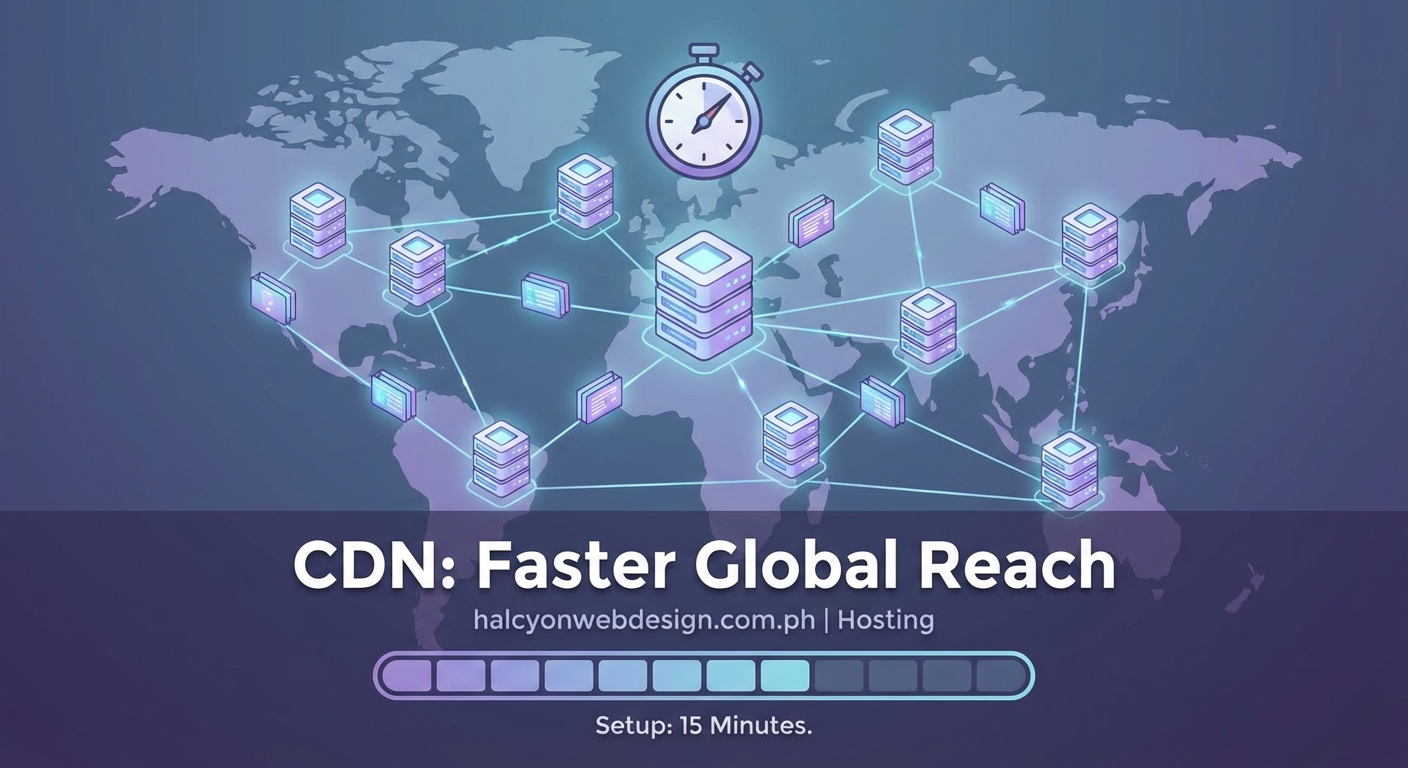
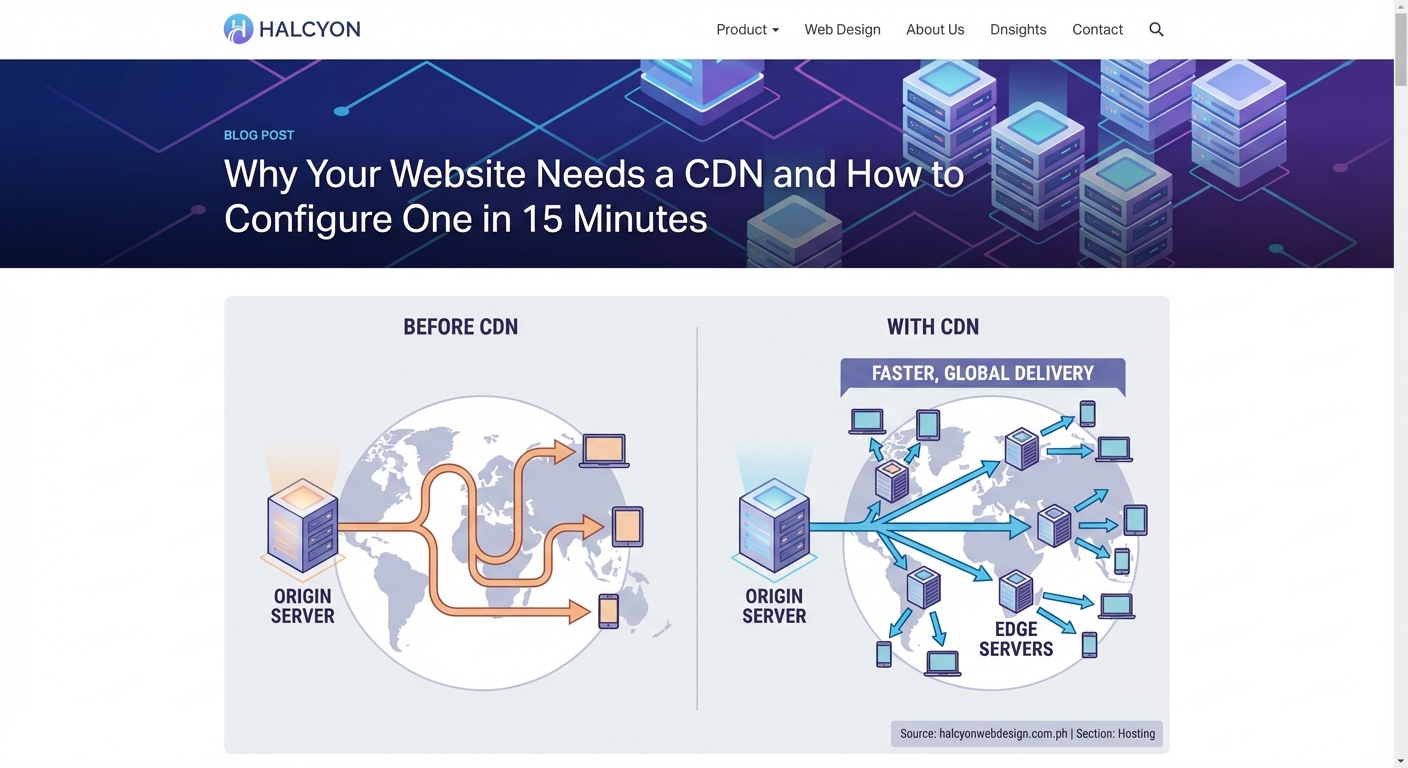
A CDN is a network of servers spread across different geographic locations that work together to deliver your website content faster.
Think of it like a pizza chain. Instead of one kitchen serving an entire country, they put locations in every city. Your pizza arrives hot because it only travels two miles instead of two hundred.
CDNs do the same thing with your website files. When someone in Tokyo visits your site, they get files from a server in Tokyo, not from your origin server in Dallas. The distance matters more than you think.
Every mile adds latency. Light travels fast, but it still takes time to cross oceans through fiber optic cables. A request from Singapore to a New York server takes 200-300 milliseconds just for the round trip. Add processing time, and you’re looking at half a second before anything starts loading.
A CDN cuts that delay to almost nothing.
How CDNs Actually Work Behind the Scenes
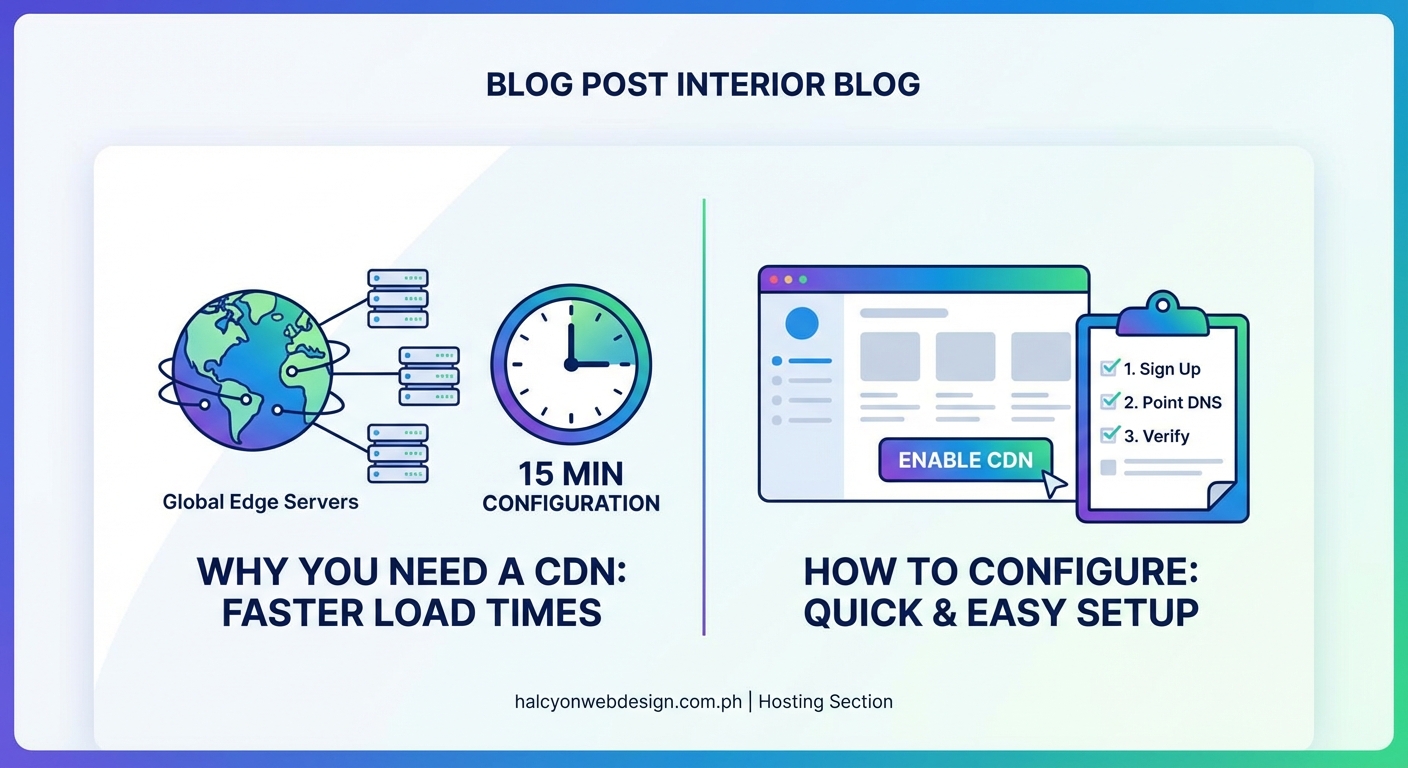
Here’s what happens when someone visits your CDN-enabled website:
- A visitor in London types your URL into their browser.
- Their browser sends a request to the nearest CDN server (called an edge server or point of presence).
- The edge server checks if it has a cached copy of the requested file.
- If yes, it sends the file immediately.
- If no, it fetches the file from your origin server, caches it, then sends it to the visitor.
- Future visitors in that region get the cached version instantly.
The magic happens in step 3. After the first visitor requests a file, everyone else in that region gets it from the local cache. No more trips back to your origin server.
CDNs cache different types of content:
- Images and videos
- CSS and JavaScript files
- Fonts and downloadable files
- HTML pages (with proper configuration)
- API responses (for dynamic content)
Some CDNs only cache static files. Others can handle dynamic content through edge computing, where they run code at the edge server instead of sending every request back to your origin.
The Real Benefits You’ll Actually Notice
Faster load times are obvious, but CDNs do more than speed things up.
Reduced server load. Your origin server only handles requests that aren’t cached. If your CDN serves 80% of requests from cache, your server only works 20% as hard. This means you can handle more traffic with cheaper hosting.
Lower bandwidth costs. You pay for data transfer from your hosting provider. When the CDN serves most files, you transfer less data from your origin server. Some website owners cut bandwidth bills by 60% after adding a CDN.
Better uptime. If your origin server goes down, many CDNs can continue serving cached content. Visitors might not even notice the outage. Some CDNs also distribute requests across multiple servers, so no single point of failure takes down your site.
DDoS protection. Distributed denial of service attacks try to overwhelm your server with fake traffic. CDNs absorb this traffic across hundreds of servers instead of letting it hit your single origin server. The attack gets diluted across the network.
Improved SEO rankings. Google uses page speed as a ranking factor. Faster sites rank better. A CDN can improve your Core Web Vitals scores, especially for international visitors.
“The difference between a 1-second and 3-second load time is the difference between a sale and a bounce. CDNs are not optional anymore for serious websites.” — Performance optimization consultant
When You Actually Need a CDN
Not every website needs a CDN on day one. Here’s when it makes sense:
You have international visitors. If 30% of your traffic comes from other continents, a CDN will dramatically improve their experience. Check your analytics. If you see visitors from multiple countries, you need a CDN.
You serve lots of media files. Photography portfolios, video tutorials, downloadable resources. These large files benefit most from CDN caching. A 5MB image loads 10x faster from a local edge server.
You get traffic spikes. Product launches, viral posts, seasonal sales. CDNs handle sudden traffic increases better than most hosting plans. Your origin server stays calm while the CDN absorbs the surge.
Your hosting is budget-tier. Shared hosting struggles with concurrent visitors. A CDN offloads most requests, letting your basic hosting plan perform like a more expensive one. This is cheaper than upgrading your hosting.
You care about mobile users. Mobile connections are slower and less reliable. Every millisecond matters. CDNs help mobile visitors more than desktop users because they reduce the impact of slow connections.
You probably don’t need a CDN if you’re running a local business website with 50 visitors per day, all from the same city. The complexity isn’t worth it yet.
Choosing Between CDN Providers
The CDN market has options for every budget and technical level.
| Provider | Best For | Free Tier | Key Feature |
|---|---|---|---|
| Cloudflare | Beginners | Yes | Easy setup, DDoS protection |
| AWS CloudFront | Developers | Limited | Deep AWS integration |
| Fastly | Advanced users | No | Real-time purging, edge computing |
| BunnyCDN | Budget-conscious | No | Low cost, good performance |
| KeyCDN | Mid-sized sites | No | Pay-as-you-go pricing |
Cloudflare offers the easiest entry point. Their free plan includes CDN, SSL, and basic DDoS protection. You change your DNS settings, and you’re done. Most beginners start here.
AWS CloudFront integrates perfectly if you already use Amazon Web Services. It’s more complex to configure but offers precise control over caching rules and invalidation.
Fastly excels at instant cache purging. When you update content, it propagates across all edge servers in seconds instead of minutes. Publishers and e-commerce sites love this.
BunnyCDN and KeyCDN compete on price. They’re significantly cheaper than enterprise options while still delivering solid performance. Good for high-traffic sites watching costs.
Consider these factors when choosing:
- Number of edge locations (more is better for global reach)
- Cache purge speed (how fast updates propagate)
- SSL support (should be included)
- Bandwidth pricing (varies wildly between providers)
- Integration with your platform (WordPress plugins, etc.)
Common Mistakes That Break CDN Performance
Adding a CDN doesn’t automatically fix everything. These mistakes kill the benefits:
Not setting proper cache headers. Your origin server tells the CDN how long to cache files through HTTP headers. Without correct headers, the CDN might not cache anything, or it might cache dynamic content that should stay fresh.
Caching personalized content. If your site shows different content to logged-in users, you need to configure cache rules carefully. Otherwise, User A might see User B’s dashboard. This is a privacy nightmare.
Ignoring cache invalidation. You update your site’s CSS, but visitors see the old version for hours because it’s cached. You need a cache purging strategy. Some CDNs purge by URL, others by cache tag.
Using too many third-party scripts. Your CDN speeds up your files, but if you load 15 third-party scripts from other domains, your site still loads slowly. The CDN can’t cache external resources it doesn’t control.
Forgetting about mobile optimization. CDNs deliver files faster, but if you’re sending 5MB images to mobile phones, it still takes forever. Combine your CDN with image optimization and responsive design. Why your WordPress site loads slowly covers the full picture.
Skipping SSL configuration. Mixed content warnings happen when your CDN serves files over HTTPS but some resources load over HTTP. Visitors see security warnings. Always enable SSL on your CDN and update all resource URLs to HTTPS.
Setting Up Your First CDN
The basic setup process looks similar across most providers:
- Sign up for a CDN account.
- Add your website domain to the CDN dashboard.
- Configure DNS settings to point to the CDN (either change nameservers or add CNAME records).
- Enable SSL/TLS encryption.
- Set cache rules for different file types.
- Test your site thoroughly.
- Monitor performance and adjust settings.
Cloudflare makes this easiest. You change your domain’s nameservers to Cloudflare’s servers, and they handle everything else automatically. Your site starts using the CDN within minutes.
WordPress users can use plugins like WP Rocket or W3 Total Cache to integrate with various CDNs. These plugins handle the technical details, rewriting URLs automatically to point to the CDN.
For custom setups, you’ll modify your website code to load static assets from the CDN URL instead of your domain. Change this:

To this:

Most modern frameworks and content management systems have built-in CDN support. Check your platform’s documentation.
Monitoring CDN Performance
After setup, you need to verify the CDN is actually working and helping.
Use these tools to check:
Browser developer tools. Open the Network tab and reload your page. Look at the response headers for your static files. You should see headers like CF-Cache-Status: HIT (Cloudflare) or X-Cache: HIT (other CDNs). This confirms files are being served from cache.
CDN analytics dashboard. Most providers show bandwidth saved, cache hit ratio, and traffic by location. A good cache hit ratio is above 80%. If it’s lower, your cache headers might be wrong.
Speed testing tools. Test your site from different locations using tools like GTmetrix or WebPageTest. Compare load times from New York, London, Singapore, and Sydney. You should see consistent speeds regardless of location.
Real user monitoring. Tools like Google Analytics can show actual page load times for real visitors. This matters more than synthetic tests because it reflects your actual user experience.
Watch for these warning signs:
- Cache hit ratio below 70%
- Increased bandwidth usage from origin
- Slow load times from specific regions
- SSL errors or mixed content warnings
- Outdated content being served after updates
Most issues come from incorrect cache headers or purge settings. Review your configuration if you notice problems.
Advanced CDN Features Worth Knowing
Modern CDNs offer capabilities beyond simple caching.
Image optimization. Some CDNs automatically compress and resize images based on the visitor’s device. They serve WebP to browsers that support it, JPEG to older browsers. This happens automatically without changing your original files.
Edge computing. Run code at the CDN edge instead of your origin server. This enables personalization, A/B testing, and dynamic content without round trips to your server. Cloudflare Workers and Fastly Compute@Edge do this.
Video streaming. Specialized CDNs handle video delivery with adaptive bitrate streaming. They serve different quality levels based on the viewer’s connection speed. Essential for video-heavy sites.
API acceleration. Cache API responses at the edge. This speeds up mobile apps and JavaScript-heavy sites that fetch data through APIs.
Security features. Web application firewalls, bot detection, rate limiting. Many CDNs include security tools that protect against common attacks beyond DDoS.
These advanced features usually cost extra or require higher-tier plans. Start with basic CDN caching and add features as you need them.
CDN Costs and Pricing Models
CDN pricing varies dramatically based on traffic volume and features.
Free tiers exist. Cloudflare’s free plan works great for small to medium sites. You get unlimited bandwidth (with reasonable use limits), SSL, and basic DDoS protection. Thousands of sites run on this permanently.
Paid plans start around $20-50 per month for low to moderate traffic. You’re paying for bandwidth, usually measured in gigabytes transferred. Prices drop per gigabyte as your volume increases.
Enterprise plans cost thousands per month but include dedicated support, custom configurations, and premium features. Only high-traffic sites need this level.
Pay-as-you-go pricing charges based on actual usage. You pay $0.01-0.10 per gigabyte depending on the region. This works well for unpredictable traffic.
Hidden costs to watch for:
- Request fees (some CDNs charge per request, not just bandwidth)
- Cache purge fees (Fastly charges for instant purging)
- SSL certificate costs (usually included now, but verify)
- Support fees (some providers charge for email support)
Calculate your expected bandwidth before choosing a plan. Check your current hosting bandwidth usage as a baseline. Choosing the right web hosting plan helps you understand your resource needs.
Troubleshooting Common CDN Issues
Even properly configured CDNs sometimes cause problems.
Stale content won’t update. You changed your CSS, but visitors see the old version. Solution: Purge the cache manually through your CDN dashboard, or append version numbers to filenames (style.css?v=2). Version numbers force the CDN to fetch new files.
Login pages break. Users can’t log in or see wrong content. Solution: Exclude authentication pages from caching. Add cache bypass rules for /wp-admin/, /login/, /checkout/, and similar paths.
Analytics look wrong. Visitor counts drop after adding a CDN. Solution: The CDN’s IP addresses appear in logs instead of visitor IPs. Enable IP forwarding in your CDN settings and configure your analytics to read the X-Forwarded-For header.
SSL certificate errors. Visitors see security warnings. Solution: Verify SSL is enabled on your CDN and set to “Full (Strict)” mode. Make sure your origin server also has a valid SSL certificate.
Specific regions load slowly. One country has slow speeds while others are fast. Solution: Check if your CDN has edge servers in that region. Some CDNs have limited presence in certain countries. Consider switching providers or adding a second CDN.
Mixed content warnings. Pages show as “not secure” despite having SSL. Solution: Update all resource URLs to use HTTPS. Search your database and code for http:// references and change them to https:// or use protocol-relative URLs (//example.com/image.jpg).
Making CDNs Work With Your Workflow
CDNs integrate into your development process with some adjustments.
For development environments, disable the CDN or use a separate CDN zone. You don’t want to cache constantly changing development files. Most CDNs let you create separate configurations for staging and production.
For content updates, establish a cache purging routine. After publishing new content, purge relevant cache entries. Some WordPress plugins do this automatically when you update a post.
For design changes, version your CSS and JavaScript files. Change style.css to style-v2.css when you update it, or use build tools that append hash values automatically. This forces immediate updates without manual cache purging.
For team workflows, document your CDN settings. Write down which paths are cached, cache durations, and purge procedures. When someone else needs to update the site, they’ll know what to do.
Why Understanding CDNs Matters for Your Site
A CDN transforms how your website reaches visitors around the world.
It’s not just about speed, though that matters enormously. It’s about reliability, cost efficiency, and providing a consistent experience regardless of where someone lives or what device they use.
The best part is you set it up once and forget about it. Your CDN works silently in the background, serving millions of requests while your origin server stays relaxed.
Start with a simple setup. Choose Cloudflare’s free plan or another beginner-friendly option. Point your DNS, enable caching, and watch your load times drop. You can always add complexity later as your needs grow.
Your international visitors will thank you. Your server will thank you. Your hosting bill will definitely thank you.