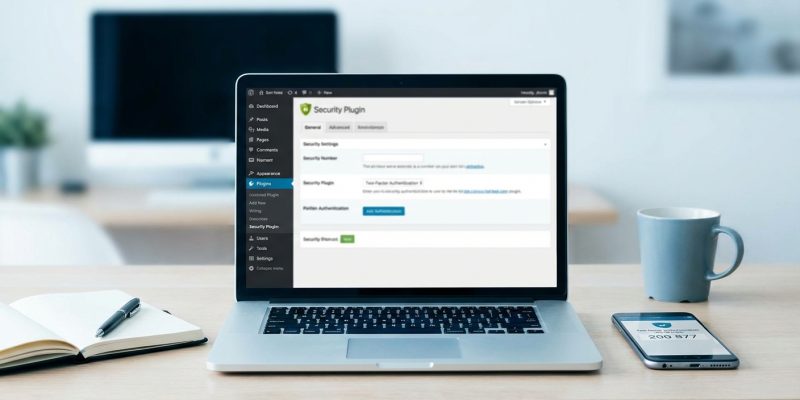
Your WordPress login page is under attack right now. Bots try thousands of username and password combinations every hour, hoping to get lucky. Even strong passwords can be stolen through phishing emails or data breaches. That’s where two factor authentication comes in. It adds a second layer of protection that makes it nearly impossible for attackers to access your site, even if they have your password.
Two factor authentication protects your WordPress site by requiring a second verification step after entering your password. You can implement it safely using free plugins like WP 2FA or Two Factor, configure it for your user account first, test thoroughly before enforcing it site wide, and keep backup codes stored securely. The entire process takes about 15 minutes and dramatically reduces your risk of unauthorized access.
Why Two Factor Authentication Matters for WordPress
WordPress powers over 40% of all websites. That popularity makes it a massive target for hackers.
Traditional password protection has a fatal weakness. Once someone gets your password, they have full access to your site. They can install malware, steal customer data, or delete everything you’ve built.
Two factor authentication (often called 2FA) fixes this problem by requiring two separate proofs of identity. First, you enter your password. Then you provide a second verification, usually a code from your phone. An attacker would need both your password and physical access to your device.
The math is simple. According to Microsoft, 2FA blocks over 99% of automated attacks. That’s because bots can guess passwords, but they can’t intercept codes sent to your phone.
Many site owners worry that adding security will complicate their workflow or lock them out of their own site. That’s a valid concern. But modern 2FA plugins are designed with safety features like backup codes and grace periods. You can implement this protection without risking downtime.
Understanding How Two Factor Authentication Works
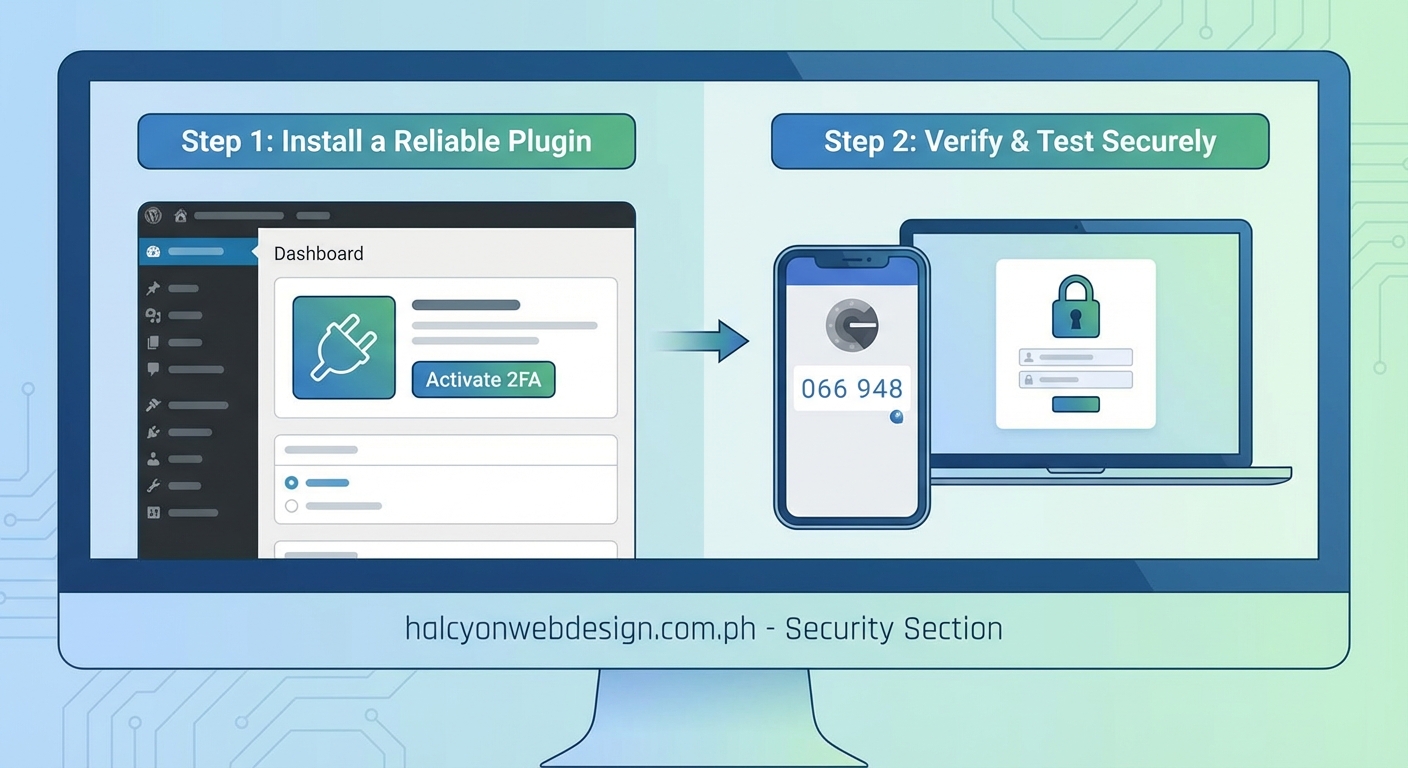
The concept is straightforward. You know something (your password) and you have something (your phone or security key).
After you type your username and password correctly, WordPress asks for a second piece of information. This could be:
- A six digit code from an authenticator app like Google Authenticator or Authy
- A code sent via SMS to your phone
- A code sent to your email address
- A physical security key that plugs into your computer
- A biometric scan on your device
The most popular method uses time based one time passwords (TOTP). Your phone generates a new six digit code every 30 seconds. The code is based on a secret key that only your phone and your WordPress site know. Even if someone intercepts the code, it expires in seconds.
Email based codes are easier to set up but slightly less secure. If someone compromises your email account, they can bypass 2FA. SMS codes have similar risks because phone numbers can be hijacked through social engineering attacks on mobile carriers.
For most WordPress site owners, authenticator apps offer the best balance of security and convenience.
Choosing the Right Plugin for Your Site
WordPress doesn’t include built in two factor authentication. You’ll need a plugin.
Here are the most reliable options:
| Plugin Name | Best For | Key Features | Cost |
|---|---|---|---|
| WP 2FA | Most users | Easy setup wizard, multiple methods, backup codes | Free with premium option |
| Two Factor | Minimalists | Lightweight, email and TOTP support, no bloat | Free |
| Wordfence Login Security | Existing Wordfence users | Integrates with Wordfence firewall, TOTP and reCAPTCHA | Free |
| miniOrange | Enterprise sites | SMS, hardware tokens, role based enforcement | Free with premium features |
I recommend WP 2FA for most situations. It has a setup wizard that walks you through configuration, supports multiple authentication methods, and generates backup codes automatically.
The free version of WP 2FA includes everything you need. The premium version adds features like enforcing 2FA for specific user roles and white labeling, which most small sites don’t require.
Before installing any security plugin, check that it’s actively maintained. Look at the last update date in the WordPress plugin directory. Avoid plugins that haven’t been updated in over six months. You can also learn more about how to choose the right WordPress plugin without breaking your site to make safer decisions.
Setting Up Two Factor Authentication Step by Step
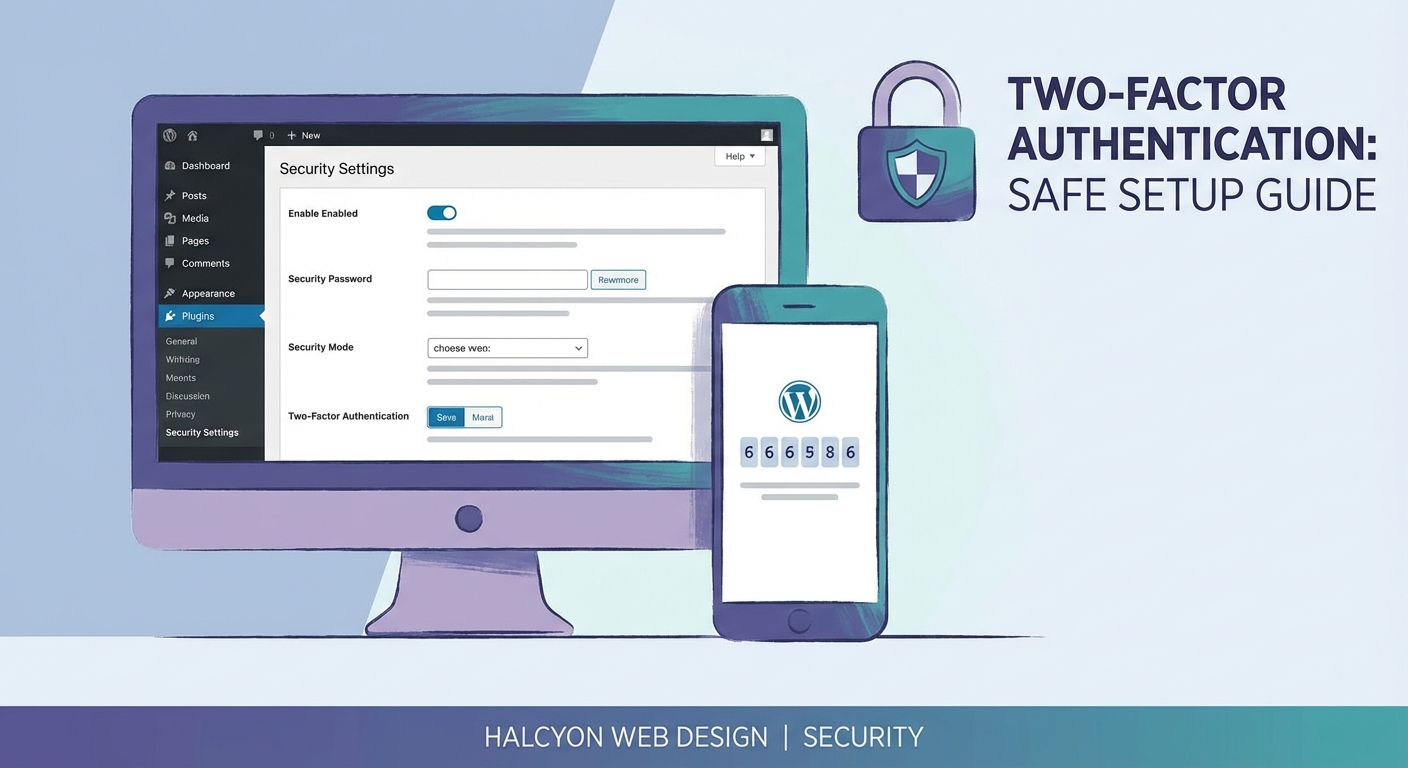
Here’s exactly how to implement 2FA on your WordPress site without causing problems.
1. Back Up Your Site First
Before making any security changes, create a complete backup of your WordPress files and database.
Most hosting providers offer one click backup tools in their control panel. Use that feature or install a backup plugin like UpdraftPlus.
Store the backup somewhere safe, like your computer or a cloud storage service. If something goes wrong during setup, you can restore your site to its previous state.
2. Install Your Chosen Plugin
Log into your WordPress dashboard. Go to Plugins > Add New.
Search for “WP 2FA” (or your chosen plugin). Click Install Now, then Activate.
The plugin will appear in your left sidebar menu. Click on it to start the setup wizard.
3. Configure Your Personal Account First
Never enable 2FA site wide before testing it on your own account. That’s the fastest way to lock yourself out.
WP 2FA will prompt you to set up 2FA for your user account immediately after activation. Follow these steps:
- Download an authenticator app on your phone if you don’t have one yet. Google Authenticator and Authy are both free and reliable.
- Open the authenticator app and tap the plus icon to add a new account.
- Scan the QR code displayed in WordPress with your phone’s camera.
- Your authenticator app will start generating six digit codes every 30 seconds.
- Enter the current code into WordPress to confirm the connection.
- WordPress will display a list of backup codes. Copy these codes and save them in a secure location like a password manager or a locked note on your phone.
Each backup code works once. If you lose access to your authenticator app, you can use a backup code to log in and reconfigure 2FA.
4. Test Your Login Process
Log out of WordPress completely. Close your browser to clear any saved sessions.
Open a new browser window and go to your WordPress login page. Enter your username and password.
WordPress should redirect you to a second screen asking for an authentication code. Open your authenticator app and enter the current six digit code.
You should be logged in successfully. If you can’t get in, you have two options:
- Use one of your backup codes instead of the authenticator code
- Access your site via FTP or your hosting control panel and deactivate the plugin by renaming its folder
This is why testing on your own account first is critical. You can troubleshoot issues without affecting other users.
5. Configure Settings for Other Users
Once you’ve confirmed 2FA works for your account, decide how to handle other users.
WP 2FA offers several enforcement options:
- Recommended: Users are encouraged to enable 2FA but can skip it
- Required for admins: Administrator accounts must use 2FA, other roles are optional
- Required for all: Every user must set up 2FA before they can access the dashboard
Start with the recommended setting. This gives users time to set up 2FA without creating support headaches.
After a grace period of two weeks, you can switch to required mode. WP 2FA will display a banner in the WordPress dashboard reminding users to enable 2FA.
6. Document the Process for Your Team
If other people access your WordPress dashboard, send them clear instructions:
- Explain why you’re implementing 2FA
- Link to instructions for downloading an authenticator app
- Remind them to save their backup codes
- Provide your contact information for troubleshooting
Most lockout situations happen because users don’t understand the process or lose their backup codes. Clear communication prevents these problems.
Common Mistakes That Break Your Site
Here are the errors that cause the most trouble, and how to avoid them:
“The biggest mistake I see is site owners enabling 2FA for all users immediately without testing first. Always configure and test 2FA on your own account before requiring it for others. This gives you a chance to understand the login flow and troubleshoot any issues while you still have full access to your site.” — WordPress security consultant
Enabling 2FA without backup codes: Always generate and save backup codes before you log out. Store them in multiple locations. If your phone dies or you lose your authenticator app, backup codes are your only way back in.
Using SMS as your only method: Phone numbers can be hijacked. SMS messages can be delayed or fail to deliver. Use an authenticator app as your primary method and keep email or backup codes as alternatives.
Not testing in a private browser window: Your current browser session might keep you logged in even after enabling 2FA. Test in an incognito window to see what the actual login experience looks like.
Forgetting about scheduled tasks and API access: Some plugins and services connect to your WordPress site using application passwords or API keys. These connections might break if you enforce 2FA site wide. Check your integrations before flipping the switch.
Choosing a plugin without recent updates: Security plugins need regular updates to patch vulnerabilities. A 2FA plugin that hasn’t been updated in a year could have unpatched security holes that defeat the entire purpose.
Troubleshooting When Things Go Wrong
Even with careful setup, you might run into issues. Here’s how to fix the most common problems.
You can’t log in because you lost your phone: Use a backup code instead of your authenticator code. Each backup code works once. After you log in, go to your user profile and reconfigure 2FA with your new device.
You lost your backup codes too: You’ll need to access your site through FTP or your hosting control panel. Navigate to the wp-content/plugins folder and rename the 2FA plugin folder (add “-disabled” to the end). This temporarily deactivates the plugin so you can log in normally. After logging in, reactivate the plugin and set up 2FA again.
The authenticator code doesn’t work: Check that the time on your phone matches the time on your computer. TOTP codes are time based, so even a few minutes of difference can cause codes to fail. Go to your phone settings and enable automatic time zone detection.
Users are getting locked out repeatedly: Make sure you’ve enabled backup codes and communicated them clearly to your team. Consider extending the grace period or switching from required mode to recommended mode temporarily while users get comfortable with the process.
The plugin conflicts with another security plugin: Some security plugins don’t play well together. If you’re already using a plugin like Wordfence or iThemes Security, check if it has built in 2FA features before adding another plugin. Running two 2FA plugins simultaneously will cause conflicts.
Maintaining Your Two Factor Authentication Setup
Setting up 2FA isn’t a one time task. You need to maintain it properly.
Rotate backup codes every six months: Generate new backup codes and delete the old ones. This reduces the risk if someone finds your old codes.
Review who has 2FA enabled: Check your user list regularly to see which accounts have enabled 2FA. Reach out to users who haven’t set it up yet.
Update your plugin regularly: Enable automatic updates for your 2FA plugin if possible. Security plugins need to stay current to protect against new threats.
Test your backup codes annually: Use one of your backup codes to log in at least once a year. This confirms they still work and reminds you where you stored them.
Document your recovery process: Write down step by step instructions for accessing your site if 2FA fails completely. Include your hosting provider’s contact information and instructions for accessing files via FTP.
Advanced Options for Extra Security
Once basic 2FA is working, you can add additional layers of protection.
Limit login attempts: Install a plugin that locks accounts after several failed login attempts. This prevents brute force attacks even if someone bypasses 2FA somehow.
Require 2FA only for administrator accounts: If you have a large team and enforcing 2FA for everyone creates too much friction, require it only for users with administrator privileges. These accounts have the most power and represent the biggest risk if compromised.
Use hardware security keys: For maximum security, switch from authenticator apps to physical security keys like YubiKey. These USB devices provide phishing resistant authentication. Even if someone tricks you into entering your password on a fake site, they can’t steal the physical key.
Enable login page security measures: Combine 2FA with other protections covered in guides about how to secure your WordPress login page in 10 minutes for comprehensive defense.
Monitor login activity: Use a security plugin that logs all login attempts, successful and failed. Review these logs weekly to spot suspicious patterns.
Making Two Factor Authentication Part of Your Site Security Strategy
Two factor authentication is powerful, but it’s not magic. It protects against stolen passwords, but it won’t fix other security problems.
You still need to keep WordPress core, themes, and plugins updated. Outdated software creates vulnerabilities that attackers can exploit without ever touching your login page.
You still need reliable hosting. A good hosting provider includes server level security features like firewalls and malware scanning. Learn more about how to choose the right web hosting plan for your WordPress site to ensure your foundation is solid.
You still need regular backups. Even with perfect security, hardware can fail or human error can delete important data.
Think of 2FA as one layer in a complete security strategy. It’s an important layer, but it works best when combined with other protections.
The good news is that 2FA is one of the easiest security improvements you can make. It takes about 15 minutes to set up and provides immediate protection against the most common type of attack: credential theft.
Your Site Is Safer Starting Today
You now have everything you need to implement two factor authentication on your WordPress site safely.
Start by backing up your site and installing WP 2FA. Configure it on your own account first and test the login process thoroughly. Only after you’ve confirmed everything works should you enable it for other users.
Save your backup codes in multiple secure locations. Document the process for your team. Test your setup regularly to catch problems before they become emergencies.
The 15 minutes you spend setting this up will save you from the nightmare of recovering from a hacked site. Your future self will thank you.