
You’ve just installed Yoast SEO on your WordPress site. It’s working great. Then you hear about Rank Math and its fancy features. Maybe you also want a specialized schema plugin. Before you know it, you’re wondering if you can stack SEO plugins like building blocks to get better results.
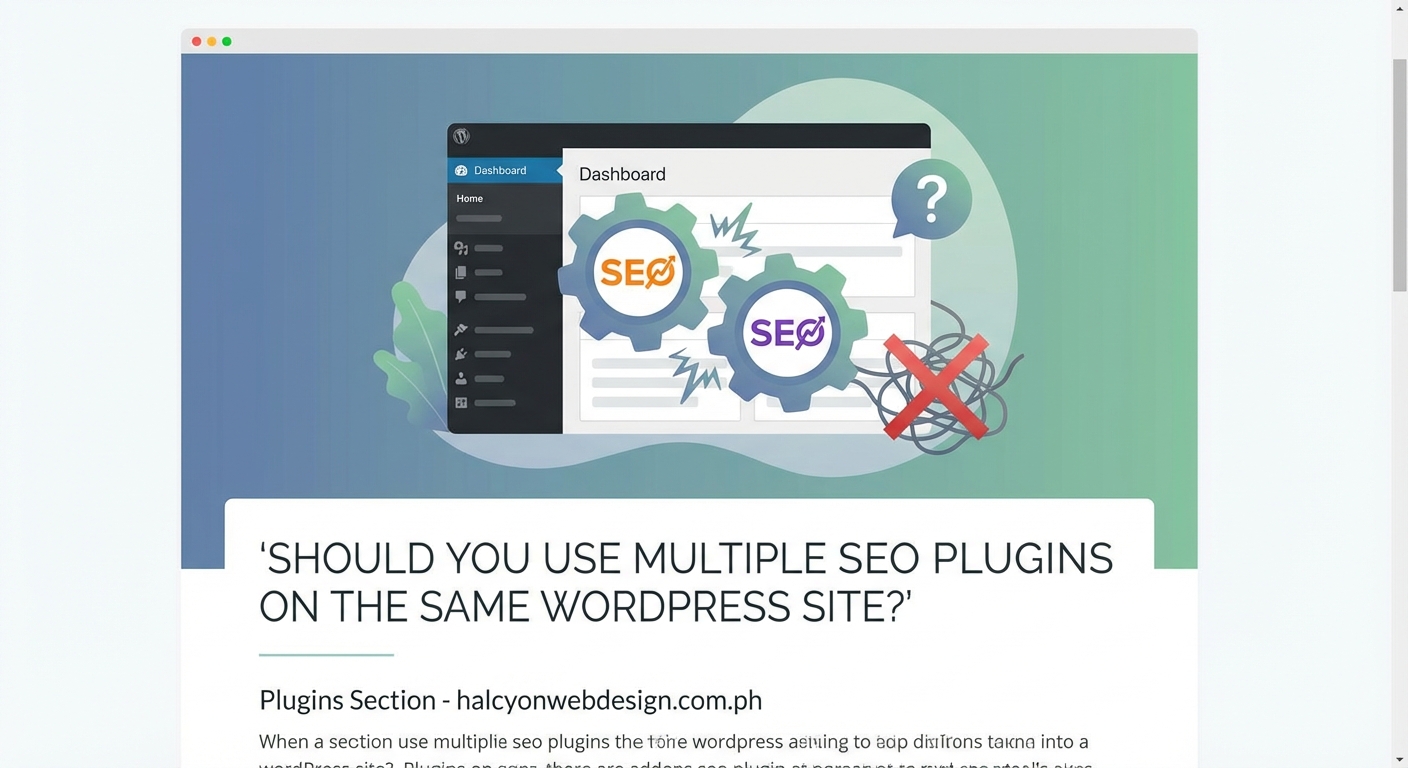
The short answer is technically yes, but practically no. WordPress won’t stop you from activating multiple SEO plugins at once, but doing so creates more problems than it solves.
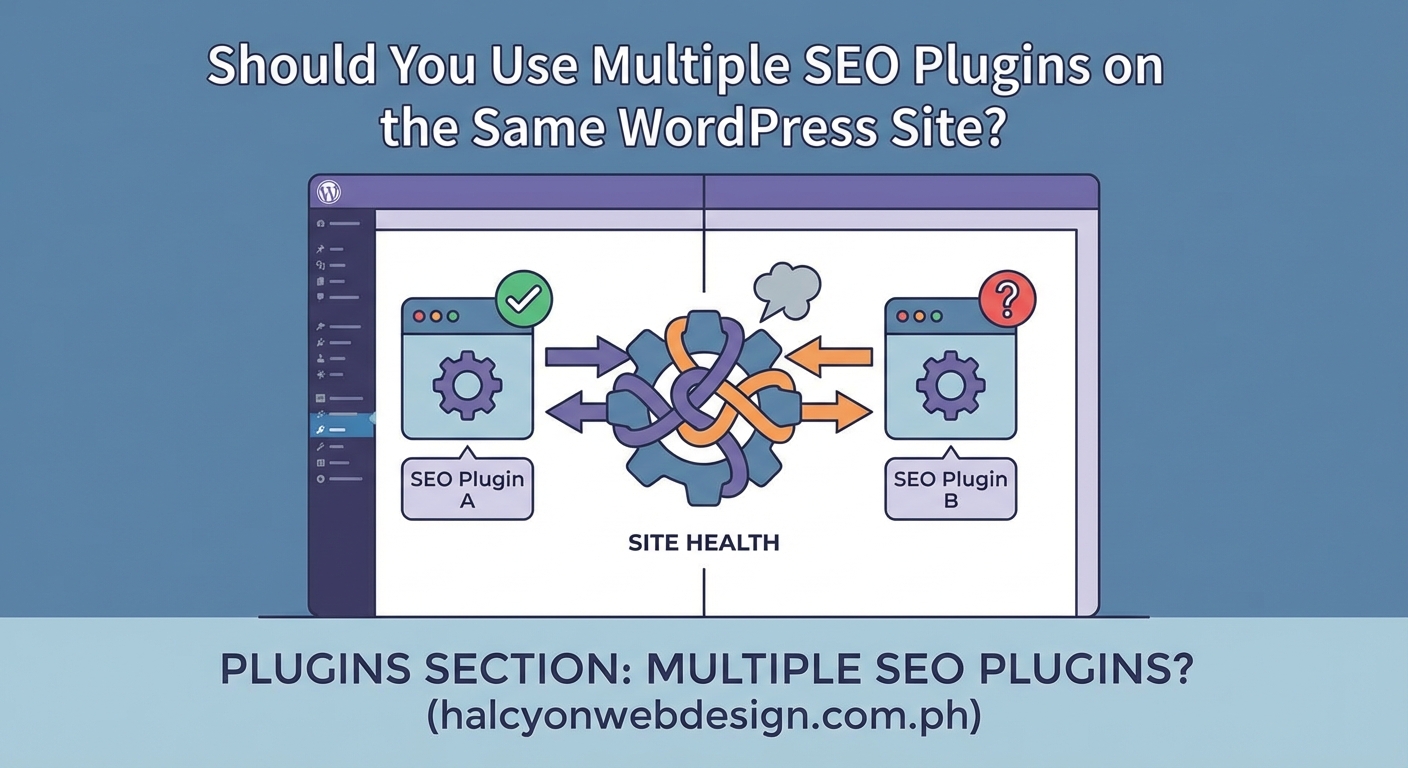
You can install multiple SEO plugins on WordPress, but you should only keep one comprehensive SEO plugin active at a time. Running several SEO plugins simultaneously causes conflicts with meta tags, slows down your site, creates duplicate functionality, and confuses search engines. Choose one primary SEO plugin that covers your needs, then add specialized tools only for features your main plugin lacks.
What happens when you activate multiple SEO plugins
WordPress allows you to activate as many plugins as you want. The system doesn’t check for overlapping features or conflicting code. That freedom becomes a problem when two SEO plugins try to control the same elements on your site.
Each comprehensive SEO plugin wants to manage your title tags, meta descriptions, Open Graph tags, XML sitemaps, and schema markup. When you run two at once, both plugins try to insert their own versions of these elements into your page code.
The result? Duplicate meta tags that confuse search engines. Google sees two different title tags for the same page and has to guess which one you actually want. Sometimes it picks neither and generates its own title instead.
Your XML sitemap might appear twice with different URLs. One plugin generates a sitemap at /sitemap.xml while another creates /sitemap_index.xml. Search engines waste time crawling redundant information.
Here’s what typically breaks when you run multiple SEO plugins:
- Title tags appear twice in your page source code
- Meta descriptions conflict or override each other
- Canonical URLs point to different versions of the same page
- Schema markup duplicates or creates validation errors
- Breadcrumb navigation shows up multiple times
- Social media preview images fail to load correctly
Performance problems you’ll face
Every active plugin adds code to your WordPress site. That code needs to load every time someone visits a page. More code means longer loading times.
SEO plugins are particularly heavy because they run on every single page of your site. They analyze content, generate tags, check readability, and inject scripts. One comprehensive SEO plugin already adds noticeable overhead. Two or three multiply that burden.
Page speed is a ranking factor for Google. If your site loads slowly because you’re running redundant plugins, you’re actually hurting your SEO instead of helping it. The irony is real.
Database queries increase too. Each SEO plugin stores its own settings and metadata in your WordPress database. When a page loads, WordPress has to fetch data from multiple plugin tables. More database queries mean slower response times, especially on shared hosting plans with limited resources.
Your WordPress admin area also becomes sluggish. Multiple SEO plugins each add their own meta boxes to the post editor. You’ll see overlapping fields for the same settings. Saving a post takes longer because WordPress has to process updates from all active plugins.
If you’re already dealing with a slow site, learn why your WordPress site loads slowly and how to fix it before adding more plugins to the mix.
The one plugin rule and its exceptions
Most WordPress experts recommend the one comprehensive SEO plugin rule. Pick Yoast SEO, Rank Math, All in One SEO, or SEOPress. Choose one and stick with it.
That plugin becomes your foundation. It handles all the core SEO functions: meta tags, sitemaps, redirects, breadcrumbs, and schema markup. Everything you need in one package.
But what about specialized tools? This is where exceptions exist.
You can safely combine a comprehensive SEO plugin with specialized plugins that handle specific tasks your main plugin doesn’t cover well. The key is avoiding overlap.
Here are safe combinations:
- One comprehensive SEO plugin plus a dedicated schema plugin (if your main plugin lacks advanced schema options)
- One comprehensive SEO plugin plus a broken link checker
- One comprehensive SEO plugin plus a specialized redirect manager (if you need advanced redirect features)
- One comprehensive SEO plugin plus image optimization tools
The rule is simple: each plugin should do one job that doesn’t conflict with the others.
Common mistakes people make
Many site owners activate multiple SEO plugins because they want features from each one. They like Yoast’s readability analysis but also want Rank Math’s Google Search Console integration. Instead of choosing, they run both.
This approach fails because comprehensive SEO plugins overlap by design. They’re built to be complete solutions. Running two complete solutions creates redundancy, not better coverage.
Another mistake is forgetting to deactivate the old plugin when switching to a new one. You install Rank Math, import your settings from Yoast, but leave Yoast active “just in case.” Now both plugins fight for control.
Some people activate free and premium versions of the same plugin simultaneously. WordPress treats these as separate plugins. You end up with duplicate functionality from the same developer.
| Mistake | Why it happens | How to fix it |
|---|---|---|
| Running two comprehensive SEO plugins | Wanting features from both | Choose one and learn all its features |
| Leaving old plugin active after migration | Fear of losing settings | Import settings properly, then deactivate old plugin |
| Activating free and pro versions together | Not understanding they conflict | Keep only the premium version active |
| Installing plugins for features already included | Not exploring current plugin fully | Read documentation before adding new plugins |
| Using multiple schema plugins | Chasing every schema type | Use one plugin and configure it completely |
How to choose your primary SEO plugin
Start by listing what you actually need. Most WordPress sites require basic SEO functions: meta tags, sitemaps, social sharing controls, and simple schema markup. Any major SEO plugin handles these tasks well.
Advanced features separate the options. Do you need WooCommerce integration? Local business schema? Multiple keyword tracking? Video SEO? Make a list of must-have features before comparing plugins.
Test the interface. Install each plugin on a staging site and spend 30 minutes clicking through the settings. The best SEO plugin is the one you’ll actually use. If the interface confuses you, you won’t configure it properly.
Consider your technical skill level. Rank Math offers more features but has a steeper learning curve. Yoast SEO provides a simpler interface with excellent documentation. All in One SEO sits somewhere in the middle.
Check compatibility with your theme and other plugins. Read recent reviews. Look for mentions of conflicts or compatibility issues with tools you already use. Making the right choice from the start saves headaches later, much like choosing the right WordPress plugin without breaking your site.
Free versions often provide everything small sites need. Premium versions add features like redirect managers, local SEO tools, and advanced schema options. Start with the free version and upgrade only if you need specific premium features.
Setting up one plugin correctly
Once you’ve chosen your SEO plugin, take time to configure it properly. Rushing through setup causes problems later.
Follow these steps for clean configuration:
- Install and activate only your chosen SEO plugin
- Run the setup wizard if available (most plugins offer guided setup)
- Configure your site-wide settings first (titles, social profiles, webmaster tools)
- Set up your XML sitemap and submit it to Google Search Console
- Configure default meta tag templates for posts and pages
- Review and customize schema markup settings
- Test everything on a few posts before moving to the rest of your site
Don’t skip the documentation. Every major SEO plugin provides detailed guides. Spend an hour reading through setup instructions. You’ll discover features you didn’t know existed and avoid common configuration mistakes.
Connect your plugin to Google Search Console and Google Analytics if it offers integration. Seeing search performance data inside WordPress saves time and helps you make better optimization decisions.
Set up redirects if you’re migrating from another SEO plugin. Your old plugin stored data in its own format. Most modern SEO plugins include import tools that transfer settings from competitors. Use these tools instead of manually recreating everything.
The biggest SEO mistake isn’t choosing the wrong plugin. It’s choosing the right plugin but never learning how to use it properly. Spend time mastering one tool instead of juggling multiple plugins you barely understand.
When specialized plugins make sense
Sometimes your comprehensive SEO plugin doesn’t handle a specific task well. That’s when specialized plugins become useful.
Schema markup is a common example. Basic SEO plugins include simple schema options for articles and local businesses. If you need advanced schema types like recipes, events, courses, or products, a dedicated schema plugin might help.
But check your main plugin first. Rank Math and All in One SEO both include extensive schema libraries. You might already have what you need without realizing it.
Image optimization is another area where specialized tools shine. SEO plugins don’t compress images or convert them to modern formats. Tools like ShortPixel or Imagify handle image optimization better than any SEO plugin could.
Broken link checking works well as a separate plugin. Your SEO plugin might not check for broken links at all, or it might slow down your site when scanning thousands of pages. A dedicated broken link checker runs these scans more efficiently.
Redirect management sometimes requires specialized tools. If you’re migrating a large site or consolidating multiple domains, you might need advanced redirect features your SEO plugin doesn’t provide.
The test is simple: does the specialized plugin do something your main SEO plugin can’t do at all? If yes, it’s worth considering. If it just does the same thing differently, skip it.
Troubleshooting plugin conflicts
If you’ve already activated multiple SEO plugins and things are breaking, here’s how to fix it.
Start by checking your page source code. Right-click on any page of your site and select “View Page Source.” Look for duplicate title tags, multiple meta descriptions, or repeated schema markup. These duplicates confirm plugin conflicts.
Deactivate all SEO plugins except one. Choose the plugin you want to keep as your primary tool. Leave it active and deactivate everything else.
Clear your cache. If you use a caching plugin or your host provides caching, clear all cached files. Old cached pages might still show duplicate tags even after you’ve fixed the problem.
Test your pages again. Check the source code to confirm duplicates are gone. Use Google’s Rich Results Test to verify your schema markup validates correctly.
Check Google Search Console for any new errors. Duplicate meta tags or conflicting canonical URLs might trigger warnings. These warnings usually clear up within a few days after you fix the underlying problem.
If you need features from the deactivated plugin, look for those features in your active plugin. Most comprehensive SEO plugins include similar functionality, just organized differently or named something else.
For ongoing site health, understanding how to fix crawled but currently not indexed issues helps you monitor whether your SEO setup is working correctly.
The real cost of plugin overload
Running too many plugins doesn’t just slow down your site. It creates maintenance headaches that compound over time.
Every plugin needs updates. Security patches, bug fixes, and compatibility updates arrive regularly. More plugins mean more updates to manage. Miss an update and you risk security vulnerabilities or compatibility breaks when WordPress releases a new version.
Each plugin is a potential point of failure. When something breaks on your site, you need to identify which plugin caused the problem. With 5 plugins, that’s manageable. With 20 plugins, troubleshooting becomes a nightmare.
Plugin conflicts multiply as you add more tools. Two plugins might work fine individually but conflict when active together. The more plugins you run, the higher the chance of unexpected interactions.
Support becomes complicated too. If you have a problem, which plugin developer do you contact? When multiple plugins control the same features, identifying the culprit takes detective work.
Database bloat is another hidden cost. Plugins store settings and data in your WordPress database. Deactivating a plugin doesn’t always remove its database tables. Over time, your database fills with orphaned data from old plugins, slowing down queries and backups.
Building a lean plugin stack
The best WordPress sites run lean. They use exactly as many plugins as needed, and no more.
Start with a plugin audit. List every active plugin on your site. For each one, ask: what does this do? Do I actually use this feature? Could my other plugins handle this task?
You’ll probably find plugins you installed months ago and forgot about. Deactivate anything you’re not actively using.
For SEO specifically, aim for this setup:
- One comprehensive SEO plugin for meta tags, sitemaps, and basic schema
- One image optimization plugin if your host doesn’t provide it
- One caching plugin for performance
- Specialized tools only for features your main plugins truly lack
That’s usually 3 to 5 plugins total for SEO and performance. Everything else should serve other specific needs: contact forms, security, backups, or functionality unique to your site’s purpose.
Quality beats quantity. One well-configured SEO plugin outperforms three poorly configured ones every time.
When evaluating new plugins, check if they integrate with your existing tools. Some plugins work together intentionally. Others clash by design. Reading compatibility notes before installing saves time and frustration, similar to choosing the right WordPress hosting plan that supports your plugin choices.
Migrating between SEO plugins safely
Switching from one SEO plugin to another requires planning. You can’t just deactivate the old plugin and activate the new one without losing important data.
Most modern SEO plugins include import tools. Rank Math can import from Yoast, All in One SEO, and others. Yoast offers import from older plugins. These tools transfer your meta tags, settings, and redirects automatically.
Here’s the safe migration process:
- Install your new SEO plugin but don’t activate it yet
- Read the migration documentation for your specific plugin combination
- Create a full backup of your site and database
- Activate the new plugin (both plugins will run temporarily)
- Use the import tool to transfer settings from the old plugin
- Check several posts and pages to confirm meta tags transferred correctly
- Verify your XML sitemap works at its new URL
- Deactivate the old plugin only after confirming everything works
- Test your site thoroughly for a few days before deleting the old plugin
Keep the old plugin installed but deactivated for at least a week. If something breaks, you can quickly reactivate it while you troubleshoot.
Update your Google Search Console sitemap URL if it changes. Different plugins use different sitemap locations. Submit the new sitemap URL and monitor for crawl errors.
Some data won’t transfer perfectly. Custom schema markup or advanced settings might need manual recreation. Budget time for this cleanup work instead of expecting a perfect one-click migration.
Making meta tags work right
Meta tags are where multiple SEO plugins cause the most visible problems. Understanding how they work helps you avoid conflicts.
WordPress generates basic HTML for your pages. SEO plugins hook into that process and inject additional tags into the head section. These tags tell search engines and social platforms how to display your content.
When one SEO plugin is active, it controls all meta tag output. Clean and simple.
When two SEO plugins are active, both try to inject tags. WordPress doesn’t know which one should win, so it includes both. Your page ends up with two title tags, two meta descriptions, and duplicate Open Graph tags.
Search engines handle duplicates inconsistently. Google might use the first title tag it finds, or it might ignore both and generate its own. Facebook’s scraper might grab the wrong image because conflicting Open Graph tags confused it.
The fix is ensuring only one plugin controls meta tags. Most comprehensive SEO plugins include settings to disable specific features. If you must run two plugins temporarily, check if you can disable meta tag output in one of them.
Better yet, stick with one plugin. Modern SEO plugins are comprehensive for a reason. They’re designed to handle everything meta tag related without needing help.
For crafting effective meta descriptions specifically, learning how to write meta descriptions that actually get clicks helps you make the most of whichever plugin you choose.
Understanding plugin priorities and load order
WordPress loads plugins in alphabetical order based on their folder names. This order matters when plugins conflict.
If you have both “all-in-one-seo-pack” and “wordpress-seo” (Yoast) installed, All in One SEO loads first. Both plugins hook into WordPress at similar points, but the first one to load often gets priority.
This creates unpredictable behavior. Sometimes the first plugin’s settings win. Other times the second plugin overrides the first. The result depends on how each plugin’s code is written.
You can’t reliably control which plugin wins by renaming folders. That’s a hack that breaks when plugins update.
The correct solution is running only one plugin. Don’t try to game the load order. Eliminate the conflict entirely.
Some developers try to solve conflicts by adjusting hook priorities in code. This works temporarily but breaks when either plugin updates. You end up maintaining custom code just to make two conflicting plugins coexist. That’s more work than learning one plugin properly.
Your path to cleaner SEO
Multiple SEO plugins seem like a shortcut to better optimization. In reality, they create more work and worse results.
Choose one comprehensive SEO plugin that fits your skill level and feature needs. Learn it thoroughly. Configure it properly. Keep it updated.
Add specialized plugins only when your main plugin can’t handle a specific task at all. Avoid overlap at all costs.
Your site will load faster. Your code will be cleaner. Search engines will see consistent signals instead of conflicting information. And you’ll spend less time troubleshooting mysterious problems caused by plugin conflicts.
The question “can I use multiple SEO plugins WordPress” has a technical answer (yes) and a practical answer (don’t). Follow the practical advice and your site will thank you with better performance and rankings.