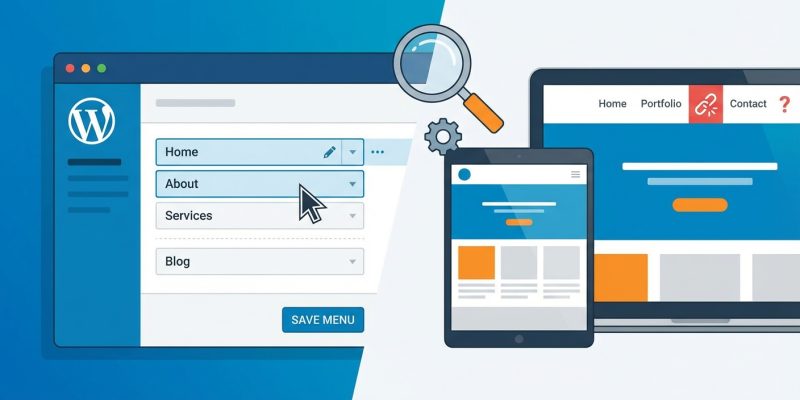
You spent 20 minutes reorganizing your WordPress menu. Added new pages. Rearranged the order. Hit save. Then you opened your site in a new tab and saw… the old menu. Still sitting there like nothing happened.
This happens more often than you’d think. The good news? Most cases boil down to a handful of fixable causes.
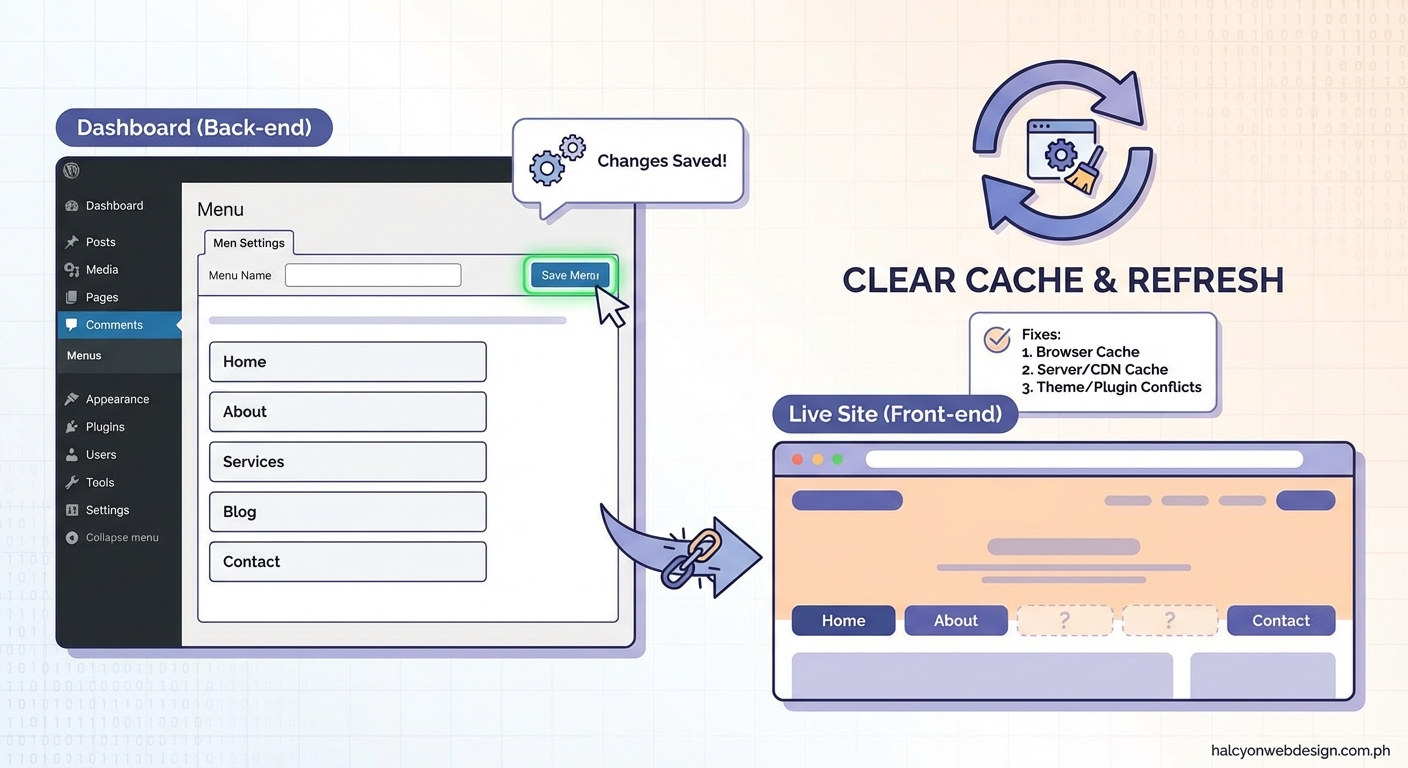
When WordPress menu changes don’t appear on your live site, the culprit is usually caching at the browser, plugin, or server level. Other common causes include incorrect menu location assignments, theme overrides, or outdated plugins. Clearing caches, verifying menu locations, and testing with a default theme will solve most issues within minutes.
Why Your Menu Changes Disappear
WordPress stores menu data in your database. When you save changes, the data updates immediately. But what visitors see depends on what gets delivered to their browser.
Several layers sit between your database and the visitor’s screen. Each layer can serve outdated content.
Caching stores old versions
Caching creates snapshots of your pages to speed up load times. When a cache exists, WordPress skips rebuilding the page from scratch. It serves the saved version instead.
This saves server resources and improves site speed. But it also means your fresh menu changes stay hidden until the cache refreshes.
Three types of caching affect WordPress menus:
- Browser cache stores files on the visitor’s device
- Plugin cache saves rendered pages on your server
- Server cache operates at the hosting level before WordPress even loads
Menu location mismatches
WordPress themes define menu locations. A location might be called Primary Menu, Header Menu, or Top Navigation. You assign your menu to one of these slots.
If you edited the menu but assigned it to the wrong location, your changes won’t appear where you expect them. The old menu might still be assigned to the visible slot.
Theme or plugin overrides
Some themes build menus dynamically. Page builders like Elementor or custom header plugins can bypass the WordPress menu system entirely.
If your theme uses a custom menu module, changes made in Appearance > Menus won’t affect what displays on the front end.
How to Fix WordPress Menu Changes Not Showing
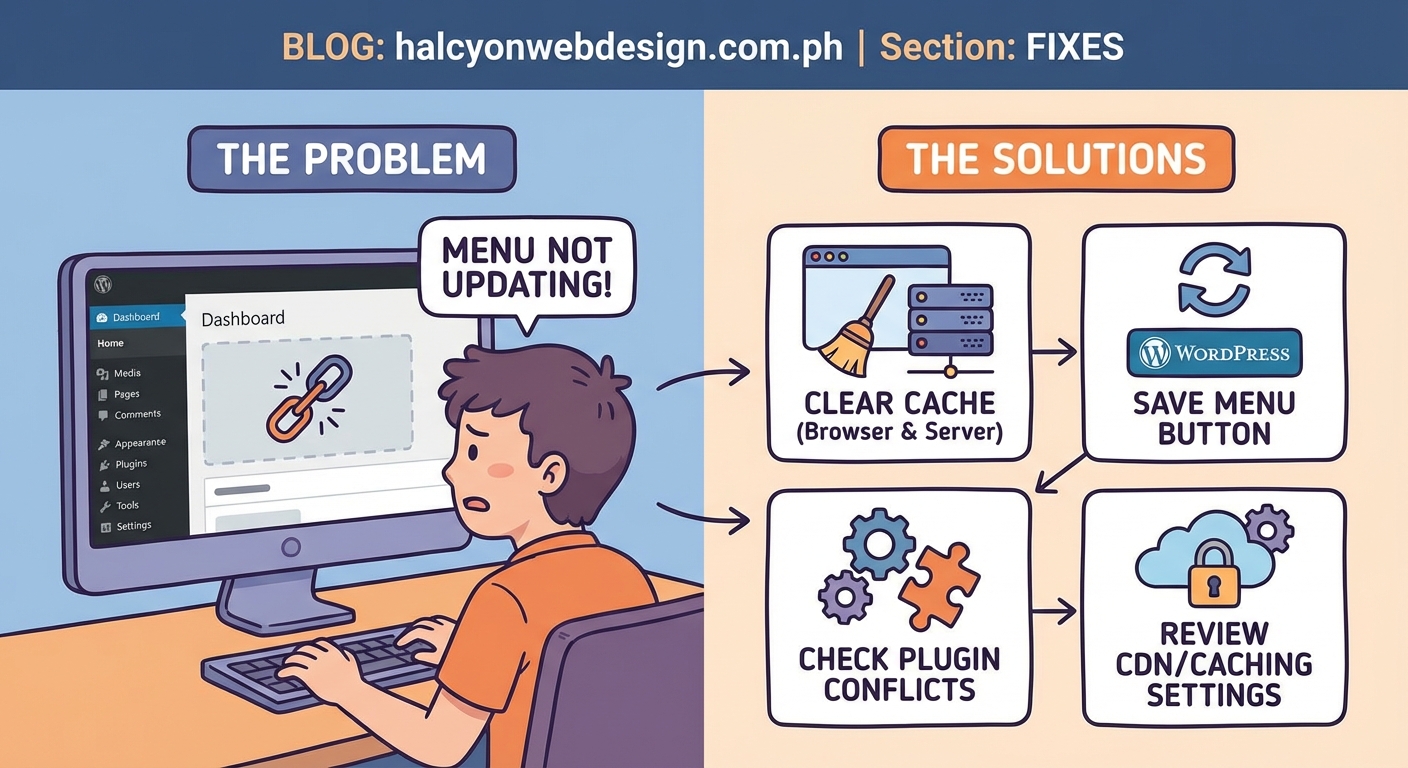
Work through these solutions in order. Most problems resolve within the first two steps.
1. Clear your browser cache
Your browser stores copies of images, stylesheets, and HTML. This speeds up repeat visits but shows you outdated content.
Perform a hard refresh to bypass the cache:
- Windows/Linux: Hold Ctrl and press F5
- Mac: Hold Cmd + Shift and press R
- Chrome/Edge: Hold Ctrl + Shift (or Cmd + Shift) and press Delete to open cache settings
After clearing, reload your site. Check if the menu updates appear.
If you see changes after a hard refresh but other visitors still see the old menu, the problem sits deeper in the caching stack.
2. Clear your WordPress caching plugin
Most WordPress sites use a caching plugin. Popular options include WP Rocket, W3 Total Cache, WP Super Cache, and LiteSpeed Cache.
Each plugin stores different types of cache. Menus usually live in the page cache or HTML cache.
Here’s how to clear cache in common plugins:
| Plugin | Steps to Clear Cache |
|---|---|
| WP Rocket | Dashboard > WP Rocket > Clear Cache button |
| W3 Total Cache | Performance > Dashboard > Empty All Caches |
| WP Super Cache | Settings > WP Super Cache > Delete Cache |
| LiteSpeed Cache | LiteSpeed Cache > Dashboard > Purge All |
After clearing the cache, visit your site in an incognito window. This prevents your browser cache from interfering with the test.
3. Check your menu location assignment
WordPress lets you create multiple menus. Only the menu assigned to a visible location appears on your site.
Follow these steps to verify your assignment:
- Go to Appearance > Menus in your WordPress dashboard
- Look at the top of the screen for a dropdown that says “Select a menu to edit”
- Choose the menu you edited
- Scroll to the bottom section labeled “Menu Settings”
- Check which location boxes are ticked
If your menu isn’t assigned to any location, or if it’s assigned to a location your theme doesn’t use, visitors won’t see your changes.
Some themes display multiple menus. A common setup includes a primary menu in the header and a secondary menu in the footer. Make sure you edited and assigned the correct menu for the location you’re checking.
4. Verify your theme supports custom menus
Older or poorly coded themes sometimes hardcode navigation. This means menu items are written directly into theme files instead of pulling from WordPress menu settings.
Test whether your theme respects WordPress menus:
- Go to Appearance > Themes
- Activate a default WordPress theme like Twenty Twenty-Four
- Go to Appearance > Menus and check if your menu locations appear
- Assign your menu and visit the front end
If your menu displays correctly with a default theme but not with your custom theme, the theme is overriding WordPress menu functions.
You’ll need to either switch themes or contact the theme developer for support. Choosing a reliable theme from the start prevents these headaches.
5. Clear server-level cache
Many hosting providers add their own caching layer. This sits above WordPress and your plugins.
Popular hosts with built-in caching include:
- SiteGround: SiteGround Optimizer plugin or SG Optimizer in hosting panel
- Kinsta: MyKinsta dashboard > Sites > Tools > Clear Cache
- WP Engine: WP Engine Portal > Site > Utilities > Purge All Caches
- Bluehost: Bluehost dashboard > Advanced > Caching
Check your hosting control panel or documentation. Look for terms like “flush cache,” “purge cache,” or “clear cache.” Reliable hosting typically makes cache management straightforward.
6. Check for CDN caching
Content Delivery Networks distribute your site files across multiple servers worldwide. CDNs cache aggressively to reduce load times.
If you use Cloudflare, StackPath, or another CDN, log into the CDN dashboard and purge the cache. The exact steps vary by provider, but most offer a “Purge Everything” or “Clear Cache” button.
After purging, wait 2-3 minutes for the changes to propagate across CDN servers. Then check your site again.
7. Disable caching temporarily
If you’ve cleared all caches and still see the old menu, disable caching entirely for testing.
Deactivate your caching plugin:
- Go to Plugins > Installed Plugins
- Find your caching plugin
- Click Deactivate
Visit your site in a new incognito window. If the menu appears correctly now, the caching plugin is misconfigured or conflicts with another plugin.
Reactivate the caching plugin and review its settings. Look for options like “Exclude menu from cache” or “Don’t cache logged-in users.” Adjust settings and test again.
If your menu changes appear when caching is disabled but vanish when caching is enabled, your caching plugin needs reconfiguration. Check the plugin’s documentation or support forum for menu-specific cache exclusion rules.
8. Look for page builder conflicts
Page builders like Elementor, Divi, and Beaver Builder often include their own menu widgets. These widgets don’t always sync with WordPress menus automatically.
If you built your header with a page builder:
- Open the header template in your page builder editor
- Find the menu module or widget
- Check if it’s set to display a specific menu
- Update the menu selection if needed
- Save and regenerate the template
Some page builders cache templates separately. Look for options like “Regenerate CSS” or “Clear Template Cache” in the builder settings.
9. Check for plugin conflicts
A plugin conflict can prevent menu updates from displaying. This happens when two plugins modify the same part of WordPress.
Test for conflicts by deactivating plugins:
- Go to Plugins > Installed Plugins
- Deactivate all plugins except your caching plugin
- Check if the menu displays correctly
- Reactivate plugins one by one
- Test the menu after each activation
When you find the conflicting plugin, check for updates. Developers often fix compatibility issues in newer versions. If no update exists, choose an alternative plugin that doesn’t conflict.
10. Verify you saved the changes
This sounds obvious, but it’s easy to miss. WordPress requires you to click the “Save Menu” button after making changes.
The button sits in the top right and bottom right of the menu editor. If you edited items but closed the page without saving, your changes never reached the database.
Return to Appearance > Menus and check if your edits are still there. If not, you’ll need to redo them and remember to save.
Common Mistakes That Hide Menu Changes
Understanding what not to do saves time. Here are the most frequent errors:
| Mistake | Why It Happens | How to Avoid It |
|---|---|---|
| Editing the wrong menu | Multiple menus exist with similar names | Check the menu name at the top of the editor before making changes |
| Not assigning menu to a location | Menu exists but isn’t connected to a visible slot | Always check Menu Settings at the bottom and tick the appropriate location |
| Forgetting to save | Closing the editor without clicking Save Menu | Make saving the last step before leaving the page |
| Clearing only one cache layer | Multiple caches exist (browser, plugin, server, CDN) | Clear all cache types systematically |
| Testing while logged in | WordPress shows different content to logged-in users | Always test in an incognito window or logged out |
When Menu Changes Still Won’t Appear
If you’ve tried everything and your menu still won’t update, the problem might be more technical.
Database issues
Corrupted database tables can prevent WordPress from retrieving updated menu data. Run a database repair:
- Access your site files via FTP or hosting file manager
- Open wp-config.php
- Add this line before “That’s all, stop editing”:
define('WP_ALLOW_REPAIR', true); - Visit yoursite.com/wp-admin/maint/repair.php
- Click “Repair Database”
- Remove the line from wp-config.php after repair completes
Permissions problems
Incorrect file permissions can prevent WordPress from writing menu changes to the database. Your host can verify and fix permissions if needed.
Theme bugs
Some themes contain bugs that prevent menu updates from displaying. Check the theme’s support forum or changelog for known issues.
If the theme hasn’t been updated in over a year, consider switching to a maintained theme. Outdated themes create security risks and compatibility problems.
Preventing Future Menu Display Issues
Once you’ve fixed the problem, take steps to prevent it from happening again.
Set up proper caching rules
Configure your caching plugin to exclude menus from aggressive caching. Most plugins offer settings for dynamic content.
Look for options like:
- Cache timeout or expiration time (set to 24 hours or less for frequently updated sites)
- Exclude specific pages or elements from caching
- Automatically clear cache when content updates
Document your menu locations
Keep a simple note of which menu is assigned to which location. This helps you (or anyone else managing the site) make changes confidently.
A basic spreadsheet works:
- Primary Header Menu > Header Location
- Footer Links > Footer Location
- Mobile Menu > Mobile Location
Test changes in staging
If you manage a business site, use a staging environment for testing. Make menu changes on staging first. Verify they display correctly. Then push changes to the live site.
Many hosts offer built-in staging. Quality hosting makes this process simple.
Keep plugins and themes updated
Outdated software causes unpredictable behavior. Set aside time monthly to update WordPress core, themes, and plugins.
Before updating, back up your site. If something breaks, you can restore quickly.
Use a child theme for customizations
If you’ve modified your theme’s menu code, those changes disappear when the theme updates. A child theme preserves customizations through updates.
Creating a child theme takes 10 minutes and prevents hours of frustration later.
Getting Your Menu Changes to Stick
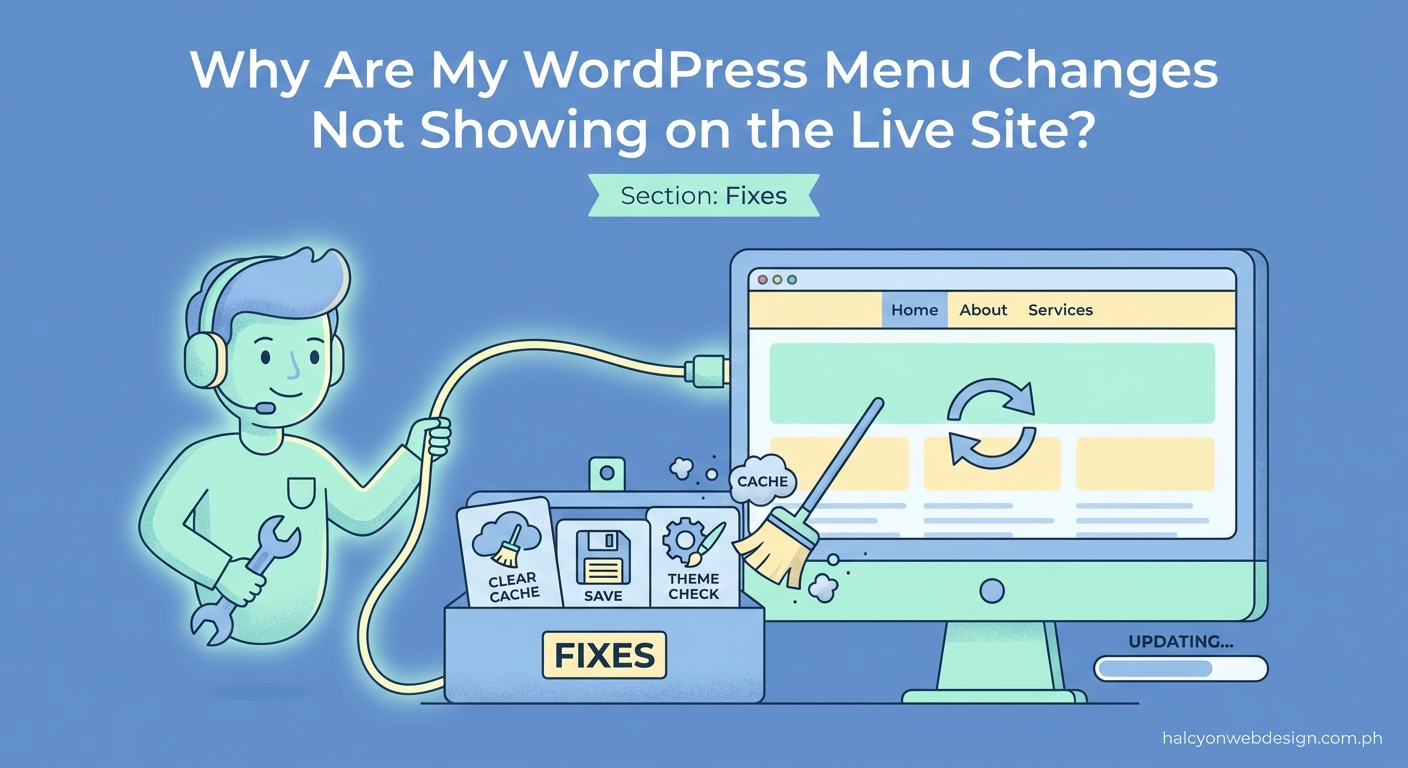
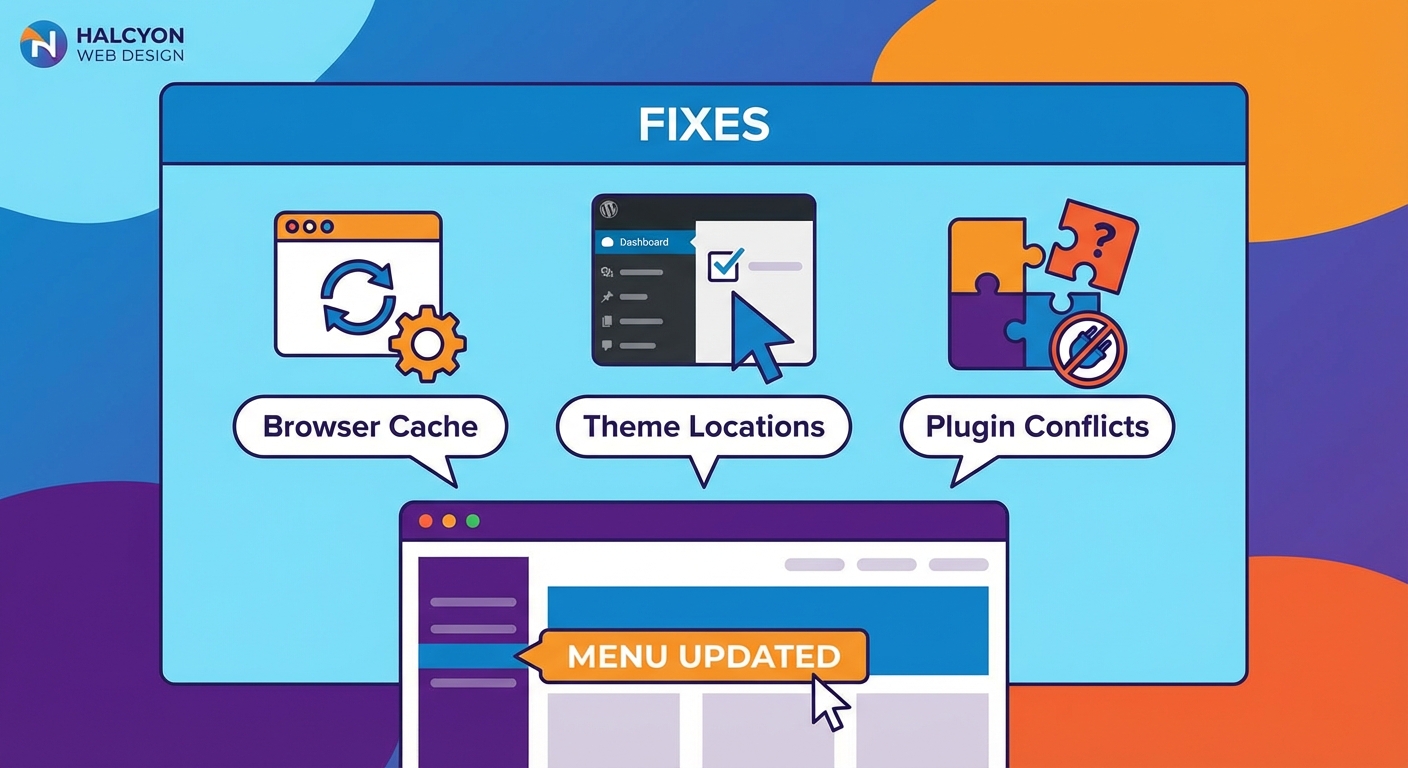
Menu changes should appear instantly. When they don’t, caching is usually the culprit.
Start with a hard browser refresh. Clear your caching plugin. Check your menu location assignments. These three steps solve most cases.
For stubborn issues, work through server caching, CDN settings, and theme conflicts. Test systematically. Document what you try.
Once your menu displays correctly, configure your caching settings to prevent future problems. Set reasonable cache expiration times. Exclude dynamic elements when needed.
Your navigation guides visitors through your site. When it works correctly, people find what they need. When it breaks, they leave confused. Taking time to fix and prevent menu display issues protects your visitor experience and keeps your site running smoothly.