
You add images to your website to engage visitors, tell stories, and explain concepts. But without proper alt text, those images become invisible barriers for people using screen readers. Writing effective alt text isn’t about following rigid formulas. It’s about understanding what information the image conveys and describing it in a way that makes sense to someone who can’t see it.
Alt text describes images for screen reader users and search engines. Good alt text is concise, descriptive, and contextual. Skip decorative images, describe functional ones precisely, and include text that appears in images. Avoid redundant phrases like “image of” and keep descriptions under 125 characters when possible. Test your alt text by reading it aloud without seeing the image.
Why alt text matters for real people
Screen readers announce alt text to users who can’t see images. When you skip it or write it poorly, you create gaps in understanding.
A person using a screen reader lands on your product page. They hear “image, image, image” instead of “black leather laptop bag with brass buckles” or “customer wearing the bag over their shoulder while walking through an airport.”
One version tells them nothing. The other helps them decide if they want to buy.
Beyond accessibility, alt text helps search engines understand your images. It appears when images fail to load. It provides context that benefits everyone, not just screen reader users.
The core principle behind effective alt text
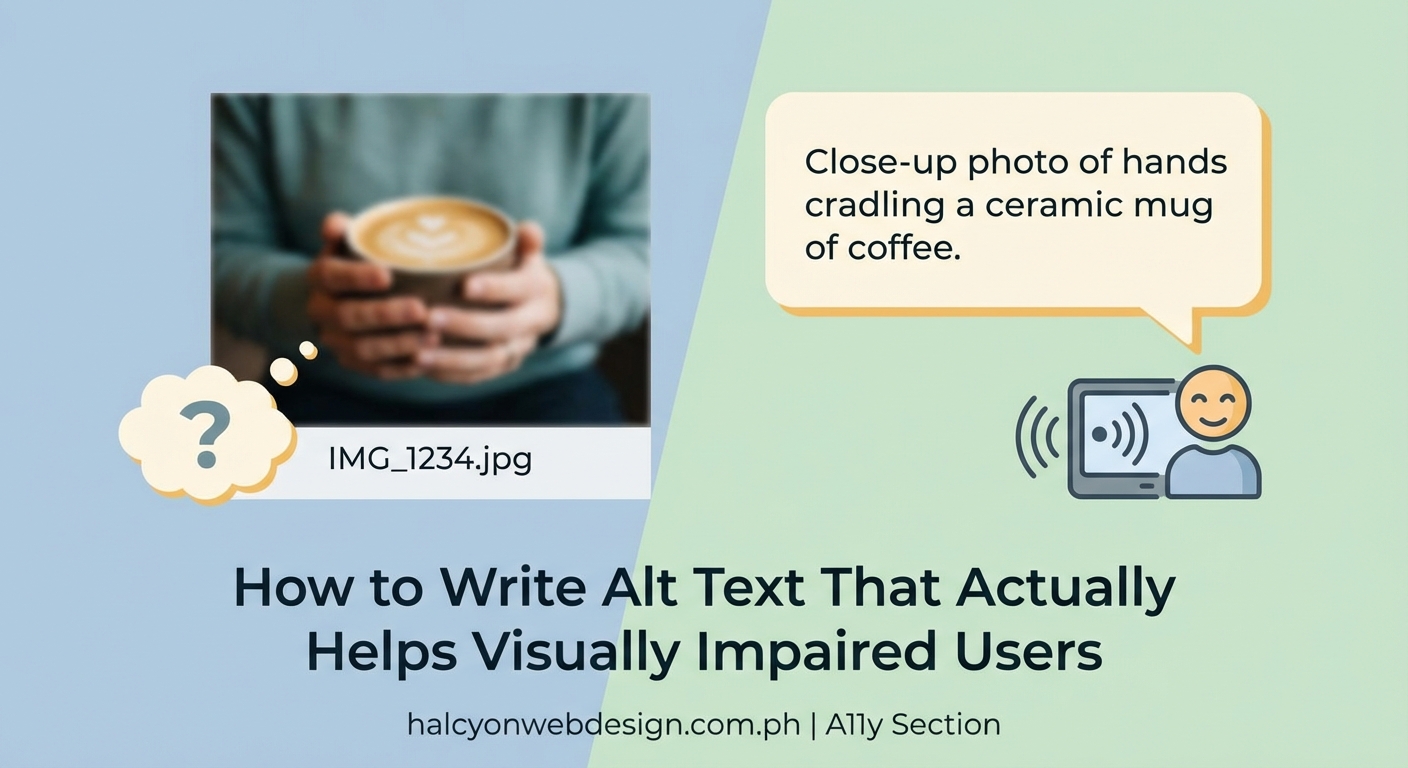
Before you write a single word, ask yourself one question: what information does this image communicate?
The answer changes based on context. A photo of a golden retriever on a pet adoption site needs different alt text than the same photo on a blog post about dog training or a veterinary article about hip dysplasia.
Context determines what matters. The same image requires different descriptions depending on why it’s there and what role it plays in your content.
Writing alt text in five practical steps
Follow this process every time you add an image to your site.
- Identify the image’s purpose in the content. Is it decorative, informative, functional, or complex?
- Write a description that captures the essential information without seeing the image.
- Keep it concise. Aim for one to two sentences or roughly 125 characters.
- Include any text that appears in the image, word for word.
- Read it aloud without looking at the image. Does it make sense on its own?
This method works for photos, illustrations, charts, screenshots, and icons. The specific words change, but the process stays the same.
Different image types need different approaches
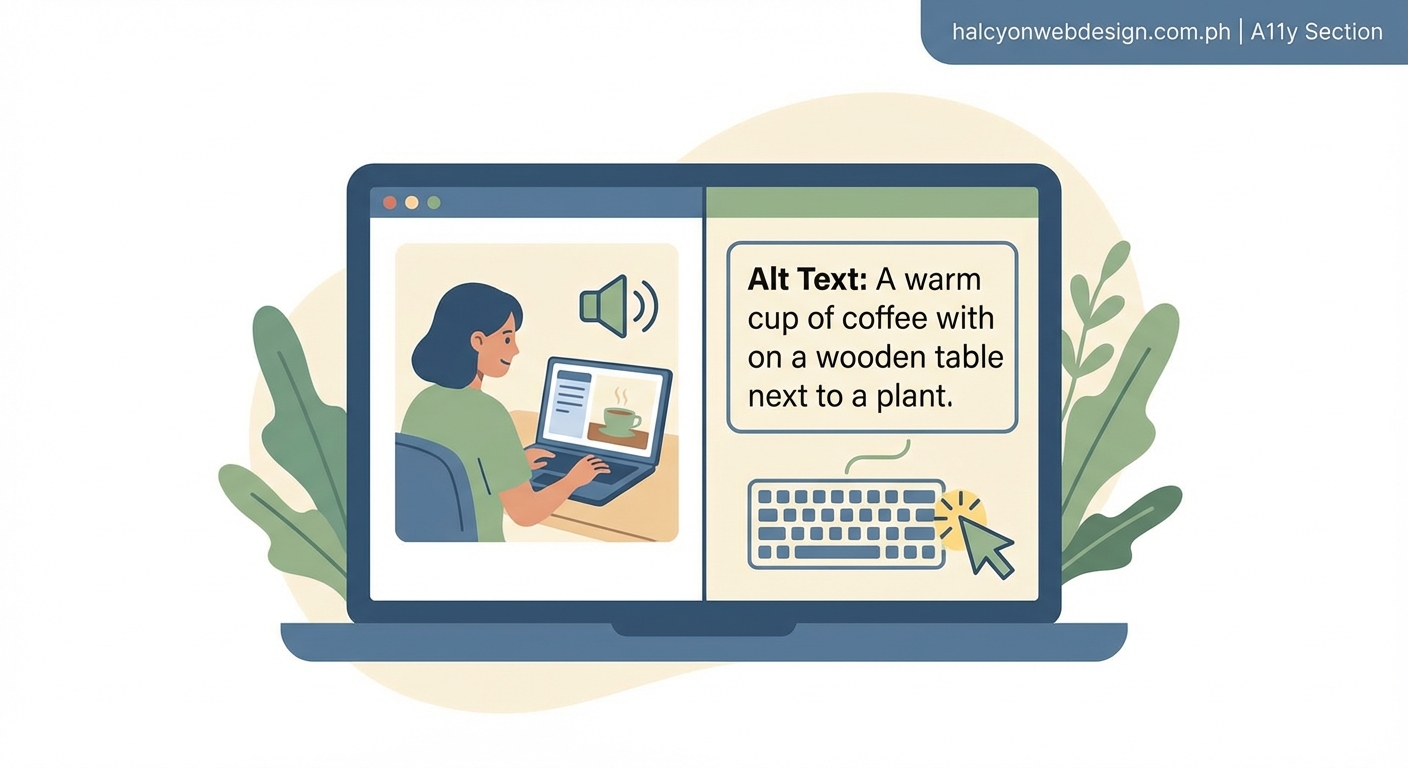
Not all images serve the same purpose. Your alt text should reflect what each image does.
Informative images convey content or information. Describe what the viewer needs to know.
For a photo of a laptop on a desk: “MacBook Pro displaying code editor on external monitor with mechanical keyboard.”
Functional images trigger actions, like buttons or linked logos. Describe the function, not the appearance.
For a clickable magnifying glass icon: “Search” (not “magnifying glass icon”).
Decorative images add visual interest but no information. Use empty alt text: alt="". This tells screen readers to skip the image entirely.
For a decorative border pattern or background texture, leave the alt attribute empty rather than omitting it.
Complex images like charts, graphs, or diagrams need both brief alt text and a longer description nearby.
For a bar chart: “Bar chart showing website traffic increased 40% after redesign” with detailed data in a table below the image.
Common mistakes that make alt text useless
These errors appear on thousands of websites. Avoid them.
| Mistake | Why it’s wrong | Better approach |
|---|---|---|
| Starting with “image of” or “picture of” | Screen readers already announce it’s an image | Start with the subject directly |
| Using the filename | “IMG_3847.jpg” tells the user nothing | Describe what the image shows |
| Being too vague | “Product photo” doesn’t help anyone | Include specific, relevant details |
| Writing essays | 300-word descriptions overwhelm users | Stick to essential information only |
| Skipping text in images | Users miss important information | Include all visible text verbatim |
| Describing decorative images | Creates noise for screen reader users | Use empty alt text instead |
The filename mistake happens constantly. Content management systems sometimes auto-fill alt text with filenames, and people forget to replace them.
How to handle text that appears in images
If your image contains text, that text must appear in your alt text. Word for word.
A promotional banner that reads “50% off all summer styles, ends Friday” needs alt text that includes that exact message: “50% off all summer styles, ends Friday.”
Don’t paraphrase. Don’t summarize. Include the actual text.
This applies to screenshots of error messages, photos of signs, images of book covers, social media posts captured as images, and any other text-containing visuals.
If the surrounding content already includes the text, you can reference it instead of repeating it: “Promotional banner, details in text above.”
Writing alt text for logos and brand images
Logos need simple, functional alt text. Use the company or product name.
For the Nike swoosh: “Nike”
For a linked logo that goes to the homepage: “Nike home”
Don’t describe the visual appearance unless it’s relevant to understanding the content. Users don’t need to know the logo is “a curved checkmark shape in black.”
The empty alt text exception
Decorative images should have an empty alt attribute, not a missing one. There’s a difference.
Empty alt text looks like this: <img src="border.png" alt="">
This tells assistive technology to skip the image. It’s decorative and contains no information.
Missing alt text looks like this: <img src="border.png">
This forces screen readers to announce the filename or say “image” with no context, which creates confusion.
Background patterns, decorative dividers, spacer images, and purely aesthetic photos should all use empty alt text.
Testing your alt text before publishing
Read your alt text aloud without looking at the image. Does it convey the necessary information?
Ask someone unfamiliar with the content to listen to your description. Can they understand what the image shows and why it matters?
Use a screen reader yourself. Turn on VoiceOver on Mac, NVDA on Windows, or TalkBack on Android. Navigate through your page and listen to how images are announced.
Check your alt text against WCAG 2.1 Level AA guidelines. The success criterion 1.1.1 requires text alternatives for all non-text content.
Alt text length and technical limits
Most screen readers cut off alt text around 125 characters. Some read more, but many don’t.
Keep your descriptions concise. If you need more space to explain a complex image, use the alt text for a brief description and provide a longer explanation in the surrounding text or a linked page.
HTML doesn’t have a character limit for the alt attribute, but practical usability does. Respect your users’ time and attention.
Handling images that are also links
When an image is a link, describe where the link goes, not just what the image shows.
A linked thumbnail of a blog post should say “Read more: How to choose accessible color palettes” rather than “Colorful palette swatches arranged in a grid.”
The function matters more than the appearance when the image is interactive.
Special cases and edge scenarios
Some situations require judgment calls. Here’s how to handle them.
Images with captions: Don’t repeat the caption verbatim. Provide complementary information or use brief alt text that works with the caption.
Image galleries: Each image needs unique, descriptive alt text. Don’t use “gallery image 1, gallery image 2.”
Headshots and portraits: Include the person’s name and role if relevant: “Maria Chen, senior UX designer.”
Before and after photos: Specify which is which: “Kitchen before renovation, showing outdated cabinets” and “Kitchen after renovation, with white shaker cabinets and quartz countertops.”
Screenshots with multiple elements: Describe the most important information or the specific element you’re highlighting: “WordPress dashboard showing the Plugins menu expanded.”
How alt text connects to broader accessibility
Alt text is one piece of a larger accessibility picture. It works alongside other elements to create inclusive experiences.
Semantic HTML, proper heading structure, keyboard navigation, and color contrast all matter. If you’re already thinking about how to write meta descriptions that actually get clicks, you’re building good content habits that extend to accessibility.
Site performance affects accessibility too. Images that load slowly or break entirely make alt text even more important. If you’ve noticed why your WordPress site loads slowly and how to fix it in 30 minutes, optimizing images helps both speed and accessibility.
Tools and plugins that help with alt text
WordPress and most content management systems include alt text fields in their media libraries. Use them.
Accessibility checkers can flag missing alt text but can’t judge quality. Tools like WAVE, axe DevTools, and Lighthouse identify images without alt attributes.
Some platforms offer AI-generated alt text. These tools provide starting points but rarely produce good final descriptions. Always review and edit automated suggestions.
“The best alt text comes from understanding your content and your users. No automated tool can replace human judgment about what information matters in context.” – WebAIM accessibility guidelines
Creating an alt text workflow for your team
Consistency matters when multiple people add images to your site.
Create a style guide that includes alt text examples specific to your content. Show good and bad examples from your actual website.
Add alt text review to your editorial checklist. Make it a required field in your CMS if possible.
Train everyone who adds images. Developers, designers, content creators, and marketers all need to understand how to write effective alt text.
Document edge cases as you encounter them. Build a reference library of solutions for tricky situations specific to your industry or content type.
Alt text and WCAG compliance
WCAG 2.1 Level AA requires text alternatives for non-text content under success criterion 1.1.1. This is a Level A requirement, meaning it’s fundamental to accessibility.
Compliance isn’t just about avoiding lawsuits. It’s about making your content available to everyone who wants to use it.
Many countries have legal requirements for digital accessibility. The Americans with Disabilities Act, Section 508, European Accessibility Act, and similar laws worldwide reference WCAG standards.
Good alt text helps you meet these requirements while improving the experience for all users.
Reviewing and updating existing alt text
Audit your current images. Search your site for images missing alt attributes or using filenames as alt text.
Prioritize high-traffic pages, conversion-critical pages, and content published recently. Fix the most important pages first.
Set a schedule for ongoing reviews. When you update content, check the alt text too. Images that made sense three years ago might need different descriptions now if the surrounding content has changed.
Making alt text part of your content process
The best time to write alt text is when you add the image. Don’t save it for later.
Before you upload an image, write the alt text. Have it ready to paste into the field.
This prevents the “I’ll add it later” trap that leaves thousands of images without proper descriptions.
Make it automatic. Build the habit so you don’t have to think about it.
Putting better alt text into practice
Start with the images you add today. Don’t wait until you’ve fixed every old image on your site.
Write one good alt text description. Then write another. The skill improves with practice.
Listen to how screen readers announce your descriptions. That feedback loop makes you better at writing alt text that actually helps people.
Your images tell stories, convey information, and create experiences. Alt text ensures everyone gets to participate in those experiences, regardless of how they access your content. Write it well, write it consistently, and write it for real people who depend on it.