
Your WordPress site used to load in two seconds. Now it takes seven. You haven’t added new content, but something is dragging performance down. The culprit might be hiding in your database, silently accumulating unnecessary data every single day.
Database bloat happens when WordPress stores excessive post revisions, expired transients, spam comments, and orphaned metadata. Regular cleanup of these elements can reduce database size by 30 to 70 percent, improving page load times and server response. Most optimization tasks require simple plugins or basic SQL queries that take less than an hour to implement and maintain.
Understanding What Makes Your Database Grow
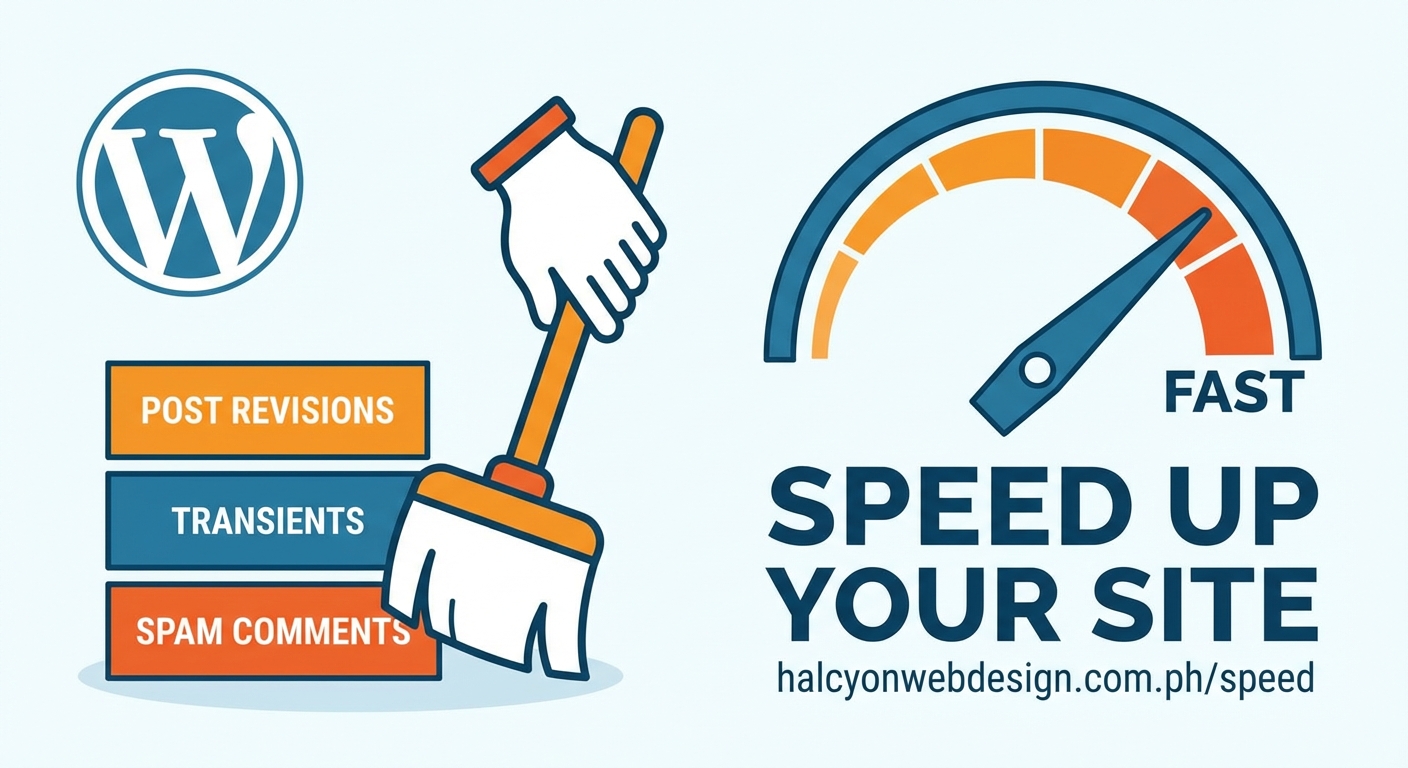
WordPress databases don’t just store your posts and pages. They hold every draft, every revision, every comment awaiting moderation, and temporary data from plugins that should have expired months ago.
Each time you save a draft, WordPress creates a revision. Write a 500-word blog post and save it 15 times? That’s 15 copies of the same content sitting in your database.
Plugins create transient data for caching purposes. When a plugin gets deactivated or deleted, those transients often stay behind. They serve no purpose but continue occupying space.
Comments bring their own problems. Spam comments pile up faster than you can delete them manually. Even legitimate comments create metadata that persists after the comment gets removed.
The wp_options table stores site settings and plugin configurations. Some plugins load their entire settings into memory on every page load through a process called autoloading. When you have 5 MB of autoloaded data, every single page request has to process that weight.
Signs Your Database Needs Attention
Your site sends clear signals when database bloat becomes a problem. Backup processes that used to finish in five minutes now time out after 30. Your hosting provider sends warnings about resource usage even though traffic hasn’t increased.
The WordPress admin dashboard feels sluggish. Saving posts takes longer than it should. Search functions return results slowly, and certain plugin settings pages refuse to load completely.
Database size offers another clue. A typical WordPress site with 50 blog posts and moderate traffic should have a database under 50 MB. If yours exceeds 200 MB without thousands of posts or products, you probably have bloat.
Server crashes during peak traffic often point to database inefficiency. The server struggles to process queries against bloated tables, maxing out available resources.
How to Reduce WordPress Database Bloat Step by Step
Cleaning your database requires a systematic approach. Rushing through without backups or understanding what you’re deleting can break your site.
1. Create a Complete Backup
Before touching anything, create a full backup of your database and files. Use your hosting control panel’s backup tool or a plugin like UpdraftPlus. Download the backup file to your local computer, not just cloud storage.
Test that you can access the backup file. Unzip it if necessary and confirm the SQL file opens in a text editor. This step takes 10 minutes but saves hours of panic if something goes wrong.
2. Analyze Current Database Size
Log into phpMyAdmin through your hosting control panel. Select your WordPress database from the left sidebar. Look at the bottom of the table list for total size.
Note which tables consume the most space. Usually wp_posts, wp_postmeta, wp_options, and wp_comments top the list. Tables over 10 MB deserve closer inspection.
Run this SQL query to check autoloaded data size:
SELECT SUM(LENGTH(option_value)) as autoload_size
FROM wp_options
WHERE autoload=’yes’;
Anything over 1 MB signals a problem. Over 3 MB seriously impacts performance.
3. Remove Post Revisions
Post revisions accumulate faster than most people realize. A single post edited 20 times creates 20 database entries.
Install WP-Optimize or a similar cleanup plugin. Navigate to the optimization settings and select “Clean post revisions.” Review the count before proceeding. Most sites have hundreds or thousands.
Run the cleanup. The plugin removes all revisions except the current published version.
To prevent future buildup, limit revisions by adding this line to wp-config.php:
define(‘WP_POST_REVISIONS’, 3);
This keeps only the three most recent revisions per post. You can also disable revisions entirely by setting the value to false, though keeping a few revisions helps recover from editing mistakes.
4. Clear Expired Transients
Transients should delete themselves automatically, but many don’t. They sit in wp_options forever, bloating the table.
Use WP-Optimize’s transient cleanup feature or install Transient Manager. These plugins identify expired transients and remove them safely.
For manual cleanup, run this SQL query in phpMyAdmin:
DELETE FROM wp_options
WHERE option_name LIKE ‘%transient%’;
This removes all transients, including active ones. They’ll regenerate as needed, but avoid running this query during high-traffic periods.
5. Delete Spam and Trashed Comments
Comments create multiple database entries. The comment itself, metadata, and relationships to posts all occupy space.
Navigate to WordPress Comments section. Filter by Spam and select all, then delete permanently. Repeat for Trash.
For sites with thousands of spam comments, use WP-Optimize to bulk delete. The plugin handles large batches without timing out.
Consider installing Akismet or another spam filter to prevent future accumulation. Prevention beats cleanup.
6. Clean Orphaned Metadata
When you delete posts, comments, or users, their associated metadata often remains. This orphaned data serves no purpose.
WP-Optimize includes options to remove orphaned post metadata, comment metadata, and user metadata. Run each cleanup separately and review the count.
For manual cleanup of orphaned postmeta:
DELETE pm FROM wp_postmeta pm
LEFT JOIN wp_posts wp ON wp.ID = pm.post_id
WHERE wp.ID IS NULL;
This query finds metadata entries pointing to non-existent posts and removes them.
7. Optimize Autoloaded Data
Excessive autoloaded data in wp_options slows every page load. Identify the worst offenders with this query:
SELECT option_name, LENGTH(option_value) as option_size
FROM wp_options
WHERE autoload=’yes’
ORDER BY option_size DESC
LIMIT 20;
Look for large entries from deactivated plugins. These can often be safely deleted or set to autoload=’no’.
Changing autoload status requires caution. Only modify options from plugins you’ve completely removed. For active plugins, changing autoload might break functionality.
To change an option’s autoload status:
UPDATE wp_options
SET autoload=’no’
WHERE option_name=’specific_option_name’;
8. Remove Unused Plugins and Themes
Deactivated plugins and themes leave database entries behind. Their settings, cached data, and custom tables persist.
Delete any plugin or theme you’re not actively using. Don’t just deactivate them. Complete removal often triggers cleanup routines that remove associated data.
Some plugins require manual database cleanup after deletion. Check the plugin documentation or search for “[plugin name] database cleanup” to find specific instructions.
9. Optimize Database Tables
After removing bloat, optimize the remaining tables to reclaim space and improve performance. Think of it like defragmenting a hard drive.
WP-Optimize includes a table optimization feature. Select all tables and run optimization. This rebuilds indexes and reorganizes data for faster queries.
In phpMyAdmin, select all tables, choose “Optimize table” from the dropdown menu, and click Go. This achieves the same result.
Run optimization monthly or after major cleanups. The process takes a few minutes and causes no downtime on most sites.
Common Database Bloat Culprits
| Source | Typical Impact | Cleanup Difficulty | Prevention Method |
|---|---|---|---|
| Post revisions | 20-40% of database size | Easy | Limit revisions in wp-config.php |
| Expired transients | 10-30% of wp_options table | Easy | Use cleanup plugin monthly |
| Spam comments | Varies widely | Easy | Install spam filtering |
| Orphaned metadata | 5-15% of meta tables | Moderate | Clean after bulk deletions |
| Autoloaded data | Slows queries, not size | Moderate | Audit after removing plugins |
| Trashed posts | 5-10% of wp_posts | Easy | Empty trash regularly |
Plugins That Help Maintain a Clean Database
Several plugins specialize in database maintenance. Choosing the right one depends on your comfort level and specific needs.
WP-Optimize handles most cleanup tasks through a simple interface. It removes revisions, transients, spam, and optimizes tables. The free version covers essential maintenance. Scheduling automatic cleanups requires the premium version but manual monthly runs work fine.
Advanced Database Cleaner offers more granular control. It identifies orphaned data, unused tables from old plugins, and duplicate entries. The interface requires more technical knowledge but provides better visibility into what gets deleted.
WP-Sweep takes a minimalist approach. It finds and removes seven types of database waste without bloated settings pages. Perfect for users who want straightforward cleanup without learning complex options.
Avoid running multiple database optimization plugins simultaneously. They can conflict and cause data loss. Pick one, learn it well, and stick with it.
Regular database maintenance should become part of your monthly site care routine, just like updating plugins and checking backups. A clean database doesn’t just improve speed; it makes troubleshooting easier and reduces hosting costs.
Preventing Future Database Bloat
Cleanup solves the immediate problem, but prevention keeps your database lean long-term. Small habit changes make a big difference.
Limit post revisions to three or five. You rarely need 50 versions of the same post. The setting in wp-config.php takes 30 seconds to implement.
Empty trash regularly. WordPress keeps deleted posts, pages, and comments in trash for 30 days. Set a monthly reminder to permanently delete trashed items.
Review installed plugins quarterly. Remove anything you haven’t used in three months. Each unused plugin leaves behind database entries even after deactivation.
Configure automatic spam deletion. Under Settings > Discussion, enable “Automatically delete spam comments older than X days.” Set it to 7 or 14 days.
Choose plugins carefully. Before installing, research whether the plugin is known for leaving database clutter. Reading reviews often reveals cleanup issues. If you’re unsure about plugin quality, learning how to choose the right WordPress plugin can help you avoid problematic options.
Monitor autoloaded data monthly. Run the autoload size query and investigate any sudden increases. A jump from 800 KB to 3 MB overnight indicates a plugin storing excessive data.
When Database Optimization Isn’t Enough
Sometimes you’ll clean everything possible and still face performance issues. The database might not be the bottleneck.
Slow hosting affects database performance regardless of optimization. Shared hosting plans with limited resources struggle under load. If you’ve reduced database bloat by 60% but see no speed improvement, your hosting plan might need an upgrade.
Poorly coded themes and plugins create inefficient database queries. A single bad query can slow page loads more than 100 MB of bloat. Use Query Monitor plugin to identify slow queries and problematic plugins.
Lack of caching forces WordPress to query the database on every page load. Object caching and page caching reduce database load dramatically. Many performance issues resolve once proper caching gets implemented.
Images and unoptimized assets usually cause more slowdown than database bloat. If your pages load slowly but the database is clean, investigate other speed factors like image sizes and third-party scripts.
Setting Up a Maintenance Schedule
Database maintenance works best as a routine, not a crisis response. Create a simple schedule and stick to it.
Weekly tasks include emptying trash and checking for spam comments. These take two minutes and prevent accumulation.
Monthly tasks cover running WP-Optimize or your chosen cleanup plugin. Review autoloaded data size and optimize database tables. Budget 15 minutes.
Quarterly tasks involve auditing installed plugins and themes. Remove anything unused. Check for orphaned data from deleted plugins. This takes 30 minutes but prevents major bloat.
Annual tasks include a complete database audit. Export your database, analyze table sizes, and investigate any unusual growth. Consider professional help if you find issues you can’t identify.
Set calendar reminders for each task. Consistency matters more than perfection. Missing a monthly cleanup won’t destroy your site, but six months of neglect creates real problems.
Your Database Deserves Regular Care
A clean database makes everything better. Pages load faster. Backups complete without errors. Server resources stretch further. Your hosting bill might even decrease if you’re paying for database size.
The initial cleanup takes an hour or two, but monthly maintenance requires just 15 minutes. That small investment keeps your site running smoothly and prevents the panic of sudden performance crashes.
Start with a backup, then tackle post revisions and transients. Those two steps alone often reduce database size by 40%. Build from there, adding more cleanup tasks as you grow comfortable with the process.
Your visitors won’t know you optimized the database, but they’ll notice pages loading faster. That improved experience keeps them engaged and coming back. A lean database isn’t just technical housekeeping; it’s essential site care that pays dividends every single day.