
Your website loads slowly. Visitors leave before they see your content. You’ve checked your hosting, optimized images, and installed caching plugins. But the problem persists. The culprit might be hiding in plain sight: your WordPress theme.
A poorly coded WordPress theme can significantly slow your site through bloated code, excessive HTTP requests, and unoptimized resources. You can diagnose theme-related slowdowns by testing load times with different themes, checking code quality, and measuring resource usage. Switching to a lightweight, well-coded theme often provides immediate speed improvements without changing your hosting or plugins.
How WordPress themes affect site speed
WordPress themes control how your site looks and functions. Every theme adds code to your pages. That code includes HTML structure, CSS styling, JavaScript functionality, and PHP templates.
Some themes are lean. They load only what’s necessary. Others pack in features you’ll never use. Page builders, animation libraries, custom fonts, icon sets, and slider scripts all add weight.
Each additional resource requires a server request. More requests mean longer load times. A theme that makes 80 HTTP requests will always be slower than one that makes 20.
The quality of the code matters too. Inefficient database queries, unminified files, and render-blocking resources create bottlenecks. Your hosting and caching can’t compensate for fundamentally bloated code.
Signs your theme is the problem
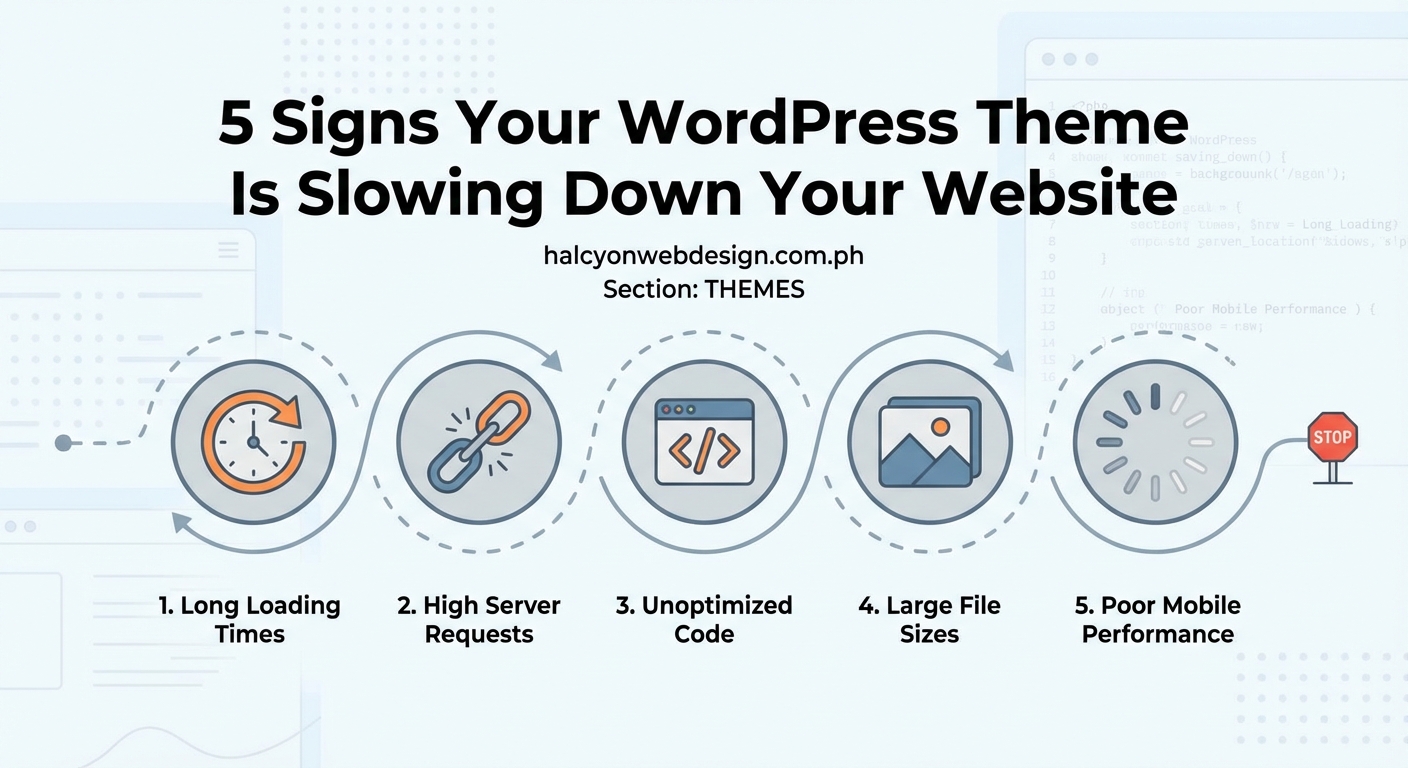
You need to isolate the theme as the cause before making changes. Here’s how to test systematically.
Baseline speed test
Run a speed test using GTmetrix, Pingdom, or Google PageSpeed Insights. Record these metrics:
- Total page size
- Number of HTTP requests
- Time to first byte
- Fully loaded time
- Performance score
Save these numbers. You’ll compare them after switching themes.
Switch to a default theme
WordPress ships with default themes like Twenty Twenty-Four. These are lightweight and well-coded.
- Go to Appearance > Themes in your WordPress dashboard.
- Activate a default WordPress theme.
- Run the same speed tests again.
- Compare the results to your baseline.
If your load time drops significantly, your original theme is the issue. A 30% to 50% improvement confirms theme-related slowdown.
Check theme file size
Navigate to your WordPress installation via FTP or file manager. Look in the wp-content/themes directory. Check the folder size of your active theme.
- Under 5 MB: Generally acceptable
- 5 MB to 10 MB: Potentially bloated
- Over 10 MB: Almost certainly too heavy
Large theme folders usually contain unnecessary demo content, multiple layout options, or bundled plugins.
Monitor HTTP requests
Open your browser’s developer tools. Go to the Network tab. Reload your page. Sort requests by domain or type.
Look for:
- Multiple stylesheet files loading separately
- Dozens of JavaScript files
- External font requests (Google Fonts, Adobe Fonts)
- Social media widgets and embeds
- Analytics and tracking scripts
Count how many requests come from theme files versus plugins. If your theme generates more than 40 requests, that’s excessive.
Measure render-blocking resources
Render-blocking resources prevent your page from displaying until they load completely. CSS and JavaScript files often cause this problem.
Run a PageSpeed Insights test. Check the “Opportunities” section. Look for:
- “Eliminate render-blocking resources”
- “Reduce unused CSS”
- “Reduce unused JavaScript”
If these warnings list multiple theme files, your theme is poorly optimized.
Common theme performance killers
Understanding what slows themes down helps you make better choices.
| Performance Issue | Why It Happens | Impact Level |
|---|---|---|
| Bloated frameworks | Themes built on Bootstrap or Foundation load entire libraries for minor features | High |
| Page builders | Visual editors like Elementor add shortcode processing and extra CSS | High |
| Animation libraries | AOS, WOW.js, and similar scripts load for effects you might not use | Medium |
| Custom fonts | Multiple font families with various weights create extra requests | Medium |
| Icon libraries | Loading Font Awesome for five icons wastes bandwidth | Low to Medium |
| Social sharing | Real-time share counts require external API calls | Low |
The page builder problem
Page builders offer visual editing. You drag and drop elements. No coding required. They’re popular for good reason.
But they come with costs. Every element you add generates shortcodes. WordPress must process these shortcodes on every page load. The builder’s CSS and JavaScript load globally, even on pages that don’t use builder elements.
A simple blog post that should load in 1.5 seconds might take 3.5 seconds with a page builder theme active.
Multipurpose theme overhead
Multipurpose themes promise everything. eCommerce layouts, portfolio galleries, business templates, and blog designs in one package. You use one layout. The theme loads code for all of them.
These themes often include:
- Dozens of custom post types you’ll never use
- Multiple header and footer variations
- Built-in mega menus with dropdown animations
- Parallax scrolling effects
- Video backgrounds
- Advanced typography controls
Each feature adds code. That code loads on every page view.
Testing theme code quality
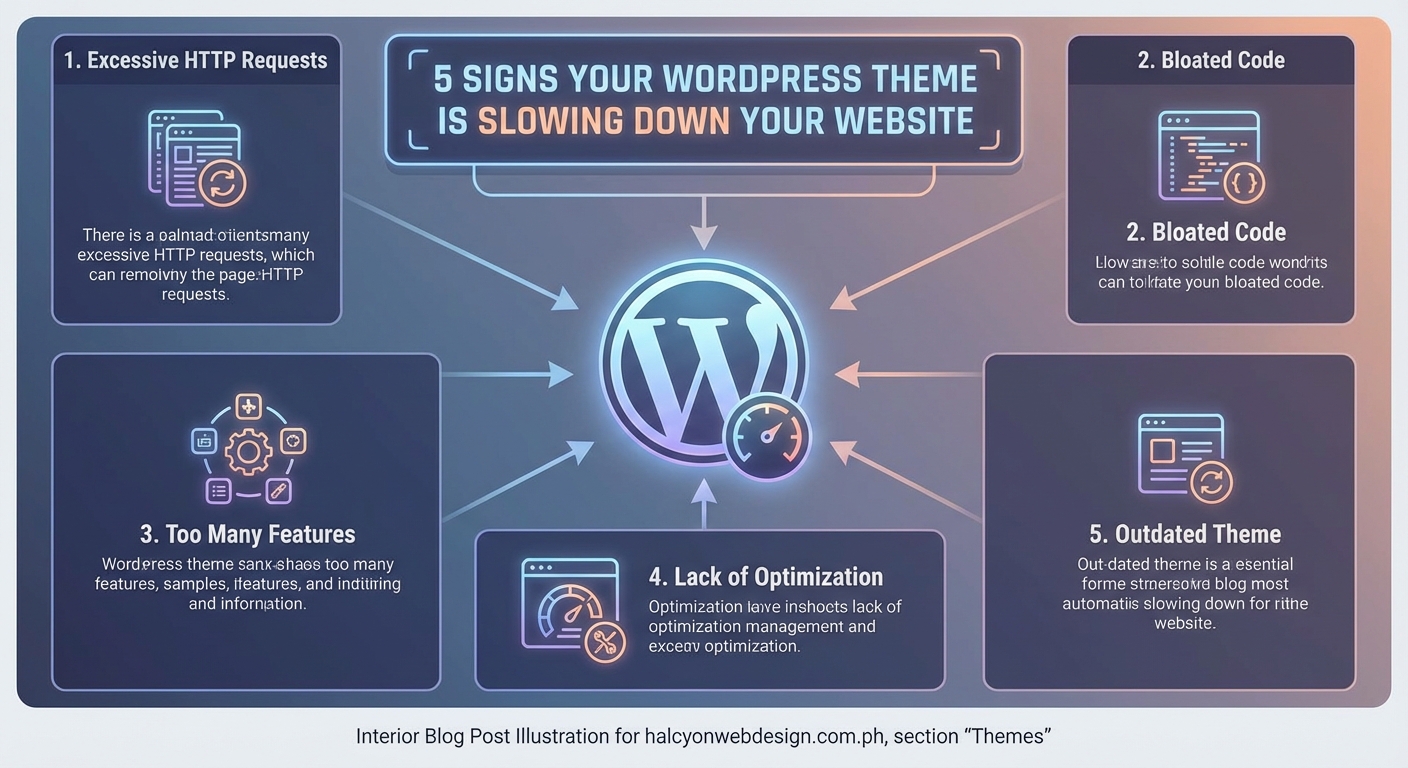
You don’t need to be a developer to spot poorly coded themes.
Check the theme options panel
Open your theme settings. Count how many options exist. A well-designed theme offers 20 to 40 settings. Themes with 200+ options are trying to be everything to everyone.
Excessive options mean excessive code. The theme must load all that functionality whether you use it or not.
Look for inline styles
View your page source. Press Ctrl+U (or Cmd+U on Mac). Search for <style> tags in the HTML.
Inline styles appear directly in your HTML rather than in separate CSS files. A few inline styles are acceptable. Hundreds of lines indicate the theme generates CSS dynamically, which is inefficient.
Examine JavaScript dependencies
Check your page source for JavaScript files. Look for jQuery and other libraries.
- Does the theme load jQuery when WordPress already includes it?
- Does it load multiple versions of the same library?
- Are scripts loading in the header instead of the footer?
These mistakes suggest poor development practices throughout the theme.
Review theme updates
Check when the theme was last updated. Go to Appearance > Themes and click Theme Details.
Themes updated regularly receive performance improvements and security patches. Themes abandoned for years likely contain outdated, inefficient code.
What to do after confirming the problem
You’ve tested. Your theme is definitely slowing things down. Now what?
Option one: Optimize your current theme
If you love your theme’s design, try optimizing it first.
- Disable unused features in theme settings
- Remove bundled plugins you don’t need
- Use a plugin like Asset CleanUp to prevent theme scripts from loading on specific pages
- Implement lazy loading for images and videos
- Minify and combine CSS and JavaScript files
These steps help but won’t fix fundamentally bloated code.
Option two: Switch themes
Changing themes is the most effective solution. Look for themes that prioritize performance.
Characteristics of fast themes:
- Lightweight file size (under 2 MB)
- Minimal HTTP requests (under 30)
- No built-in page builder
- Regular updates
- Good reviews mentioning speed
- Clean code that passes theme check plugins
Popular performance-focused themes include GeneratePress, Astra, Kadence, and Blocksy. All offer free versions you can test.
Option three: Custom theme development
If you have specific design needs and budget allows, consider a custom theme. A developer can build exactly what you need without extra bloat.
Custom themes cost more upfront but often perform better long-term. You control every line of code.
“I’ve seen sites go from 8-second load times to under 2 seconds just by switching from a multipurpose theme to a lightweight alternative. The theme is often the single biggest performance factor you can control.” — Web performance consultant
Preventing theme-related slowdowns
Once you fix the current problem, keep these practices in mind for the future.
Before installing any theme:
- Test it on a staging site first
- Run speed tests with demo content
- Check the theme’s file size
- Read reviews specifically mentioning performance
- Verify the developer’s track record
After installation:
- Only enable features you actually use
- Regularly audit your site speed
- Monitor updates and changelog notes
- Remove demo content and unused layouts
- Keep your theme updated
When evaluating new themes:
- Prioritize simplicity over features
- Choose themes built for your specific use case
- Avoid themes that try to do everything
- Check if the theme follows WordPress coding standards
Making the switch less painful
Changing themes feels risky. You’ve invested time in your current setup. Here’s how to minimize disruption.
Create a full backup before making changes. Use a plugin like UpdraftPlus or your host’s backup tool.
Set up a staging site. Most hosts offer staging environments. Test your new theme there first. This lets you see how content transfers without affecting your live site.
Expect some layout adjustments. Widgets might move. Menus might need reconfiguration. Custom CSS might need updates. Budget time for these tweaks.
Document your current settings. Take screenshots of your theme options, widget areas, and menu configurations. This makes recreation easier.
Consider hiring help. If your site is complex or generates revenue, paying a developer for a few hours ensures a smooth transition.
Your site deserves to load fast
A slow website costs you visitors, conversions, and search rankings. When your wordpress theme slowing down site performance, you’re fighting an uphill battle. No amount of caching or CDN optimization can fully compensate for bloated theme code.
The good news? This is one of the easiest performance problems to fix. Switch to a lighter theme, and you’ll often see immediate improvements. Your visitors will notice. Your bounce rate will drop. Your search rankings might even improve.
Test your theme today. Run those speed comparisons. If your theme is the bottleneck, you now know exactly how to fix it.