You just updated WordPress and now your site looks like a mess. Buttons are misaligned, fonts look wrong, and your carefully designed layout has fallen apart. This happens more often than you’d think, and the good news is that most CSS breaks after WordPress updates are easy to fix.
When WordPress updates break your CSS, start with simple fixes first. Clear your browser cache and any caching plugins, then check if your theme and plugins are compatible with the new WordPress version. Most styling issues stem from outdated themes, plugin conflicts, or cached files. These five troubleshooting steps will help you identify and resolve the problem without technical expertise.
Why WordPress Updates Break Your Styling
WordPress core updates sometimes change how the system handles CSS files. Your theme might rely on older code structures that the new version handles differently.
Plugin conflicts create another common problem. A page builder or customizer plugin might not work properly with the latest WordPress version, causing style rules to fail or load incorrectly.
Browser caching can also make you think there’s a problem when there isn’t one. Your browser might show the old cached version of your site while the server is actually serving updated files correctly.
Understanding these causes helps you troubleshoot systematically instead of panicking and making random changes.
Clear All Caches First
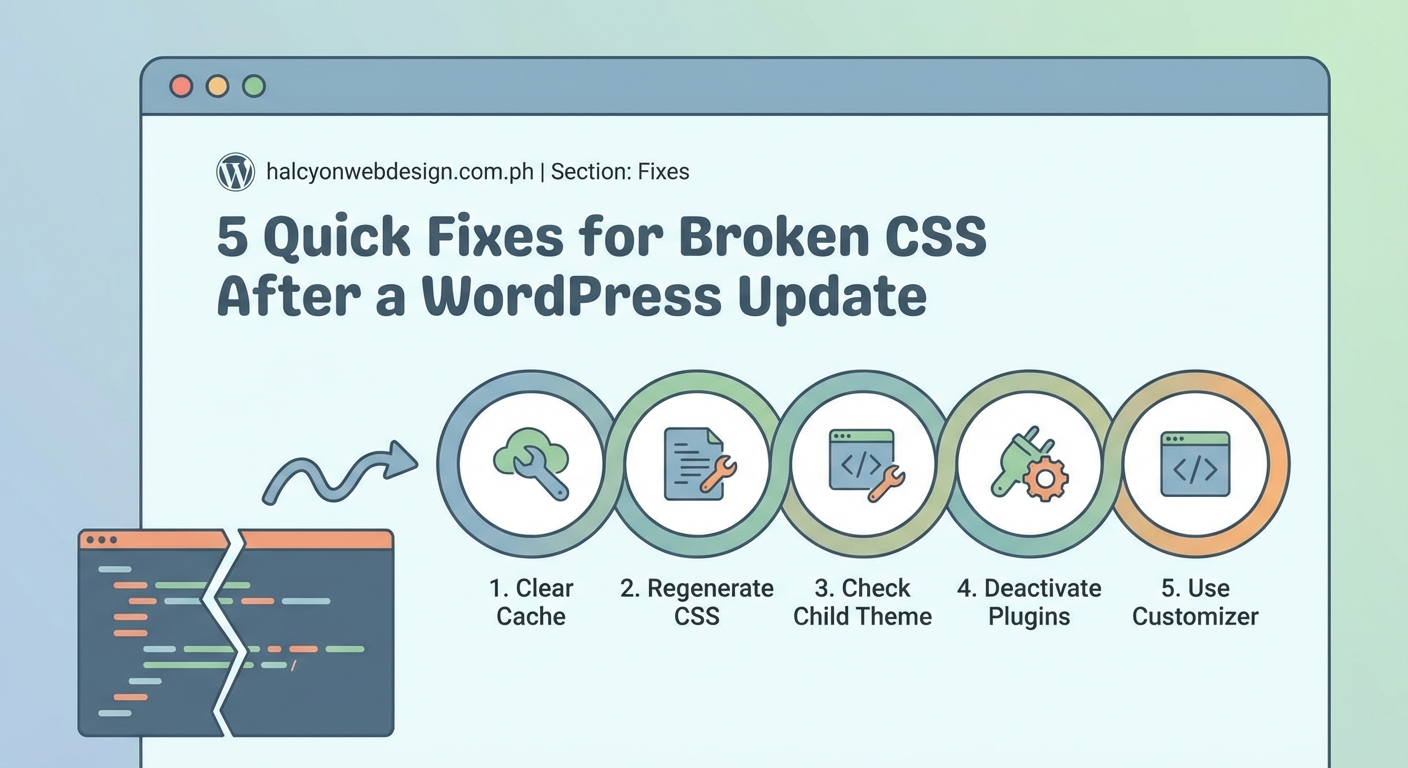
Before you touch any code or settings, clear every cache on your site. This single step fixes about 40% of CSS issues after updates.
Start with your browser cache:
- Press Ctrl+Shift+Delete (or Cmd+Shift+Delete on Mac)
- Select “Cached images and files”
- Choose “All time” as the time range
- Click the clear data button
Next, clear your WordPress caching plugin. Popular options include WP Super Cache, W3 Total Cache, and WP Rocket. Each has a “Clear Cache” or “Purge Cache” button in their settings.
If you use a CDN like Cloudflare, clear that cache too. Log into your CDN dashboard and find the purge or clear cache option.
After clearing all caches, use a private or incognito browser window to view your site. This ensures you’re seeing the live version without any cached files interfering.
Check Your Theme Compatibility
Outdated themes cause the majority of CSS breaks after WordPress updates. Theme developers need to update their code to work with new WordPress versions.
Visit your WordPress dashboard and go to Appearance > Themes. Look for any update notifications on your active theme. If an update is available, install it.
Before updating your theme, create a backup of your site. Use a plugin like UpdraftPlus or your hosting provider’s backup tool.
If no theme update is available, check the theme developer’s website or support forum. Look for announcements about compatibility with your WordPress version.
Sometimes theme developers abandon their products. If your theme hasn’t been updated in over a year, consider switching to a well-maintained alternative like Astra, GeneratePress, or Kadence.
Test if your theme is the problem by temporarily switching to a default WordPress theme like Twenty Twenty-Four:
- Go to Appearance > Themes
- Activate a default WordPress theme
- View your site in a new incognito window
- Check if the CSS issues disappear
If your site looks normal with the default theme, your original theme is definitely the problem.
Identify and Resolve Plugin Conflicts
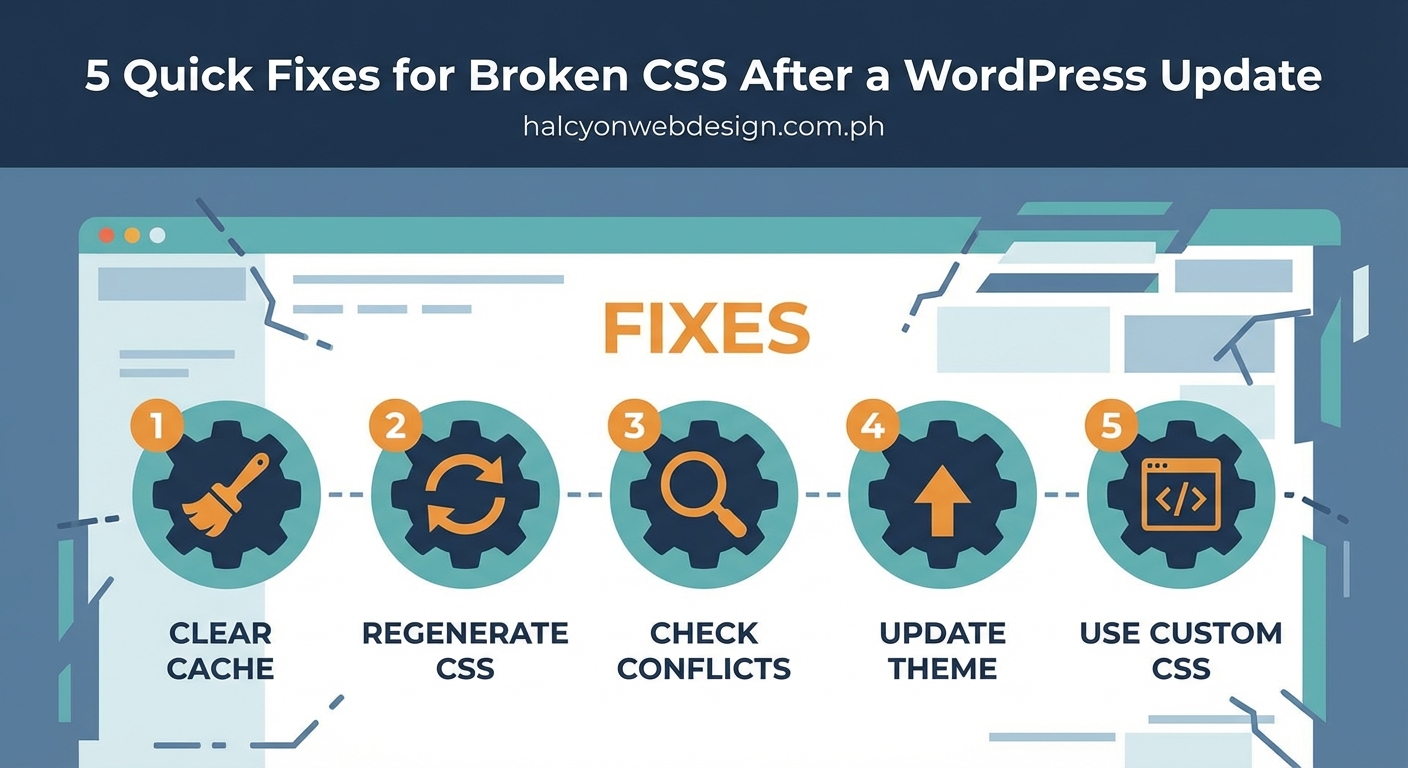
Plugins that add custom styling or modify how WordPress loads CSS files often break after core updates. Page builders, customizers, and optimization plugins are the usual suspects.
Deactivate all plugins to test if one is causing the issue:
- Go to Plugins > Installed Plugins
- Select all plugins using the checkbox at the top
- Choose “Deactivate” from the bulk actions dropdown
- Click Apply
View your site again. If the CSS looks normal, a plugin is causing the problem.
Reactivate plugins one at a time, checking your site after each activation. When the CSS breaks again, you’ve found the culprit.
Common plugin types that cause CSS issues:
- Page builders (Elementor, Divi, Beaver Builder)
- Caching and optimization plugins
- Custom CSS managers
- Font management tools
- Theme customization plugins
Once you identify the problematic plugin, check for updates. If it’s already updated, visit the plugin’s support forum to see if others report the same issue.
You might need to temporarily deactivate the plugin and contact the developer. Many plugin authors release compatibility patches within days of major WordPress updates.
Regenerate CSS Files
WordPress and many themes compile CSS from multiple sources into combined files. Sometimes these compiled files don’t regenerate properly after an update.
If you use a page builder like Elementor, regenerate its CSS files:
- Go to Elementor > Tools
- Find “Regenerate CSS & Data”
- Click the regenerate button
- Clear your cache again
For themes with built-in customizers, look for similar regeneration options in their settings panels.
Some themes store custom CSS in the WordPress Customizer. Check if your custom styles are still there:
- Go to Appearance > Customize
- Look for “Additional CSS” or similar
- Verify your custom code is present
- Click “Publish” again even if nothing changed
This forces WordPress to recompile and save the CSS files.
Fix File Permission Issues
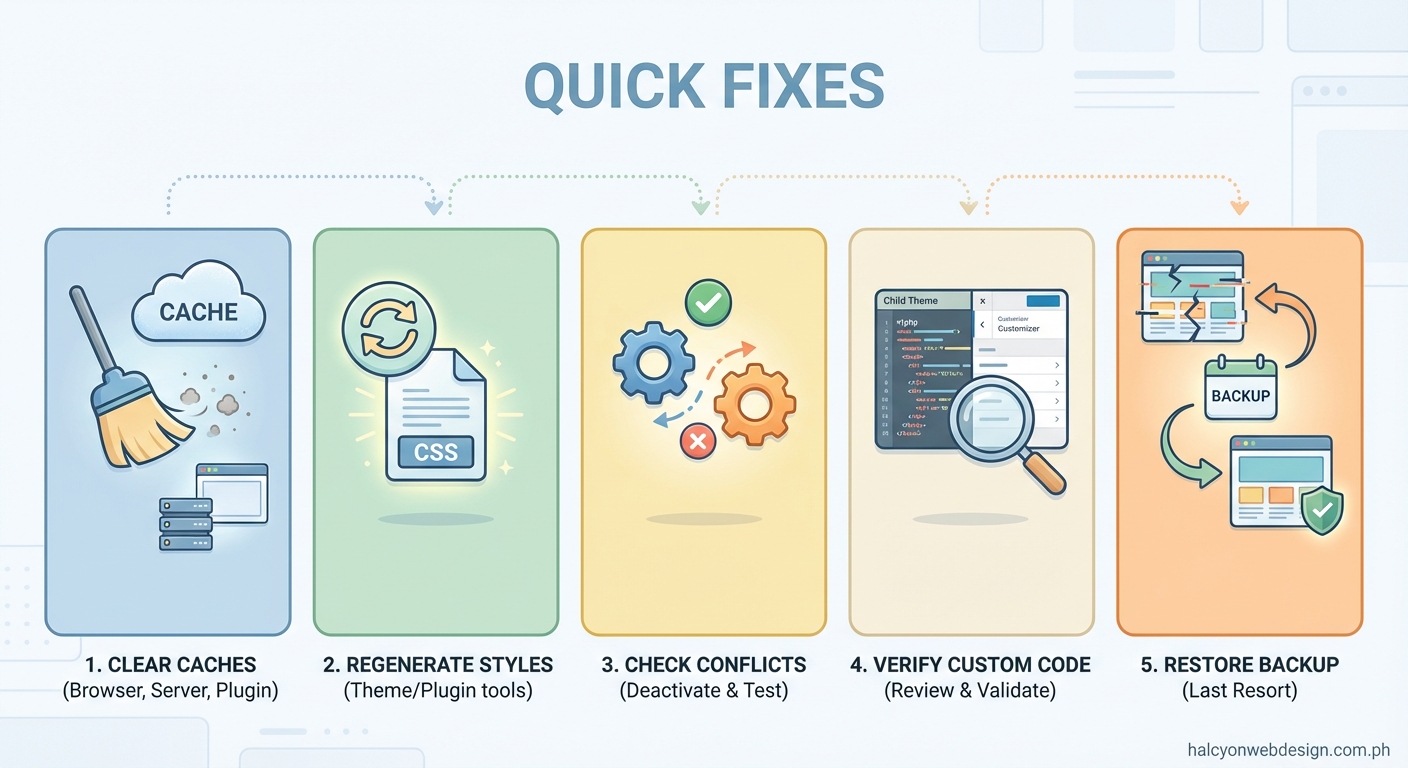
WordPress updates sometimes reset file permissions, preventing the system from writing or modifying CSS files properly.
File permissions control who can read, write, or execute files on your server. WordPress needs specific permissions to function correctly.
Here’s what the permissions should be:
| File Type | Recommended Permission | What It Means |
|---|---|---|
| Folders | 755 | Owner can modify, others can view |
| PHP Files | 644 | Owner can edit, others can read |
| CSS Files | 644 | Owner can edit, others can read |
| wp-config.php | 440 or 400 | Restricted access for security |
Access your site via FTP using FileZilla or your hosting control panel’s file manager.
Navigate to your WordPress installation folder (usually public_html or www). Right-click the wp-content folder and select “File Permissions” or “Change Permissions.”
Set folders to 755 and files to 644. Most FTP clients have a “Recurse into subdirectories” option that applies permissions to all files and folders inside.
Be careful with wp-config.php. Setting it to 644 creates a security risk. Keep it at 440 or 400.
After adjusting permissions, check your site again. If CSS files couldn’t be written or modified due to permission issues, they should load correctly now.
“The vast majority of CSS issues after WordPress updates come from three sources: caching, theme compatibility, and plugin conflicts. Solving these systematically, starting with the simplest solution, saves hours of frustration.” – WordPress Support Forums
When Custom CSS Disappears
Sometimes your custom CSS code vanishes after an update. This is rare but frustrating when it happens.
Check the WordPress Customizer first (Appearance > Customize > Additional CSS). Your code might still be there but not applying due to another issue.
If the code is gone, check if you have a backup. Your hosting provider might have automatic backups you can restore from.
Many caching plugins also create backups. Check your caching plugin’s settings for backup or restore options.
Going forward, store custom CSS in multiple places:
- A child theme’s style.css file
- A custom CSS plugin like Simple Custom CSS
- A local text file on your computer
Never put custom CSS only in the Customizer. Updates or database issues can wipe it out.
Troubleshooting Specific CSS Problems
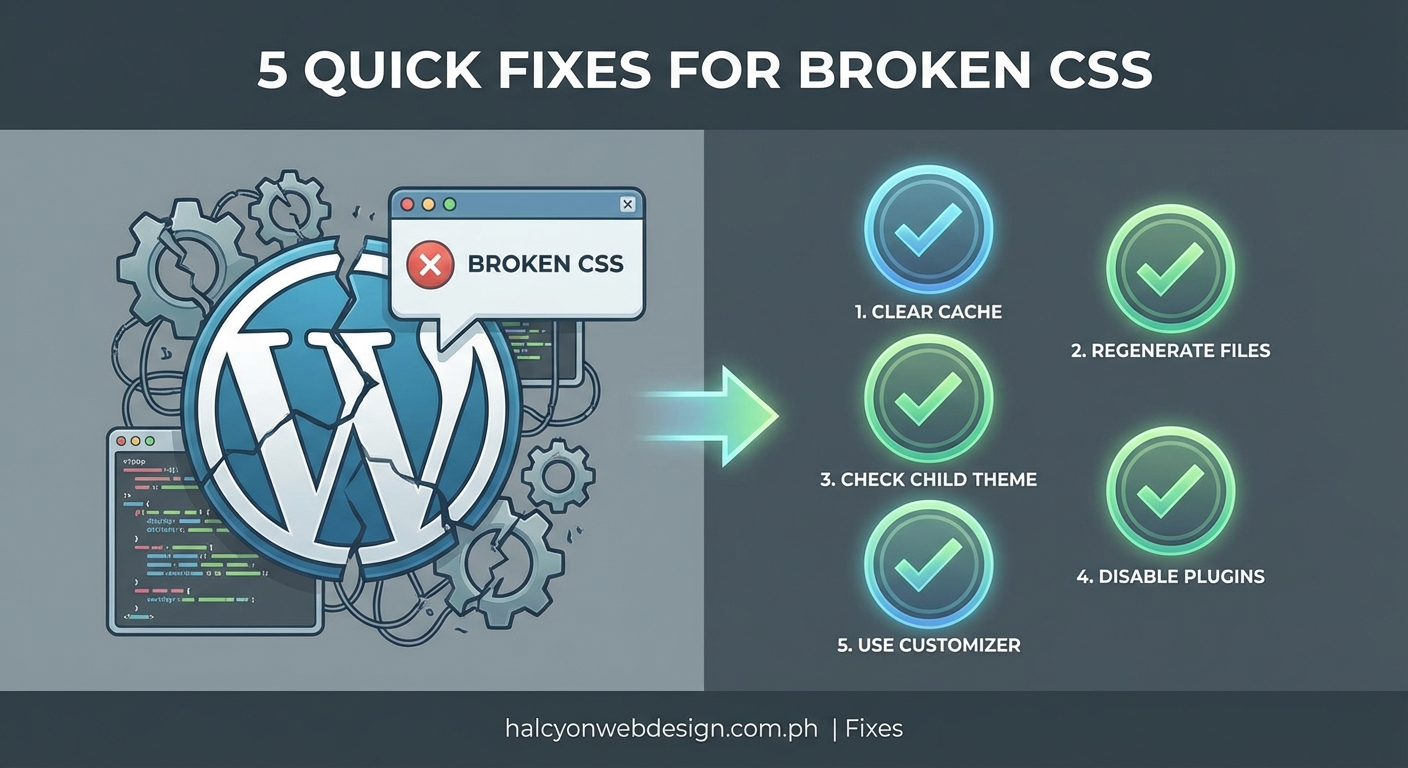
Different types of CSS breaks need different approaches. Here are solutions for common specific issues.
Fonts look wrong or revert to defaults: Your theme might load custom fonts from Google Fonts or a similar service. Check if the font loading code is still present in your theme files. Some privacy-focused WordPress updates change how external resources load.
Layout is broken but colors work: This usually means your grid or flexbox CSS isn’t loading. Check your theme’s main stylesheet (style.css) to see if it’s being called correctly. View your page source (right-click > View Page Source) and look for the stylesheet link in the head section.
Mobile responsive design stopped working: Media queries might not be processing correctly. Verify that your theme’s viewport meta tag is still in the header. It should look like this in your page source: “.
Buttons and links have no styling: Button styles often come from theme files or page builders. If you use a page builder, regenerate its files as described earlier. For theme-based buttons, updating your theme usually fixes this.
Spacing and margins are off: Padding and margin rules sometimes conflict with new WordPress core styles. Check your browser’s developer tools (F12) to see which CSS rules are applying. Look for strikethrough text, which indicates overridden styles.
Prevention for Future Updates
You can avoid CSS breaks in future WordPress updates with some preparation.
Always create a complete backup before updating. Use a plugin like UpdraftPlus or BackupBuddy to automate this.
Test updates on a staging site first if your host provides one. Many managed WordPress hosts include staging environments where you can test updates safely.
Keep your themes and plugins updated regularly. Don’t let them fall multiple versions behind, as catching up becomes riskier.
Use well-maintained themes and plugins from reputable developers. Check when the product was last updated before installing it. Avoid anything that hasn’t been updated in over six months.
Subscribe to your theme and critical plugins’ newsletters or support forums. Developers often announce compatibility issues and fixes there first.
Consider using a child theme for customizations. Child themes inherit the parent theme’s functionality but keep your custom code separate. When the parent theme updates, your customizations remain safe.
Document your customizations in a simple text file. Note which plugins you use for styling, what custom CSS you’ve added, and any special configurations. This documentation saves hours when troubleshooting.
Getting Help When Nothing Works
If you’ve tried everything and your CSS is still broken, it’s time to get help.
Start with your theme developer’s support forum. Search for your WordPress version number and “CSS” to see if others have reported similar issues.
Check the WordPress.org support forums. The community there is helpful and responsive, especially for common issues.
Your hosting provider’s support team can help with server-level issues like file permissions or caching problems. Many hosts offer WordPress-specific support.
Consider hiring a WordPress developer for complex issues. Sites like Codeable connect you with vetted WordPress experts. A developer can usually diagnose and fix CSS issues in under an hour.
Before contacting support anywhere, gather this information:
- Your WordPress version number
- Your theme name and version
- A list of active plugins
- A clear description of what looks wrong
- Screenshots comparing before and after the update
This information helps support teams diagnose your problem faster.
Your Site Will Look Normal Again
CSS breaks after WordPress updates feel catastrophic, but they’re almost always fixable. Start with the simplest solutions like clearing caches, then work through theme and plugin compatibility checks.
Most issues resolve within minutes once you identify the cause. Even if you need to switch themes or deactivate a favorite plugin temporarily, you’ll have your site looking normal again soon.
Bookmark this guide and refer back to it after your next WordPress update. The same troubleshooting steps work every time, and you’ll get faster at diagnosing issues with practice.