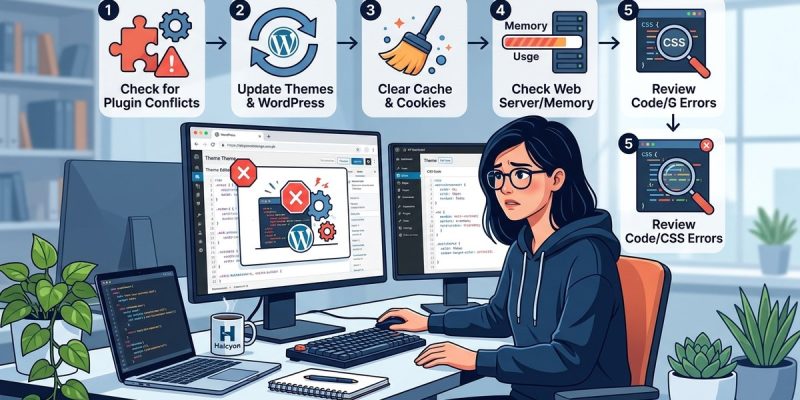
Your WordPress theme editor freezes, throws an error message, or suddenly closes without warning. That spinning wheel of doom appears, and you cannot save your work. This is frustrating, especially when you are in the middle of a design session.
The good news is that most crashes have a handful of common causes. You do not need to be a developer to fix them. This guide will walk you through the reasons your editor is failing and give you the exact steps to resolve the issue today.
A crashing WordPress theme editor is usually caused by a plugin conflict, a memory limit, a corrupted browser cache, or a faulty theme file. You can fix it by deactivating plugins one by one, increasing your PHP memory limit, clearing your browser and site cache, or switching to a default theme. Start with the simplest fix and work your way up.
What Makes the Theme Editor Crash?
The WordPress theme editor (whether you use the Block editor or the Classic editor) relies on several systems working together. When one part fails, the whole editor can break. Here are the usual suspects:
- A plugin that conflicts with the editor’s scripts.
- Your web host’s PHP memory limit is too low.
- A corrupted browser cache or a bad browser extension.
- A broken theme file in your active theme.
- An incomplete WordPress core update.
Let us look at each cause and the fix you can apply right now.
Fix 1: Deactivate All Plugins and Reactivate One by One
Plugin conflicts are the number one reason the theme editor crashes. A plugin might load its own JavaScript or CSS that clashes with the editor’s code. This is especially common with caching plugins, security plugins, and page builders.
Here is the process to isolate the problem:
- Go to your WordPress admin dashboard.
- Navigate to Plugins > Installed Plugins.
- At the top of the list, click the checkbox to select all plugins.
- Choose “Bulk Actions” and then “Deactivate”.
- Confirm the deactivation.
- Now, try opening the theme editor again. If it loads without crashing, you have confirmed a plugin conflict.
- Reactivate your plugins one by one. After each activation, test the editor. When the editor crashes again, you have found the culprit.
Once you identify the problem plugin, you have a few options:
- Check if the plugin has an update available.
- Contact the plugin developer for support.
- Look for an alternative plugin that does the same job.
If you need help choosing reliable plugins, read our guide on how to choose the right WordPress plugin without breaking your site.
Fix 2: Increase Your PHP Memory Limit
WordPress runs on PHP. Your web host sets a limit on how much memory a single PHP process can use. If your theme editor needs more memory than this limit, it will crash. This is a common issue on budget shared hosting plans.
You can check your current memory limit by looking at your site’s error logs. A common symptom is the “white screen of death” or a message saying “Fatal error: Allowed memory size exhausted”.
To fix this, you need to edit your wp-config.php file. Here is how:
- Connect to your site using FTP or your hosting control panel’s file manager.
- Navigate to the root folder of your WordPress installation.
- Find the file named
wp-config.php. - Open it in a text editor.
- Add this line of code just before the line that says “That’s all, stop editing! Happy blogging.”:
define('WP_MEMORY_LIMIT', '256M');
- Save the file and upload it back to your server if you used FTP.
This change tells WordPress to allocate up to 256 MB of memory for PHP processes. If your editor still crashes, you can try 512M. If your hosting plan does not allow this much memory, you may need to consider a better hosting plan. Our guide on how to choose the right WordPress hosting plan for your first website can help you find a host that supports your needs.
Fix 3: Clear Your Browser Cache and Site Cache
Your browser saves copies of websites to load them faster. Sometimes, a cached version of an old editor file can cause a crash. The same goes for your WordPress caching plugin.
Start with your browser:
- Open your browser’s settings.
- Look for “Privacy and Security” or “Clear browsing data”.
- Select “Cached images and files”.
- Clear the cache.
- Close the browser completely and reopen it.
Now clear your WordPress site cache:
- If you use a caching plugin (like W3 Total Cache or WP Super Cache), go to its settings.
- Find the option to clear or purge the cache.
- Click it.
After clearing both caches, try the theme editor again. This simple step resolves many intermittent crashes. If you want to understand more about how caching works, read our article on 5 caching strategies that actually work for WordPress sites.
Fix 4: Switch to a Default WordPress Theme
Your active theme might have a corrupted file or a script that conflicts with the editor. The easiest way to test this is to temporarily switch to a default WordPress theme like Twenty Twenty-Four or Twenty Twenty-Five.
- Go to Appearance > Themes.
- Activate a default theme (do not delete your current theme).
- Open the theme editor.
If the editor works with the default theme, your original theme is the problem. You can then try reinstalling your theme. Download a fresh copy from the developer’s site and upload it via Appearance > Themes > Add New > Upload Theme.
Before you switch themes permanently, learn how to safely switch WordPress themes without losing your content or SEO rankings.
Fix 5: Run a Full WordPress Health Check
WordPress has a built-in tool to diagnose common problems. It checks for errors in your site’s configuration.
- Go to Tools > Site Health.
- Click the “Info” tab to see your server details.
- Click the “Status” tab.
- Look for any critical issues or warnings.
The Site Health tool will tell you if your PHP version is outdated, if your REST API is blocked, or if there are loopback request failures. Each issue will have a “Fix” button or a link to more information.
If you see a warning about the REST API, it often means a security plugin is blocking the editor’s requests. You may need to whitelist the editor’s URLs in your security plugin settings.
Quick Reference: Common Mistakes and What to Do
| Mistake | What Happens | The Fix |
|---|---|---|
| Installing too many plugins | Editor becomes slow and crashes | Deactivate unused plugins |
| Using an outdated theme | Theme files conflict with new WordPress updates | Update your theme or switch to a compatible one |
| Not clearing cache after updates | Old cached scripts cause errors | Clear browser and site cache |
| Low PHP memory limit | Editor runs out of memory and crashes | Increase memory limit in wp-config.php |
| Using a plugin that blocks the REST API | Editor cannot communicate with the server | Check security plugin settings |
When Should You Restore a Backup?
If none of these fixes work, you may need to restore a backup from before the problem started. This is why regular backups are essential. If you have a recent backup, you can roll back your entire site to a working state.
This is also a good reminder to always create a backup before making major changes. Our guide on how to back up your WordPress site manually in under 10 minutes shows you how to do this safely.
“The most common reason for a WordPress editor crash is a plugin update that introduces a conflict. Always test plugin updates on a staging site before applying them to your live site.” – WordPress maintenance best practice
Building a Stable Editing Environment
A crashing editor is a symptom of a larger problem. Once you fix the immediate crash, take steps to prevent it from happening again.
- Keep your WordPress core, themes, and plugins updated.
- Use a staging site to test updates before applying them to your live site. Learn how to create a staging site for WordPress without breaking your live site.
- Limit the number of active plugins. Only keep what you need.
- Choose a reliable web host that offers enough PHP memory for your needs.
- Regularly clear your site’s cache and your browser cache.
By following these steps, you can keep your theme editor running smoothly and avoid the panic of a crash in the middle of a project. Start with the simplest fix, clear your cache, and work your way through the list. You will be back to editing your site in no time.