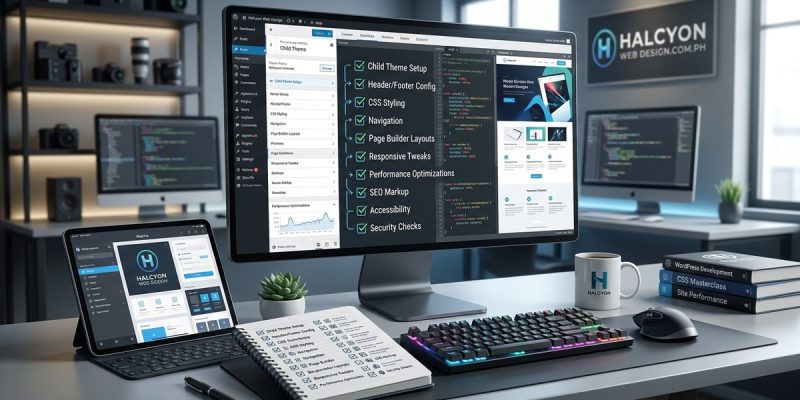
You already know your way around a WordPress dashboard. You have installed themes, maybe tweaked a few PHP files, and you understand the difference between a page builder and a block editor. But when it comes to a full theme customization, it is easy to miss something. A forgotten child theme. A font that looks great on desktop but breaks on mobile. A missing alt tag that hurts your SEO.
This checklist is built for you. It covers every stage of customizing a WordPress theme, from the prep work to the final performance audit. Use it as your go-to reference so you never have to backtrack.
This checklist covers the full lifecycle of a WordPress theme customization. It starts with safe setup practices like child themes and staging sites, then moves into design and layout overrides. After that, it covers performance, accessibility, and SEO checks. Use this as your master reference to avoid missing any critical step.
Start With a Safe Foundation
Before you change a single line of CSS, make sure your working environment is protected.
-
Create a child theme. Never edit a parent theme directly. If you do, a theme update will overwrite your changes. A child theme keeps your customizations separate and safe. If you are not sure how to set one up, read our guide on child themes explained.
-
Set up a staging site. Test every change on a staging copy before pushing it live. This prevents broken layouts from reaching your visitors. Learn how to create a staging site for WordPress without affecting your live site.
-
Back up everything. Take a full backup of your files and database. You can do this manually or use a plugin. For a walkthrough, see how to back up your WordPress site manually.
-
Document your starting point. Note which theme version you are using and what plugins are active. This helps if you need to roll back later.
Customize the Layout and Design
Now you can start shaping how your site looks. This is where most of the visual work happens.
Typography and Color Palette
- Replace default fonts with your brand typefaces. Use
@font-faceor a service like Google Fonts. Preload your fonts to avoid a flash of unstyled text. Read about why preloading fonts matters for your Core Web Vitals score. - Pick a primary color, a secondary color, and an accent. Apply them consistently across buttons, links, and backgrounds. Our guide on choosing the perfect color palette walks through the process.
- Set a base font size (usually 16px for body text) and use a responsive unit like
clamp()for fluid sizing. The complete guide to CSS clamp() shows how.
Header, Navigation, and Footer
- Design a sticky header that stays visible as users scroll. Pure CSS works well here. Check out how to build a sticky header with pure CSS.
- Build a responsive navigation menu that collapses into a hamburger icon on small screens. Use CSS Grid or Flexbox. See building responsive navigation menus for code examples.
- Add a footer with your copyright, menu links, and social icons. Keep it clean. Avoid clutter. Learn more about how to design a navigation menu that users actually understand.
Page Templates and Layouts
- Override single post, page, and archive templates inside your child theme. Use the correct template hierarchy (
single.php,page.php,archive.php). - Use CSS Grid for complex layouts. If you work with nested grids, CSS subgrid can simplify your code.
- Check your layout at common breakpoints: 320px, 768px, 1024px, and 1440px. The beginner’s guide to responsive breakpoints explains where to set them.
Add Custom Functionality
Sometimes you need more than CSS. You might want to add a custom post type, a new widget area, or modify how the theme loads scripts.
- Use the
functions.phpfile in your child theme to enqueue custom styles and scripts. - Register custom post types or taxonomies only if the theme does not already support them.
- Avoid adding heavy JavaScript for tasks that CSS can handle. For example, building a pure CSS accordion is lighter than a jQuery version.
- If you need custom animations, keep them subtle. Read how to create smooth CSS animations without hurting page performance.
Performance and Speed Optimization
A beautiful theme is useless if it loads slowly. Run these checks before you go live.
| Optimization | What to Check | Common Mistake |
|---|---|---|
| Image compression | Use WebP or AVIF format. Set correct dimensions. | Uploading full-resolution images without resizing. |
| CSS and JS minification | Minify all assets. Combine where possible. | Leaving development comments in production files. |
| Caching | Use a caching plugin or server-side cache. | Not clearing cache after changes, so old CSS shows. |
| Font loading | Preload fonts and use font-display: swap. |
Loading too many font weights. Stick to two or three. |
| Database queries | Limit WP_Query calls. Use transients for expensive queries. |
Running a new query on every page load. |
- Test your site with Google PageSpeed Insights and GTmetrix. Focus on Largest Contentful Paint. Our article on what is largest contentful paint explains how to fix it.
- Enable lazy loading for images below the fold. But know when to avoid it. See lazy loading explained for edge cases.
- If your hosting is slow, consider a CDN. This guide on should you use a CDN covers the basics for small sites.
Expert advice: “Always test your theme on a staging environment before pushing changes. A single unclosed HTML tag can break your entire layout. Use the W3C validator to check your markup.”
Accessibility and Usability
Your custom theme must work for everyone. This is not optional. It is good practice and helps your SEO.
- Add skip links so keyboard users can jump to main content. This 30-second fix is covered in accessible skip links.
- Check color contrast. Use a tool like WebAIM’s contrast checker. Aim for a ratio of at least 4.5:1 for normal text. Read about 5 color contrast fixes that make your site WCAG compliant.
- Make sure every image has descriptive alt text. Our guide on how to write alt text that actually helps gives practical examples.
- Test your site using only the keyboard. Can you navigate every menu and form? If not, review does your website pass the tab key test.
- Use visible focus indicators on links and form fields. The guide on is your website’s focus indicator visible enough shows how to test and improve them.
SEO and Metadata
Your customizations should help search engines understand your content.
- Add schema markup for articles, products, or local business. Do it carefully. Read how to implement schema markup without breaking your site.
- Set up your permalink structure. Use
/%postname%/for clean URLs. The guide on how to set up WordPress permalinks explains the options. - Write unique meta descriptions for each page. Learn how to write meta descriptions that actually get clicks.
- Check for duplicate content issues. Use canonical tags. See how to fix duplicate content issues.
- Submit your sitemap to Google Search Console. Follow the steps in how to submit your sitemap to Google Search Console.
Common Mistakes to Avoid
Even experienced developers slip up sometimes. Here are the most frequent errors.
- Editing the parent theme directly. Always use a child theme. If you have not done this, you are one update away from losing your work.
- Forgetting to test on mobile. A layout that looks perfect on a 27-inch monitor can break on a phone. Always test on real devices.
- Overloading the functions.php file. Keep it organized. Split custom code into separate files and include them.
- Ignoring browser caching. After you update CSS, clear your browser cache and your server cache. Otherwise you will think your changes did not apply.
- Skipping the staging environment. Testing on a live site risks showing broken elements to visitors. Use a staging site.
For a deeper look at layout issues, read about 10 layout mistakes that scream amateur and their professional fixes.
Final Review Before Launch
Run through this numbered checklist one last time.
- Confirm you are using a child theme and the parent theme is unmodified.
- Verify all custom CSS is in the child theme’s
style.cssor a dedicated CSS file. - Test every page template on desktop, tablet, and mobile.
- Run an accessibility audit. Fix any contrast or keyboard navigation issues.
- Check your page speed score. Aim for a score of 90 or higher on mobile and desktop.
- Validate your HTML and CSS using the W3C validator.
- Review your SEO metadata. Ensure every page has a unique title and description.
- Clear all caches. Do a final visual check on the live site.
- Set up automated daily backups. See how to set up automatic daily backups for a simple workflow.
- Update your staging site to match the live version so future changes start from the same state.
Keep This Checklist Handy
Customizing a WordPress theme is a process. It is not a one-time task. Every time you add a new feature or tweak a style, run through this checklist again. It will save you from headaches later.
Print it. Bookmark it. Share it with your team. And if you ever feel stuck, remember that a solid foundation (child theme, staging site, backups) lets you experiment without fear. Happy customizing.