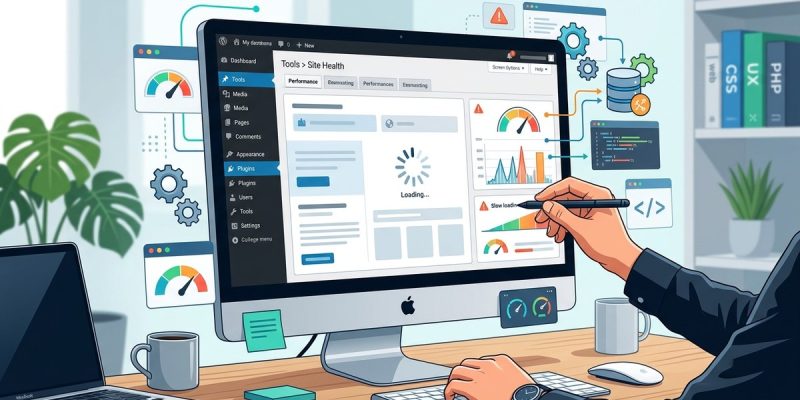
Your front-end loads perfectly. Visitors see your pages in seconds. But when you log into WordPress, everything grinds to a halt. The dashboard takes forever to load. Clicking between pages feels like wading through mud. Saving a post becomes a test of patience.
This happens more often than you’d think. A slow WordPress admin dashboard is a different beast from a slow front-end site, and it requires different troubleshooting steps.
A slow WordPress admin dashboard usually stems from plugin conflicts, excessive [database](https://en.wikipedia.org/wiki/Database) queries, server resource limits, or external API calls. Unlike front-end performance issues, admin slowness affects only logged-in users and often involves different performance bottlenecks. You can diagnose and fix most admin dashboard performance problems without touching your hosting plan by methodically testing plugins, clearing transients, and optimizing admin-ajax calls.
Why your admin dashboard slows down differently than your front-end
Your WordPress admin area runs different code than what visitors see.
The dashboard loads dozens of scripts. It makes database queries for every menu item, widget, and plugin setting. It checks for updates constantly. It runs admin-specific hooks and filters.
Most caching plugins ignore logged-in users entirely. That means your admin experience gets zero performance boost from the caching that speeds up your front-end.
Server resources matter more in the admin area. Every click triggers PHP execution. Every save operation writes to the database. Every plugin settings page loads its own assets.
External API calls hit harder in the backend. Plugins checking license servers, fetching remote data, or connecting to third-party services all add delays that only affect admin users.
Common culprits behind admin dashboard lag
Several specific issues cause most slow WordPress admin dashboards.
Plugin overload in the admin area
Some plugins load heavy scripts only in the dashboard. Page builders, SEO tools, and analytics plugins often add megabytes of JavaScript and CSS that only admin users download.
You might have 30 plugins active. Maybe 20 of them load admin assets. Each one adds HTTP requests, script execution time, and memory usage.
Database table bloat
Your database grows over time. Post revisions pile up. Transient options expire but don’t delete themselves. Plugin options tables get cluttered with orphaned data.
A bloated database makes every query slower. When WordPress needs to search through millions of rows to find your settings, everything drags.
Heartbeat API running wild
WordPress uses the Heartbeat API to auto-save posts, check for plugin updates, and show real-time notifications.
By default, it pings your server every 15 seconds. On shared hosting or underpowered servers, these constant requests consume resources and slow down everything else.
Admin-ajax.php getting hammered
Many plugins use admin-ajax.php to handle background tasks. If multiple plugins send requests constantly, this single file becomes a bottleneck.
Check your browser’s network tab while using the dashboard. You might see admin-ajax.php firing dozens of times per minute.
Step-by-step troubleshooting process
Follow these steps in order to identify what’s slowing your admin dashboard.
-
Test your dashboard speed while logged out. Visit your front-end site and measure load time. This confirms the problem exists only in the admin area.
-
Check your hosting resources. Log into your hosting control panel. Look for resource usage graphs. If you’re hitting CPU or memory limits, that’s your bottleneck.
-
Disable all plugins temporarily. Your dashboard should speed up dramatically. If it doesn’t, the problem lies elsewhere (theme, hosting, or core WordPress files).
-
Re-enable plugins one by one. After activating each plugin, test dashboard performance. Note which plugins cause slowdowns. Sometimes choosing the right WordPress plugin prevents these issues from the start.
-
Switch to a default theme. Activate Twenty Twenty-Four or another default WordPress theme. Test dashboard speed. If performance improves, your theme is the problem.
-
Clear your database transients. Use a plugin like WP-Optimize or run this SQL query:
DELETE FROM wp_options WHERE option_name LIKE '%_transient_%' -
Monitor admin-ajax.php activity. Open your browser’s developer tools. Go to the Network tab. Filter by “admin-ajax” and watch how often it fires.
Fixing plugin-related admin slowness
Once you’ve identified problematic plugins, you have options.
Replace heavy plugins with lighter alternatives. That premium page builder might offer 500 features, but you probably use 20. Find a simpler tool that does what you need.
Auditing your WordPress plugins regularly helps prevent bloat before it becomes a problem.
Disable plugin features you don’t use. Many plugins let you turn off specific modules. If you’re not using the social sharing feature, disable it.
Limit where plugins load. Some plugins offer settings to disable admin scripts on pages where you don’t need them.
Consider what features WordPress already includes before installing another plugin.
Database optimization techniques
A clean database responds faster to every query.
Delete old post revisions. WordPress saves every draft automatically. After months of editing, you might have thousands of revisions. Use this code in wp-config.php to limit revisions:
define('WP_POST_REVISIONS', 5);
Remove spam and trashed comments. These clutter your database. Empty your trash regularly and use Akismet or similar tools to prevent spam accumulation.
Clean up transients. These temporary database entries should expire automatically, but many don’t. Reducing WordPress database bloat covers this in detail.
Optimize database tables. Run the OPTIMIZE TABLE command monthly. Most database management tools include this feature.
| Database issue | Impact on admin speed | Solution |
|---|---|---|
| Post revisions | Slows post editor loading | Limit revisions to 5-10 per post |
| Expired transients | Increases query time | Delete weekly using plugin or SQL |
| Orphaned metadata | Bloats wp_postmeta table | Use optimization plugin to clean |
| Auto-draft posts | Clutters post queries | Delete drafts older than 7 days |
Controlling the Heartbeat API
The Heartbeat API serves useful purposes, but it can overwhelm servers.
Slow down the heartbeat interval. Add this code to your theme’s functions.php or a custom plugin:
add_filter('heartbeat_settings', 'modify_heartbeat_settings');
function modify_heartbeat_settings($settings) {
    $settings['interval'] = 60;
    return $settings;
}
This changes the heartbeat from every 15 seconds to every 60 seconds.
Disable heartbeat on specific pages. You don’t need it running on every admin page. Use a plugin like Heartbeat Control to choose where it runs.
Turn it off completely if you don’t use auto-save. Some users prefer manual saving and don’t need the heartbeat at all.
Reducing admin-ajax.php load
Admin-ajax.php handles asynchronous requests. Too many requests create performance problems.
Identify which plugins use it most. Check your browser’s network tab. Look for patterns in the admin-ajax calls.
Disable real-time features you don’t need. Live notifications, auto-refresh widgets, and background syncing all use admin-ajax.
Cache admin-ajax requests when possible. Some caching plugins offer settings to cache specific admin-ajax calls.
Server and hosting considerations
Sometimes the problem isn’t WordPress at all.
Shared hosting struggles with admin tasks. When you share server resources with hundreds of other sites, PHP execution slows down.
PHP version matters significantly. PHP 8.0 and newer run much faster than PHP 7.4 or older versions. Check your hosting control panel and upgrade if possible.
Memory limits affect admin performance. If WordPress hits the memory limit, everything slows down. Increase PHP memory limit to 256MB or higher.
If you’re consistently hitting server resource limits in the admin area but your front-end performs well, you’ve outgrown your current hosting plan. The admin dashboard uses more server resources than cached front-end pages, so it often reveals hosting limitations first.
Choosing the right WordPress hosting plan prevents many admin performance issues before they start.
Testing and measuring improvements
Track your progress as you make changes.
Measure dashboard load time before starting. Use your browser’s developer tools to record page load time on key admin pages.
Test after each change. Don’t make multiple changes at once. You won’t know which fix actually helped.
Focus on the pages you use most. The posts list, post editor, and dashboard homepage matter more than settings pages you rarely visit.
Document what works. Keep notes about which plugins caused problems and which fixes helped most.
Advanced troubleshooting techniques
If basic fixes don’t solve the problem, try these approaches.
Check for theme conflicts. Even if you’re using a child theme, the parent theme might load heavy admin assets. Understanding when you need a child theme helps prevent these issues.
Review custom code. If you’ve added custom functions to your theme or plugins, they might run on every admin page load.
Monitor error logs. Your hosting control panel should show PHP error logs. Look for repeated errors or warnings that might indicate problems.
Test on different browsers. Sometimes browser extensions or cached data cause slowdowns that aren’t actually WordPress issues.
Preventing future admin slowness
Maintenance prevents most performance problems.
Update regularly. Keeping WordPress updated improves both security and performance.
Test before installing plugins. Testing WordPress themes applies to plugins too. Install on a staging site first.
Run database optimization monthly. Set a calendar reminder to clean your database every 30 days.
Monitor plugin updates. Sometimes plugin updates introduce performance issues. Updating plugins safely prevents broken sites.
Common mistakes that make admin slowness worse
Avoid these troubleshooting errors.
- Installing performance plugins without testing. Adding another plugin to fix plugin slowness often backfires.
- Clearing cache without identifying the cause. Cache clearing might temporarily speed things up, but the underlying problem remains.
- Upgrading hosting immediately. Better hosting helps, but it won’t fix plugin conflicts or database bloat.
- Disabling useful features blindly. Some admin features are worth the performance cost.
When admin slowness indicates bigger problems
Sometimes a slow dashboard signals serious issues.
Security compromises often slow admin areas. Malware and backdoors consume server resources. Checking for WordPress hacks should be part of your troubleshooting.
Failed updates leave files corrupted. If performance problems started after an update, recovering from failed plugin updates might help.
Server configuration errors affect only admin users. Incorrect PHP settings or missing extensions cause weird performance patterns.
Making your dashboard faster for the long term
A few strategic changes create lasting improvements.
Use fewer plugins overall. Every plugin adds overhead. Consolidate functionality when possible.
Choose lightweight alternatives. Two plugins that do the same thing might have vastly different performance impacts.
Limit admin users. Each logged-in user consumes server resources. Remove inactive accounts.
Schedule heavy tasks for off-hours. Database optimization, backups, and updates should run when you’re not working.
Getting your admin dashboard back up to speed
A slow WordPress admin dashboard frustrates your workflow and wastes time.
Most slowdowns come from plugins loading unnecessary assets, databases filling with expired data, or the Heartbeat API running too frequently. You can fix these problems yourself without upgrading hosting or hiring a developer.
Start with the systematic approach outlined here. Disable plugins to identify conflicts. Clean your database to remove bloat. Control the Heartbeat API to reduce server load. Monitor admin-ajax.php to catch excessive background requests.
Your admin dashboard should respond as quickly as your front-end site. When it doesn’t, you now have a clear troubleshooting path to follow.