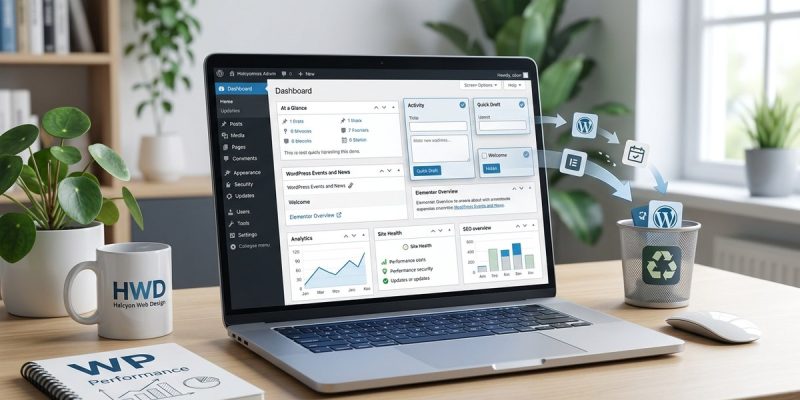
Struggling with a cluttered WordPress dashboard? It can feel overwhelming to sift through numerous widgets that are not always essential for your workflow. Luckily, decluttering is straightforward and can significantly boost your productivity. Removing unnecessary dashboard widgets helps you focus on what truly matters, saving time and reducing confusion every time you log in. Whether you’re managing several sites or just want a cleaner interface, this guide walks you through simple steps to tidy up your admin area.
Cleaning your WordPress dashboard by removing unnecessary widgets streamlines your site management, saves time, and makes your admin area more user-friendly. You can do this easily with built-in options or custom code, making your workspace more efficient and less cluttered.
Why Removing WordPress Dashboard Widgets Matters
A cluttered dashboard can slow you down and cause frustration. When you have too many widgets, it becomes difficult to find the tools and information you need. This can lead to accidental clicks on irrelevant items or simply wasting time scrolling through unnecessary elements. By removing widgets that are not useful for your specific setup, you create a more focused and efficient workspace. It also reduces visual noise, making it easier to see important updates and metrics at a glance.
Customizing your dashboard is especially helpful if you work with clients or multiple sites. You can tailor the interface to suit your workflow. Plus, a clean dashboard can help new team members or clients navigate your site management more easily. In short, decluttering helps you work faster, reduces errors, and improves overall site management.
How To Remove Widgets From Your WordPress Dashboard
There are several ways to declutter your WordPress admin area. Here are the most common and effective methods.
1. Use Built-in Screen Options
WordPress provides a simple way to hide widgets directly from your dashboard with the Screen Options menu. Here’s how:
- Log in to your WordPress admin area.
- At the top right corner of the dashboard, click on “Screen Options.”
- A panel will slide down showing checkboxes for each widget.
- Uncheck the boxes for the widgets you want to hide.
- The dashboard will refresh, and the unchecked widgets will disappear.
This method is quick and easy but only applies to the current user. If you want to remove widgets for all users, you’ll need to use custom code or plugins.
2. Remove Widgets Using Code (for All Users)
To fully declutter your dashboard for everyone, adding a small snippet of code to your theme’s functions.php file or a site-specific plugin is effective. Here’s a step-by-step process:
- Access your site’s files via FTP or your hosting file manager.
- Locate and open your active theme’s functions.php file.
- Add the following code snippet:
function remove_dashboard_widgets() {
    global $wp_meta_boxes;

    // Remove Welcome Panel
    unset($wp_meta_boxes['dashboard']['normal']['core']['dashboard_welcome']);

    // Remove Quick Draft
    unset($wp_meta_boxes['dashboard']['side']['core']['dashboard_quick_press']);

    // Remove WordPress News
    unset($wp_meta_boxes['dashboard']['side']['core']['dashboard_primary']);

    // Remove Other Widgets by ID
    unset($wp_meta_boxes['dashboard']['normal']['core']['dashboard_activity']);
    unset($wp_meta_boxes['dashboard']['normal']['core']['dashboard_site_health']);
}
add_action('wp_dashboard_setup', 'remove_dashboard_widgets');
- Save the changes and refresh your dashboard.
This code targets specific default widgets and removes them for all users. Feel free to customize it by adding or removing widgets based on their IDs.
Expert Tip: Always back up your site before editing theme files. A small mistake can cause errors. Using a child theme or a custom plugin for such modifications is safer.
3. Use a Plugin Designed for Dashboard Customization
If you’re not comfortable editing code, a plugin can handle dashboard widget removal with user-friendly controls. Some popular options include:
- Adminimize: Lets you hide specific dashboard items for different user roles.
- WP Admin UI Customize: Offers options to customize the admin interface extensively.
- Dashboard Widgets Suite: Allows drag-and-drop removal and reordering.
Here’s how to use a plugin:
- Install and activate your chosen plugin from the WordPress plugin repository.
- Navigate to the plugin’s settings page.
- Select the widgets you want to hide or remove.
- Save your settings.
Plugins are great for quick customization without touching code, especially if you manage multiple user roles.
Comparing Techniques and Common Pitfalls
| Technique | Pros | Cons | Common Mistakes |
|---|---|---|---|
| Screen Options | Simple, user-specific | Not effective for all users | Forgetting to reapply after updates |
| Code snippet | Permanent, applies to all users | Requires editing theme files | Mistyping IDs, risking site errors |
| Plugins | User-friendly, role-based control | Adds extra plugin overhead | Not updating plugins regularly |
Mistakes to Avoid When Removing Dashboard Widgets
- Deleting essential widgets unintentionally. For example, removing the “Site Health” widget might hide critical site status info.
- Forgetting to back up before editing code. Always save a copy of your theme files or use a staging environment.
- Using outdated or unsupported plugins. Choose plugins with recent updates and good reviews.
- Not testing changes across user roles. Your admin might see a clean dashboard, but editors or contributors may still have cluttered views.
Best Practices for Decluttering
- Keep only the widgets you need. Too many removals can cause confusion later.
- Regularly review your dashboard layout, especially after plugin updates or site changes.
- Use role-specific customizations if multiple users access your site.
- Document your changes for future reference.
Troubleshooting Common Issues
| Issue | Possible Cause | Solution |
|---|---|---|
| Widgets reappear after plugin updates | Theme or plugin conflicts | Reapply custom code or check plugin settings |
| Cannot remove a widget | Widget ID changed or not targeted correctly | Inspect the widget’s ID via browser dev tools and update your code accordingly |
| Changes don’t apply to other users | Code only modifies current user | Use code snippets for all users or configure plugin settings |
Remember, if you encounter persistent issues, reviewing the WordPress support forums or consulting with a developer can save time and headaches.
Keep Your Dashboard Clear and Focused
Removing clutter from your WordPress dashboard isn’t just about aesthetics. It’s a practical step toward smoother site management. Whether you prefer using the built-in options, adding custom code, or employing plugins, each method has its perks. Choose the approach that best fits your comfort level and site setup.
A clean dashboard helps you stay focused on what’s important—whether it’s publishing content, managing plugins, or monitoring site health. Regularly reviewing and adjusting your dashboard layout ensures you keep your workspace efficient as your site evolves.
Remember, decluttering is an ongoing process. As new plugins and features come in, revisit your settings to maintain a streamlined admin area. This simple habit can save you time, reduce errors, and make managing your WordPress site a more pleasant experience.
Streamline Your WordPress Admin Area for Better Productivity
Taking the time to remove unnecessary widgets from your dashboard makes a noticeable difference. It turns a cluttered work environment into a clean, focused space that supports your site management goals. Whether you’re a solo blogger or managing multiple websites, a tidy dashboard is a smart move. Implement these steps today, and enjoy a more efficient, stress-free WordPress experience.