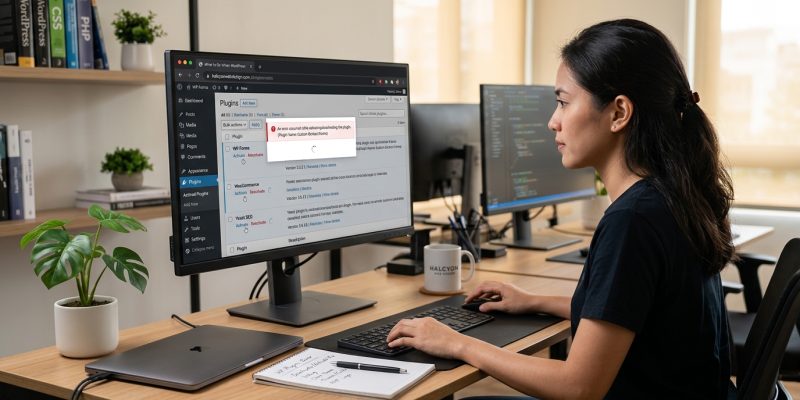
You just installed a plugin that promises to solve your biggest website problem. You click “Activate.” Nothing happens. Or worse, you get an error message that makes no sense. Your site still works, but the feature you need isn’t there. You try again. Same result.
This happens more often than you’d think, and it’s rarely the plugin’s fault alone.
When a WordPress plugin won’t activate, the issue usually stems from server resource limits, file permission conflicts, PHP version mismatches, theme incompatibility, or corrupted plugin files. Most problems can be resolved through systematic troubleshooting including deactivating other plugins, switching themes temporarily, increasing memory limits, checking error logs, and reinstalling the problematic plugin from a fresh download.
Why plugins refuse to activate
WordPress plugins need specific conditions to run properly. When those conditions aren’t met, activation fails.
The most common culprits include:
- Insufficient PHP memory allocated to your site
- Outdated PHP version on your server
- File permission restrictions preventing write access
- Conflicts with other active plugins
- Theme code that interferes with plugin hooks
- Corrupted plugin files from incomplete uploads
- Server timeout limits that cut off the activation process
Understanding which issue you’re facing saves hours of random troubleshooting.
Check your error messages first
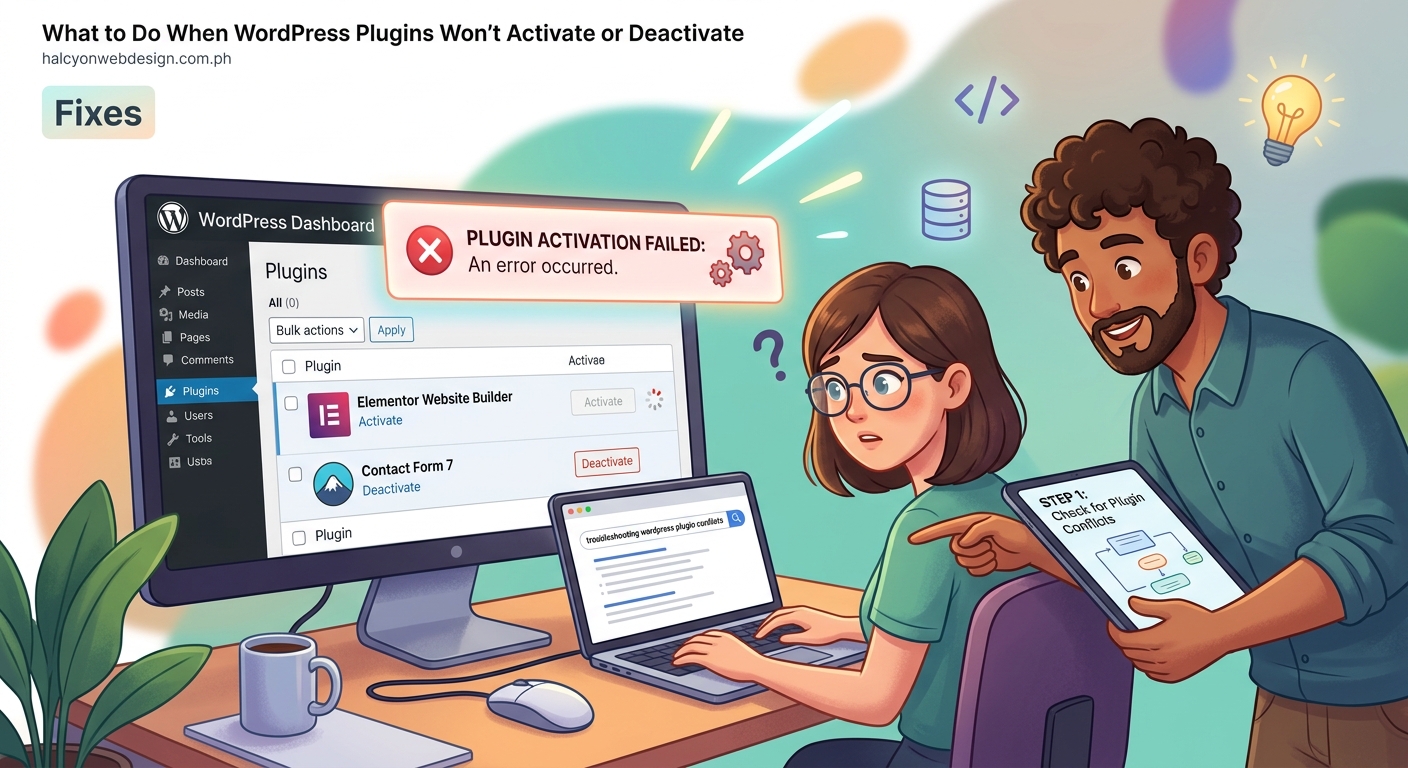
WordPress usually tells you what went wrong. The trick is knowing where to look.
Enable debugging by adding these lines to your wp-config.php file:
define('WP_DEBUG', true);
define('WP_DEBUG_LOG', true);
define('WP_DEBUG_DISPLAY', false);
This creates a debug.log file in your wp-content folder. Open it after trying to activate the plugin again. The error message there often points directly to the problem.
Common error patterns and what they mean:
| Error Message | Likely Cause | Solution Path |
|---|---|---|
| Fatal error: Allowed memory size exhausted | PHP memory limit too low | Increase memory in wp-config.php or php.ini |
| Plugin could not be activated because it triggered a fatal error | Code conflict or missing dependency | Check plugin requirements and PHP version |
| The plugin does not have a valid header | Corrupted or incomplete plugin files | Delete and reinstall the plugin |
| Maximum execution time exceeded | Server timeout during activation | Increase max_execution_time value |
Seven fixes that actually work
Increase your PHP memory limit
WordPress needs enough memory to load all your plugins and theme files. The default 64MB often isn’t enough.
Add this line to your wp-config.php file, right above the line that says “That’s all, stop editing!”:
define('WP_MEMORY_LIMIT', '256M');
If you don’t have FTP access, contact your hosting provider. Most will increase it for you within minutes.
Test for plugin conflicts
Other plugins might be blocking the new one from activating.
- Deactivate all plugins except the one you’re trying to activate
- Try activating the problem plugin again
- If it works, reactivate your other plugins one by one
- When the problem returns, you’ve found the conflict
This method works even if you can’t access your WordPress dashboard. Use FTP to rename your plugins folder temporarily, which deactivates everything at once. Try the activation, then rename the folder back.
Learning how to fix plugin conflicts in WordPress helps you handle these situations faster next time.
Switch to a default theme temporarily
Your theme might be interfering with plugin activation hooks.
Change to Twenty Twenty-Three or another default WordPress theme. Try activating the plugin. If it works, your theme is the problem.
Contact your theme developer with the error log details. They can usually provide a fix or workaround.
Check file permissions
WordPress needs write access to specific folders to activate plugins properly.
Connect via FTP and check these permissions:
- wp-content folder: 755
- wp-content/plugins folder: 755
- Individual plugin folders: 755
- Plugin files inside: 644
Never set folders to 777. That creates security vulnerabilities. If 755 doesn’t work, try 775 before considering anything more permissive.
Verify PHP version compatibility
Many modern plugins require PHP 7.4 or higher. Older servers still run PHP 5.6 or 7.0.
Check your PHP version in your hosting control panel. Compare it to the plugin requirements listed on the plugin’s WordPress.org page or documentation.
If your PHP version is too old, you have two options:
- Ask your host to upgrade PHP (usually free and takes minutes)
- Find an alternative plugin that supports your current version
Most hosting providers let you change PHP versions yourself through cPanel or a similar control panel. Look for “Select PHP Version” or “MultiPHP Manager” in your hosting dashboard. Just make sure your theme and other plugins support the newer version before switching.
Reinstall the plugin from scratch
Corrupted files during upload cause activation failures more often than you’d expect.
Delete the plugin completely through your WordPress dashboard or via FTP. Download a fresh copy from the official source. Upload and activate again.
Don’t just deactivate and reactivate. That doesn’t replace corrupted files. You need a complete removal and reinstall.
If you’re concerned about losing settings, most plugins store their configuration in your database, not in plugin files. Reinstalling the plugin files won’t delete your saved settings. But backing up first never hurts.
Increase server execution time
Some plugins run complex setup processes during activation. If your server cuts them off, activation fails.
Add these lines to a .htaccess file in your WordPress root directory:
php_value max_execution_time 300
php_value max_input_time 300
If that doesn’t work, you’ll need to edit your php.ini file or ask your host to make the changes.
When standard fixes don’t work
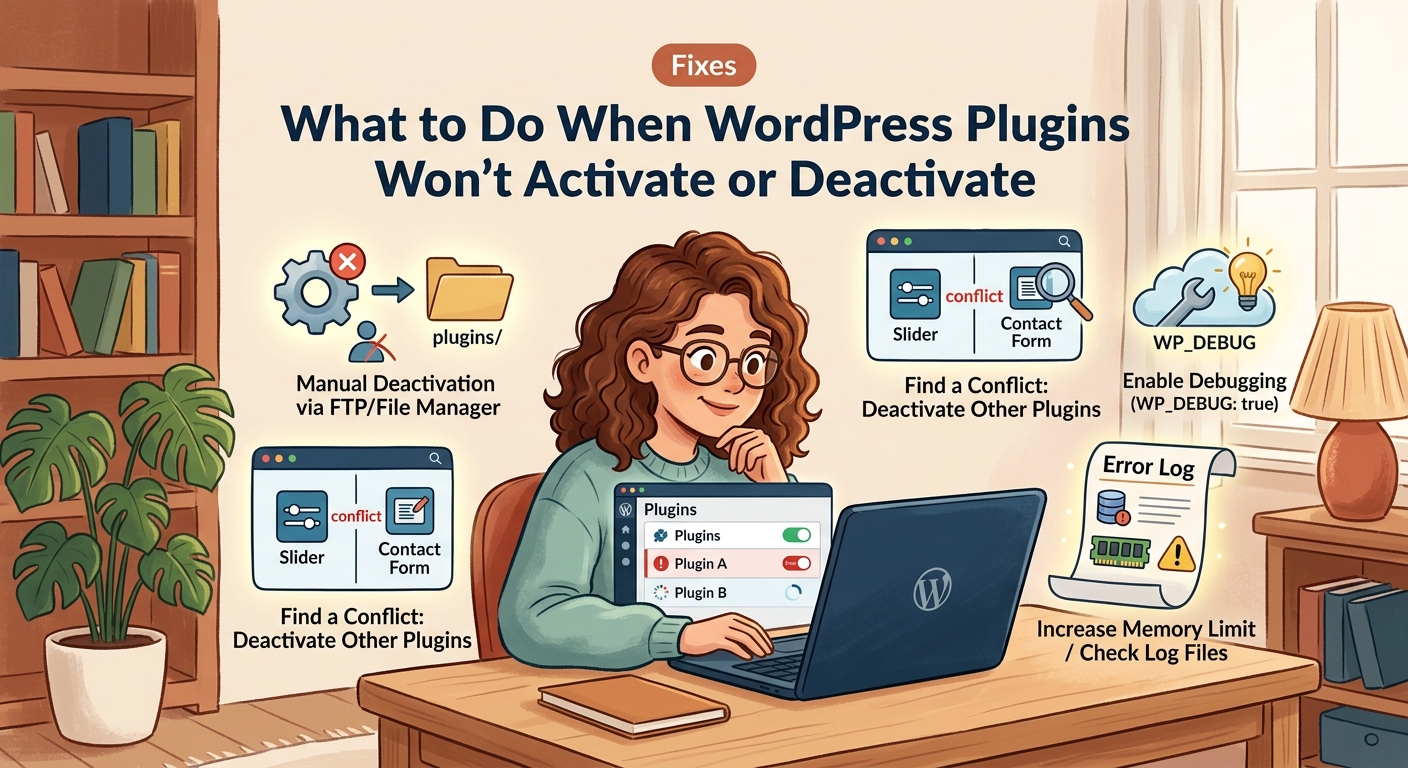
Sometimes the problem runs deeper than common issues.
Check if your hosting environment meets the plugin’s requirements. Some plugins need specific PHP extensions like cURL, GD Library, or mbstring. Your hosting provider can confirm whether these are installed.
Server-level restrictions might block certain plugin functions. Shared hosting often limits what plugins can do. If you’re trying to activate a caching plugin, a backup plugin, or anything that needs significant server resources, your host might be blocking it intentionally.
Contact the plugin developer with your error log. They’ve usually seen your exact problem before and can provide specific guidance. Most quality plugins offer support forums or documentation with troubleshooting steps.
Preventing activation problems before they start
Smart site management reduces plugin issues significantly.
Before installing any plugin, verify these details:
- Last update date (avoid plugins not updated in over a year)
- Compatibility with your WordPress version
- Required PHP version
- User reviews mentioning activation problems
- Number of active installations (higher is usually safer)
Keep your WordPress core, plugins, and theme updated. Many activation failures happen because outdated components conflict with newer plugins. Understanding how to safely update WordPress plugins prevents most update-related issues.
Test new plugins on a staging site first. Many hosts offer free staging environments. If yours doesn’t, consider whether using a staging environment makes sense for your workflow.
Maintain regular backups before making changes. If a plugin activation breaks something, you can restore your site in minutes instead of spending hours troubleshooting. Knowing how to choose the right WordPress backup plugin helps you set up reliable protection.
What to do if nothing works
You’ve tried everything. The plugin still won’t activate.
Consider these alternatives:
Look for a different plugin that does the same thing. WordPress usually offers multiple options for any given function. Check if you really need that plugin or if WordPress already includes the functionality.
Hire a WordPress developer for an hour. They can often spot issues you missed and fix them in minutes. The cost is usually less than the time you’d spend struggling.
Contact your hosting provider’s support team. They have server access you don’t and can check for restrictions or errors you can’t see. Many hosting companies offer WordPress-specific support that includes plugin troubleshooting.
If the plugin is essential and nothing else works, consider upgrading your hosting. Budget shared hosting often lacks the resources or flexibility needed for certain plugins. Better hosting solves many persistent plugin problems permanently.
Getting your plugins working again
Plugin activation problems feel frustrating, but they’re almost always fixable. Start with the simple solutions: check your error logs, increase memory limits, and test for conflicts. Most issues resolve within these first steps.
When basic troubleshooting doesn’t work, dig deeper into file permissions, PHP versions, and server settings. Document what you try so you don’t repeat steps or forget what worked.
The time you spend fixing these issues now makes you better equipped to handle them later. You’ll recognize patterns, spot problems faster, and know exactly which solution to try first. Your WordPress troubleshooting skills compound with each problem you solve.