
Google Search Console sits quietly in your browser tabs, collecting data while you sleep. Most webmasters log in, glance at the dashboard, and close the tab. They miss the goldmine hiding in plain sight.
The tool gives you direct access to how Google sees your site. It shows you which pages rank, which queries bring visitors, and where you’re losing ground. You don’t need expensive software or guesswork. You just need to know where to look.
Google Search Console reveals untapped ranking opportunities through performance filters, indexing reports, and click-through rate analysis. By focusing on pages ranking between positions 5 and 20, improving low CTR listings, and fixing technical issues, webmasters can boost organic traffic without creating new content. The platform provides first-party data directly from Google, making it more reliable than third-party SEO tools.
Understanding what Google Search Console actually tells you
Google Search Console tracks four core metrics that matter for search performance. Impressions show how many times your pages appeared in search results. Clicks measure how many people actually visited. Position reveals your average ranking for each query. CTR (click-through rate) shows the percentage of impressions that turned into clicks.
These numbers tell different stories. High impressions with low clicks mean your titles and descriptions need work. Good position with poor CTR suggests your meta data doesn’t match search intent. Rising impressions but falling clicks indicate a content quality problem.
The Performance report becomes your starting point. Set the date range to the last three months for meaningful patterns. Add comparison data from the previous period to spot trends. Enable all four metrics in the view so you can cross-reference them.
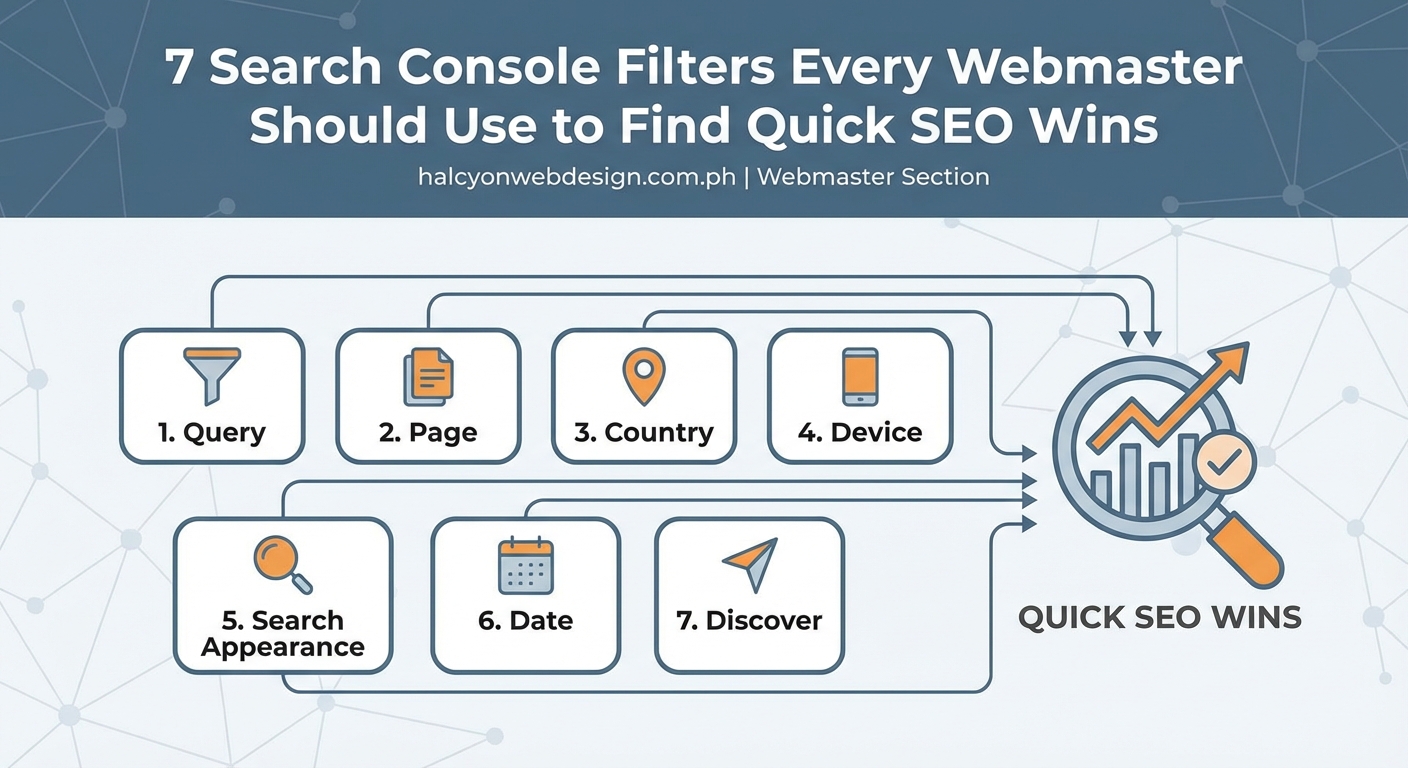
Filter by page to see which URLs drive traffic. Filter by query to understand what people actually search for. Filter by country if you serve multiple regions. Filter by device to catch mobile-specific issues.
Most SEO professionals waste time optimizing pages that already rank well. The real opportunities hide in pages stuck between positions 5 and 20, where small improvements create measurable jumps in traffic.
Finding pages that deserve immediate attention
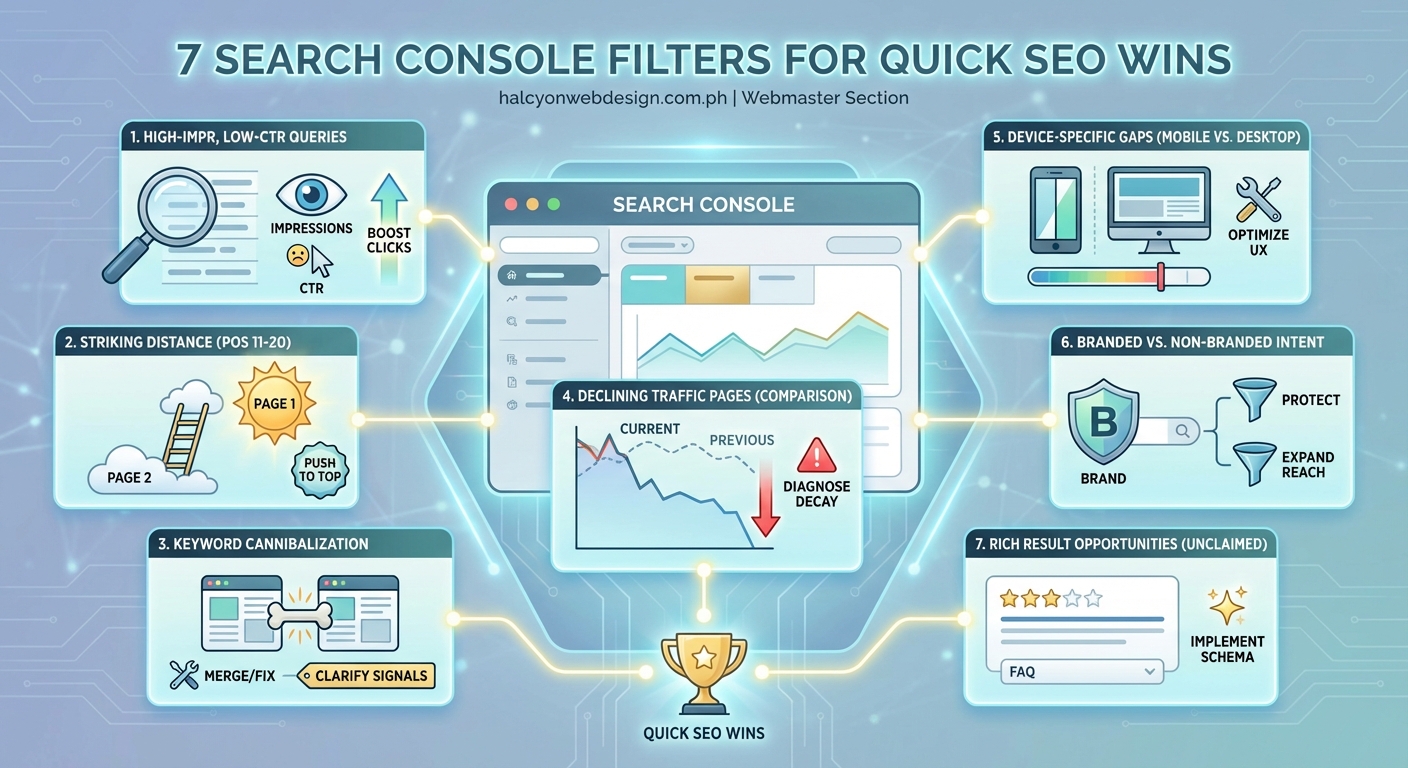
Your top 20 pages by clicks represent your current strengths. But the pages ranking just outside the first page represent your biggest opportunities. These pages already have Google’s trust. They just need a push.
Here’s how to find them:
- Open the Performance report and select the Queries tab
- Add a position filter for queries ranking between 5 and 20
- Sort by impressions to prioritize high-volume opportunities
- Export the list and group queries by topic
Now you have a roadmap. Each query in this range represents a page that’s close to page one. Small optimizations often move these pages up several positions.
Check the actual content on these pages. Does the title tag include the target query? Does the H2 structure support the main topic? Have you answered the question fully? Many pages rank in position 8 simply because they haven’t been updated in two years.
Add a new section that addresses a related question. Expand thin paragraphs into detailed explanations. Update outdated statistics or examples. These changes signal freshness to Google without requiring a complete rewrite.
Fixing click-through rates that leave traffic on the table
A page ranking in position 3 should get around 10% of available clicks. If yours gets 3%, you’re losing 70% of potential traffic. That’s not a ranking problem. That’s a messaging problem.
Low CTR happens for three reasons. Your title doesn’t match search intent. Your meta description sounds generic. Or your URL looks suspicious or irrelevant.
Filter your Performance report to show pages with position 1 to 10 but CTR below 5%. These pages already rank well. They just don’t convince people to click.
Look at the search queries driving impressions. What question is the searcher trying to answer? Now look at your title tag. Does it promise that answer? If someone searches “how to backup wordpress database,” your title should say exactly that, not “Database Management Best Practices.”
Write meta descriptions that actually get clicks by including the benefit, not just the topic. “Learn how to backup your WordPress database in 5 minutes without plugins” beats “WordPress database backup tutorial” every time.
Test your changes by updating one or two pages first. Wait two weeks and check if CTR improved. If it did, apply the same approach to similar pages.
Identifying queries you didn’t know you ranked for
Google often ranks your pages for queries you never targeted. These accidental rankings reveal content gaps and expansion opportunities.
Go to the Queries tab and sort by impressions. Scan for unexpected terms. If you wrote a guide about WordPress security and notice you’re getting impressions for “two-factor authentication,” that’s a signal. People want that specific topic covered in more depth.
You have two options. Either expand the existing page to cover the query better, or create a new dedicated page. The choice depends on topic relevance. If the query fits naturally into your existing content, expand it. If it deserves its own focus, create something new.
These surprise queries also reveal how Google interprets your content. If you’re ranking for terms you didn’t intend, your page might be too broad or unfocused. Tighten the topic and remove tangential sections.
Spotting technical issues before they tank your traffic
The Coverage report shows which pages Google can and can’t index. Errors here directly impact how many pages can rank.
Four categories matter most:
- Error: Pages Google tried to index but couldn’t
- Valid with warnings: Indexed but with issues
- Valid: Indexed successfully
- Excluded: Deliberately not indexed
Click into the Error section first. Common problems include 404 pages, server errors, and redirect chains. Fix these immediately. They represent pages Google wants to index but can’t.
Check the “Crawled but currently not indexed” status in the Excluded section. These pages were seen but deemed not valuable enough to index. Fix crawled but not indexed pages by improving content quality, adding internal links, or removing thin pages entirely.
The Page Indexing report (replacing Coverage in newer interfaces) groups issues by type. Focus on the categories with the most affected URLs. Fixing one underlying problem often resolves dozens of individual errors.
Using the URL Inspection tool for individual page diagnosis
When a specific page won’t rank or disappears from results, the URL Inspection tool reveals why. Paste any URL from your site to see exactly how Google views it.
The tool shows:
- Whether the page is indexed
- When it was last crawled
- Any crawling or indexing issues
- The canonical URL Google selected
- Mobile usability problems
If the page isn’t indexed, look at the “Coverage” section for the reason. Common issues include noindex tags, robots.txt blocks, or canonical tags pointing elsewhere.
The “Request Indexing” button asks Google to recrawl the page. Use this after fixing errors or publishing major updates. Don’t spam it for every small change. Google crawls important pages regularly on its own.
Check the rendered HTML to see if JavaScript is breaking your content. Google renders pages with JavaScript enabled, but errors can prevent content from displaying. If the rendered version looks wrong, your technical setup needs attention.
Tracking Core Web Vitals without third-party tools
Core Web Vitals measure page speed and user experience. Poor scores can prevent pages from ranking well, even with great content.
The Experience report shows three metrics:
- LCP (Largest Contentful Paint): How fast the main content loads
- FID (First Input Delay): How quickly the page responds to interactions
- CLS (Cumulative Layout Shift): How much elements move around while loading
Google groups URLs by similarity, so fixing one page often improves an entire template. If all your blog posts show poor LCP, the problem likely sits in your theme or hosting setup.
Click into any metric to see which URLs need work. Focus on pages that get significant traffic first. Improving speed on a page with 10 visits per month won’t move the needle. Improving speed on your homepage or top landing pages will.
Fix WordPress site speed by addressing the most common culprits: oversized images, render-blocking CSS, and slow hosting. These three factors cause most Core Web Vitals failures.
Comparing mobile versus desktop performance
More than half of all searches happen on mobile devices. If your mobile experience lags behind desktop, you’re losing traffic.
Add a device filter to the Performance report. Compare mobile and desktop side by side. Look for pages where mobile CTR or position significantly trails desktop performance.
Common mobile problems include:
- Text too small to read without zooming
- Buttons too close together to tap accurately
- Horizontal scrolling required
- Interstitials that block content
The Mobile Usability report flags these issues automatically. Fix them before they cost you rankings. Google uses mobile-first indexing, meaning it primarily uses the mobile version of your content for ranking.
Test your pages on an actual phone, not just browser developer tools. Real devices reveal problems that emulators miss. Check loading speed on a slower connection too. What loads fine on office WiFi might crawl on a commuter’s 4G connection.
Building a simple weekly review routine
Google Search Console works best as a habit, not a one-time audit. Set aside 20 minutes every Monday to review three things.
Check last week’s performance. Did traffic drop or spike? Investigate any sudden changes. A drop might indicate a technical issue or Google algorithm update. A spike might reveal a new ranking opportunity to expand.
Review new coverage issues. Sort by “Last crawled” to see recent problems. Catching indexing errors early prevents them from spreading across your site.
Identify one optimization opportunity. Pick a single page ranking between positions 5 and 20. Spend 30 minutes improving it. Track whether it moves up over the next two weeks.
This routine keeps you connected to your site’s search performance without turning into a full-time job. You’ll catch problems early and build momentum through small, consistent improvements.
Common mistakes that waste your time
Many webmasters misuse Google Search Console by focusing on the wrong metrics. Here’s what to avoid:
| Mistake | Why it wastes time | Better approach |
|---|---|---|
| Obsessing over position changes | Daily fluctuations are normal | Review weekly or monthly trends |
| Optimizing pages that already rank #1 | Diminishing returns | Focus on pages ranking 5 to 20 |
| Ignoring low-impression queries | They might be growing | Check trend direction, not just volume |
| Requesting indexing constantly | Google crawls important pages automatically | Use only after major updates or fixes |
| Comparing data across different date ranges | Seasonality skews results | Compare same periods year over year |
The biggest mistake is treating Search Console as a reporting tool instead of an action tool. Numbers mean nothing without decisions. Every time you open the platform, identify one specific thing to improve.
Connecting Search Console insights to content strategy
Your best-performing content reveals what your audience actually wants. Use this data to guide what you create next.
Look at your top 10 pages by clicks. What topics do they cover? What format do they use? What questions do they answer? These pages succeeded for a reason. Create more content like them.
Check the queries driving traffic to each top page. Sort by impressions to find high-volume terms. These represent proven demand. If one page ranks for 50 different queries, consider breaking it into multiple focused pages, each targeting a specific query.
Look for topic clusters where you have one strong page but no supporting content. If your guide about WordPress security ranks well, create related pages about specific security topics: login protection, malware scanning, backup strategies. Link them together to build topical authority.
Filtering strategies that reveal hidden opportunities
Basic filters in Search Console scratch the surface. Combining filters reveals opportunities most webmasters miss.
Try these combinations:
- Position 11 to 20 + Impressions over 1000: High-volume terms where you’re stuck on page two
- CTR under 2% + Position 1 to 5: Well-ranked pages with terrible titles
- Impressions up 50%+ + Clicks flat: Growing interest but stagnant content
- Mobile position worse than desktop: Mobile usability problems
Export filtered data to a spreadsheet for deeper analysis. Group similar queries together. Calculate the potential traffic gain if you improved position by three spots. Prioritize based on impact, not just ease.
Regular expressions in filters let you target specific patterns. Filter for queries containing “how to” to find tutorial opportunities. Filter for brand name variations to catch misspellings. Filter for “vs” or “versus” to identify comparison content gaps.
Making Search Console data work with your workflow
Google Search Console works better when connected to your other tools. Link it to Google Analytics for deeper behavior data. Connect it to your rank tracking software for historical position data. Export reports to spreadsheets for custom analysis.
Set up email alerts for critical issues. Get notified when coverage errors spike, when Core Web Vitals degrade, or when manual actions are applied. Catching problems immediately prevents small issues from becoming traffic disasters.
Create a simple dashboard that tracks your key metrics over time. Include total clicks, average position, CTR, and indexing errors. Update it monthly. This historical view reveals long-term trends that daily checks miss.
Share relevant data with your team. Show content writers which topics drive traffic. Show developers which technical issues need fixing. Show stakeholders how organic search contributes to business goals. Choose the right WordPress plugins that integrate with Search Console to streamline your workflow.
Turning data into actual traffic growth
Google Search Console gives you the map. You still have to walk the path.
Start small. Pick one underperforming page this week. Check its queries, improve its title, add a helpful section. Watch what happens. If traffic grows, repeat the process on similar pages. If nothing changes, try a different approach.
Track your changes in a simple spreadsheet. Note what you changed, when you changed it, and what happened two weeks later. This feedback loop teaches you what works for your specific site and audience.
The webmasters who see real results from Search Console aren’t the ones with the fanciest dashboards or the most complex filters. They’re the ones who show up consistently, identify small opportunities, and act on them. That’s how data becomes traffic, and traffic becomes results.